Navigating Daylight Saving Time on iPhone: A Comprehensive Guide
Introduction
Daylight saving time can often lead to confusion, especially when devices don’t update as expected. Many iPhone users rely on their devices to automatically adjust during daylight saving shifts, but issues can occasionally arise. This guide is designed to help you understand how iPhones manage daylight saving time, prepare your device for the change, and troubleshoot any issues that may occur. Ensuring your iPhone is properly set up will help you transition smoothly, keeping you on schedule.
Understanding Daylight Saving Time
Daylight saving time (DST) involves shifting clocks to extend daylight hours during the evening. It was first introduced in the early 20th century as a measure to save energy. In the United States, not every region observes DST, but the majority of the country does. Typically, DST begins in the spring and ends in the fall.
Understanding the DST rules in your area is crucial because assumptions about time changes can lead to missed appointments and disruptions. With iPhones, knowing how your device handles these changes can save you from potential headaches.
What is Daylight Saving Time?
Daylight saving time starts at 2:00 a.m. on the second Sunday in March, advancing clocks forward by one hour. It concludes at 2:00 a.m. on the first Sunday in November, with clocks rolling back an hour to standard time.
Regions in the United States Observing DST
Most of the United States observes DST, with notable exceptions like Hawaii and parts of Arizona. Travelers should be particularly aware of these differences as they rely on iPhones to maintain accurate schedules when moving between regions.
How iPhones Manage Daylight Saving Time
Your iPhone is built to handle time changes automatically, making use of system settings and location services. Apple integrates daylight saving adjustments within iOS updates, ensuring that your device transitions seamlessly. For these updates to be effective, it’s important to keep your iPhone’s software current.
Automatic Time Updates
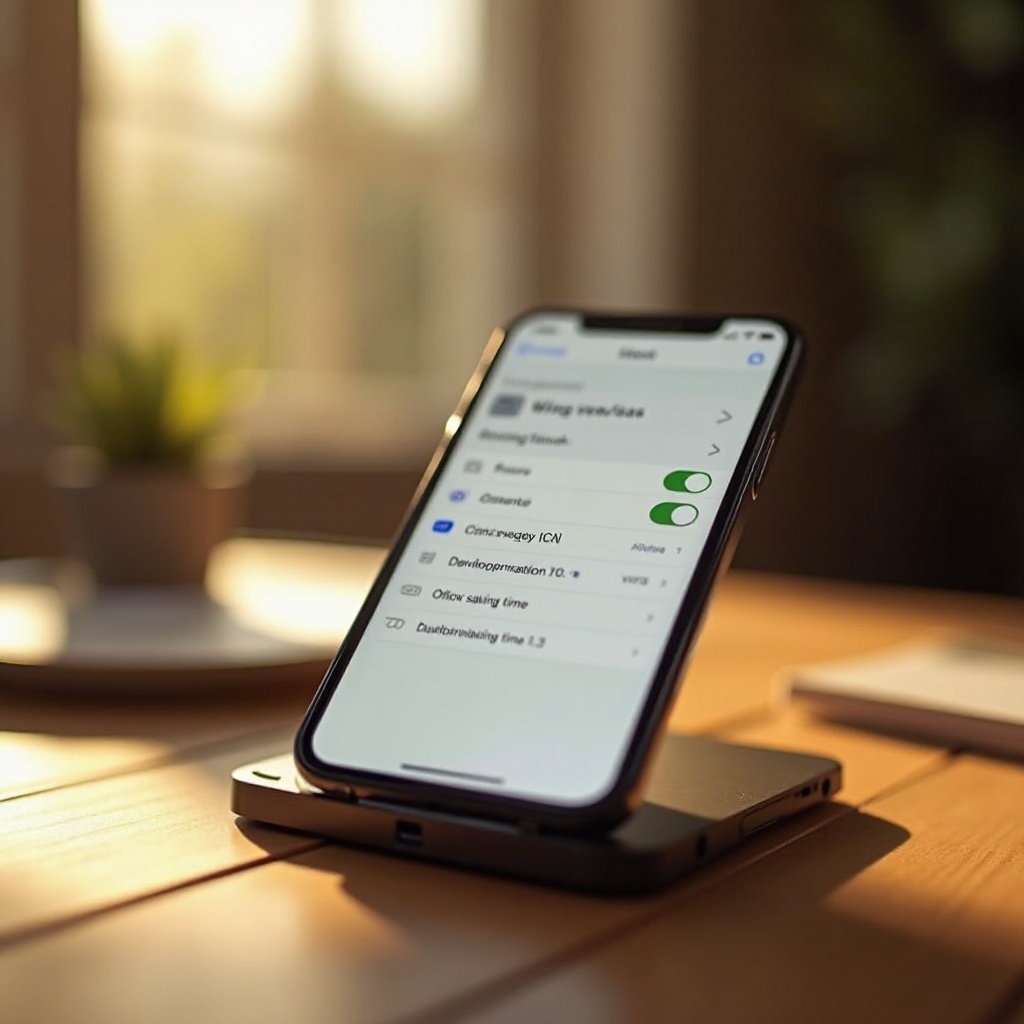
Default settings on iPhones usually allow times to update automatically by using the device’s location and system features. This means as DST begins or ends, your phone should automatically adjust, letting you focus on everything else rather than clock adjustments.
Importance of Software Updates
Software updates are crucial not only for new features and compatibility improvements but also for managing time changes. Updates include algorithms for time and location that ensure your iPhone adapts correctly to DST.
Manual vs. Automatic Time Settings on iPhones
While automatic updates provide convenience, some users prefer manual control depending on specific needs. Knowing when to opt for manual settings can impact how effectively your device handles DST.
Benefits of Automatic Updates
Choosing automatic updates ensures that your iPhone seamlessly adjusts time changes without any input from you. This minimizes human error and maintains punctuality across different time zones and DST periods, making it a reliable choice for most users.
When to Use Manual Settings
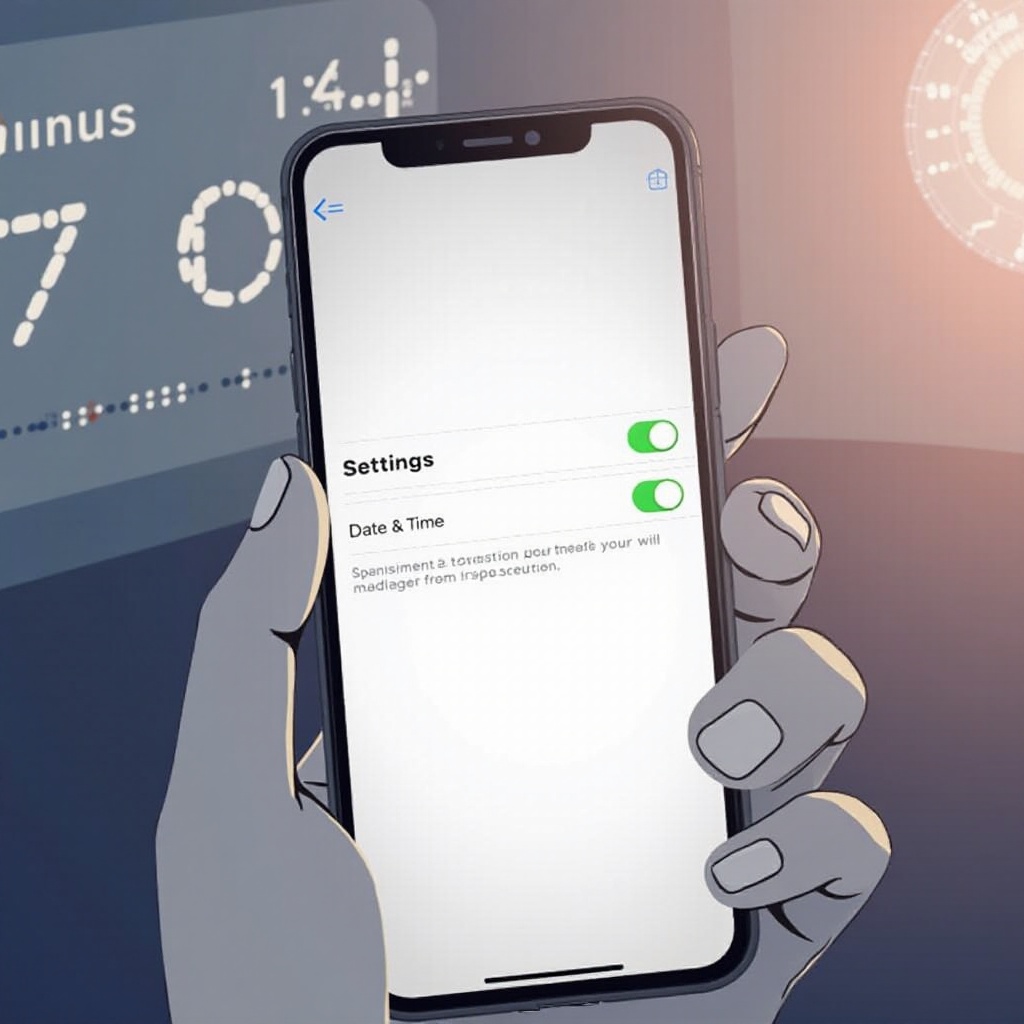
Some users may prefer to manage time settings manually due to particular business requirements or if they are in areas that do not observe DST. To set your time manually:
- Open Settings > General > Date & Time.
- Toggle ‘Set Automatically’ off to configure the time manually.
Troubleshooting Common Daylight Saving Issues on iPhone
Occasionally, iPhones may not update for DST as expected. Understanding common causes and solutions can help you resolve these issues quickly without requiring extensive technical expertise.
iPhone Time Not Updating
If your iPhone doesn’t update time automatically:
- Verify that ‘Set Automatically’ is enabled under Settings > General > Date & Time.
- Restart your iPhone to reset system processes.
- Ensure your device has the latest iOS update installed.
Adjusting Settings Manually
Even with automatic updates, anomalies can occur, causing incorrect time displays. Manually modifying your settings and enabling location services often resolves these issues.
Preparing Your iPhone for Daylight Saving Time
It’s advisable to prepare your iPhone for the upcoming DST. This ensures that time changes are handled effortlessly.
Checking Time Zone Settings
Confirm your iPhone’s time zone as accurate by:
- Navigating to Settings > General > Date & Time.
- Ensuring ‘Set Automatically’ is toggled on.
- Verifying that your time zone is correct.
Enabling Location Services
Location services play a pivotal role in ensuring your device accurately tracks and adjusts for time zone changes. Enable these features under Settings > Privacy & Security > Location Services.
Useful Apps and Tools for Daylight Saving Time
In addition to built-in settings, several apps offer additional functionality for managing DST effectively.
Recommended Apps
- World Clock: Keep track of current times globally to better manage your schedule.
- Time Zone Converter: Manage appointments seamlessly across different regions.
Features in Apple’s Clock and Calendar Apps
Apple’s Clock and Calendar apps offer robust capabilities that synchronize with your main settings, ensuring that all your schedules reflect accurate time. They help prevent mishaps during transitions, maintaining your daily routine effectively.
Conclusion
Handling daylight saving time transitions with an iPhone should be straightforward. While most changes happen automatically, staying informed and prepared reduces the likelihood of scheduling mishaps. By keeping your software updated, being mindful of settings, and using supportive apps, you can remain on time and in control.
Frequently Asked Questions
How do I check my iPhone’s time settings for daylight saving?
To check time settings, go to Settings > General > Date & Time, ensuring ‘Set Automatically’ is on.
Why doesn’t my iPhone update automatically for daylight saving?
Ensure ‘Set Automatically’ is active in settings and verify your iPhone’s iOS is updated. Restart your device if necessary.
Can I disable daylight saving time updates on my iPhone?
Disable automatic updates by going to Settings > General > Date & Time and toggling ‘Set Automatically’ off. Set time manually according to your preference.