Pairing Your Chromecast Remote: A Complete Guide for TV Enthusiasts
Introduction
The seamless use of Chromecast with your TV can significantly enhance your viewing experience. Correctly pairing your Chromecast remote with your television allows you to fully utilize its functionalities, from simple navigation to advanced features. Despite common challenges in the pairing process, such as compatibility or setup missteps, understanding the correct procedures will help ensure a smooth and successful connection.
Understanding Your Chromecast Remote
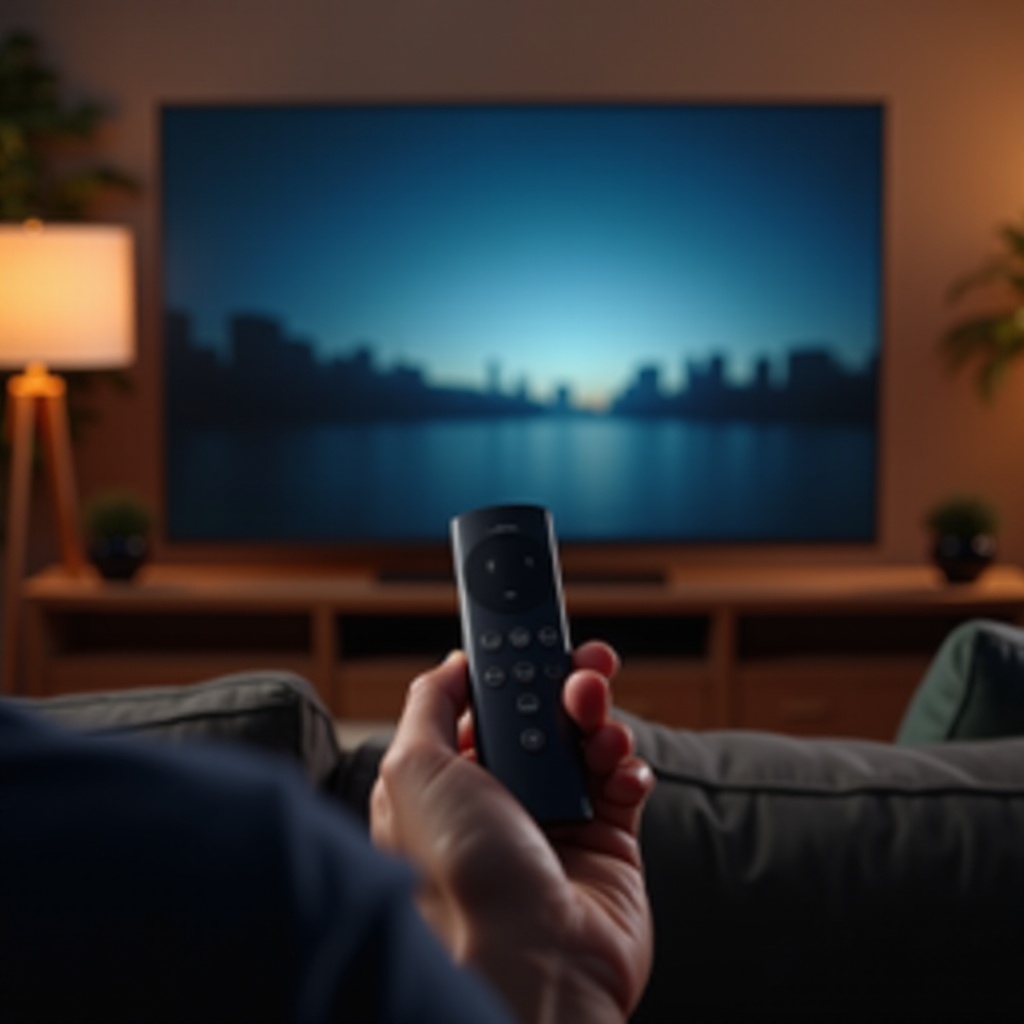
Before initiating the pairing process, it’s crucial to grasp the features and capabilities of the Chromecast remote. This understanding will guide you in making the most of the device.
Key Features
The Chromecast remote is equipped with features designed for ease and enhancement of your viewing experience:
– Voice Control: Use Google Assistant for voice-activated commands, making control hands-free and efficient.
– Navigation Buttons: Navigate through apps and settings with comfortable and intuitive buttons.
– Pairing Buttons: Simplifies the setup process, allowing you to get started quickly and smoothly.
Compatibility with Various TVs
Chromecast integrates with most TVs, but verifying compatibility ensures an uninterrupted setup:
– HDMI Ports: Check that your TV has functioning HDMI ports.
– Software Compatibility: Ensure your TV’s firmware is updated to avoid potential issues.
– General Compatibility: While new smart TVs are generally compatible, older models may require updates or adapters for seamless integration.
Preparing for Chromecast Remote Pairing
Proper preparation can save time and effort, ensuring your Chromecast remote pairs without a hitch.
What You Need
Preparation involves gathering these crucial components:
– Chromecast Device: Fully powered and ready for connection.
– Compatible TV: Your TV should be turned on and set to the correct HDMI input.
– Stable Wi-Fi Network: A steady internet connection is essential for setup and operation.
Initial Setup Tips
A few preparatory steps will make the setup process smooth and quick:
– Check Battery Levels: Confirm that your remote has fresh batteries to avoid interruptions.
– Manual Access: Have the Chromecast manual available for quick troubleshooting reference.
– TV Settings Familiarity: Understand your TV settings for potential adjustments during the setup.
Step-by-Step Guide to Pair Your Chromecast Remote
With everything prepared, you’re ready to pair your Chromecast remote with confidence.
Connecting the Remote
Follow these concise steps to connect your remote to the Chromecast:
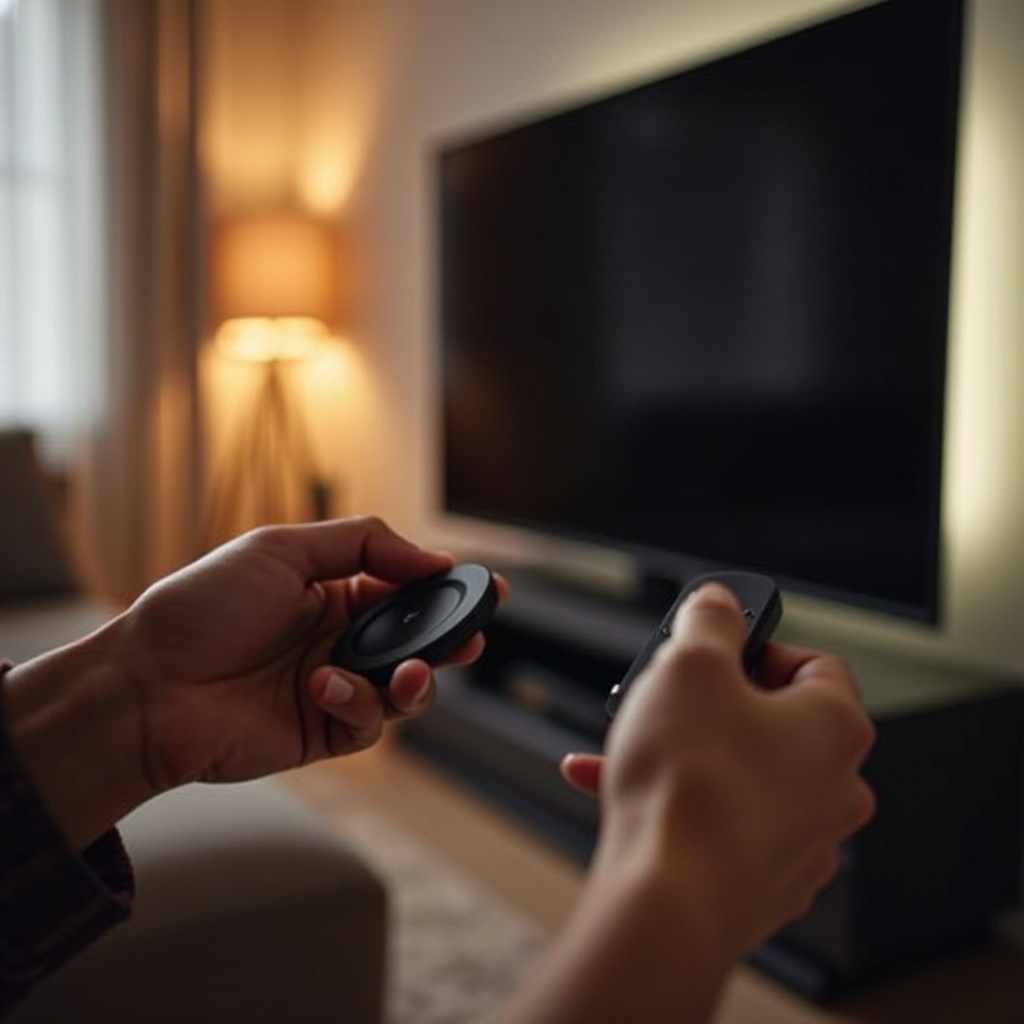
1. Activate Your TV: Ensure that your TV is on and set to the correct HDMI input where your Chromecast is plugged in.
2. Initiate Pairing Mode: Hold the pairing button on your Chromecast remote until you see the LED light blinking.
3. Follow Screen Prompts: Your TV will display instructions to assist with the setup.
4. Verify Connection: Try basic functions to ensure the remote is paired successfully.
Troubleshooting During Setup
When challenges arise during setup, these solutions may resolve common issues:
– Restart Both Devices: Restarting your Chromecast and TV usually fixes connectivity issues.
– Check Wi-Fi Stability: Ensure your internet connection is stable.
– Remote Reset: Hold the reset button for a reset if the setup process isn’t smooth.
Enhancing Your Viewing Experience with Chromecast
Paired successfully, your Chromecast can now offer an enriched viewing experience.
Using Voice Commands Effectively
Voice commands can maximize the usability of your remote:
– Media Exploration: Use voice commands to seamlessly search for shows or control volume.
– Smart Home Integration: Control other smart devices and manage tasks using the voice feature.
Optimizing Chromecast Settings
Adjust these settings to enhance how you interact with your device:
– Display Customization: Calibrate resolution and brightness settings for optimal viewing.
– Audio Configuration: Tailor audio settings to match the acoustics of your environment for a full immersive experience.
Troubleshooting Common Pairing Issues
Even after successful pairing, some challenges might arise. Knowing how to address these issues can prevent viewing interruptions.
Diagnosing Problems
When problems occur, identifying their cause is vital for a quick resolution:
– Secure Connections: Double-check all physical connections to ensure they are secure.
– Use LED Indicators: Pay attention to LED signals for troubleshooting insights.
– Stay Updated: Regularly update your Chromecast software for smooth functionality.
Quick Fixes and Advanced Solutions
For persistent issues, the following fixes may help:
– Perform a Factory Reset: A factory reset may solve deep-rooted issues.
– Reinstall Firmware: Freshly reinstalling firmware might resolve persistent software glitches.
Conclusion
Pairing your Chromecast remote correctly is key to maximizing your TV’s streaming potential. By following the detailed instructions provided, you can ensure a successful and smooth pairing process. Recognizing the capabilities of both your Chromecast device and remote allows for an enriched viewing experience. As you explore voice commands and adjust settings, enjoy the full entertainment possibilities your Chromecast offers.
Frequently Asked Questions
What should I do if my Chromecast remote won’t pair?
If your Chromecast remote doesn’t pair, try resetting the remote, checking your Wi-Fi connection, and ensuring your TV and Chromecast have the latest software updates.
Can I use the Chromecast remote with any TV?
The Chromecast remote is compatible with most modern TVs that have HDMI capabilities and the latest software updates. Older TVs may require additional equipment.
How do I update my Chromecast remote to the latest version?
To update your Chromecast remote, ensure your Chromecast device is connected to Wi-Fi. Updates usually occur automatically, but you can check your device’s settings for manual options.