How to Turn Display Off on Battery When Inactive to Save Laptop Battery Life
Introduction
Managing your laptop’s battery life effectively enhances productivity, especially during long stretches without charging opportunities. A key strategy involves optimizing display settings to turn off the screen when inactive. This method conserves energy and significantly extends battery longevity.
Understanding Display Power Management
Display power management automatically dims or turns off the screen after a period of inactivity. This feature is vital for energy efficiency and prolonging your device’s operational time.
What Does ‘Turn Display Off When Inactive’ Mean?
The system setting related to turning off the display dictates that the screen powers down if no activity is detected within a set timeframe. This limits energy consumption, thus reducing battery strain.
Benefits of Adjusting Display Timers
- Energy Conservation: Reduces active screen time to lessen battery usage.
- Extended Battery Life: Fewer charge cycles increase overall battery health.
- Prevention of OLED Burn-In: Prevents static image retention on OLED screens.
Recognizing these benefits helps us transition smoothly into the practical steps needed to implement these changes on Windows and MacOS systems.

Step-by-Step Guide for Windows Laptops
Configuring your display settings on a Windows laptop is a straightforward process easily accessible via system settings.
- Accessing Power & Sleep Settings
- Open the Start Menu and navigate to Settings.
- Select ‘System’ and choose ‘Power & Sleep.
-
Here, you can adjust screen and sleep settings for both battery power and when plugged in.
-
Customizing Display Turn Off Timer
- Under the Screen option, decide on an inactivity period to turn off the display when on battery.
- A 5-10 minute setting is recommended for ideal power conservation without productivity disruption.
Following these steps ensures that Windows laptops efficiently manage power consumption, setting the stage to customize similar settings on MacOS devices.
Customizing Display Settings on MacOS Laptops
For MacOS users, modifying sleep settings is straightforward and crucial for optimizing battery life.
- Navigating System Preferences
- Click on the Apple Menu and select ‘System Preferences.
-
Go to ‘Battery’ and then ‘Power Adapter’ to access sleep settings.
-
Setting Display Sleep Timers
- Adjust the slider under ‘Turn display off after’ to set your desired inactivity period.
- Opting for 3 to 15 minutes depending on your usage and energy-saving preference is ideal.
With these steps, MacOS users can effectively manage their device’s battery life. We move next to additional tips that further enhance efficiency.
Tips to Optimize Battery Performance Further
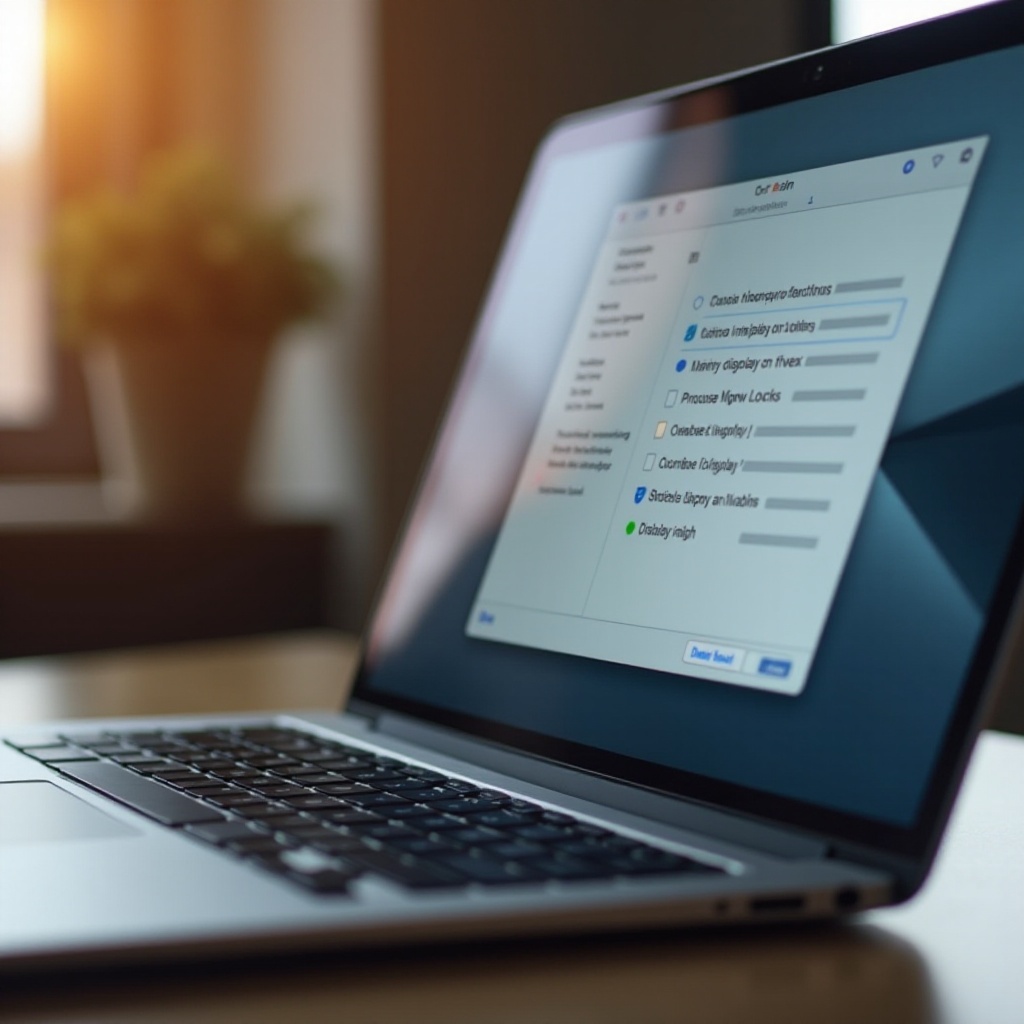
Adjusting display settings is part of a larger strategy for conserving energy. These additional measures help maximize battery efficiency:
- Adjusting Brightness Levels for Battery Saving
- Lower screen brightness to a comfortable level that still conserves power, especially in dim environments.
-
Use adaptive brightness settings, when available, to automatically adjust brightness based on ambient light.
-
Enabling Battery Saver Modes
- For Windows, activate Battery Saver mode via Settings > System > Battery.
- On MacOS, enable ‘Low Power Mode’ through Battery settings in System Preferences.
These strategies complement display management techniques, providing comprehensive battery life preservation, as we explore further advanced settings.
Additional Strategies for Better Battery Efficiency
Beyond display timeouts and brightness adjustments, you can enhance power usage with smarter settings.
- Using Automated Display Adjustments
- Utilize software and system tools that alter display settings based on usage and activity.
-
Features such as Night Light on Windows or Night Shift on MacOS reduce blue light emissions, conserving energy and protecting eyes.
-
Exploring Dark Mode and Night Light Features
- Activate Dark Mode to save on OLED screens, using less energy by displaying darker colors.
- Enable Night Light to lower blue light levels, benefiting both energy conservation and user comfort.
Combining these strategies offers a holistic approach to managing power consumption, ensuring a happy balance between battery efficiency and device usability.
Conclusion
Maximizing laptop battery life requires a mix of adjusted display settings and simple power-saving tactics. By turning off the display when inactive and implementing the outlined strategies, you ensure enhanced efficiency and longer battery life.
Frequently Asked Questions
How does turning off the display when inactive help save battery?
Turning off the display when inactive reduces power consumption, offering a straightforward yet effective way to save energy.
What is the ideal display timeout setting for better battery efficiency?
Setting the display timeout to 5-10 minutes of inactivity balances battery conservation with productivity.
Are there additional tools to manage display settings on laptops?
Yes, various third-party apps and built-in features on Windows and MacOS enhance display management, providing more control over power usage.