How to Factory Reset Your Blink Camera: A Comprehensive Guide
Introduction
Blink Cameras are an essential part of many smart homes, enhancing security with their user-friendly features. But sometimes, issues may arise that hamper performance. Performing a factory reset can restore your camera to its default settings, eliminate glitches, and ensure optimal functionality. With the information in this guide, you’ll keep your security system running smoothly and efficiently handle any issues that arise.
Understanding Blink Camera Models
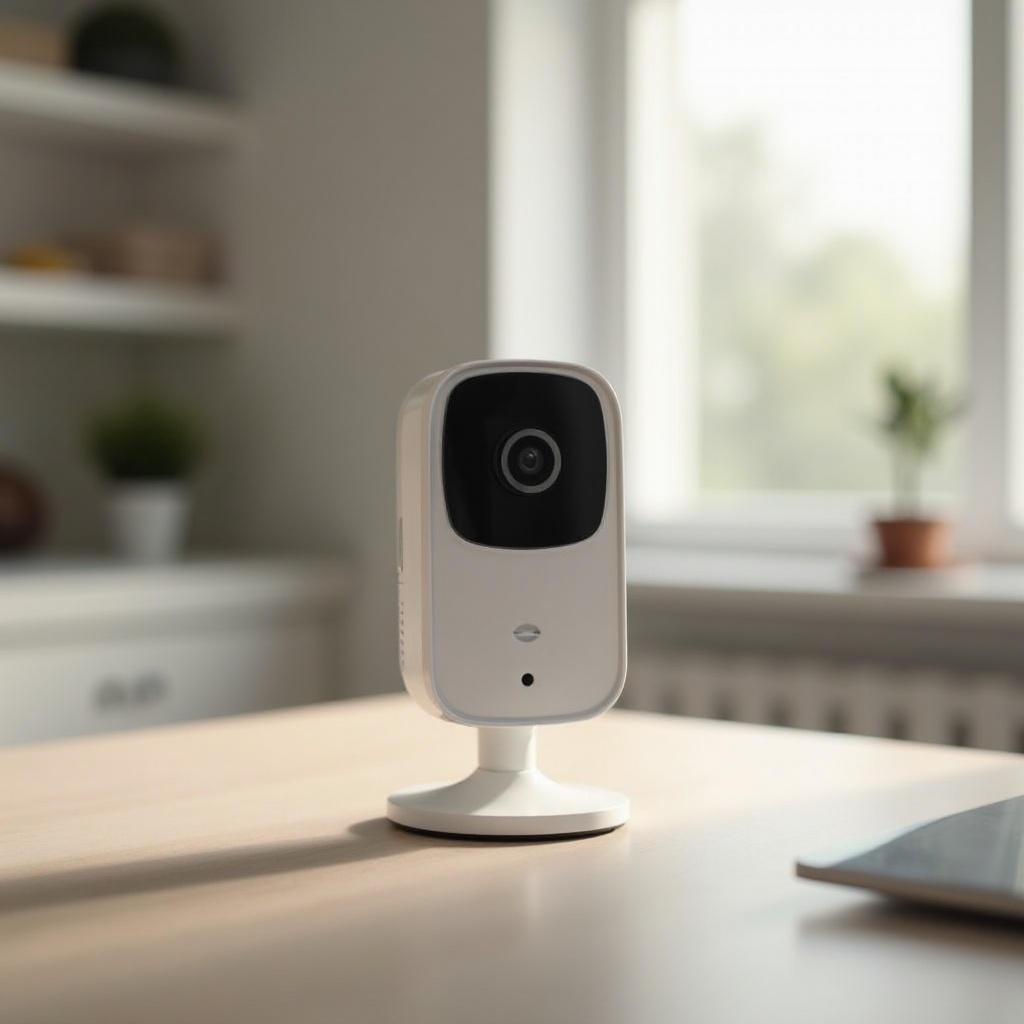
With various Blink Camera models available, each comes with unique features designed to meet different security needs. Whether you’re using a Blink Outdoor, Blink Mini, or a Blink Indoor model, understanding your specific camera’s functionalities is crucial. Each model follows slightly different installation and reset procedures. Familiarizing yourself with your camera model beforehand will make the reset process more efficient and address any model-specific challenges effectively.
For instance, the Blink Outdoor camera is weather-resistant, making it suitable for surveillance in outdoor environments, while the Blink Mini is a compact, plug-in device more suited for indoor monitoring. Recognizing these differences enhances your ability to perform a reset correctly.
Reasons to Factory Reset Your Blink Camera
You might need to factory reset your Blink Camera for several reasons. Whether to resolve persistent connectivity issues, fix performance glitches, or as the final remedy when other troubleshooting steps fail, resetting can often restore your camera’s optimal performance. Additionally, if you are selling or passing on your camera, resetting ensures all personal data is efficiently cleared.
Preparations Before Factory Resetting
Before initiating a factory reset, critical preparatory steps are needed to ensure a smooth process:
-
Back Up Your Settings: Save all necessary camera settings and configurations to restore them after the reset effortlessly.
-
Check for Software Updates: Sometimes, simply updating your camera’s firmware can resolve many issues without needing a reset. Ensure your device is running the latest version.
These preparatory measures will ease the transition after the reset and prepare your device for hassle-free reconfiguration.
Step-by-Step Guide to Factory Reset Your Blink Camera
Resetting your Blink Camera requires accessing the model-specific reset button. Here’s how:
-
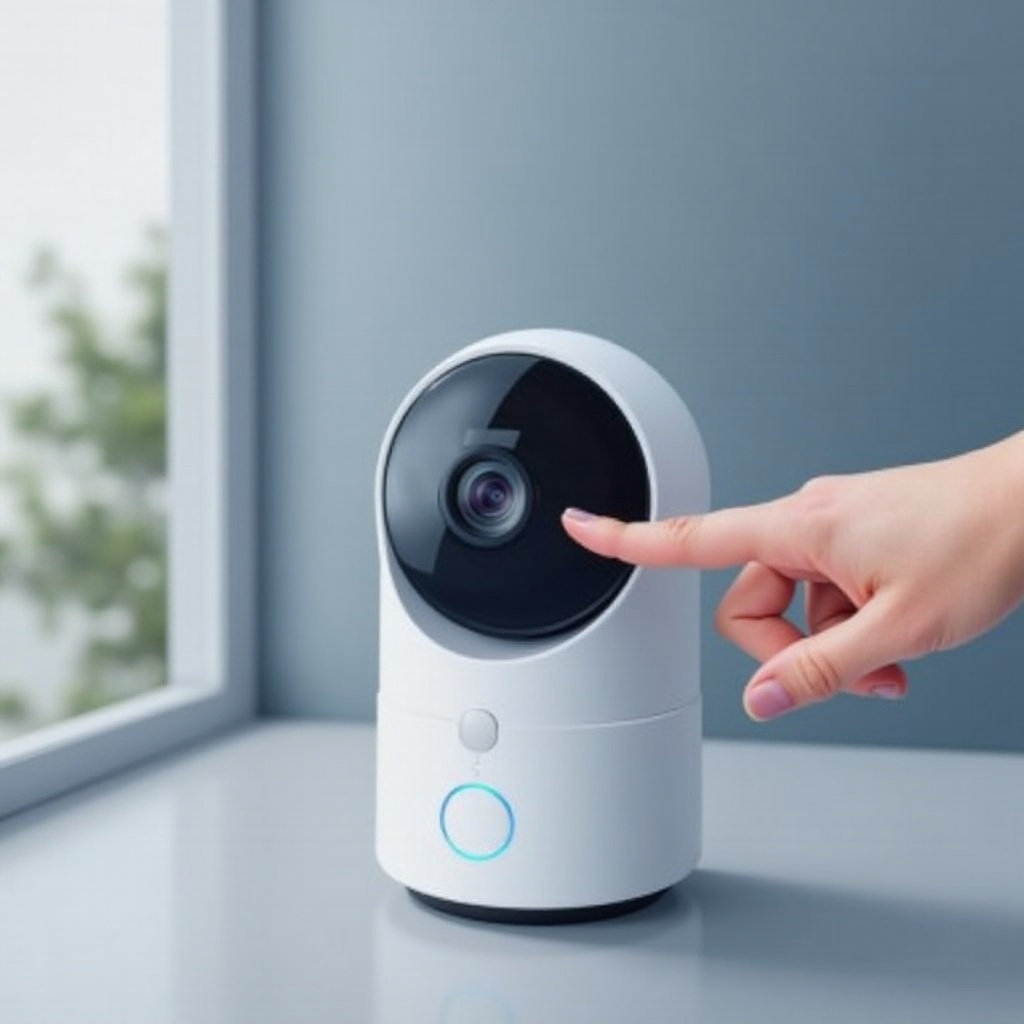
Locate the Reset Button: Use your camera manual to find the reset button—it’s usually located on the camera’s back or bottom.
-
Perform the Reset:
- For Blink Outdoor and Indoor Models: Use something thin like a paperclip to press and hold the reset button. Watch for the camera LED to flash red, signaling a reset.
-
For Blink Mini: Press and hold the reset button until the LED turns solid blue.
-
Reboot Your Camera: Allow the camera a few minutes to reboot fully, ensuring it remains powered throughout.
Following these steps ensures your camera returns to factory condition, solving persistent issues and clearing all prior settings.
Post-Reset Procedures
After the reset, take these steps to bring your Blink Camera back online:
-
Reconfigure Network Settings: Reconnect the camera to your Wi-Fi by entering your network credentials again. This step ensures a stable connection.
-
Restore Previous Configurations: Use your backup to reapply settings you had before the reset. This saves time, ensuring your camera quickly returns to its prior setup.
By handling these post-reset actions, your camera will be seamlessly reintegrated into your smart home network.
Common Troubleshooting Tips After Reset
Sometimes, additional issues can arise even after a reset. Address these with the following tips:
-
Resolve Connectivity Issues: Ensure your camera is within Wi-Fi range and free of interference. Adjust positions as needed.
-
Optimize Performance: Regularly install updates as they become available to enhance your device’s functionality and reliability.
These troubleshooting measures help maintain your Blink Camera’s effectiveness long after the reset.
Integrating Blink Cameras into Your Smart Home Ecosystem
Blink Cameras are integral to a holistic smart home setup. Integrating with systems like Amazon Echo or Google Home allows for seamless voice control and heightened security.
-
Compatibility with Other Smart Devices: Ensure your Blink Camera works harmoniously with other devices in your home for maximum operational efficiency.
-
Security Enhancements: Combining live view features and two-way audio with other smart devices bolsters your home’s defence systems.
Smart integration not only improves comfort but also provides peace of mind with enhanced security.
Best Practices for Maintaining Blink Cameras
Proper maintenance is essential to ensure your Blink Camera’s longevity and effectiveness.
-
Regular Maintenance Tips: Keep camera lenses clean for clear images. Regularly inspect the device for any damage or signs of wear.
-
Ensuring Optimal Performance: Position the camera for a broad view with strong Wi-Fi connectivity to prevent connection drops.
Adhering to these practices will ensure your Blink Camera continues performing at its best over time.
Conclusion
Factory resetting your Blink Camera is a straightforward yet effective way to resolve ongoing issues and maintain optimum performance. By following this guide, resetting and reintegrating your camera into your smart home network becomes seamless, ensuring robust and reliable security.
Frequently Asked Questions
Can I reset my Blink Camera without losing data?
A factory reset will erase all settings, so it’s crucial to back up your data before proceeding.
How often should I reset my Blink Camera?
Reset your camera only when facing substantial issues or before transferring ownership to ensure data security.
What should I do if my Blink Camera doesn’t reset successfully?
If a reset fails, ensure the reset button is pressed correctly, and the device is adequately powered. If issues persist, contact Blink support for assistance.