How to Connect Your Chromecast to Hotel WiFi: A Comprehensive Guide
Introduction
Travelers often miss their home entertainment systems when staying in hotels. Fortunately, with a Chromecast, you can bring your favorite streaming experiences with you. However, connecting a Chromecast to hotel WiFi can be challenging due to network restrictions. This guide will walk you through the process to ensure you enjoy your favorite shows and movies without interruption.
Understanding the Basics of Chromecast
To get started, it’s essential to understand what Chromecast is and why it’s a favorite among travelers.
What is Chromecast?
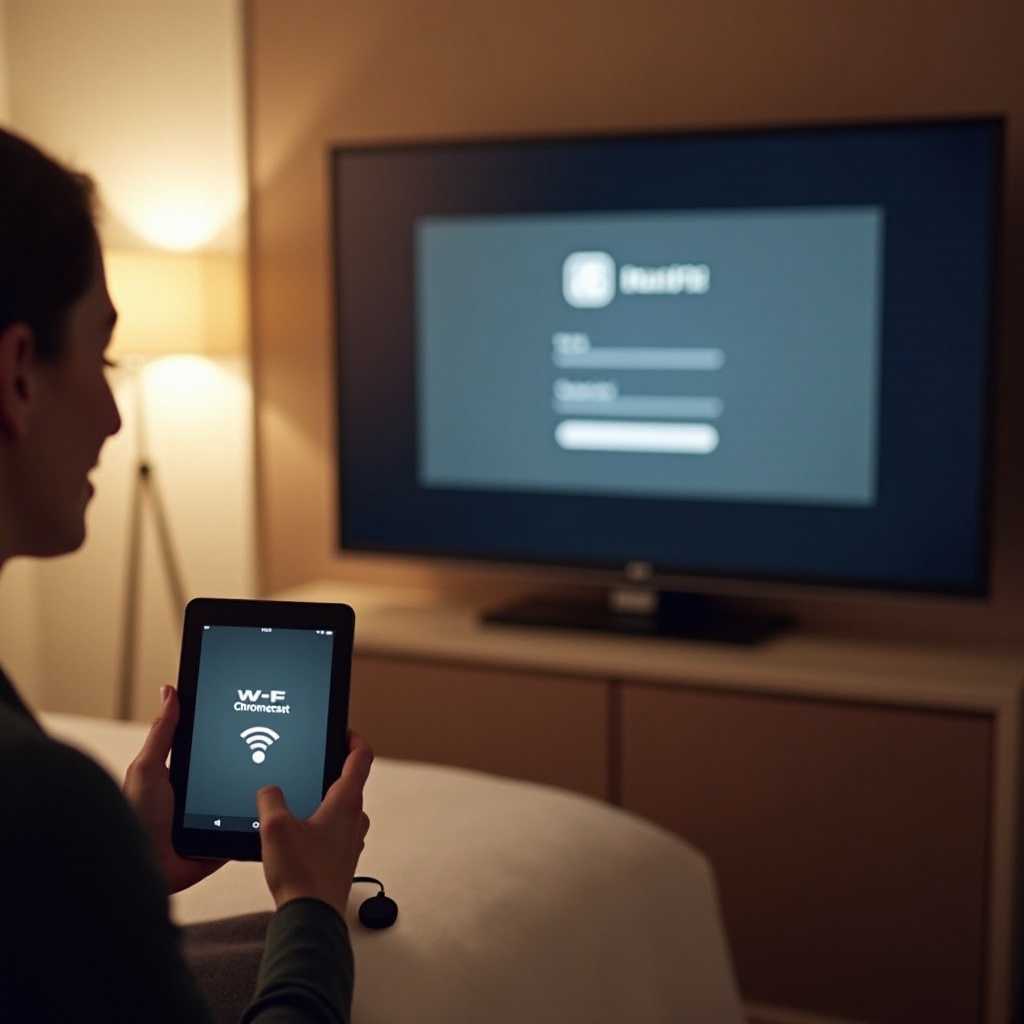
Chromecast is a streaming device developed by Google that enables users to stream content from a phone, tablet, or computer directly to a television. Its compact size makes it ideal for travel, and it supports streaming from platforms such as Netflix, YouTube, and Spotify.
Key Features for Travelers
- Portability: Its small size allows you to take it anywhere.
- Ease of Use: With easy setup and straightforward apps, it’s designed for users of all tech levels.
- Compatibility: Works with a wide array of devices, providing extensive content access.
Preparing Your Chromecast for Hotel Use
Proper preparation can prevent many potential issues during your stay. Here’s how to get ready before leaving for your trip.
What to Pack
- Chromecast Device: Include the power cable and adapter.
- Compatible Device: Ensure you have your phone, tablet, or laptop.
- HDMI Cable: Useful if the hotel’s TV doesn’t have one.
- Portable Router: Very effective in overcoming WiFi restrictions.
- USB Power Adapter: Necessary as some TV USB ports may not provide adequate power.
Updating Your Chromecast Firmware
Before departing, ensure your Chromecast is running the latest firmware to avoid software issues:
– Connect your Chromecast to your home network.
– Open the Google Home app.
– Check for updates under ‘Device settings’.
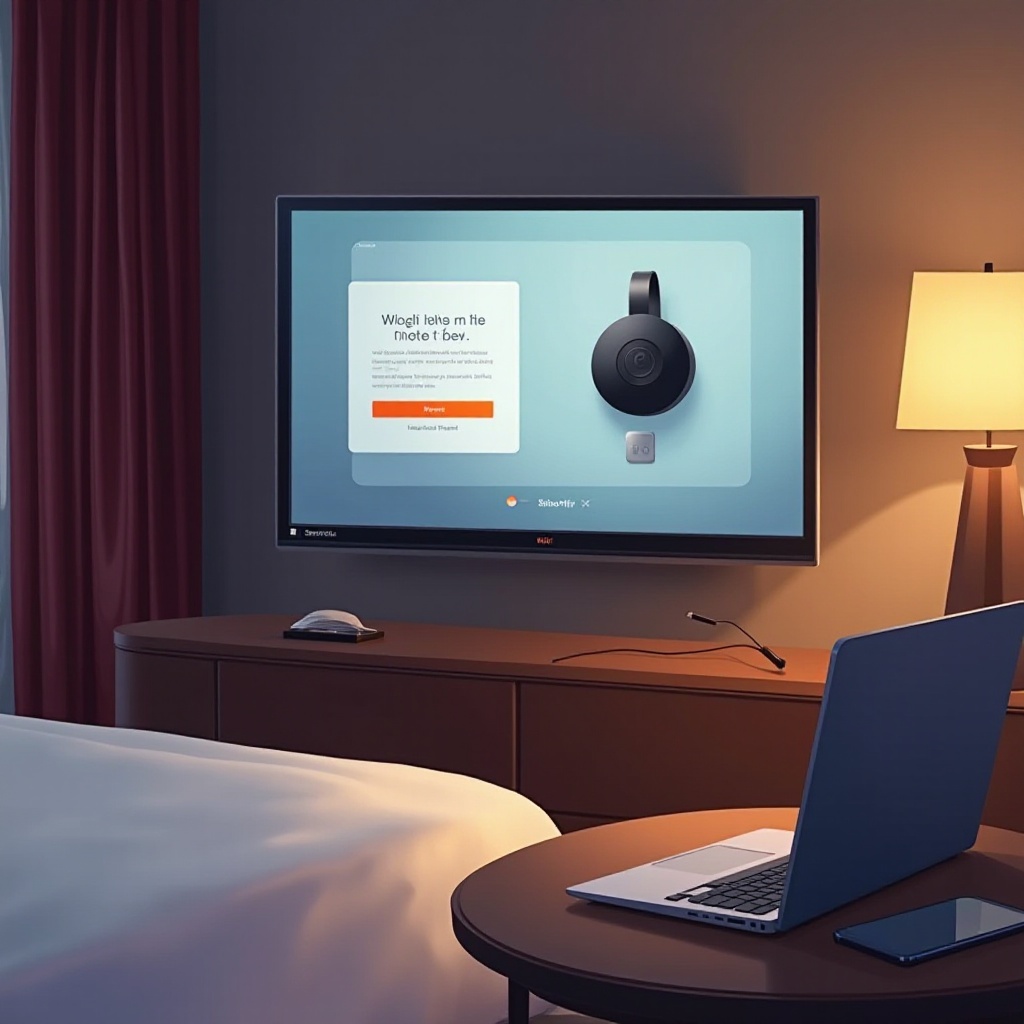
Connecting Chromecast to Hotel WiFi
Now that you’re prepared, let’s explore connecting your Chromecast to the hotel network, which often involves unique steps due to security measures.
Step-by-Step Guide to Hotel WiFi Setup
- Plug In: Insert your Chromecast into the TV’s HDMI port and power it up.
- Switch Input: Use the TV remote to select the correct HDMI input.
- Download/Launch the Google Home App: If not installed, download it from your device’s app store.
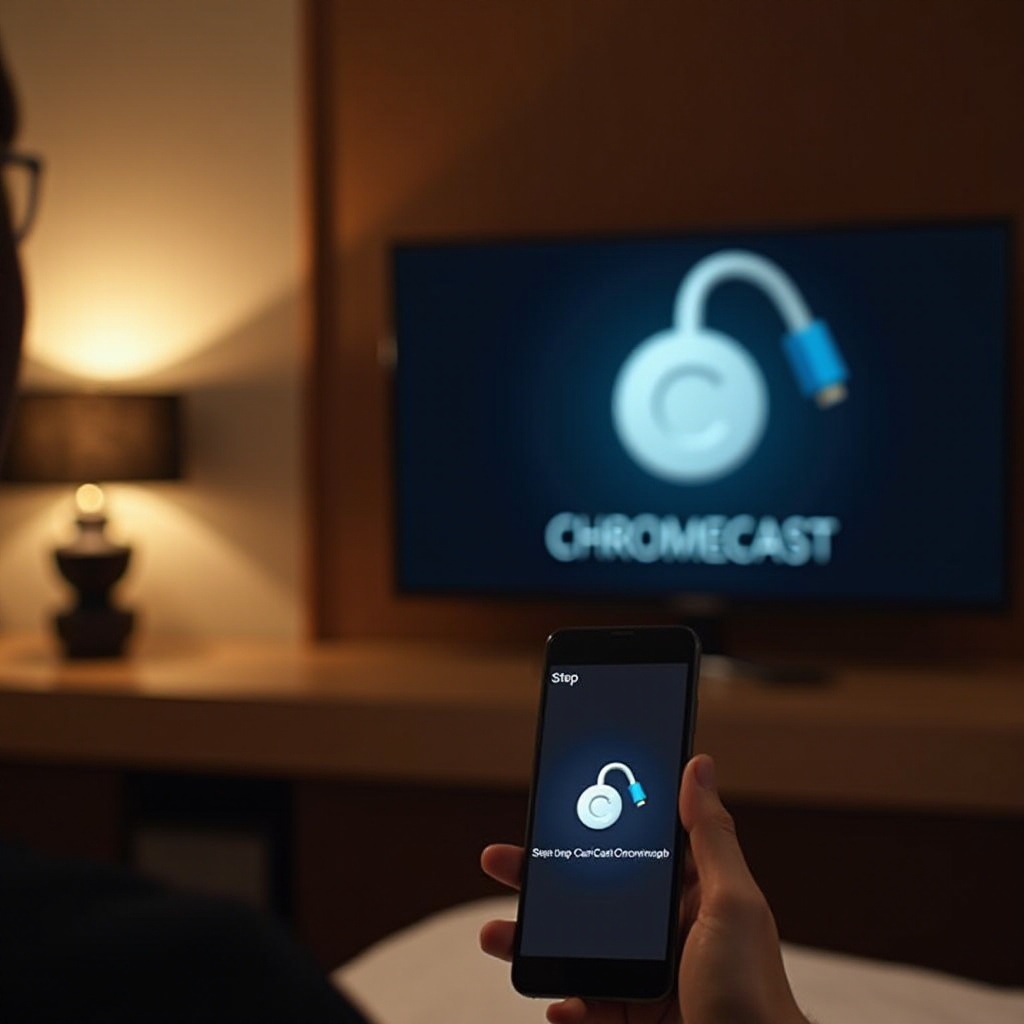
- Set Up Device: Select ‘Set up device’ in the app and choose your Chromecast.
- Connect to WiFi: Follow the instructions to connect to the hotel’s WiFi network, entering the network’s password if necessary.
Navigating Captive Portals
Many hotel networks use captive portal logins that Chromecast cannot process directly. Overcome this by:
– Using your phone to connect to WiFi and complete the login.
– Creating a mobile hotspot with your phone and connecting Chromecast.
Leveraging Travel Routers for Improved Connectivity
For a more reliable connection, consider using a travel router. It provides a private network that simplifies the connection process.
Benefits of Using a Travel Router
- Avoids Captive Portals: Connects to the hotel’s network once and creates a secure WiFi signal.
- Consistent Connection: Ensures stable links to your Chromecast.
- Multi-Device Use: Enables all of your devices to share the internet connection.
Configuring a Travel Router
- Connect Travel Router to Hotel WiFi: Follow the guide provided by the manufacturer.
- Connect Your Devices: Use the router’s new signal to link your Chromecast and other devices.
Alternative Solutions: Mobile Hotspots and More
If a travel router isn’t an option, your smartphone offers viable alternatives through its built-in hotspot capabilities.
Setting Up a Smartphone Hotspot
- Verify Plan: Confirm that your phone plan supports tethering.
- Turn on Hotspot: Navigate to settings to enable your mobile hotspot.
- Connect Devices: Connect Chromecast and other devices to this network.
Other Wireless Options
- Personal Mi-Fi Device: Portable internet similar to a hotspot.
- USB Ethernet Adapter: Use a wired connection if hotel WiFi is weak.
Troubleshooting Common Connection Issues
Even with preparation, issues may occur, but are often easily resolved.
Common Problems and Solutions
- Buffering/Lag: Minimize network usage from other devices.
- Can’t find Chromecast: Ensure both the Chromecast and your device are on the same network.
Tips for Enhancing WiFi Signal
- Router Placement: Position the travel router near the door or window if it’s in use.
- Reduce Interference: Keep other electronics away from your setup.
Conclusion
Connecting your Chromecast to hotel WiFi doesn’t have to be complicated. By following these instructions and utilizing tools like travel routers or mobile hotspots, you can ensure a smooth streaming experience, letting you enjoy your favorite shows and movies anywhere.
Frequently Asked Questions
Can I connect Chromecast without a WiFi network?
While Chromecast typically requires WiFi, using a mobile hotspot or Ethernet adapter can bypass this need.
Why does my Chromecast not connect to the hotel WiFi?
The hotel’s network settings might require a login or have a portal that Chromecast cannot handle. A travel router can overcome this.
What security measures should I consider while using Chromecast in hotels?
Ensure your network is secure. Using a VPN through a travel router can help encrypt your data for added security.