Best Sound Equalizer Settings for TV
Introduction
Enhancing your television experience isn’t just about picture quality; sound plays a crucial role too. A dynamic audio profile can transport you into the heart of the action, making your viewing immersive and memorable. By understanding and optimizing the sound equalizer settings on your TV, you can tailor the audio to your preferences, whether you’re watching a blockbuster movie, following the highlights of a sports event, or listening to a concert from the comfort of your living room.
Understanding Sound Equalizers for TV
What is a Sound Equalizer?
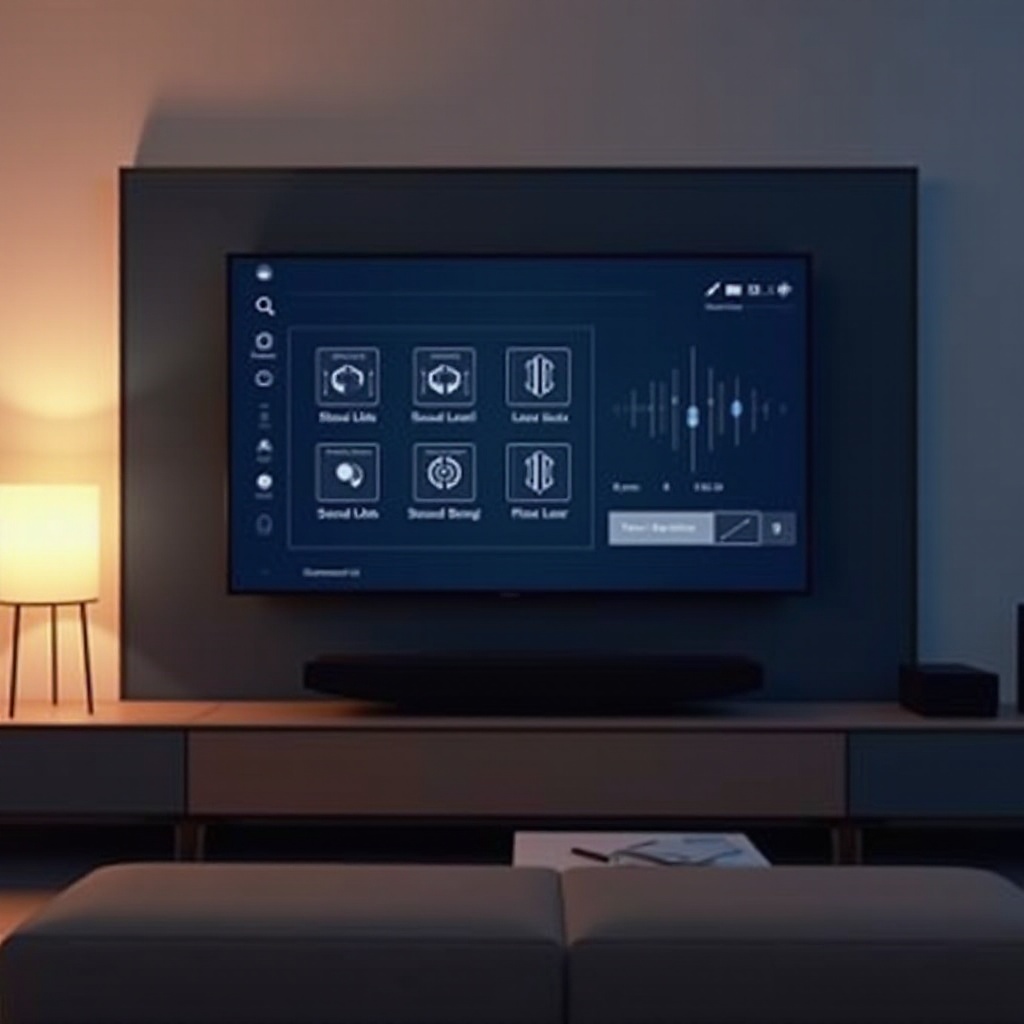
A sound equalizer allows you to manipulate frequency levels to fine-tune audio output. In simpler terms, it lets you adjust the balance of sound components like bass and treble, tailoring the listening experience to your liking. For TV audio, an equalizer enables adjustments that can significantly enhance the sound quality of broadcasts and streaming content.
How Equalizers Impact Audio Quality
Through precise adjustments, equalizers enable enhanced clarity and depth. Whether increasing bass to enrich loud, impactful scenes or nudging treble up for clearer dialogue, equalizers let you refine the sound profile to heighten listening pleasure. This customization ensures you can match the audio output to both content type and personal preferences, achieving a truly theatrical experience at home.
Common TV Equalizer Settings
Bass, Treble, and Balance
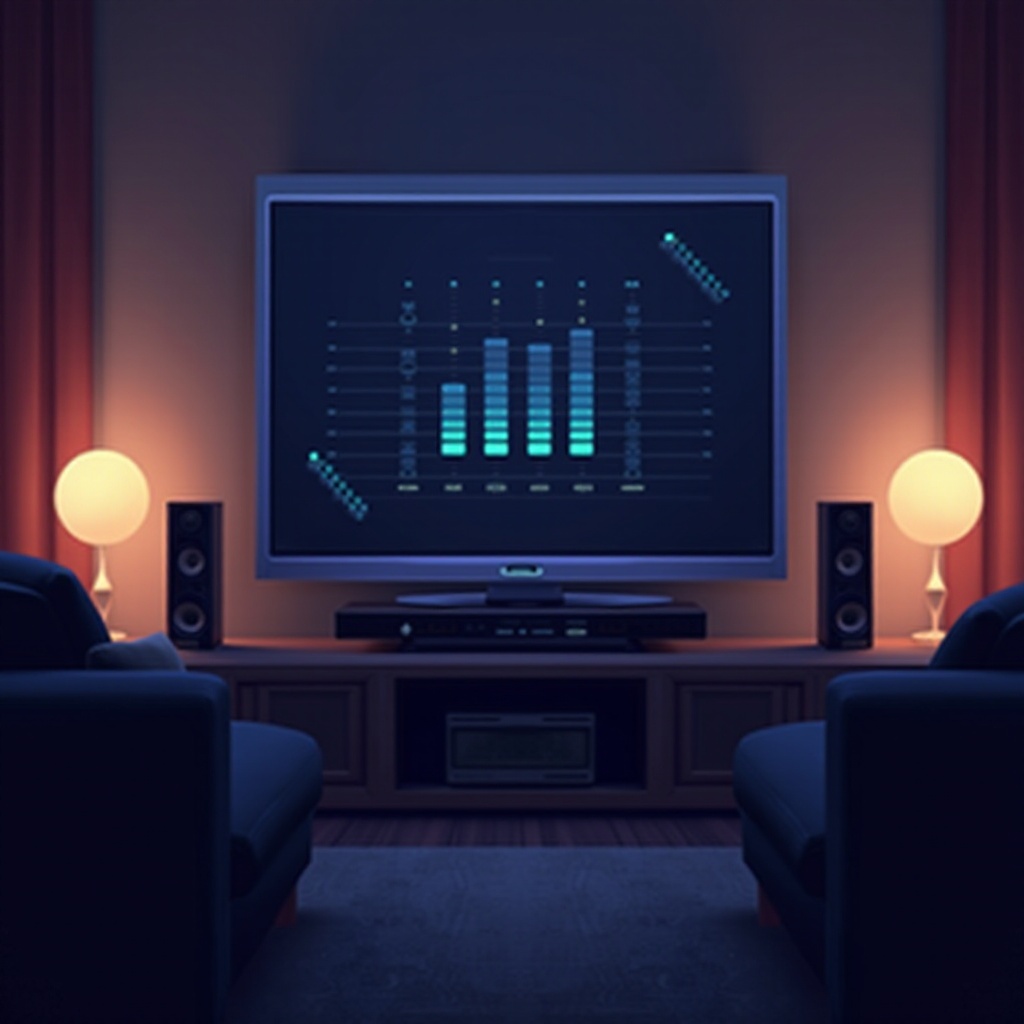
Your television’s sound settings typically offer control over bass, treble, and balance—a trio essential for sound customization:
- Bass: Augments lower sound frequencies, adding depth and fullness, especially critical in action-packed movies.
- Treble: Emphasizes high frequencies, enhancing clarity and making details like speech sharp and distinct.
- Balance: Adjusts the level between left and right channels, key for a well-rounded soundstage, especially in stereo setups.
Preset Modes vs. Manual Customization
Many TVs come with preset sound modes tailored for different viewing experiences—Movie, Sports, Music, etc. While these presets offer a convenient starting point, they often lack the precision needed for personalized audio refinement:
- Preset Modes: Designed for ease, providing a quick performance boost.
- Manual Customization: Empowers you to specifically adjust frequency bands, offering nuanced control tailored to your environment and preferences.
When you move beyond presets to manual customization, you unlock the potential for an audio experience perfectly aligned with your tastes.
Optimal Equalizer Settings for Different Content Types
Movies and Cinematic Experiences
When enjoying films, you want an audio setup that immerses you fully:
- Boost the Bass: This heightens the impact of sound effects and music scores.
- Adjust Treble Moderately: Keeps dialogues coherent alongside dramatic sounds.
- V-shaped Curve: Emphasizes both low and high frequencies, perfect for achieving dynamic soundscapes.
Sports and Live Events
For sports, clarity ensures you catch every detail:
- Enhance Mid-range Frequencies: Captures ambient sound and audience energy.
- Strengthen Treble: Ensures that commentary remains crisp and clear.
- Balance Sound: Provides an even audio field, crucial when watching with friends.
Music and Concerts
Music lovers will appreciate settings that prioritize both clarity and richness:
- Flat Settings: Ideal for classical music where purity is paramount.
- Boost Bass for Beats: Essential for genres like rock and dance music.
- Increase Treble for Vocals: Highlight vocals in genres such as folk and opera.
General TV Shows and News
For everyday TV content, focus on comfort and clarity:
- Maintain Moderate Settings: Ensures sound does not overpower dialogue.
- Enhance Speech: Adjust settings to bring forward voices in talk shows and news.
Customizing your equalizer settings based on content type maximizes your TV’s potential, delivering the best audio experience for whatever you watch.
Manual Adjustment: Fine-Tuning Your Sound Settings
Step-by-Step Guide to Accessing Settings
To perfect your audio, manual adjustments can be the most rewarding.
- Access the Sound Menu: Utilize your remote to navigate to settings.
- Select Equalizer Options: Enter the sound or audio settings to find the equalizer.
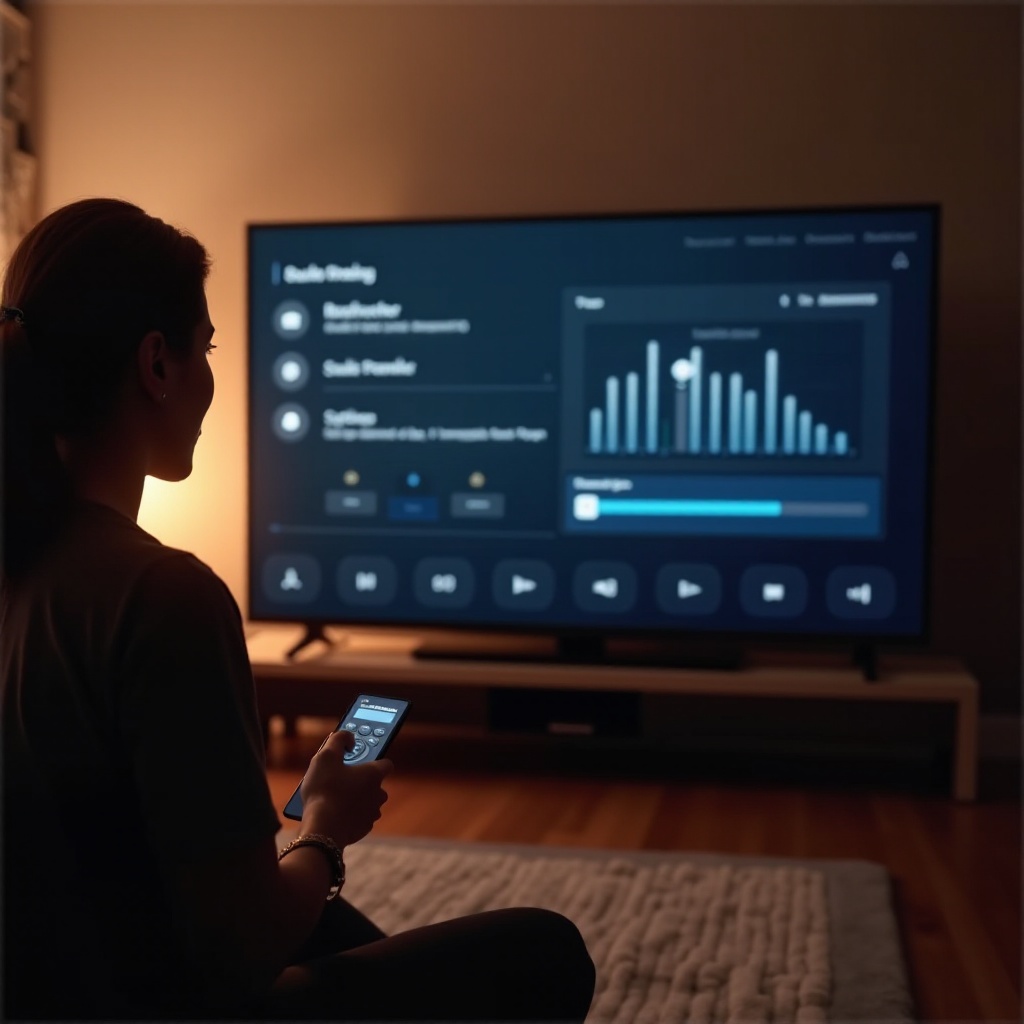
- Modify Frequency Sliders: Tweak bass, mid, and treble to suit your listening needs.
- Experiment and Update: Test adjustments with different content and refine them for balance.
Tips for Testing Based on Room Acoustics
Consider your surroundings as sound interacts with them differently.
- Larger Rooms: May require elevated bass for fuller sound.
- Echo-prone Spaces: Benefit from reduced treble to soften sound.
- Soft Furnishings: Absorb sound, so boosting certain frequencies might help.
Understanding your room’s acoustics ensures that adjustments made via the equalizer enhance rather than detract from sound quality.
Creating Custom Audio Profiles
When and Why to Set Custom Profiles
Custom profiles are crucial for households that frequently switch between different types of content:
- Frequent Viewers: Easily transition between setup for gaming, movies, and music.
- Preferences Matter: Personal settings allow for a finely tuned experience unique to your hearing and room setup.
Using User Settings and Memory Functions
Make the most of your TV’s ability to remember settings:
- Memory Functions: Save your personally tuned settings for easy future access.
- Multiple Profiles: Some models allow for different profiles, catering to varied tastes within a household.
By creating and utilizing custom profiles, you streamline the process of optimizing sound based on what you’re watching or who is watching.
Troubleshooting Sound Issues
Identifying Common Audio Problems
Despite your best efforts, audio issues can still arise:
- Tinny Sound: Often fixed with a decrease in treble settings.
- Muffled Audio: Adjusting treble upwards can enhance clarity.
- Imbalanced Output: Recheck balance if sound skews to one side.
Making Adjustments for Room Size
Room characteristics can cause unforeseen sound challenges:
- Echo Management: In echo-heavy rooms, reducing treble might help.
- Bass Distortion: In larger areas, increase bass to maintain power and presence.
Identifying and re-calibrating your settings for spatial considerations ensures consistent audio quality regardless of where your TV is set up.
Conclusion
By delving into the equalizer settings of your television, you’re not just adjusting sound; you’re transforming your viewing experience. Fine-tuning these settings enhances engagement and enjoyment, whether it’s explosive action scenes, captivating narratives, or heart-thumping musical performances, ensuring your TV audio is always tailored perfectly to suit your needs.
Frequently Asked Questions
How often should I adjust my equalizer settings?
It’s beneficial to adjust settings whenever you switch content types or as your personal preferences evolve, ensuring optimal sound quality.
Can external speakers improve TV sound quality?
Yes, external speakers or soundbars can significantly enhance audio performance, offering more powerful output and customization options.
Are there apps for better sound customization?
Several apps provide advanced control over audio settings for smart TVs, offering enhanced customizability beyond standard options.