Audio Delay Vizio Sound Bar: The Complete Lip‑Sync Fix Guide
Introduction
Lip‑sync problems make any TV setup feel broken. You press play, the actor speaks, and the words arrive late. This guide gives you a clear, practical path to fix audio delay on a Vizio sound bar fast and keep it fixed. You will learn how your connection choice affects latency, which TV and device settings to change, and how to tune the bar for clean timing. You will also see quick fixes that often solve the problem in under a minute. When you need deeper changes, you will know exactly what to adjust and in what order. We will walk through ARC and eARC, optical, and Bluetooth, then cover Apple TV, Roku, Fire TV, Chromecast, PS5, Xbox, and Switch. Clear steps and short tests will help you confirm each change. Once you finish, dialogue and effects will line up, and your system will stay stable across apps and inputs.
Quick Fixes for Audio Delay on Vizio Sound Bar
Start with fast resets before you change formats or cables. These actions clear stuck handshakes and bad app states. They often resolve lip‑sync drift without deeper work. They also give you a clean baseline for the next sections.
Power‑cycle TV, sound bar, and sources
- Turn off and unplug the TV, Vizio sound bar, and every source device.
- Wait 60 seconds so capacitors discharge and HDMI states clear.
- Plug in the sound bar first, then the TV, then sources. Power up in that order. HDMI devices negotiate formats on boot, and a clean start can fix timing.
Switch inputs or change app and retest
- Switch the TV to a different HDMI input, wait a few seconds, then switch back.
- Launch a different app or channel and play a known clip with clear dialogue.
- If sync returns, the issue may be isolated to one input, cable, or app.
Toggle TV audio out and refresh CEC or eARC
- Set the TV’s Audio Out to TV Speakers, then back to ARC or eARC. For optical, set Digital Audio Out to Bitstream or PCM and back.
- Disable CEC and eARC, reboot the TV and bar, then re‑enable both.
- Confirm the Vizio bar displays ARC or eARC when expected.
Test Passthrough vs PCM briefly
- In the TV audio menu, toggle Digital Audio Out between Passthrough and PCM.
- Passthrough often reduces delay over ARC or eARC. PCM can help with some streamers.
- Keep the mode that sounds in sync. We will refine this when we pick a connection path.
This quick sweep either fixes the audio delay Vizio sound bar issue or prepares your system for deeper optimization. If you still hear lag, choose the best connection path next.
Connection Paths and Latency: ARC, eARC, Optical, Bluetooth
Your signal path determines how the system moves audio and how much processing it does. Pick the path that matches your content and devices. This decision affects both sound quality and timing stability.
When to use eARC for Atmos and stability
- Use eARC when the TV and the Vizio bar both support it and you want Dolby Atmos or high‑bitrate Dolby Digital Plus from apps or HDMI sources.
- eARC provides higher bandwidth and reliable timing for multichannel PCM and Atmos.
- Enable CEC and eARC on the TV. Plug sources into TV HDMI inputs. The TV returns audio to the bar via eARC with fewer format compromises.
Optical as a low‑lag fallback
- Optical carries stereo or Dolby Digital 5.1 but not Atmos or multichannel PCM.
- It often delivers lower latency than ARC on problem TVs and avoids CEC quirks.
- If you value stability over advanced formats, optical is a strong, simple choice.
Bluetooth latency realities and why to avoid for TV audio
- Bluetooth adds encoding and buffering delay. Most TVs and bars do not use true low‑latency codecs for speakers.
- Lip‑sync errors are very noticeable with dialogue and gaming.
- Prefer eARC, ARC, or optical for TV audio. Save Bluetooth for casual music casting.
Once you lock in the connection, you can tune the bar itself. That ensures the bar’s internal processing does not reintroduce lag.
Configure Your Vizio Sound Bar for Low‑Lag Playback
With a stable path, adjust the bar’s settings to reduce latency. Start with all effects off. Then re‑enable features that you enjoy and confirm they do not add delay.
Audio Delay or Lip‑Sync control on the bar
- Open the Vizio remote menu or SmartCast app and find Lip‑Sync or Audio Delay.
- If sound trails the picture, reduce delay or set it to 0. If sound leads, add delay in small steps.
- Test the same clip after each adjustment. Aim for natural dialogue and tight sound effects.
Turn off DTS Virtual:X, TruVolume, and Night Mode during tests
- Virtual surround, volume leveling, and night modes can add processing time.
- Disable them while you diagnose. Re‑enable one at a time and retest.
- If a feature reintroduces lag, leave it off for movies and games that demand precise sync.
Use the Vizio app for firmware and profiles
- Open the SmartCast app and check for bar firmware updates.
- Updates often fix HDMI timing and CEC issues.
- Save separate profiles for movies, TV, and gaming to keep sync stable without manual tweaks.
You have prepared the bar. Next, align the TV’s audio and video pipeline so it passes sound with minimal delay.
TV Settings That Commonly Cause Audio Delay
The TV controls audio for built‑in apps and for sources connected by HDMI. A few toggles decide whether audio stays lined up with video. Align them for clean passthrough and lean processing.
Enable eARC and CEC correctly
- Turn on CEC and eARC in the TV audio settings. Some TVs hide eARC under advanced menus.
- Power‑cycle after enabling so devices renegotiate audio formats.
- Confirm the bar reports eARC. If not, reseat the cable and try another HDMI port.
Digital audio out: Passthrough vs Auto vs PCM
- Passthrough usually yields the lowest added delay for bitstream Dolby, including Atmos over eARC.
- Auto can transcode formats, which adds delay. If sync drifts, avoid Auto.
- PCM simplifies processing and can lower lag, but it disables Atmos and can limit surround.
Turn off motion interpolation and heavy video processing
- Disable motion smoothing, noise reduction, and other picture enhancements.
- These features delay video relative to audio, making sound seem late.
- Turn on Game Mode for sources that benefit from low latency. If the TV offers A or V Sync controls, adjust them only after you finalize formats.
Brand notes: Vizio, Samsung, LG, Sony, TCL or Hisense or Roku TV
- Vizio: Use eARC with Passthrough for Atmos. If you still hear lag, set Surround to Off and test PCM.
- Samsung: Set Digital Output Audio Format to Pass‑Through. Avoid Auto while testing. Disable Adaptive Sound for diagnosis.
- LG: Set Sound Out to eARC and Digital Sound Out to Pass Through. Turn off AI Sound Pro.
- Sony: Enable eARC and set Pass Through Mode to Auto. Disable MotionFlow and other video processing.
- TCL or Hisense or Roku TV: Choose Passthrough or Auto Passthrough. Disable Leveling in audio settings.
With the TV pipeline lean and clean, you can tune external streaming boxes. They often introduce timing changes if frame rate or audio mode does not match the TV.
Optimize Streaming Boxes and Sticks (Apple TV, Roku, Fire TV, Chromecast)
External streamers can change frame rates and audio formats on the fly. Align these choices with your TV and bar to avoid extra conversions.
Match frame rate and dynamic range for cleaner sync
- Apple TV: Enable Match Dynamic Range and Match Frame Rate. The device switches to the content’s native cadence and reduces conversion overhead.
- Fire TV and Chromecast: Turn on frame‑rate matching if available. This limits video processing that can desync audio.
- Roku: Enable the setting that adjusts display refresh rate to match content on supported models.
Audio format Auto vs Dolby Digital vs PCM
- Set the TV to Passthrough first. Leave the streamer on Auto and test.
- If delay persists, force Dolby Digital or Dolby Digital Plus for streaming apps. These formats travel cleanly over ARC and eARC.
- Use PCM if your TV or bar mishandles bitstream. Confirm sync after changing modes.
Disable sound leveling or virtual surround features
- Turn off volume leveling, dialog enhancement, and virtual surround while testing.
- These features can stack with the bar’s processing and add latency.
- Re‑enable only if they do not impact lip‑sync.
When you finish with streamers, apply a similar approach to consoles and gaming. Games reveal even tiny delays, so you will focus on the lowest‑latency path.
Gaming: PS5, Xbox, and Switch Sync Tips
Games demand quick response and tight audio. Keep formats simple, use eARC where it helps, and cut video processing on the TV.
PS5: Linear PCM vs Bitstream Dolby
- Over eARC, test Linear PCM first for the lowest processing overhead.
- If your TV or bar behaves better with bitstream, set Audio Output to Dolby and compare.
- Disable 3D Audio for speakers if you suspect extra latency. Retest with a clip that shows a clear clap or weapon sound.
Xbox: Bitstream out, Allow Passthrough, and Atmos with eARC
- Set Bitstream Out to Dolby Digital or Dolby Atmos for Home Theater when using eARC.
- Enable Allow Passthrough so the TV does not reprocess audio.
- If lag appears with Atmos, try Dolby Digital 5.1 or PCM as a fallback and retest.
120 Hz, ALLM, VRR, and TV Game Mode
- Turn on Game Mode to reduce video processing and display lag.
- Use ALLM and VRR when supported. They can keep video timing steady and improve lip‑sync.
- If you still see drift at 120 Hz, test 60 Hz to confirm whether refresh timing is the cause.
With gaming under control, choose the right audio format for each type of content so you avoid unnecessary conversions.
Choose the Right Audio Format for Your Content
The best format depends on what you watch and how sensitive you are to delay. Pick the simplest mode that meets your audio goals.
Stereo or PCM for lowest latency
- For news, talk shows, and competitive gaming, stereo PCM is simple and fast.
- It removes encode and decode steps and lowers the risk of A or V drift.
Dolby Digital or Dolby Digital Plus for streaming stability
- For movies and shows, Dolby Digital and Dolby Digital Plus provide efficient surround with low overhead.
- They travel well over ARC and eARC and rarely cause timing problems when the TV is in Passthrough.
Atmos via eARC when it helps, simplify if needed
- Use Atmos via eARC for premium movies and supported apps.
- If you notice drift with Atmos, fall back to Dolby Digital Plus temporarily. Re‑enable Atmos after firmware updates or cable changes.
After you pick formats, check the physical layer and software versions. Bad cables and old firmware can undo any setting changes.
Firmware, Cables, and Interference Checks
Healthy hardware and current firmware are essential for stable lip‑sync. Fix the basics before you chase rare settings.
Update bar, TV, and source, then reboot
- Update the Vizio sound bar, the TV, and every connected device.
- Reboot each device after updates to force a fresh HDMI negotiation.
Use certified Ultra High Speed HDMI cables
- Replace long or suspect HDMI cables with certified Ultra High Speed versions.
- Keep cable runs short during testing. This reduces handshake errors and timing instability.
Avoid splitters, converters, and long runs during tests
- Bypass HDMI switches, audio extractors, and adapters while you diagnose.
- Test the simplest chain: source to TV to eARC or ARC to the Vizio bar, or optical.
With clean hardware and current firmware, you can dial in precise lip‑sync. A repeatable calibration makes small delays vanish.
Precise Lip‑Sync Calibration
Aim for a tight match using a test clip and small adjustments. Work in one place at a time to avoid chasing your tail.
Use test clips with visual cues
- Play a clip that shows a clapboard, a finger snap, or drum hits.
- You can find sync test videos on major streaming platforms.
Adjust in small steps on the bar or TV
- Change Lip‑Sync or Audio Delay in 10 ms steps.
- Adjust only one device at a time. If the bar has a lip‑sync setting, start there and leave the TV’s A or V Sync at default until you need it.
Store per‑input profiles where supported
- Many TVs and bars remember settings per input.
- Save a Movies profile and a Games profile so you can swap modes without retuning.
Even a well tuned system can drift if someone toggles a feature later. A simple troubleshooting routine gets you back on track fast.
A Structured Troubleshooting Flow
A consistent method prevents random setting changes. It also helps you prove where the problem lives.
Map your signal path and isolate variables
- Sketch the path: source to TV to eARC or ARC or optical to the Vizio bar.
- Test TV apps first. Then test one HDMI device at a time with the same clip.
Standardize formats, then add enhancements
- Start with Passthrough on the TV or PCM if you prefer low lag. Turn off Virtual:X, leveling, and night modes.
- Confirm sync. Then add Atmos, Virtual:X, or leveling one at a time.
- Keep notes on the step that introduces lag so you can roll back.
Retest with the same clip after each change
- Use the same scene and volume for every test.
- Reboot the TV and bar after major format changes to clear old handshakes.
If sync still slips after all these steps, the hardware may be at fault or the path may not support your goals. Then you need a plan to work around or replace the weak link.
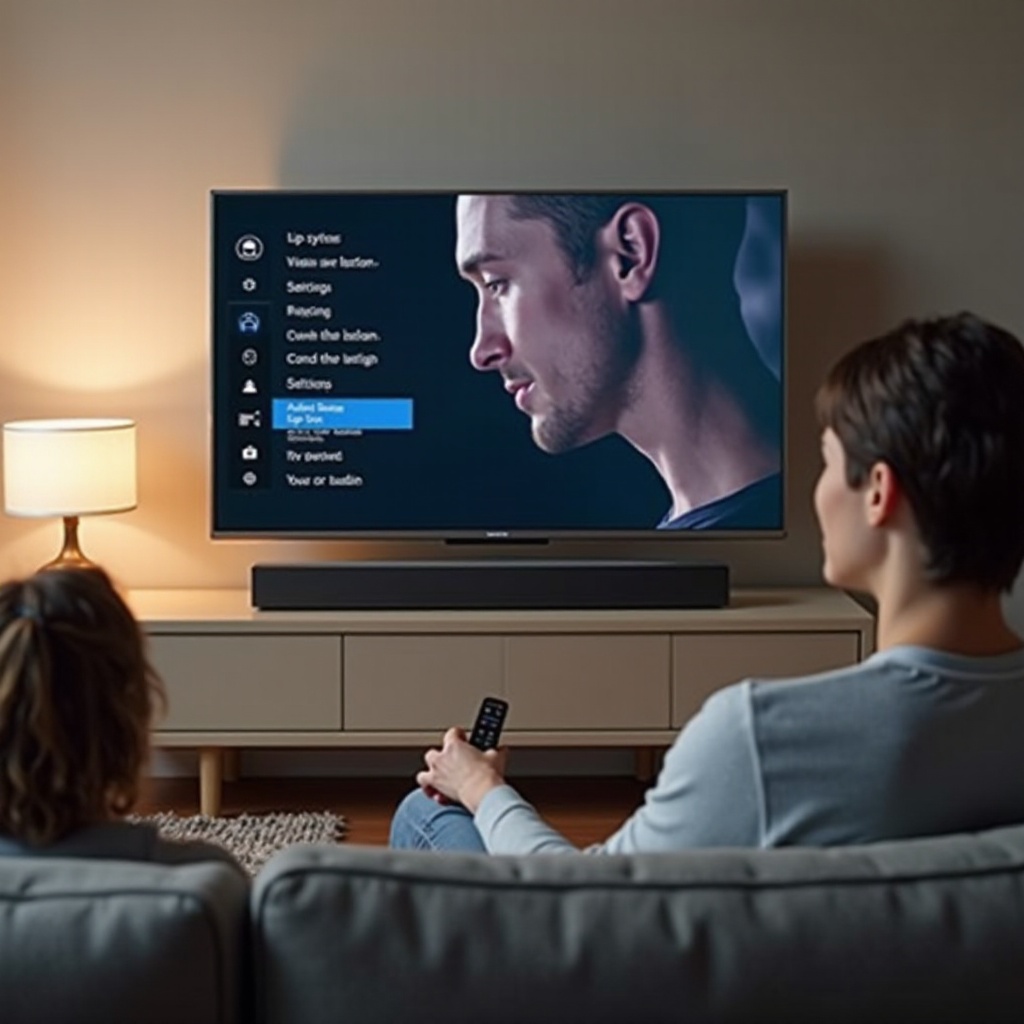
When Hardware Is the Culprit and What to Do
Sometimes everything is set correctly, yet lip‑sync remains off. In that case, suspect a cable, port, or a device with a timing bug.
Identify faulty ports, cables, or the bar itself
- Move the HDMI cable to a different TV port. Some ports handle eARC better.
- Swap HDMI cables. Use a cable you know is certified.
- Try optical to see if HDMI timing is the problem. If optical fixes sync, focus on the HDMI chain.
RMA and warranty options with Vizio or your retailer
- If a new bar or TV shows persistent delay across clean setups, contact support.
- Document your tests and settings. Share firmware versions, formats, and sample content.
Practical workarounds if replacement is delayed
- Use optical for low‑lag 5.1 while you wait for service.
- Lock formats to Dolby Digital Plus or PCM. Avoid Bluetooth for TV audio.
Conclusion
You can fix audio delay on a Vizio sound bar with a clear process. Start with quick resets to clean up handshakes. Choose the right path, favoring eARC for Atmos or optical for low lag. Configure the bar with effects off, and use the Lip‑Sync control for fine tuning. Align the TV for Passthrough and low video processing, and match frame rates on streamers. For gaming, keep formats simple and enable Game Mode. Update all firmware and use certified cables. Calibrate with a repeatable test clip and store profiles for different inputs. If sync still drifts, follow the structured flow to isolate the cause and replace or work around faulty hardware. With these steps, dialogue and effects will snap into place and stay that way across your apps and devices.
Frequently Asked Questions
Why is there audio delay on my Vizio sound bar and how do I fix it fast?
Audio delay usually comes from processing or format conversion in the TV or source. Fix it fast by power‑cycling TV, sound bar, and sources; toggling TV audio out off and back to ARC or eARC; and switching Digital Audio Out to Passthrough. Turn off motion smoothing on the TV and disable the bar’s Virtual:X, TruVolume, and Night Mode during tests. If lag persists, try optical for a quick, low‑latency fallback and update firmware on all devices.
Is eARC better than optical for eliminating lip‑sync issues?
eARC is ideal for Dolby Atmos and high‑bitrate formats, and it often keeps sync when the TV and bar use Passthrough correctly. Optical cannot carry Atmos, but it is simple and stable for stereo or Dolby Digital 5.1 with very low latency. If you need Atmos, use eARC. If you want the most reliable low‑lag setup, optical is a strong choice on TVs that mishandle ARC.
Why is Bluetooth audio lagging with my Vizio sound bar?
Bluetooth adds codec and buffering delay, and most TVs do not support true low‑latency Bluetooth profiles for speakers. The lag is very noticeable with dialogue and games. For TV audio, avoid Bluetooth and use eARC, ARC, or optical instead. If you must go wireless, look for systems designed for low latency, or keep the pipeline wired for best sync.