Toshiba TV Black Screen With Sound: Step-by-Step Fixes and Diagnostics
Introduction
A toshiba tv black screen with sound points to display, input, or software trouble rather than audio. The TV turns on, you hear clicks, app sounds, or channel audio, yet the picture stays dark. This guide gives you a clear path to bring the image back. You will start with quick checks, move through input and cable fixes, and then adjust system software and display settings. When needed, you will test for a failed backlight at home with simple tools. You also get model-specific steps for Toshiba Fire TV Edition and Toshiba Google TV or Android TV models, instructions for resetting without a picture, repair cost guidance, and prevention tips. Work from the simplest step to the hardest, confirm results, and stop when the picture returns.
What Black Screen With Sound Means on a Toshiba TV
Now that you know what you will cover, understand what the symptom tells you. Sound plays, so the main board boots, decodes audio, and sends it to the amplifiers. The power supply delivers at least standby and low voltage rails. The fault often lives in one of three areas: an input or HDMI handshake issue, an OS or display mode conflict, or a failure in the display path such as the backlight, T-Con, or panel. Sometimes you can still see a faint image with a flashlight. Sometimes menus appear, then vanish after a second. Each clue points to a different cause. Use those clues to narrow the problem and avoid unnecessary resets or risky teardown. With the basics in mind, start with the fastest, most reliable checks.
Quick Checks in 60 Seconds
Before you dive into cables and settings, rule out simple mistakes. These fast checks often fix the issue in under a minute. If they do not, they still give you useful signals for the next steps.
-
Verify power light, remote vs TV buttons, and brightness
1) Check the standby or power LED. A solid white or blue light often means power on.
2) Use the TV body buttons to turn on and change inputs in case the remote misfires.
3) Press Menu or Home. If an on screen menu appears, the panel and backlight likely work.
4) Raise Backlight, Brightness, and Contrast. Some eco modes dim the screen to near black. -
Confirm the correct input and toggle mute or picture mode
1) Press Input or Source and cycle through every input to find the active one.
2) If you use a soundbar over ARC or eARC, switch to TV speakers and test again.
3) Change picture mode to Standard or Movie to avoid aggressive dimming. -
Power cycle with a hard discharge
1) Turn the TV off and unplug it from the wall.
2) Press and hold the TV power button for 30 seconds to discharge stray power.
3) Plug back in and turn it on.
If the screen is still dark after these basics, the source and cables are your next best suspects.
Input and Cable Troubleshooting
You just ruled out the most obvious issues. The next likely cause is a bad HDMI handshake, a flaky cable, or an unsupported video format. Fix the handshake, then fix the format.
-
Reseat HDMI, test other ports, and try certified cables
1) Unplug and firmly reseat the HDMI cable at both ends.
2) Move the cable to a different HDMI port on the TV.
3) Use a short, certified Ultra High Speed HDMI cable for 4K sources. -
Try a different source device and relax content protection
1) Test with another source such as a streaming stick, Blu ray player, or game console.
2) On consoles or set top boxes, set output to 1080p 60 Hz or 4K 60 Hz SDR for testing.
3) If your device allows it, reduce HDCP sensitivity or disable Always HDR modes to test. -
Toggle CEC or ARC and adjust resolution or refresh rate
1) Turn off HDMI CEC and ARC or eARC in the TV settings. Test again.
2) Set the source to a common format such as 4K 60 Hz or 1080p 60 Hz without VRR.
3) If the picture returns, re enable features one by one to find the culprit.
If a stable picture still refuses to appear, your software and display settings may be at fault. Address them next.
Software and Display Settings Fixes
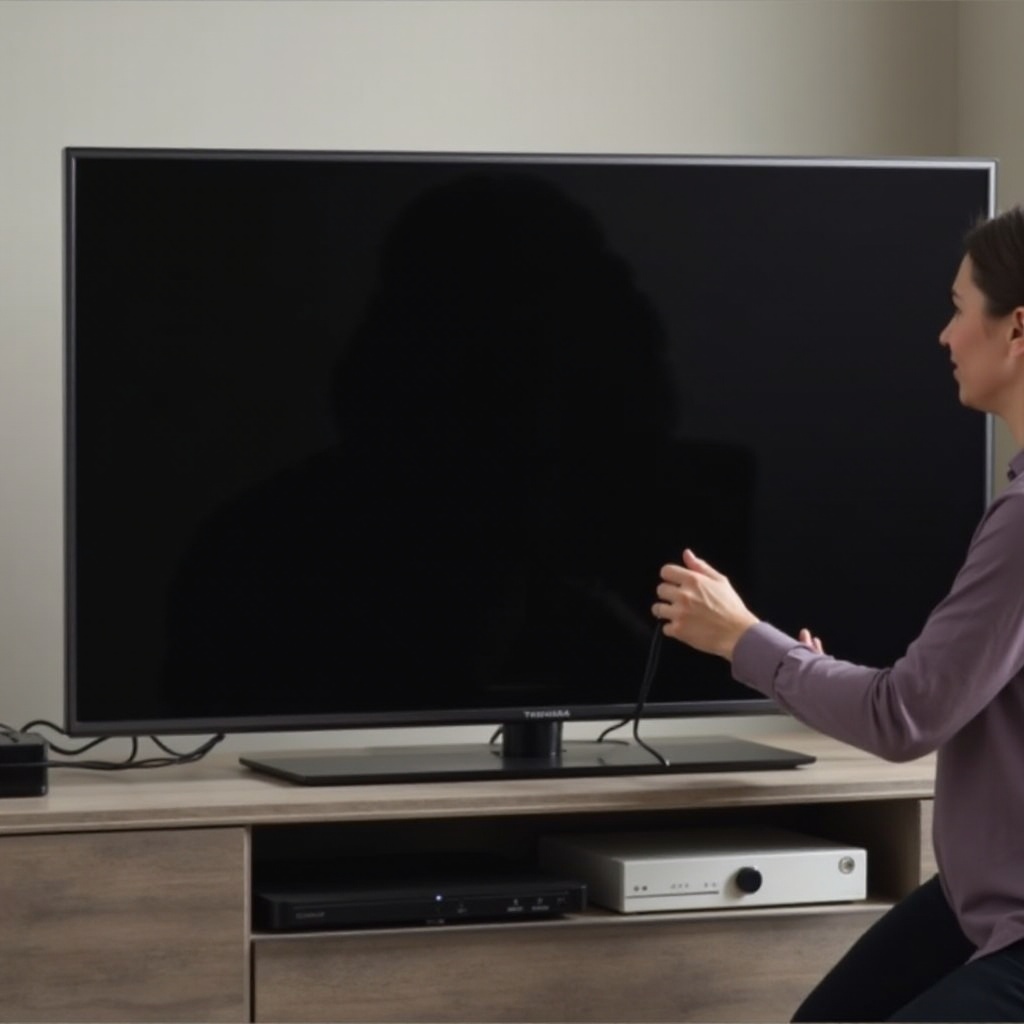
You tested cables and sources. The next suspects are firmware, app conflicts, and display options. Out of range modes, buggy updates, or aggressive energy features can blank the image while sound keeps playing. Update, reset, and then fine tune.
-
Update TV firmware and the app platform
1) Connect the TV to reliable internet over Wi Fi or Ethernet.
2) Open Settings, go to System, then About or Support, and check for updates. Install everything available.
3) Update key apps and clear their caches where possible. -
Reset picture settings and disable energy saving or local dimming for testing
1) Reset picture settings to defaults on the affected input.
2) Turn off Energy Saving, Ambient Light Sensor, and Screen Saver features.
3) Reduce or temporarily disable Local Dimming to check for stability. -
Turn off enhanced HDMI modes or advanced HDR
1) Disable HDMI Enhanced, Deep Color, or UHD Color on the current input.
2) On sources, disable Dolby Vision or HDR to test SDR output.
3) If the image returns, re enable one feature at a time and watch for failure.
If software changes do not restore video, you need to decide whether the display hardware or its control path is failing. Do that with simple at home tests.
Backlight vs Panel: At-Home Diagnosis
You now fixed common software and input issues. The next task is to identify whether the TV makes an image that the backlight fails to illuminate or whether the panel path itself fails.
-
Flashlight test to spot a faint image
1) In a dim room, play a bright video or an app with motion.
2) Shine a strong flashlight at an angle across the screen.
3) If you see a faint picture or UI, the LCD panel and T Con likely work and the backlight is not illuminating.
4) If nothing appears, suspect a T Con, main board, or panel failure. -
On screen menu visible vs not visible cues
1) If the TV menu appears but HDMI sources stay black, suspect a source, cable, or HDMI board logic issue.
2) If no menus appear at all but you hear sound, suspect backlight or panel path. -
Intermittent glow, flicker, or shutdown clues
1) If the screen lights briefly then goes dark, the LED driver may detect a fault and shut off.
2) Even, faint glow with no image suggests a data path issue such as T Con or panel ribbons.
3) Brightness surges or pulsing hint at a failing backlight strip or driver.
If your Toshiba uses Fire TV software, apply the model specific steps next to clear video mode lockups and app conflicts.
Toshiba Fire TV Edition: Model-Specific Fixes
You identified that software might still block video. Fire TV Edition models can get stuck in an incompatible mode or a buggy app can blank the screen. Use these focused steps.
-
Remote restart sequence and clear caches
1) Hold Select plus Play or Pause for about five seconds to restart Fire TV.
2) Go to Settings, Applications, Manage Installed Applications. Clear cache and data on any app that controls video, overlays, or screensavers.
3) Open Display and Sounds, then Display. Run Calibrate Display to retrigger the video sync. -
Boot to a safe state and remove problem apps or screensavers
1) Power cycle the TV, then hold Home on the remote at the logo to open quick menu tools.
2) Disable third party screensavers or overlays that can blank the panel.
3) Uninstall recently added apps that changed video output. -
Reset display settings and HDMI format per input
1) Set Video Resolution to Auto or 4K 60 Hz.
2) Turn off Always HDR and test in SDR.
3) Disable CEC and ARC for testing on the HDMI input you use.
If your set runs Google TV or Android TV, move on to those platform steps. The process is similar but the menus differ.
Toshiba Google TV or Android TV: Model-Specific Fixes
You worked through Fire TV steps. For Android based platforms, caches and enhanced HDMI modes can also cause a black screen with sound. Clear them and test.
-
Enter recovery, wipe cache, and factory reset if needed
1) Power the TV off. Hold the TV body buttons, often Power plus Volume Down, while plugging the set back in to enter recovery.
2) Select Wipe cache partition. Reboot.
3) If the issue persists, perform a Factory reset from recovery. -
Toggle Dolby Vision, VRR, and HDMI Deep Color
1) In Settings, open Display and Sound, then Picture. Turn off Dolby Vision and HDR for testing.
2) Disable VRR or ALLM until the image stays stable.
3) Turn off HDMI Enhanced or Deep Color on the affected HDMI port. -
Reset app preferences and disable screen savers
1) Open Settings, Apps. Use Reset app preferences to clear defaults and restrictions.
2) Turn off screen savers or any Display Off features.
3) Test with a simple app like YouTube to confirm stable video.
If you still have sound but no image, a clean reset done without relying on on screen menus can help. The next steps show how.
Factory Reset and Recovery Without Picture
When the screen stays dark, you can still trigger a reset with hardware buttons or a blind remote sequence. This can clear corrupt display settings and stuck handshakes.
-
Button and remote sequences when the screen is black
1) Unplug the TV. Press and hold the TV power button for 10 to 15 seconds while plugging it back in to trigger a reset on some models.
2) On others, hold Input or Volume Down while plugging in to enter recovery or reset mode.
3) Watch the power LED and listen for beeps. Leave the TV on for several minutes while it resets. -
Use mobile remote apps or on device keys
1) Use the Fire TV or Google TV mobile app as a remote if it auto pairs over the network.
2) Navigate blind by counting button presses. For example, press Home, wait, then press Right six times and Down two times to reach Settings based on a reference TV. -
Service menu caution and last resort steps
1) Avoid service menus unless you have exact, model specific steps. Wrong changes can brick the TV.
2) Document steps you try so you can reverse them later.
A reset that does not restore video points toward hardware. Handle the next checks only if the set is out of warranty and you are comfortable with electronics.
Advanced Hardware Checks For Out-of-Warranty Users
You now exhausted software and input fixes. If you proceed, unplug the TV, wait for capacitors to discharge, and protect the panel with a soft surface. Static protection helps prevent damage.
-
Inspect or reseat T Con ribbons and panel tabs
1) Remove the rear cover carefully and keep screws sorted by location.
2) Reseat the flat ribbon cables from the main board to the T Con, and from the T Con to the panel. Lift latches gently and press evenly.
3) Look for burned spots, corrosion, or kinks near the panel edges. Do not flex panel tabs. -
Check backlight driver behavior and LED strips
1) If you have a meter and skill, observe the LED driver output when the TV turns on. A brief rise then drop suggests a shorted LED or strip.
2) A screen that flashes bright then goes black points to driver protection.
3) Replacing LED strips requires full panel teardown. Work slowly to avoid cracking the glass or tearing diffusers. -
Distinguish main board, T Con, and power board symptoms
1) Audio works, no on screen menu, and no faint image under a flashlight often implicates T Con or panel.
2) Logo shows briefly then the screen goes dark suggests backlight driver or main board video section.
3) No standby light or repeated clicking indicates a power supply fault.
If these checks look risky or costly, pause here. A professional can finish diagnosis and offer a quote. The next section helps you decide when to call and what a fair price looks like.
When to Contact Support and Typical Repair Costs
At this stage, calling support may save time and money. Gather your model number, serial number, proof of purchase, and a short video of the symptom. That documentation speeds up approvals.
-
Warranty or coverage paths
1) If your retailer return window is open, use it. Exchanges are often fastest.
2) Manufacturer warranties may cover panel, boards, or labor depending on terms.
3) Many credit cards extend warranties. File a claim with your receipts and photos. -
Typical cost ranges by repair type
1) Backlight strip replacement often carries moderate parts cost and higher labor due to panel teardown.
2) T Con board replacement tends to be lower cost and faster if parts are available.
3) Main board replacement ranges from moderate to high depending on availability and features like Dolby Vision or advanced HDMI. -
Decide to repair or replace
1) If the quote exceeds about half the price of a comparable new TV, consider replacement.
2) Factor in feature gains such as brighter HDR, better motion, or more HDMI 2.1 ports.
3) Account for your time, pickup or delivery, and disposal or recycling.
If you repair or replace, protect your investment so the issue does not return. Simple habits go a long way.
Prevention Tips After You Fix It
You have a plan or a repair completed. Extend the life of the TV and reduce the chance of another black screen with these habits.
-
Power and cooling
1) Use a quality surge protector or line conditioner to smooth power spikes.
2) Keep vents clear on the back and sides. Avoid tight cabinets without airflow.
3) Do not block the panel with decor or soundbars that trap heat. -
Signal hygiene and updates
1) Use certified HDMI cables, especially for long runs and 4K 60 Hz or higher.
2) Limit the number of powered HDMI devices and disable CEC on devices that misbehave.
3) Check for firmware updates monthly and after major app changes. -
Gentle display practices
1) Set backlight to a comfortable level. Avoid max brightness in dark rooms.
2) Enable a screen saver with a short timer when using built in apps.
3) Vary content and avoid leaving static images paused for long periods.
A little care prevents stress on the backlight, the power board, and HDMI handshakes. If trouble returns, repeat the quick checks, verify inputs, and perform the flashlight test to decide whether to pursue software fixes or hardware service.
Conclusion
A toshiba tv black screen with sound usually traces to one of three areas: a stubborn HDMI handshake, a display mode conflict, or a failing backlight or panel path. You learned fast checks, cable and input fixes, platform specific steps for Fire TV and Google TV, and clear ways to diagnose backlight issues at home. You also saw how to reset without a picture, when to call support, and how to weigh repair versus replacement. Move methodically, confirm each change, and stop when the image returns. With a steady process, you either restore the picture or reach a confident decision on the next step.
Frequently Asked Questions
Why does my Toshiba TV have sound but no picture, yet menus still appear?
If menus show, the panel and backlight work. The problem likely sits with the source, HDMI cable, or input settings. Replace the cable, switch HDMI ports, and set the source to 4K 60 Hz or 1080p 60 Hz without HDR or VRR to test.
How do I reset a Toshiba Fire TV Edition when the screen is black?
Hold Select plus Play or Pause for five seconds to force a restart. Then press and hold the TV power button for about 10 to 15 seconds to trigger a reset on many models. If needed, use the Fire TV mobile app to navigate blind and perform a factory reset.
Is a backlight repair on a Toshiba TV worth it?
It can be, especially if labor is reasonable and the panel is healthy. If the repair quote approaches half the cost of a similar new model, consider replacement. Weigh the TV age, warranty coverage, and feature gains of a new set before you decide.