
How to Pair an Onn Remote to Your TV: The Complete Guide
Introduction
If your TV stops responding, pairing or setting up your Onn remote quickly restores control. This guide focuses on how to pair onn remote models with Onn Roku TVs, how to use simple IR remotes without pairing, and how to program Onn universal remotes with codes or auto search. You will also learn backup methods that work when you have no original remote, plus targeted fixes for stubborn pairing problems.
We start by identifying the remote type because the steps depend on it. Then we move through fast pairing with the pairing button, menu based pairing from the TV, and pairing without the original remote using the Roku mobile app or TV side buttons. If you have a simple IR remote, you will get quick non pairing setup steps. If you own an Onn universal remote, you will find clear programming instructions. Finally, we wrap up with troubleshooting, resets, and compatibility tips so you can keep the remote working reliably.
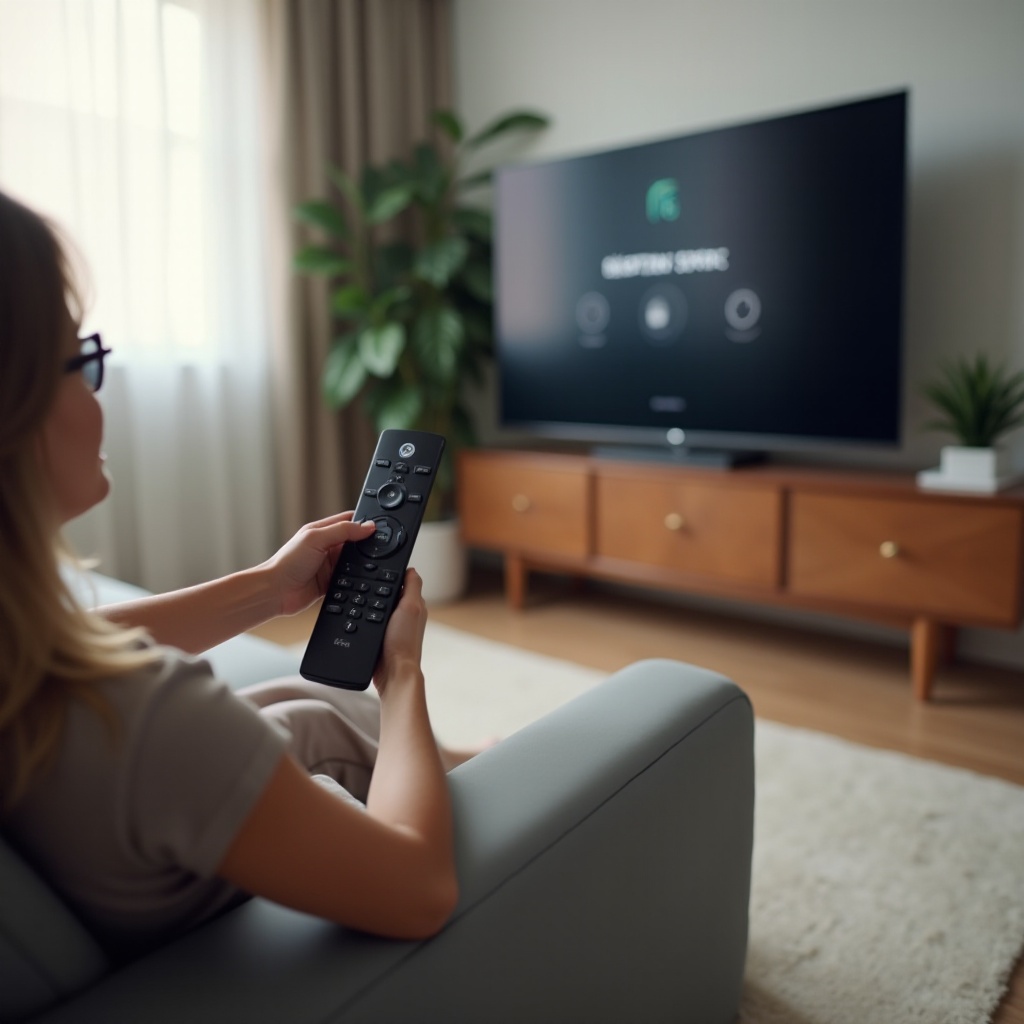
Identify Your Onn Remote Type: Simple IR vs. Roku Voice/Bluetooth vs. Universal
Before you decide how to pair an Onn remote, confirm which type you have in your hand. Different Onn remotes connect in different ways, and the correct procedure depends on that type.
- Onn Simple IR TV remote
- How it works: Uses infrared light and direct line of sight. It does not pair. As long as the batteries are fresh and you aim at the TV sensor, it should work immediately.
-
Quick clues: No microphone button. No pairing button. A straightforward layout with power, navigation arrows, OK, volume, and mute.
-
Onn Roku Voice Remote for Onn Roku TVs
- How it works: Connects to the TV via Bluetooth or Wi Fi Direct. It must be paired the first time and may need to re pair after a reset or battery change.
-
Quick clues: Has a voice or mic button. Most models include a pairing button inside the battery compartment. Rechargeable versions may place the pairing button on the side or bottom and add features like private listening.
-
Onn Universal Remote (sold separately)
- How it works: Controls devices over IR after programming with brand codes or auto search. No Bluetooth pairing is involved, but you must enter or discover the correct code.
- Quick clues: Labeled for multiple device types, such as TV, DVD, AUX, or Soundbar, and includes setup keys.
If you spot a mic button, treat the remote as a voice model that requires pairing. If your remote is a simple IR model, skip pairing entirely and use the IR setup section below. If you own an Onn universal remote, jump to programming. Once you know the remote type, you can choose the right setup path with confidence.
Pre Pairing Checklist: Batteries, Distance, and TV Readiness
Small oversights cause most pairing failures. Run this quick checklist before you start any pairing method:
- Install fresh, quality batteries and match polarity. For rechargeable remotes, top up the charge for at least 30 minutes.
- Stand within 10 feet of the TV. Remove any obstacles between the remote and the TV.
- Turn on the TV using the side power button if the remote does not work yet. If the screen shows first time setup, leave it there.
- Unplug USB powered gadgets from the TV, such as streaming sticks or LED strips, to reduce wireless noise during pairing.
- Disable nearby Bluetooth gear temporarily, including gamepads or headsets, to minimize interference.
With the basics in place, you are ready to pair a voice remote directly with the pairing button.
Method 1: Pair an Onn Roku Voice Remote Using the Pairing Button
Use this fast method when your Onn Roku TV is powered on and your remote includes a pairing button. It works for most Onn Roku Voice Remotes.
1) Open the battery compartment and find the pairing button.
– On most voice remotes, the pairing button sits under the batteries.
– On rechargeable models, the button is often on the side or bottom.
2) Power on the TV and wait for the home or setup screen.
– If you cannot use a remote yet, press the TV side power button.
3) Press and hold the pairing button for 5 seconds until the status LED starts blinking.
– Blinking indicates pairing mode. Keep the remote near the TV.
4) Watch the TV for pairing messages.
– The screen should show pairing progress, then confirm connection.
– If prompted, allow any remote firmware updates to finish.
5) Test critical functions.
– Try Home, Back, navigation, and OK.
– Press the mic button for a quick voice search test.
– Adjust volume and mute; confirm power control.
If pairing times out, replace the batteries and retry. Move closer, ensure clear line of sight to the TV, and reduce wireless noise by removing USB devices. If the LED never blinks, you may need to reset the remote, which we cover later.
Method 2: Pair Through Your Onn Roku TV On Screen Settings
When you can navigate the TV with any working remote or with the Roku mobile app, you can add or re pair a voice remote from the settings menu. This method is helpful if the pairing button is unreliable, because the TV guides you through each step.
1) Open Settings on your Onn Roku TV.
– Go to Settings > Remotes & devices > Set up a new device > Remote.
2) Put the remote in pairing mode.
– Press and hold the pairing button for 5 seconds until the LED blinks.
3) Follow on screen prompts.
– The TV will search and connect to the remote.
– If asked, run the audio control test to set up volume and power.
4) Verify key functions.
– Navigate the home screen, adjust volume, mute, and power the TV off and on.
If the TV does not find your remote, restart both devices. On the TV, go to Settings > System > Power > System restart. Then re enter pairing mode on the remote and try again. If you lack any working remote at all, the next section shows how to pair using the Roku mobile app or the TV side buttons.
Method 3: Pair Without the Original Remote (Roku Mobile App or TV Side Buttons)
Losing your remote does not lock you out. You can still pair a replacement using the Roku mobile app as a temporary controller or by using the TV side buttons.
Option A: Use the Roku mobile app
– Install the Roku app on your phone from your app store.
– Connect the phone to the same Wi Fi network as the TV.
– Open the app, tap Devices, select your Onn Roku TV, then tap the Remote icon.
– Navigate to Settings > Remotes & devices > Set up a new device > Remote.
– Put the new voice remote in pairing mode and follow the on screen steps.
Option B: Use TV side buttons
– Use the power and input or volume buttons on the TV to access and select menu items. Button layouts vary by model.
– Navigate into Settings and add a new remote as above.
– Enter pairing mode on the replacement remote and finish setup.
If the TV is not connected to Wi Fi and the app cannot find it, connect Ethernet if your TV supports it, or use the TV side buttons to join a Wi Fi network first. Once connected, you can pair the Onn remote and regain full control.
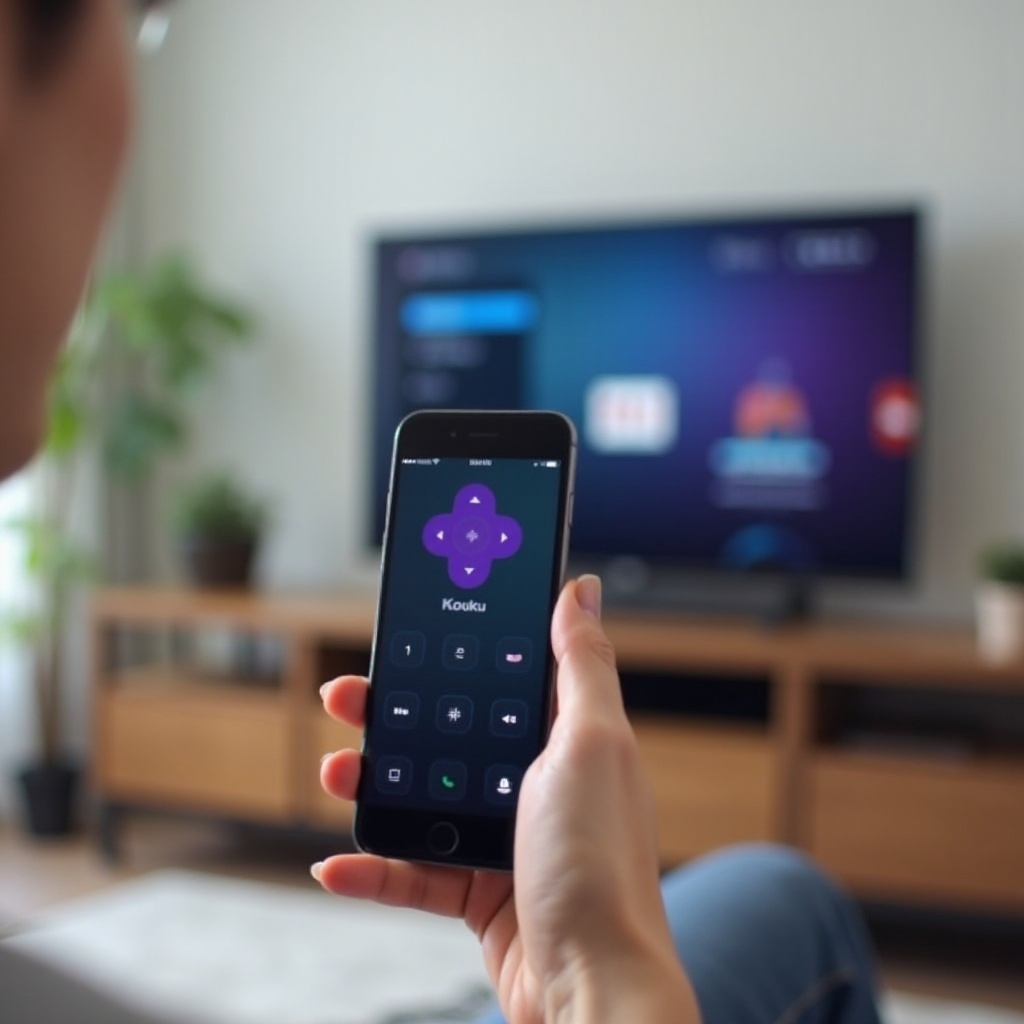
If Your Onn Remote Is Simple IR: Setup Without Pairing
Simple IR Onn remotes do not pair. They either work or they do not, depending on line of sight and compatibility. Use these steps to ensure a clean setup:
- Confirm the remote matches your TV family. For Onn Roku TVs, use a Roku TV compatible IR remote; streaming only Roku stick remotes may not control TV power or volume.
- Install fresh batteries and close the battery door securely.
- Aim directly at the TV IR receiver. The sensor is usually at the lower bezel center or right side.
- Remove obstructions and reduce bright light that can interfere with IR signals.
- Test Power, Volume, Mute, Input, and Menu where available.
If the IR remote still fails, the remote may be incompatible or the TV IR sensor may be blocked or faulty. As a bridge, control the TV with the Roku mobile app while you obtain a compatible replacement or program an Onn universal remote.
Programming an Onn Universal Remote to Your TV (Codes, Auto Search, and Testing)
An Onn universal remote can control your TV with IR once you program the correct code. You can enter a brand code directly or use auto search to find one that works.
Method 1: Direct code entry
1) Locate your code list.
– Check the printed manual or the manufacturer online code finder using your exact universal remote model number.
2) Power on the TV.
3) Press and hold the TV device button until the LED stays lit.
4) Enter the first code for your TV brand.
– The LED feedback varies by model; follow your manual. If unsure, proceed to testing.
5) Test Power and Volume.
– If the TV responds, save the code as directed by the manual.
– If not, repeat with the next brand code.
Method 2: Auto code search
1) Power on the TV.
2) Press and hold the TV device button until the LED stays lit.
3) Start auto search by pressing the designated key or repeatedly pressing Power to cycle codes.
4) When the TV turns off, press Enter or OK to lock the code.
5) Turn the TV back on and test Volume, Mute, and Input.
Fine tune and verify
– If your remote supports Volume Lock, lock volume to the TV so volume keys always control TV volume.
– Test Menu, Settings, Input, and number keys for better coverage.
– If some functions fail, try another code for the same brand. Different codes can map more buttons correctly.
This approach gives you reliable IR control without Bluetooth. If you want voice search and app shortcuts, consider a Roku Voice Remote designed for Roku TVs as a companion.
Troubleshooting: Onn Remote Not Pairing or Not Controlling the TV
When pairing fails or the remote does not control the TV, work through these targeted checks and fixes. Move step by step and test after each change.
- Confirm the remote type
-
Simple IR remotes do not pair. If you see a mic button, treat it as a voice remote and follow pairing steps.
-
Check batteries and power
- Replace batteries with a fresh set. For rechargeable remotes, charge for at least 30 minutes.
-
Power cycle the TV: unplug for 60 seconds, plug back in, and wait for the home screen.
-
Reduce interference
- Stand within 10 feet of the TV. Keep a clear path between remote and TV.
- Unplug USB devices and HDMI extenders from the TV to minimize RF noise.
-
Temporarily switch off nearby Bluetooth devices and microwave ovens.
-
Re enter pairing mode correctly
- Hold the pairing button for a full 5 seconds and watch for a blinking LED.
-
If the LED does not blink, clean battery contacts and try another fresh battery set.
-
Use the Roku mobile app to finish pairing
-
Control the TV with the app and add a remote via Settings > Remotes & devices.
-
Update software
- On the TV: Settings > System > System update > Check now.
-
After updates, restart: Settings > System > Power > System restart.
-
Reconfigure audio and power control
-
If navigation works but volume or power fails, go to Settings > Remotes & devices > Remotes > Set up remote for TV control and follow the prompts.
-
Check the IR path for simple IR and universal remotes
- Clean the TV IR window with a microfiber cloth.
-
Avoid bright sunlight on the TV bezel and remove obstructions.
-
Try a different Wi Fi channel if you suspect heavy 2.4 GHz congestion
- Change your router to channels 1, 6, or 11 temporarily, pair the remote, then return to your preferred channel.
If none of these steps solve the issue, proceed to remote and TV resets. Use factory resets sparingly to avoid extra setup time.
Resets That Fix Stubborn Issues: Remote Factory Reset and TV Reset Cautions
A controlled reset can restore a stubborn remote or TV link. Start with the least disruptive option and escalate only if needed.
Remote resets for Roku Voice Remotes
– Soft re pair: Remove the batteries. Unplug the TV for 60 seconds. Plug it back in and wait for the home screen. Reinsert batteries, then press and hold the pairing button for 5 seconds.
– Factory reset: Press and hold the remote pairing button for about 20 seconds until the LED flashes rapidly. Release, let the remote restart, then pair again using the pairing button or the TV Remotes & devices menu.
TV resets and cautions
– System restart: Settings > System > Power > System restart. Safe and often enough to clear glitches.
– Network reset: Settings > System > Advanced system settings > Network connection reset, then reconnect Wi Fi and re pair the remote.
– Full factory reset: Use only as a last resort. This erases your apps and settings and requires a full setup.
After any reset, stand close to the TV, minimize interference, and repeat the pairing steps methodically. Most stubborn cases resolve after a clean restart and a fresh pairing attempt.
Compatibility and Replacement Guide for Onn TV Remotes
When you replace or upgrade a remote, match it to your TV to avoid frustration.
- Onn Roku TVs
-
Work with Roku Voice Remotes and Roku TV compatible IR remotes. Some streaming stick remotes will not control TV power and volume unless they specify Roku TV compatibility.
-
Simple IR Onn TV remotes
- Must match the TV family or series. A remote from a different line may not map commands correctly.
-
Universal remotes programmed with the correct codes will control power, volume, and input reliably.
-
Onn Universal Remotes
- Support many brands after code entry or auto search. Performance improves when you test and select the best matching code for your TV.
Buy from trusted sources and look for phrases like compatible with Roku TV or for Onn Roku TV on the listing. If you want voice search and features like private listening, choose a Roku Voice Remote that lists Roku TV support. Keep your receipt, test immediately on arrival, and exchange quickly if compatibility is not as described.
Conclusion
You now have a clear, practical path for how to pair onn remote models across Onn Roku TVs, simple IR remotes, and universal remotes. Start by identifying your remote type, run the quick pre pairing checks, and pick the method that fits your situation. When pairing fails, use the Roku mobile app to help, reduce interference, and apply measured resets before attempting a full factory reset. With the correct remote and the step by step instructions above, you can restore TV control quickly and keep it stable over time.
Frequently Asked Questions
Where is the pairing button on an Onn Roku Voice Remote, and what do the LED patterns mean?
Most voice remotes place the pairing button inside the battery compartment; rechargeable versions often put it on the side or bottom. Hold the button for about 5 seconds to enter pairing mode. A slow blink means it is searching. Rapid blinking usually follows a long press reset or confirms a successful link attempt. If no light appears, recharge or replace the batteries and retry.
Can I pair or control my Onn Roku TV without Wi Fi or without the original remote?
Yes. A voice remote pairs over Bluetooth or Wi Fi Direct, so it does not require home Wi Fi. If you lack the original remote, use the Roku mobile app as a temporary remote when the TV is on the same network, or use the TV side buttons to open Settings and add a new remote. If supported, Ethernet can also get the TV online for app control.
Why does my Onn remote pair but not control volume or power, and how do I fix it?
Navigation may work while TV control is not set up. On your TV, go to Settings > Remotes & devices > Remotes > Set up remote for TV control and follow the prompts. If volume or power still fails, restart the TV, replace the batteries, and repeat the setup. For IR or universal remotes, try a different brand code to restore power and volume functions.
