How Can I Mirror My Phone to My Smart TV?
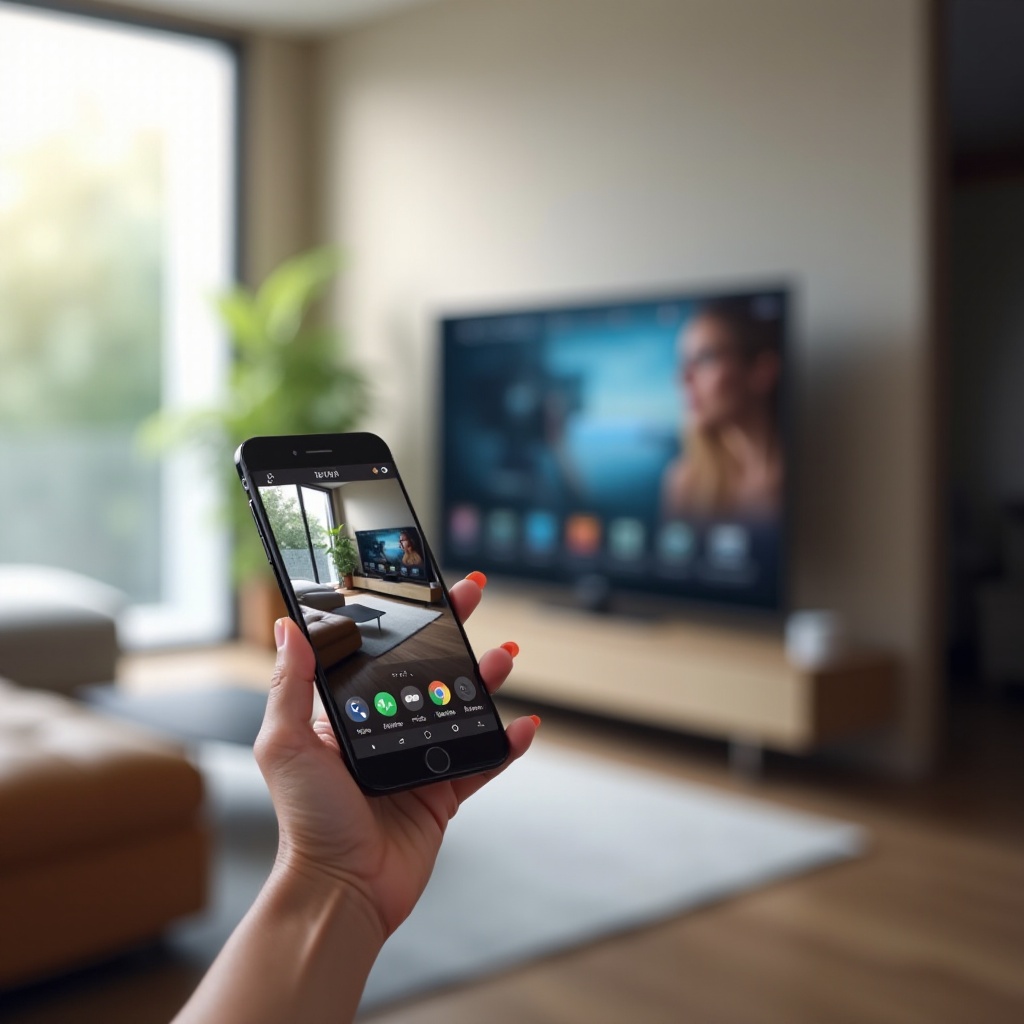
Transport your viewing experience by mirroring your phone to your smart TV. This allows you to enjoy your favorite content on a larger screen, enhancing both media consumption and presentation capabilities. Whether watching videos, showcasing photos, or sharing a business presentation, mirroring provides a versatile and powerful tool for users wanting to maximize their viewing experience. This comprehensive guide will delve into the various methods available for connecting your devices efficiently.
Introduction
Smart TVs provide incredible functionality, including the ability to connect with smartphones seamlessly. Mirroring allows you to project your phone’s content onto your TV, providing a more immersive viewing experience without complex setup. Let’s explore the different methods and techniques you can employ to enhance your media viewing journey.
Understanding Phone-to-TV Mirroring
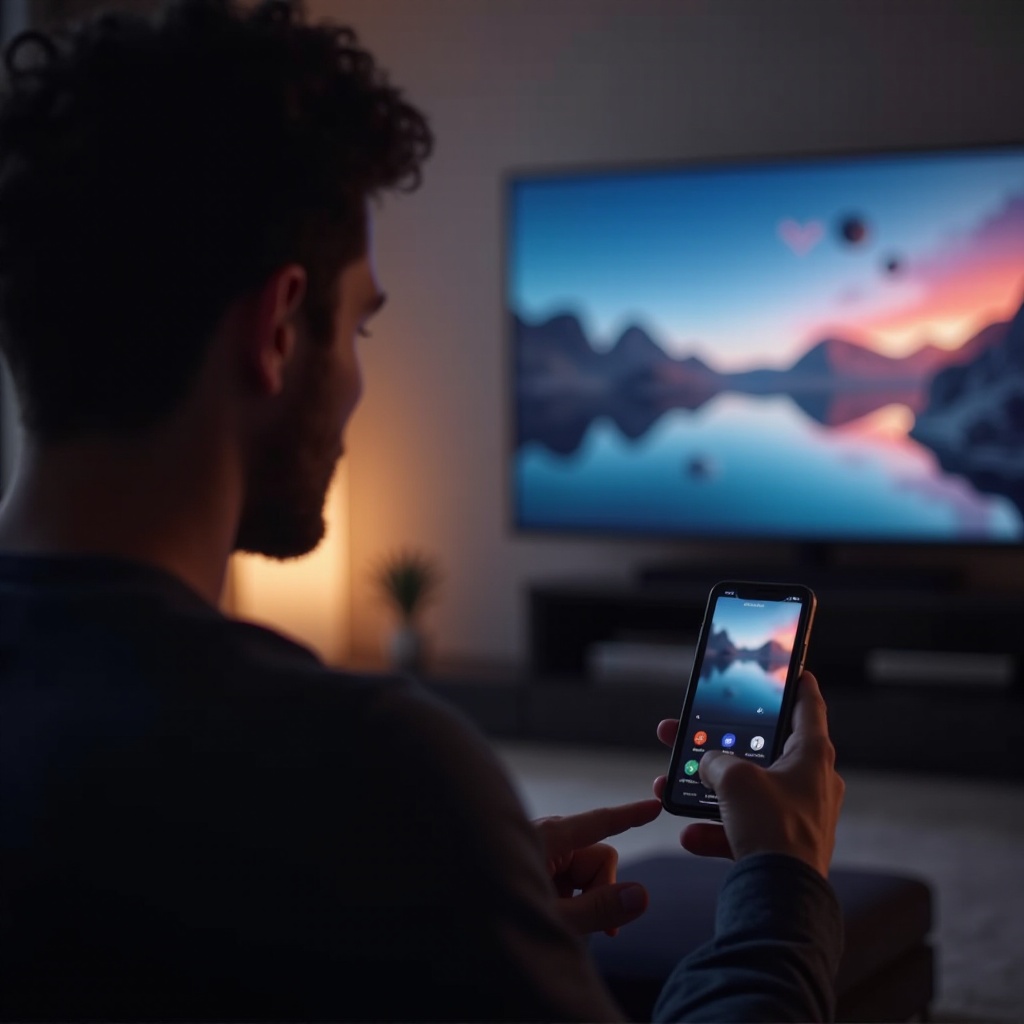
Phone-to-TV mirroring allows you to display your mobile content on a larger screen without permanently transferring the data. This technique is useful for a myriad of applications, from viewing entertainment to sharing professional content. It’s a way to maintain your device’s inherent flexibility while interacting with your favorite apps and media directly on the big screen.
Methods to Mirror Your Phone to a Smart TV
Mirroring your phone to a smart TV can be done in several ways, offering flexibility to suit your needs:
-
Built-in Screen Mirroring Features: Many smart TVs are equipped with native screen mirroring functionalities like Miracast for Android or AirPlay for iOS. These features allow effortless connection. Simply navigate to your TV’s screen mirroring section and pair your devices, ensuring they are on the same Wi-Fi network.
-
Third-Party Apps for Wireless Mirroring: Applications like Chromecast enable wireless mirroring by using a dongle connected to your TV. Download the app on your phone, link it to the Chromecast device, then simply tap the cast button to mirror your phone screen.
-
Using Cables and Adapters: For a reliable, wired connection, HDMI cables or USB-C to HDMI adapters provide a straightforward way to connect. Attach one end to your phone and the other to your TV, and set your TV to the appropriate input source.
You can choose the method that best suits your requirements, balancing ease of setup with the type of media you want to display.
Mirroring on Different Platforms
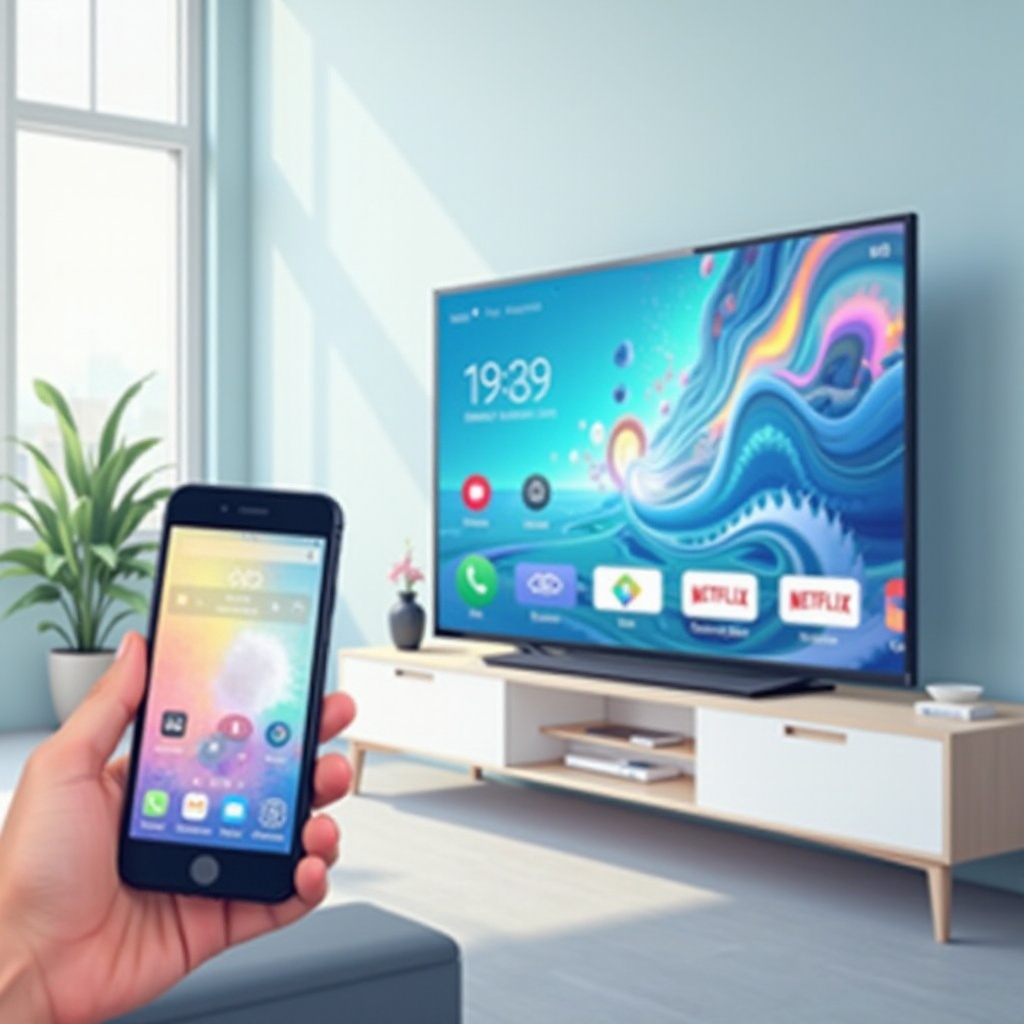
Different operating systems offer unique paths to mirroring between phone and TV:
- Android Devices: Step-by-Step Guide:
- Open ‘Settings’ on your device and navigate to the ‘Display’ section.
- Find and tap ‘Cast’ or ‘Screen Mirroring’.
- From the available devices list, select your TV.
-
Confirm and authorize the mirroring on your TV if it prompts you to do so.
-
iOS Devices: Step-by-Step Guide:
- Access the ‘Control Center’ on your iPhone.
- Tap ‘Screen Mirroring’.
- Choose your TV from the detected devices.
- Enter the AirPlay passcode that appears on your TV screen if required.
By following these platform-specific guides, you can ensure a smooth transition from mobile to big-screen entertainment.
Troubleshooting Common Issues
Occasionally, users encounter problems while mirroring, but these can be resolved with some simple troubleshooting steps:
-
Connection Problems: Double-check that both your phone and TV are connected to the same Wi-Fi network. Restart the devices to resolve any temporary issues.
-
Audio or Video Sync Issues: Fine-tune the audio settings or re-initiate the connection as these steps often resolve synchronization problems.
-
Compatibility Issues: Verify that your TV supports the mirroring mode selected. Updating the device software frequently fixes compatibility-related issues.
By addressing these problems, you can maintain an uninterrupted and enjoyable viewing experience.
Enhancing Your Mirroring Experience
To fully leverage the benefits of phone-to-TV mirroring, consider these tips for optimal performance:
-
Best Practices for Quality Mirroring: Ensure that both devices are running on the latest software updates to prevent connectivity issues. A strong and stable Wi-Fi connection is imperative for wireless mirroring.
-
Security Tips and Privacy Considerations: Use a secure Wi-Fi network to protect your data and privacy while mirroring. Avoid public networks that expose you to potential threats.
-
Optimal Settings for Best Quality: Calibrate your TV’s display settings, such as brightness and contrast, to match your viewing preferences, ensuring an engaging and clear picture quality.
By implementing these recommendations, you can elevate your mirroring capabilities and experience superior visual quality.
Conclusion
Mirroring your phone to a smart TV provides an enhanced viewing experience, suitable for both leisure and professional use. Employing the right methods, understanding different platforms, and troubleshooting any issues will enable you to enjoy seamless mirroring. Whether you prefer wireless connections, cables, or built-in features, these techniques will help you maximize the potential of your smart TV.
Frequently Asked Questions
Can I mirror my phone to a smart TV without Wi-Fi?
Yes, using an HDMI cable allows you to connect your phone to a smart TV directly without Wi-Fi.
What are the best apps for phone mirroring in 2024?
Top apps include Chromecast, AirScreen, and Miracast, offering reliable and seamless phone-to-TV mirroring.
Is there a difference between casting and mirroring?
Casting streams content from your phone to the TV while mirroring duplicates everything displayed on your phone’s screen.