Soundcore Right Earbud Not Working? The Complete Fix and Troubleshooting Guide
Introduction
Silence from one side ruins a commute, a workout, or a call. If your Soundcore right earbud is not working, you can usually fix it in minutes with a clear sequence. Most one sided problems come from device settings, pairing roles, case contact, dirt in the nozzle, or a simple software glitch. A few need deeper resets, a firmware update, or a support claim.
This guide starts with fast checks, then moves to settings, cleaning, and model specific resets. Next come firmware, pairing best practices, interference fixes, and deeper hardware checks. Each section builds on the last so you avoid repeated steps and find the exact cause. If a step resolves the issue, you can stop. If not, keep moving through the flow. By the end you will know whether you solved it, what likely caused it, and when to contact Soundcore support.
To begin smart, you should define the symptom so you target the right fix in the next section.
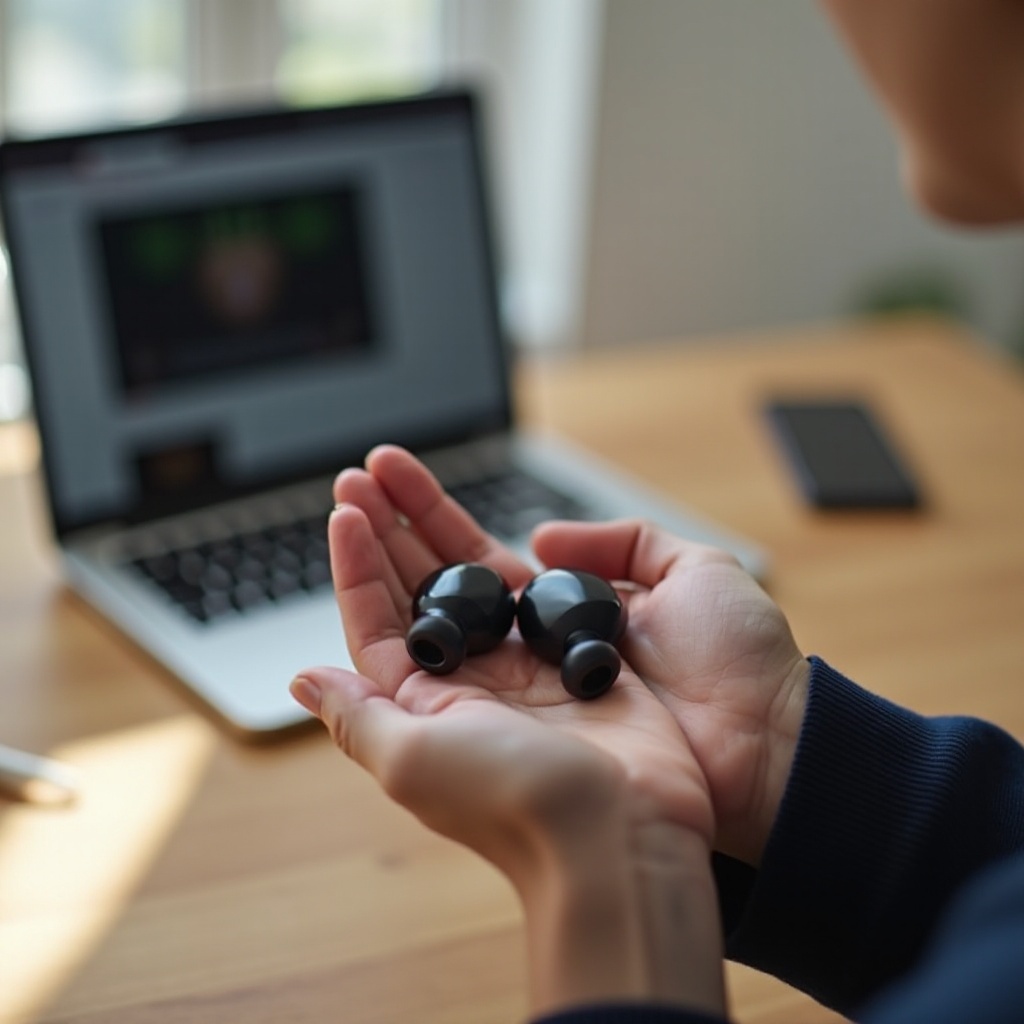
Diagnose the Problem: No Sound, Low Volume, or Not Powering On?
Label the symptom before you change settings. Different issues need different actions.
– No sound: The right earbud powers on and connects, but audio is silent. You may hear connection tones, but music stays left only. This often points to balance, mono settings, or a pairing role glitch.
– Low volume: The right side plays much quieter than the left. This often means a clogged mesh, a poor seal, an app effect, or a balance setting.
– Cutting out: The right bud drops audio or disconnects during music or calls. Radio congestion, body blocking, or multipoint conflicts cause this often.
– Not powering on or not charging: The right bud never lights up, will not enter pairing, or drains fast. Charging pins, magnets, battery desync, or case power can be the culprit.
Make quick notes about LED behavior, tones you hear, and which apps you used. This short log helps you choose the right path and speeds up support later.
If you know the symptom, try immediate fixes next so you do not spend time on deep steps.
Quick Fixes to Try First
Start with changes that take seconds and solve many cases.
1) Put both earbuds in the case, close the lid, wait 30 seconds, then open. Remove both earbuds together and test.
2) Toggle Bluetooth off and on in your phone. Wait five seconds between toggles, then reconnect.
3) Forget the earbuds in your Bluetooth list. Reboot your phone. Pair fresh.
4) Test another app. Try a local audio file and a streaming service. Some apps force mono or adjust balance.
5) Test another device. Pair with a second phone, tablet, or laptop to rule out the primary device.
6) Ensure both earbuds are charged. If the right side looks dead, leave both in the case for 30 to 60 minutes.
7) Reseat eartips to confirm the right bud detects in ear placement. Some models reduce volume when they think the bud is out of ear.
8) Disable multipoint for now. Connect to only one device and retry.
If the right side returns, you can skip deeper steps. If it does not, verify device and app settings that control balance and channels.
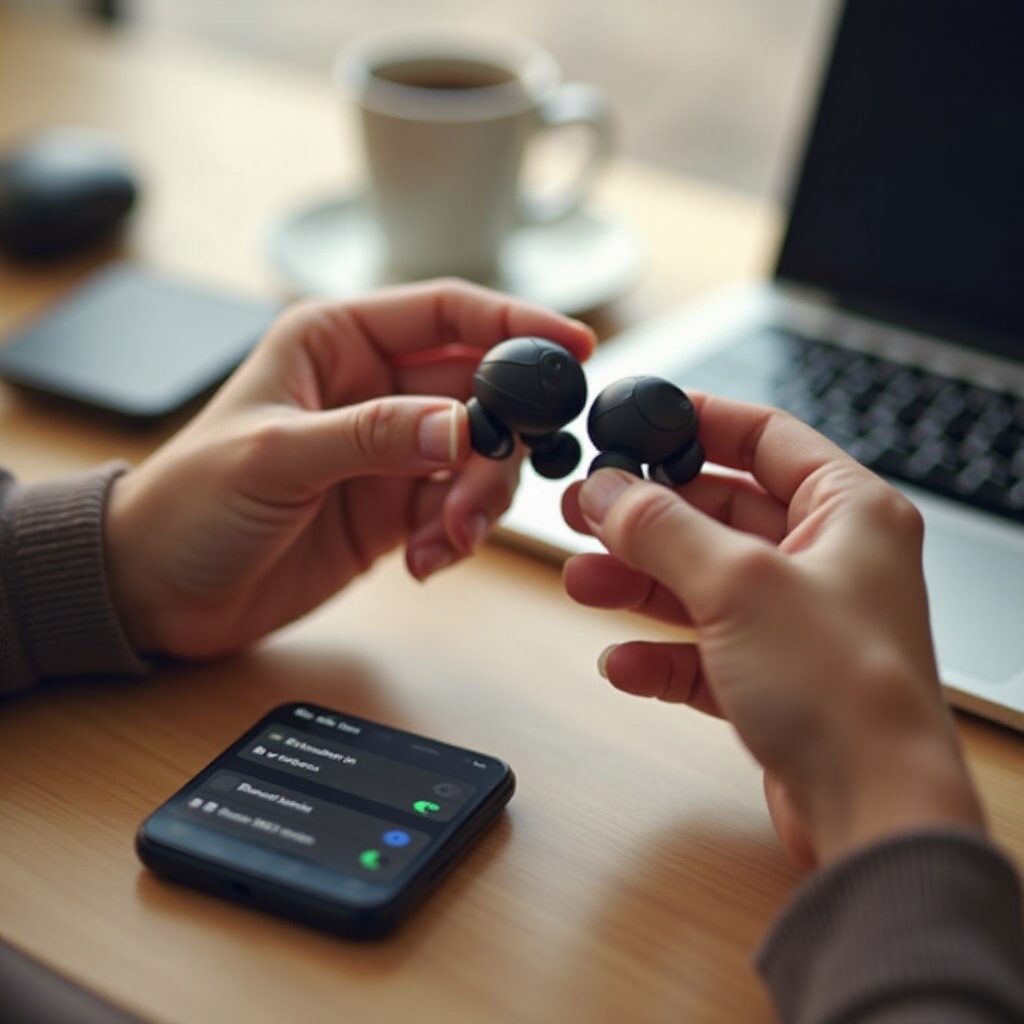
Check Audio Balance, Mono or Stereo, and Accessibility Settings
A simple setting can mute a single channel. Verify on your device first.
– iPhone or iPad: Settings > Accessibility > Audio or Visual. Make sure Mono Audio is off and the Balance slider sits in the middle.
– Android: Settings > Accessibility > Hearing enhancements or Audio adjustments. Turn Mono off and center Left and Right balance.
– Windows: Settings > System > Sound > Output device. Set Left and Right equally and verify Mono audio is off.
– Mac: System Settings > Accessibility > Audio. Turn Mono Audio off and center the Balance.
Now check the Soundcore app:
– Disable spatial audio, transparency, or noise cancelling during testing. Some features can shift perceived balance.
– Run a tip fit test if your model supports it. A poor seal can mimic a volume drop.
If settings look correct and the right side still fails, confirm that the right bud is charging and making solid contact in the case. That is the next focus.
Reseat, Clean, and Charge the Right Earbud
Poor contact inside the case can stop charging and desync the right bud.
– Inspect charging pins: Open the case and look for debris or bent pins. The pins should spring freely.
– Clean contacts: Lightly dampen a cotton swab with 70 percent isopropyl alcohol. Gently clean the gold pins in the case and the gold pads on the earbud. Let them dry for a few minutes.
– Check magnets and seating: Make sure the right bud snaps into place and the case LED shows charging. If it floats or feels loose, adjust the tip or try a smaller tip to improve seating.
– Charge long enough: Place both buds in the case. Connect the case to a reliable cable and a wall charger. Let it charge for at least 30 to 60 minutes. Weak USB ports may under power the case.
– Reseat both buds after charging: Remove both together and check for a stable connection.
If the right earbud now powers on or plays audio, proceed to a reset and fresh pairing to resync roles. If not, a reset can clear hidden pairing data.
Reset Your Soundcore Earbuds (Model Specific Steps)
A full reset clears pairing roles, fixes single ear issues, and refreshes firmware behavior. Always remove the earbuds from your phone Bluetooth list first. Then follow your model reset sequence.
Liberty 4 or Liberty 4 NC: Full Reset Sequence
- Forget the device in Bluetooth settings.
- Place both buds in the case and open the lid.
- Press and hold the case button for about 10 seconds until LEDs flash. Close the lid for five seconds, then reopen.
- Remove both buds together and re pair from your device Bluetooth menu or via the Soundcore app.
Space A40 or A30i: Full Reset Sequence
- Forget the device in Bluetooth settings.
- Place both buds in the case and keep the lid open.
- Press and hold the case button for about 8 to 10 seconds until LEDs flash to indicate reset.
- Close the lid for a few seconds. Reopen, then pair both buds at once.
Life P3 or P3i: Full Reset Sequence
- Forget the device in Bluetooth settings.
- Place both buds in the case and open the lid.
- Hold the case button for about 10 seconds until the LED indicator flashes. If your variant lacks a case button, touch and hold both earbuds while out of your ears for about 8 to 10 seconds as the manual instructs.
- Reopen the lid and pair fresh.
Liberty Air 2 or Air 2 Pro: Full Reset Sequence
- Forget the device in Bluetooth settings.
- Place both buds in the case with the lid open.
- Hold the case button for about 10 seconds until the LED flashes rapidly. Close and reopen the lid.
- Remove both earbuds together and pair.
Notes: - If your case has no button, check the Soundcore app model page for the reset method. Some units use a touch and hold gesture on both earbuds while in the case.
- After reset, always pair both buds at once. Avoid pairing a single earbud first. That can lock roles and cause a one sided connection.
Once you reset and unpaired old entries, your next step is to update firmware so you do not run into a bug that returns the issue.
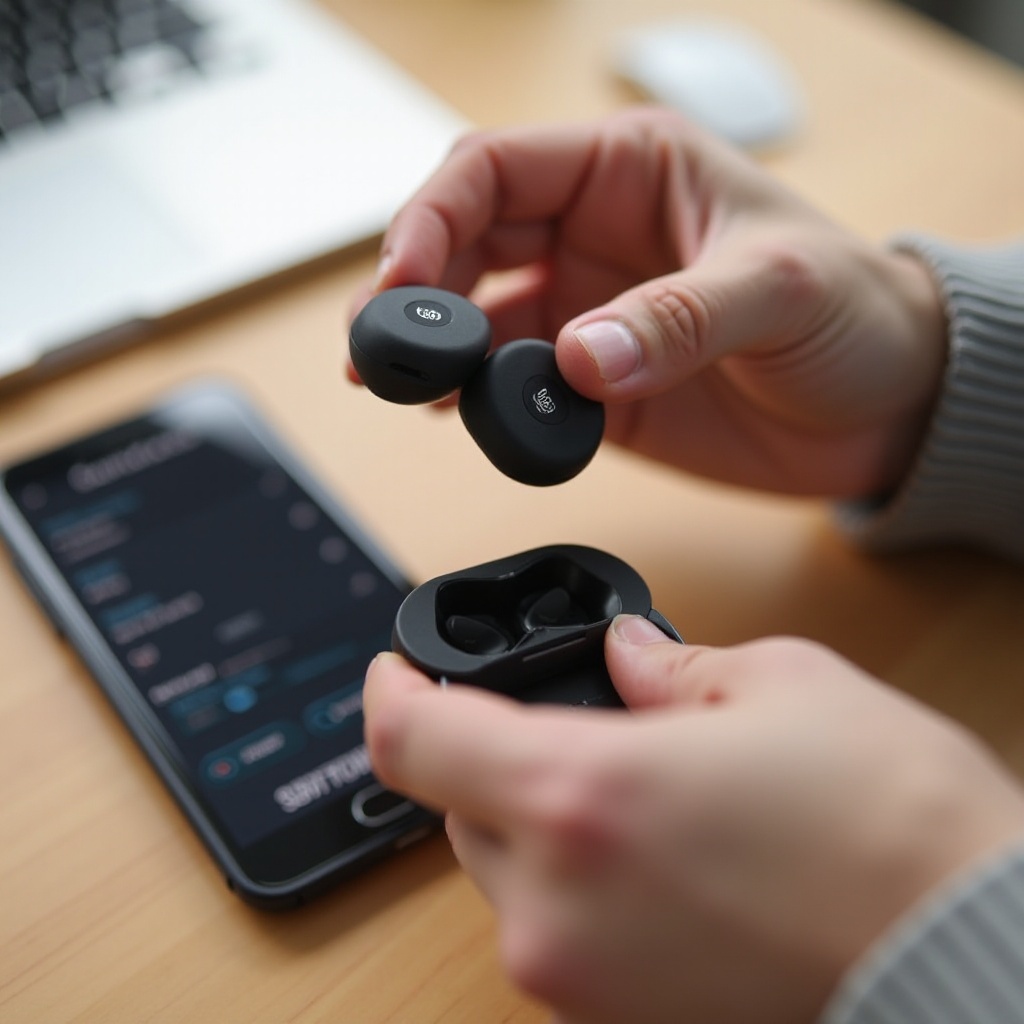
Update Firmware in the Soundcore App and Keep the App Healthy
Firmware updates fix battery reporting, role switching, and connection bugs.
– Install or open the Soundcore app and connect both earbuds.
– Check for firmware updates. Follow the app prompts carefully and keep the buds in or near the case as instructed.
– Keep your phone near the case and avoid other Bluetooth devices during the update.
If an update fails, try this sequence:
– Force close and reopen the app.
– Reboot your phone and repeat with the buds well charged.
– Uninstall and reinstall the app if needed, then repeat the reset and update.
With firmware refreshed and the app stable, you are ready to pair the right way and manage multipoint.
Re Pair the Right Way and Manage Multipoint Connections
Incorrect pairing order can leave one earbud idle. Set roles cleanly.
1) Forget the earbuds on every device they were paired with.
2) Reset the earbuds using the model specific steps above.
3) Pair with one device only. Turn off Bluetooth on nearby devices to avoid accidental connections.
4) Confirm that both earbuds connect and play stereo.
5) If you need multipoint, enable it after stereo playback is stable. Add the second device through the app if your model supports it.
Tips:
– On PCs, remove old entries and re add as a new device. Avoid pairing entries that show as LE unless you intend to use LE Audio.
– On Android, clear Bluetooth cache if pairing loops. Go to Settings, then Apps, then Show system, then Bluetooth, then Storage, then Clear cache and Clear data.
With pairing stabilized, tackle interference next if you still hear cutouts or silence.
Reduce Bluetooth Interference and Codec Conflicts
Right side cutouts often stem from radio congestion or body blocking.
– Shorten distance: Keep the phone in a pocket on the right side for a quick test.
– Move away from crowded 2 point 4 gigahertz zones. Routers, microwaves, and gyms packed with trackers can cause dropouts.
– Disable Wi Fi temporarily for testing or switch your router to 5 gigahertz while you listen.
– Turn off unused wearables or stop streaming to a watch.
– Try a different codec. On iOS you use AAC by default. On Android, in Developer options, toggle AAC off to force SBC or enable LC3 if supported. Test which is stable.
– Disable spatial audio or head tracking while diagnosing.
If cutouts stop, keep the stable configuration for a while. Re enable features one by one to find the trigger. If audio is steady but quiet, you likely need a deep clean.
Deep Clean the Speaker Mesh, Nozzle, and Charging Contacts Safely
Low volume or one sided sound often points to blockage.
– Remove eartips and inspect the right nozzle mesh under bright light.
– Use a dry, soft brush or a fresh, dry toothbrush to loosen debris. Hold the bud mesh side down so particles fall out.
– If residue persists, lightly dab the mesh with a small amount of 70 percent isopropyl alcohol on a lint free swab. Do not soak the mesh.
– Clean charging contacts. Wipe the bud gold pads and the case pins with a barely damp alcohol swab. Let them dry fully.
– Replace eartips if they are deformed or clogged. Try a different size to improve seal and perceived loudness.
After cleaning, test again. If the right side returns, continue to battery and case checks to make sure it stays reliable under daily use.
Battery and Charging Case Diagnostics
A tired cell or misaligned case can mimic a dead earbud.
– Decode LEDs: Note case LED patterns when you insert the right bud. Rapid flashing often means pairing mode. Steady lights often indicate charging. Consult your model guide or the app for exact codes.
– Verify case charge: Use a reliable cable and a known good charger. A depleted case cannot revive an earbud.
– Test pin action: Gently press the case pins with a non metal tool. They should spring back. If stuck, a tiny drop of contact cleaner can help. Let it dry fully.
– Calibrate batteries:
1) Use both earbuds until they power off.
2) Charge the case to full.
3) Place both buds in the case and charge to full without interruption.
– Swap sides if possible: Place the right bud into the left cavity only to test magnet strength and contact fit if your case shape allows. Never force the fit.
If the right bud still shows no signs of charging or powering on after these steps, confirm whether the problem follows the bud across devices. That isolation saves time.
Cross Test on Other Devices and Apps to Isolate the Issue
You need to know if the fault is the earbud or the source.
– Pair with a second phone or tablet and play a downloaded track.
– Try different types of audio: a music app, a video app, and a phone call.
– If the right side works on device B but not device A, reset Bluetooth settings on device A and update its operating system.
– If the right side fails on all sources, the earbud or case likely has a hardware issue.
This isolation step prepares you for support and prevents unnecessary returns. If hardware fault seems likely, move to support and warranty guidance next.
Hardware Failure Signs and How to Use Warranty or Support
Some symptoms point to hardware, not settings.
– No LED or sound from the right earbud even after long charging.
– Audible rattling, crackle at all volumes, or distortion that changes when you tap the bud.
– The case pin is stuck or the magnet will not hold the right bud in place.
– Fast drain on the right bud compared to the left even after battery calibration.
Before contacting support, prepare the basics:
– Gather proof of purchase and the serial number. The serial number is usually inside the case lid or on the packaging.
– List the steps you tried. Include cleaning, resets, firmware, pairing, cross tests, and battery calibration.
– Record a short video that shows the issue and LED behavior.
Contact Soundcore support through the app or the website and share your notes. Many models include a warranty period that starts from purchase. If you qualify, request an RMA or a right earbud replacement when your model supports single side replacements. Follow shipping instructions carefully so your claim proceeds without delay.
When you have a working pair again, use a few simple habits to keep both sides healthy.
Preventive Care: Habits That Keep Your Soundcore Earbuds Healthy
Good habits prevent most one sided issues.
– Keep the case clean and dry. Wipe contacts monthly and clear dust from the hinge and rim.
– Let the buds and the case dry after workouts before charging. Moisture can block sensors and corrode pins.
– Seat both buds firmly in the case and watch for a charge LED before closing the lid.
– Update firmware when the app prompts you, but keep both buds well charged during updates to avoid mid update failures.
– Do not leave the case empty for long periods. Store it between roughly 20 and 80 percent if unused for weeks, and top up monthly.
– Rotate eartips and replace them when they soften, tear, or clog. A good seal helps balance and reduces the urge to raise volume.
– Limit extreme heat or cold. High heat stresses batteries and cold reduces runtime.
These small steps protect the contacts, batteries, and sensors that keep both sides synced and ready.
Conclusion
A silent right earbud usually comes down to four things: device settings, case seating, software state, or debris. You checked balance and mono controls, cleaned and reseated the bud, reset and updated firmware, re paired with a clean slate, and ruled out interference. You also ran battery and case checks and confirmed results across devices. If the right side still fails after all of that, you likely face a hardware fault that only support can address. Use your notes and videos to speed the warranty process. If the bud is now back, follow the preventive tips so it stays reliable for calls, music, and workouts.
Frequently Asked Questions
Why does only my right Soundcore earbud stop working after a few minutes?
This often happens when the right bud acts as the primary ear and carries more radio load. If its battery is weak or its case contact is dirty, it can drop first. Clean charging contacts, calibrate the battery with a full discharge and full charge, and update firmware. Disable multipoint while testing, and keep your phone closer to the right side. If the problem persists across devices after a reset, the right bud may have a battery or board fault. Contact support with your diagnostics.
Can I buy a replacement right Soundcore earbud if mine is faulty?
Many Soundcore lines allow single earbud replacements through support, especially while under warranty. Availability varies by model and region. Gather your serial number, proof of purchase, and a video of the issue. Ask for a right side replacement or an RMA. If your model does not support single side replacements, Soundcore may offer a full set exchange. Avoid third party buds because they rarely sync well.
How do I reset Soundcore earbuds if the right earbud will not power on?
First, ensure the case is charged and the right bud makes contact. Clean pins and pads, then charge for 30 to 60 minutes. Next, remove the earbuds from your phone Bluetooth list. Place both in the case and perform the model reset: on most recent Soundcore cases, press and hold the case button for about 10 seconds with the lid open until LEDs flash. Close, reopen, and pair both buds together. If the right bud never lights or is not detected on multiple devices after this process, pursue a warranty claim.