Why Does My Oculus/Meta Quest Keep Turning Off With Full Battery? Troubleshooting and Fixes for Stable VR
Introduction
A Meta Quest that powers off or sleeps mid session while the battery reads full can feel frustrating. The good news is that this behavior often has simple causes. The proximity sensor may think you removed the headset. Auto sleep might cut in too fast. A cable or add on battery can drop power for a moment. The battery gauge might misreport the real charge. Heat, crashes, or PC link dropouts can also look like power offs.
You can solve most of these issues with clear steps. Start with sensor cleaning and sleep settings. Verify power delivery and battery calibration. Check fit and light leaks around the facial interface. Then update firmware and apps, and stabilize your environment and PC link. If problems persist, gather logs, perform a clean reset, and contact support. This guide walks you through each stage so you can restore stable sessions.
Quick Answer: The Most Common Culprits and Fastest Fixes
Before diving deep, try these quick actions. They address the top reasons a headset sleeps or shuts off while the battery shows full.
- Clean the proximity sensor with a dry microfiber cloth and reseat the facial interface.
- Extend the auto sleep timer and disable Auto Wake Headset in Settings.
- Reboot the headset with the Restart option from the power menu.
- Calibrate the battery gauge by charging to 100 percent, playing to about 10 to 15 percent, then recharging to full without interruption.
- Remove external battery straps and third party packs; test on the internal battery with the official charger.
- Inspect the USB C cable and port for wear; try a known good, snug fitting cable and a quality USB PD charger.
- Cool the headset; avoid direct sunlight and use a room fan during play.
- Update system firmware and all apps; leave any beta channel and disable experimental toggles.
These steps solve most random sleeps or power offs. Once you complete them, confirm your model and software build so you can apply model specific notes in the next sections.
Confirm Your Headset Model and Software Version
Different Quest models handle sensors, thermals, and power slightly differently. Confirm whether you use Quest 2, Quest 3, or Quest Pro. Open Settings, then System, then About to check the version and build. Note if developer mode is enabled or if you joined a test channel that can alter sleep behavior and tracking sensitivity.
Also list accessories. If you use an Elite Strap with Battery or third party pack, record the brand and any firmware details provided by the manufacturer. Keep this context as you test. It will help you isolate whether a change in settings, a specific accessory, or a certain build correlates with the issue. With this foundation set, focus on the proximity sensor and auto sleep logic.
Proximity Sensor and Auto Sleep: Why the Headset Thinks You Took It Off
The proximity sensor near the nose bridge tells the system when the headset sits on your face. Dust, finger oils, sweat, or a shifted facial interface can obscure it. When the sensor flickers, the OS interprets an off face event and puts the headset to sleep. That looks like a random power off even with a full battery.
Clean the sensor gently with a dry microfiber cloth. Avoid liquids and abrasive cleaners. Reseat the facial interface and confirm that foam or silicone does not overhang the sensor area. Then run a quick test. Put the headset on and ensure a snug seal. Create a small light leak near the nose by lifting the headset slightly. If sleep triggers immediately, the sensor and auto sleep may be too sensitive.
Open Settings and expand power management options. Extend the auto sleep timer to reduce quick sleeps. Disable Auto Wake Headset to prevent state changes when the headset moves or when accessories jostle it. If the headset still sleeps while fully worn, turn to fit and light leaks. A stable seal around the nose bridge often resolves false readings.
Fit, Light Leaks, and Facial Interface Issues That Trigger Sleep
A loose strap or a facial interface that does not sit flush lets light reach the sensor. That light suggests you removed the headset, which triggers sleep. Tighten the strap so the headset stays put during movement but does not cause pressure points. If you wear glasses, check whether frames lift the interface away from your face near the nose.
Check third party face pads and prescription lens inserts. Some pads shift during intense gameplay or sweat, uncovering the sensor. Inserts can reflect light into the sensor. Reseat them securely and test again. If your room has bright overhead lighting or sunlight, reduce direct beams and aim for even ambient light. After you establish a firm, light tight fit, if sleeps persist, examine how you interact with the power button.
Power Button Behavior: Stuck, Misfiring, or Accidental Presses
A short press of the power button puts the headset to sleep. A long press opens the shutdown menu or powers off the device. Debris, shell flex, or a strap pressing near the button can cause accidental sleeps. Inspect the button area closely. Confirm that straps, cables, or battery accessories do not press the button during movement.
Press and release the button several times to feel smooth travel. Run a control test and play without touching or adjusting straps for a few minutes. If the headset remains on, accidental presses were likely. If random sleeps occur regardless, return to power delivery and battery calibration. The next step is to ensure that a full battery indicates real, stable power under load.
Battery Gauge vs Real Power Delivery: Calibrate and Verify
A battery can show full while the voltage sags under load. Protection circuits then trigger shutdown to safeguard hardware. If the gauge needs calibration or cells have aged, the headset may power off during heavy apps even when the indicator says full.
Calibrate the gauge with this process:
1) Charge to 100 percent using the official charger.
2) Use the headset until it reaches about 10 to 15 percent. Do not deep discharge to zero.
3) Recharge to 100 percent in one uninterrupted session.
Observe behavior during this process. Sudden drops from full to lower percentages indicate misreporting or weak cells. If the headset powers off only during intense games, the pack may not supply enough current under load. Avoid playing while charging if heat builds quickly. If calibration does not help, focus on chargers, cables, and external batteries. Brief power dips from accessories can look like random shutoffs.
Chargers, Cables, and External Battery Packs That Cause Dropouts
Stable power delivery matters as much as charge level. A worn USB C cable can lose contact when you turn your head. A low wattage or unstable charger can cause brownouts. Use the official charger or a reliable USB PD unit that provides at least 15 to 20 watts. Try a high quality cable with a snug fit on both ends. Inspect the headset port for debris and clean gently with compressed air if needed.
If you use an Elite Strap with Battery or third party packs, test without them. Smart packs may perform a handover between internal and external cells that briefly interrupts power. Mixed cell ages and firmware quirks can also confuse the headset charge controller. Play on internal battery only to check stability. If the headset stays on without accessories, replace or update the pack. If power delivery checks out, address heat next. Thermal protection can mimic shutdowns.
Overheating and Thermal Shutdown: Signs and Fixes
Heat triggers protective sleep or shutdown. You may feel a hot face plate, see stuttering, or get black screens mid scene. Give the headset 10 to 15 minutes to cool. Keep it out of direct sunlight. Use a fan and keep your room cool and dry. Consider lighter face pads or an active cooling attachment if you play long sessions.
Reduce thermal load in software. Lower refresh rate if a title runs at the limit. Reduce graphics intensity inside demanding apps. Close background apps and overlays that consume resources. Avoid playing while charging if temperatures spike. If the issue appears in one title only, it may be an app crash rather than heat. Update the game and test again. With heat under control, move to software conflicts and experimental features.
Firmware, App Crashes, and Experimental Features to Disable
Bugs and unstable options can feel like power cuts. Update the system firmware from Settings. Update all apps from the store. If you joined a beta channel, leave it to return to a stable build. Disable experimental features step by step, especially those tied to sleep behavior, tracking, or USB.
If a specific app triggers shutdown, clear its cache if available or reinstall it. Log in again and test. Restart the headset after each change to ensure a clean baseline. When software looks stable, examine the play space and tracking. Environmental factors can pause or sleep the headset and produce a power off feel.
Guardian, Tracking, and Environmental Triggers That Put Quest to Sleep
Tracking and Guardian rely on clear boundaries and consistent light. Strong sunlight, reflective mirrors, glossy cabinets, or flickering fluorescent lights can confuse tracking and cause pauses. Redraw Guardian boundaries to reset the system state. Remove or cover reflective surfaces. Dim harsh lights and avoid direct beams into the headset cameras.
Clean the tracking cameras with a dry microfiber cloth. Aim for even, moderate lighting across the room. Reboot the headset after environment changes. If you use PC Link or Air Link, be aware that PC power saving and network issues can produce behavior that looks like headset shutdown. Address those issues next to prevent mid session dropouts.
Link and Air Link: PC Power Saving and USB Issues That Look Like Power Offs
USB power saving on a PC can suspend the connection while using Link. It can feel like the headset powered off. Disable USB selective suspend and power saving for the port used by Link. Use a high quality Link cable with secure connectors. Plug directly into the GPU or motherboard port rather than a low power hub. Update GPU drivers, since crashes can blank the display.
For Air Link, stabilize Wi Fi. Use a Wi Fi 6 or better router on the 5 GHz band. Place the headset and PC close to the router. Choose a clean channel and reduce interference from other heavy network loads. Keep the PC awake by selecting a performance power mode. If these adjustments restore link stability and the headset still sleeps, focus on correct shutdown and startup sequences to avoid accidental state flips.
Sleep vs Full Power Off: Use Proper Shutdown and Startup Sequences
Sleep and shutdown differ, and pressing patterns matter. A short tap of the power button puts the headset to sleep. A long press opens the menu or powers off. If you long press while adjusting straps, you might trigger a shutdown without intending to.
Use a quick tap for sleep. Avoid pressing the button during gameplay when your hands or straps move near it. To start cleanly, press and hold until the boot logo appears, then release. Wait for the home environment to load before launching apps. If the headset wakes on its own, disable Auto Wake Headset to prevent motion based wake events. If careful sequences and habits do not fix the issue, use advanced diagnostics and reset steps to isolate rare faults.
Advanced Diagnostics: Developer Mode, Logs, and Safe Factory Reset with Cloud Backup
Advanced tools help pinpoint persistent problems. Enable developer mode in the Meta Quest mobile app. Use PC tools such as Oculus Developer Hub to capture logs around the shutdown event. Note timestamps, the app in use, temperature readings if available, and any sensor or USB errors.
Before you reset, enable Cloud Backup in Settings to save your data. Verify that your games and settings show as backed up. Then perform a factory reset if software corruption seems likely. Power off the headset, hold Power plus Volume Down, open the boot menu, select Factory Reset, and confirm. After reset, restore apps and settings from Cloud Backup, but test the headset stock first. Do not add accessories or enable experimental features until you confirm stability. If shutdowns return immediately after a clean reset, hardware likely needs service. Prepare logs and evidence for support.
When to Contact Meta Support or Request Warranty Service
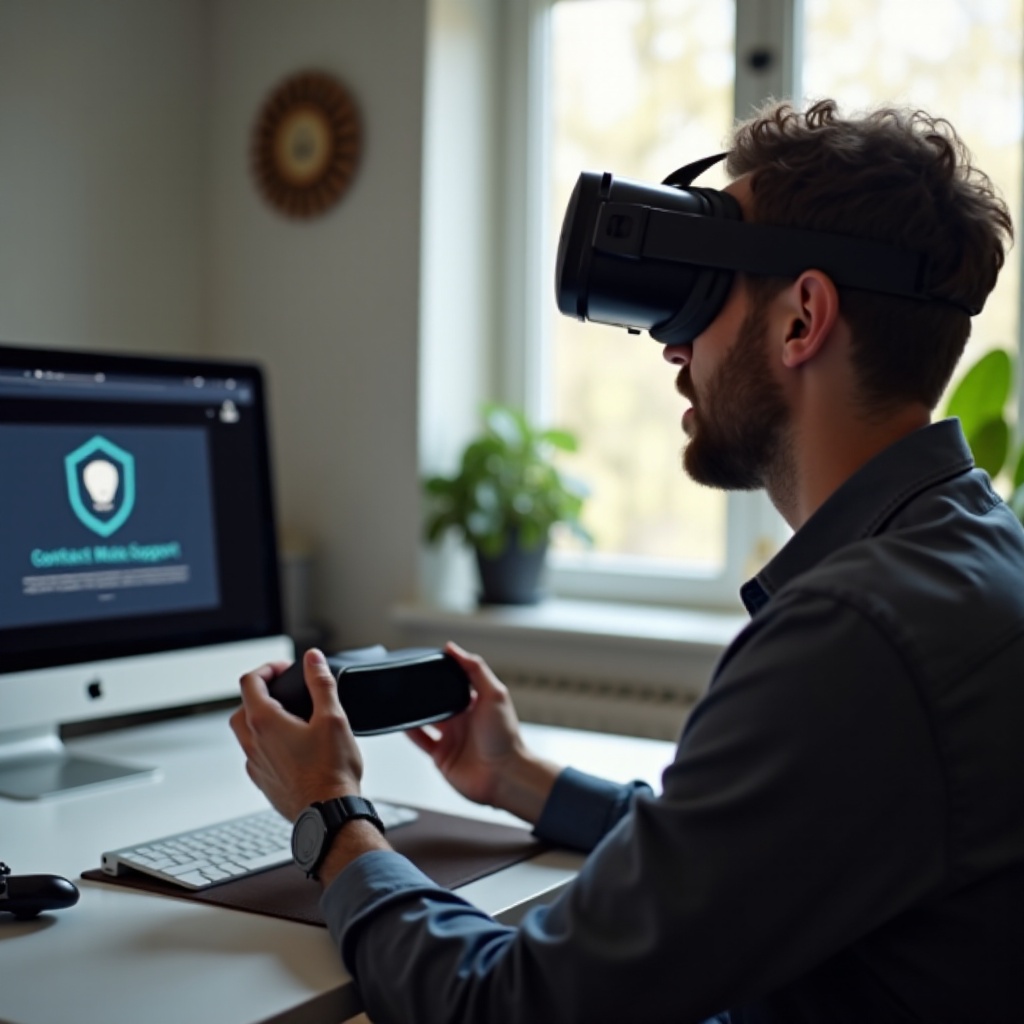
Contact Meta Support when the headset shuts off even in a cool room, with no accessories, on a fresh reset. Hardware symptoms include a proximity sensor that never detects your face, a battery that sags under light load, or a loose USB C port that loses contact when you move. A flaky power button that does not register presses consistently also points to hardware.
Gather details before you submit a ticket. Include model, serial number, software build, steps you tried, logs if possible, and a short video showing the behavior. If official accessories are involved, list them. Support can confirm known issues, authorize repair, or provide replacement under warranty. While you wait, apply the prevention checklist to reduce the chance of further interruptions.
Prevention Checklist for Stable VR Sessions
A few simple habits keep your headset reliable.
- Clean the proximity sensor and tracking cameras weekly with a dry microfiber cloth.
- Reseat the facial interface and ensure a snug, light tight fit around the nose bridge.
- Set a reasonable auto sleep timer; disable Auto Wake Headset if it causes false wakes.
- Use high quality USB PD chargers and snug cables; avoid worn or loose connectors.
- Limit heat with a cool room, short breaks, and no direct sunlight on the headset.
- Keep system firmware and apps updated; avoid long term use of beta builds for daily play.
- Calibrate the battery gauge occasionally; do not deep discharge to zero.
- Test accessories one at a time; replace packs or hubs that cause dropouts.
- Optimize Link and Air Link by tuning PC power settings, Wi Fi channels, and router placement.
- Reboot before long sessions and close unused apps and overlays.
These habits reduce sensor flicker, power dips, heat spikes, and software conflicts. By keeping fit, power, and software in good shape, you remove the common triggers for random sleeps.
Conclusion
A Quest that powers off while the battery reads full usually points to sensor misreads, aggressive sleep, misreported charge, unstable cables or chargers, heat, or software conflicts. You can solve most cases with targeted checks. Clean the sensor and adjust sleep settings. Verify power delivery and calibrate the battery gauge. Control heat and update firmware and apps. Stabilize tracking, Guardian, and PC link. Use proper button presses for sleep and shutdown. If needed, capture logs, reset cleanly, and contact support.
Once you lock down fit, power delivery, and software stability, sessions feel solid again. The headset stays awake through heavy scenes, and your focus returns to the game, not the hardware. Follow the steps in this guide, and you will fix the root cause behind a headset that keeps turning off despite a full battery.
Frequently Asked Questions
Why does my Meta Quest show 100 percent battery but shut off after a few minutes?
A battery can report full while voltage sags under load. Calibrate the gauge by charging to 100 percent, using to 10 to 15 percent, then recharging without interruption. Avoid deep discharge. Test with the official charger and a high quality cable. If shutdowns happen in demanding apps or during heat, cool the headset and try lighter content. If calibration fails and the headset still powers off, contact support because the pack may not meet current demand even at full.
How do I stop the proximity sensor from putting the headset to sleep while I am playing?
Clean the sensor near the nose bridge with a dry microfiber cloth. Reseat the facial interface and tighten the strap to block light leaks. In Settings, extend the auto sleep timer and disable Auto Wake Headset. Test in even ambient light. If you use lens inserts or third party face pads, ensure they do not reflect light into the sensor or shift during movement. If misreads continue, record a short video and share it with support for hardware assessment.
Is it safe to use my Quest while charging, and can that cause random shutoffs?
You can play while charging, but watch heat. Charging plus gameplay raises temperature, which can trigger throttling or shutdowns. Use a capable USB PD charger and a snug cable. Keep the room cool and aim a fan at your face. If stutters or hot plastic appear, pause and let it cool. Some accessories and hubs deliver unstable power and cause brief dropouts that feel like shutoffs. Test with the official charger directly, remove external batteries, and confirm stability before long sessions.