How to Connect Your PS4 Controller to a Samsung Device
Introduction
Samsung devices can dramatically elevate your gaming prowess when paired with a PS4 controller. Utilizing a physical controller enhances comfort, providing precision and control beyond what touchscreens permit. Whether you’re tackling challenging levels or exploring vast open worlds, having a reliable controller is transformative. This comprehensive guide equips you with techniques for seamless connections, resolves common issues, and offers tips to enrich your gaming journey.
Preparation and Compatibility
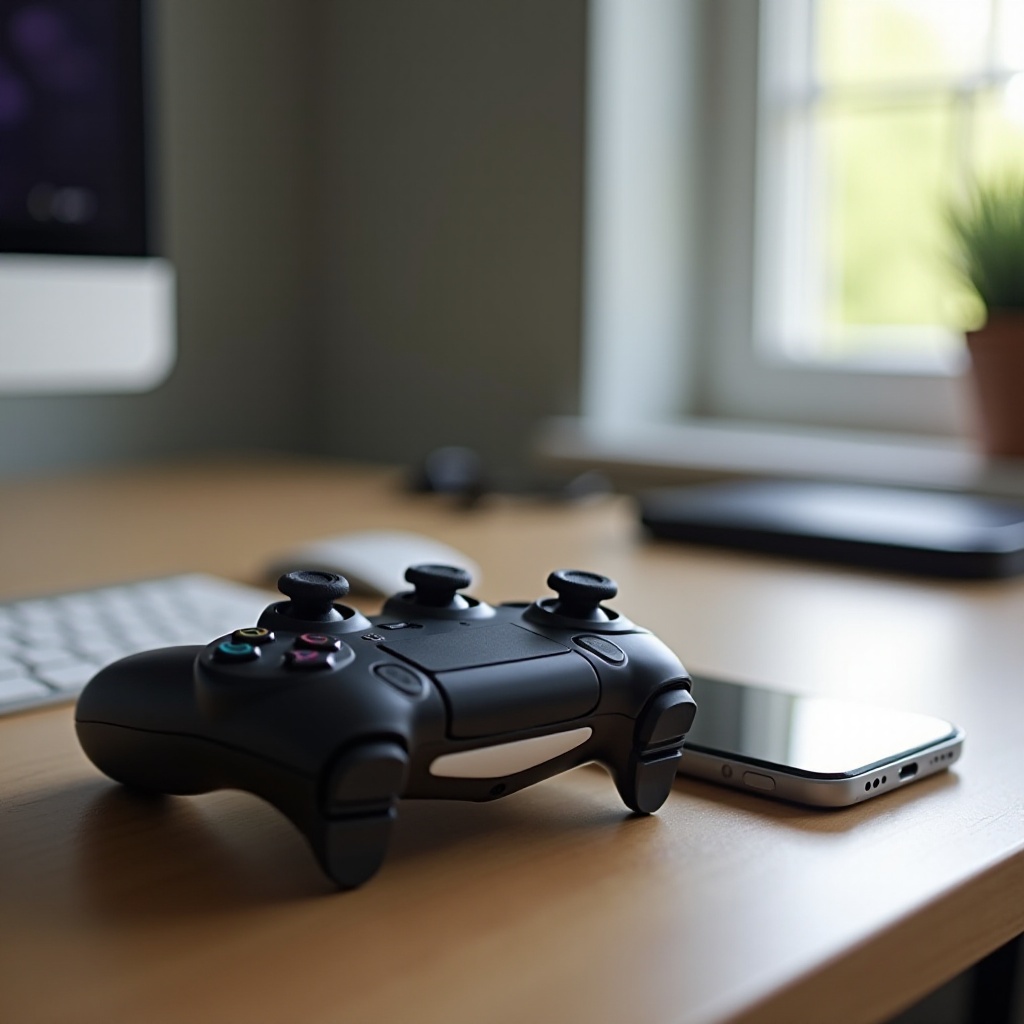
Before diving into the connection process, ensure your Samsung device is compatible with PS4 controllers. Most models running Android 10 or newer should be suitable. Here’s how to prepare for a successful setup:
- Check Compatibility: Consult Samsung’s support website or your device manual for detailed information.
- Prepare the PS4 Controller: Make sure that your controller is fully charged before initiating the connection.
With preparation complete, you’re ready to establish a Bluetooth connection, bringing wireless convenience to your gaming sessions.
Establishing a Bluetooth Connection
Bluetooth is a popular choice, valued for its wire-free flexibility and ease of use. To pair your PS4 controller with your Samsung device via Bluetooth, follow these steps:
- Activate Bluetooth on Samsung Devices:
- Open ‘Settings’ and select ‘Connections.
- Enable Bluetooth and make sure your device is set to discoverable.
- Pairing the PS4 Controller:
- Press and hold both the ‘Share’ and ‘PS’ buttons until the light bar blinks.
- On your Samsung device, locate and select ‘Wireless Controller’ from available Bluetooth devices to pair.
- Troubleshooting Bluetooth Connection Issues:
- If pairing fails, try restarting both devices and attempt the connection again.
- Ensure no other Bluetooth devices are actively paired with your controller.
After establishing a successful Bluetooth connection, you might be interested in exploring a wired setup for a different experience.
Using a USB Wired Connection
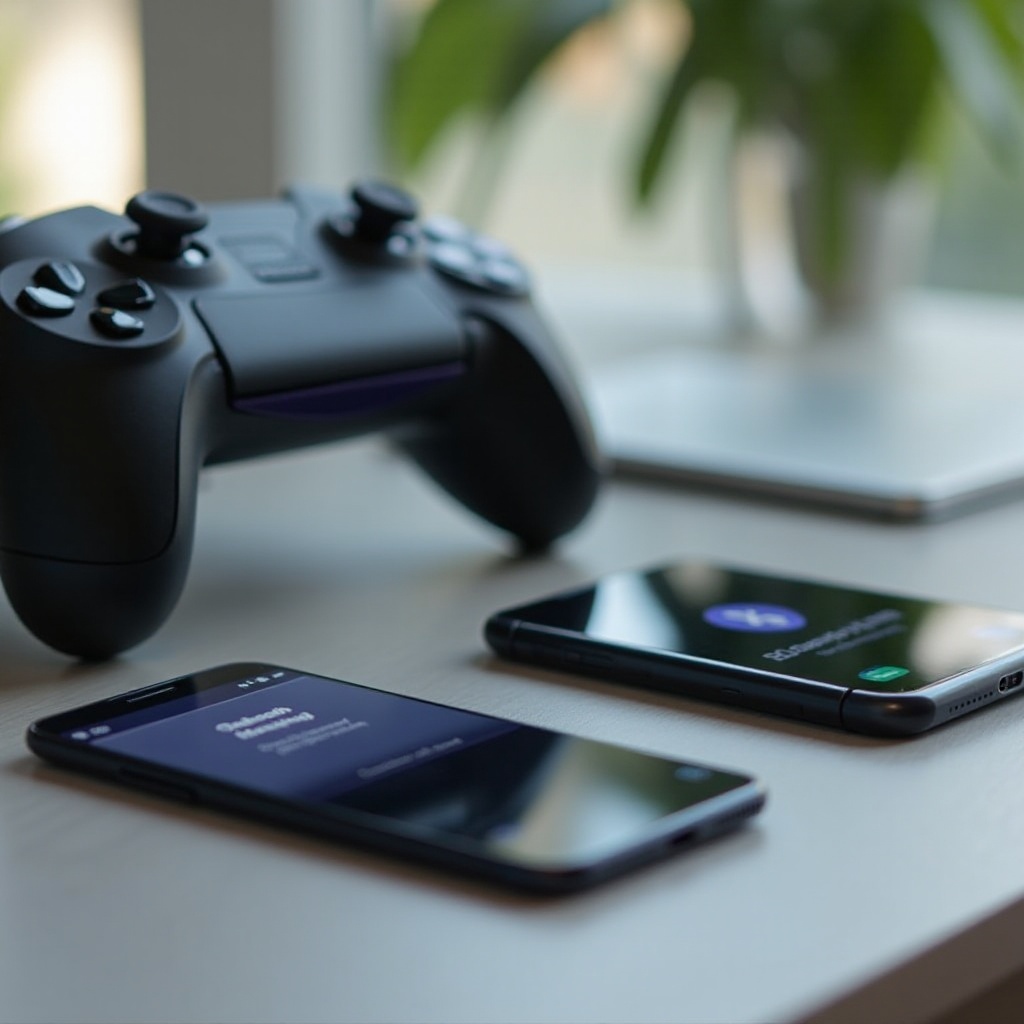
A wired connection provides absolute stability, rendering power supply issues irrelevant and optimizing gameplay efficiency. Here’s how:
- Advantages of a Wired Connection:
- Eliminates lag associated with wireless connections.
- Provides a continuous power source, preventing unexpected disconnections.
- Step-by-Step Guide on USB Connection Setup:
- Obtain a USB OTG (On-The-Go) adapter that fits your Samsung device.
- Connect the OTG adapter to your device and attach the PS4 controller using a USB cable.
- Your device should automatically detect the controller, signaling successful setup.
- Dealing with Connection Problems:
- Activate the OTG setting on your device if it isn’t detecting the controller.
- Ensure that both your cable and adapter function correctly without faults.
The stability offered by a wired connection is unrivaled, but further optimization can enhance your gameplay with tailored app recommendations.
Enhancing Gaming Experience with Apps
To fully unleash the potential of your PS4 controller, consider exploring apps that maximize its capabilities.
- Recommended Apps for Controller Support: Explore apps like ‘Game Controller Tester’ to ensure everything functions as expected. Enhance your experience with Samsung’s Game Launcher for customizable settings.
- Customizing Controller Settings for Games: Look for in-game adjustment options to tweak button layouts and enhance controller sensitivity.
These modifications can vastly improve gameplay efficiency and introduce a highly responsive environment for any game session.
Conclusion
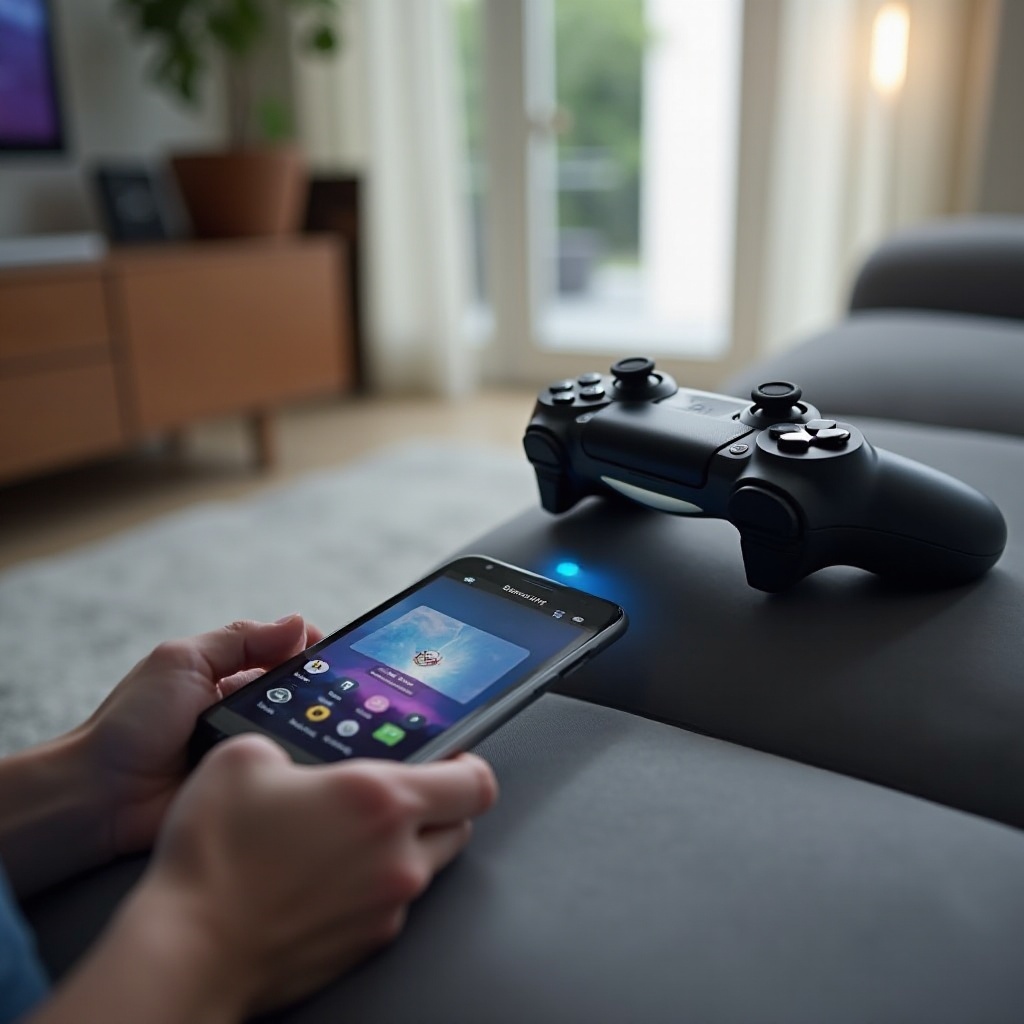
Congratulations on unleashing the full potential of your PS4 controller with your Samsung device through both Bluetooth and wired methods. With these connections, you’re ready to embark on countless gaming adventures, turning your mobile device into a portable console-like powerhouse.
Frequently Asked Questions
Can I connect my PS4 controller to any Samsung device?
Most Samsung devices running Android 10 or newer support PS4 controllers. Always verify with your device specifications.
What should I do if my controller is not recognized by my Samsung device?
Ensure both devices are within range, restart them, and check for any active connections with other devices. Software updates might also help.
Are there any specific apps to enhance the PS4 controller experience on Samsung?
Yes, apps like Game Controller Tester and Samsung’s Game Launcher can improve your experience with testing and configuration features.