Connecting Bluetooth on a Samsung Soundbar: Step-by-Step Guide
Introduction
Bluetooth makes a Samsung soundbar quick to pair with a TV, phone, tablet, or computer. You can stream music from a phone during the day, then switch to TV audio for a movie at night. The process takes only a few minutes when you follow clear steps, and you can avoid common mistakes by preparing your devices first. This guide gives you a practical path: basic checks, pairing steps for Samsung TVs and other brands, connections for phones and PCs, audio tuning for better sync, and fixes for the most common issues. You will also learn when a wired link via HDMI ARC or eARC and optical delivers better sound and tighter lip sync.
The sections build on each other. After you confirm compatibility and place your devices in range, you will enter pairing mode, link to your TV, and then connect other devices. From there, you will optimize audio, troubleshoot problems, and learn advanced options to control auto connections. Finally, you will see when to use HDMI or optical instead of Bluetooth and get pro tips to keep everything stable.
Before You Start: Compatibility, Requirements, and Quick Checks
A smooth Bluetooth connection starts with a quick readiness check. Confirm that your Samsung soundbar supports Bluetooth audio. Most recent HW, S, and Q series models do, and you will see BT as a source on the bar’s display or app. Update the soundbar firmware in the SmartThings app to fix pairing bugs and improve stability. Firmware updates often improve auto reconnection and codec handling as well.
Check your TV’s Bluetooth audio support. Samsung Tizen TVs generally support Bluetooth speakers. Many LG webOS, Sony or Google TV, Fire TV, and some Roku TVs support Bluetooth audio out. Menu names vary, and some sets only support Bluetooth headphones, not speakers. If you do not find a Bluetooth speaker option, you can still pair phones, tablets, and computers directly to the soundbar for music.
Do a short prep routine to prevent conflicts:
– Place the soundbar within 3 to 6 feet of the TV or device for the first pairing.
– Power on the soundbar and the target device.
– Turn off or disable Bluetooth on other previously paired phones or tablets nearby so they do not auto connect before your TV does.
– If you used HDMI ARC, eARC, or optical recently, set the soundbar source to BT before you start pairing.
With the basics ready and potential conflicts removed, you can put the soundbar into discoverable mode and make the first connection cleanly.
Put Your Samsung Soundbar in Bluetooth Pairing Mode
Your soundbar must broadcast itself before a TV or phone can see it. Use one of these methods depending on your model and remote.
With the remote:
1) Press Source or Mode until the display shows BT.
2) If the display reads BT READY, press and hold Source until it changes to BT PAIRING.
3) The bar is now discoverable.
Without the remote:
1) Tap the top panel Source or Bluetooth button until you reach BT.
2) Press and hold that button for about 5 to 10 seconds until you see BT PAIRING or a fast blinking LED.
3) The bar is ready to pair.
If BT PAIRING does not appear, power cycle the bar and try again. If a phone or tablet grabs the connection as soon as you reach BT READY, turn Bluetooth off on that device, then re enter pairing mode. With the bar broadcasting and in range, you can connect to your Samsung TV next.
Connect to a Samsung TV (Tizen OS)
Samsung TVs make pairing with a Samsung soundbar straightforward and repeatable. Follow these steps:
1) On the TV remote, open Settings.
2) Go to Sound, then Sound Output.
3) Choose Bluetooth Speaker List or Bluetooth Speaker Settings.
4) Select your Samsung soundbar, confirm Pair and Connect.
5) Set it as the default sound output when prompted.
If your TV does not list the bar, confirm the bar shows BT PAIRING and that no phone or tablet is connected. Move the soundbar closer to the TV and refresh the list. After pairing, rename the device to something clear such as Living Room Bar to avoid confusion when you add a phone or a laptop.
When the connection works well with your Samsung TV, you can repeat similar steps on other brands. Because each platform uses different menu names and limitations, the next section shows exact paths for popular TVs.
Connect to Other TVs over Bluetooth
Other TV brands use different paths and labels for Bluetooth speakers. Use the steps for your platform to avoid guesswork and to cut down setup time.
LG webOS TVs
- Press the Settings gear button.
- Go to All Settings, then Sound, then Sound Out.
- Select Bluetooth Device or Bluetooth Speaker.
- Put the soundbar in BT PAIRING, pick it from the list, confirm Pair, and set it as default.
- If you notice delay, set Digital Sound Out to PCM and use AV Sync under Additional Settings.
Sony or Google TV
- Press Quick Settings, then Settings.
- Open Sound, then Audio Output.
- Select Bluetooth Speaker or choose Add Device.
- Ensure the bar shows BT PAIRING, pick it from the scan results, and confirm pairing.
- To reduce lag, set Digital Audio Out to PCM and use AV Sync to fine tune lip sync.
Roku TV and Roku streaming devices
- On Roku TV, open Settings, then Remotes and devices, then Bluetooth devices, then Pair Bluetooth device.
- On some external Roku players, Bluetooth audio to speakers may not be supported; Private Listening via the Roku app routes audio to a phone, not to a speaker. If your Roku TV supports Bluetooth speakers, proceed with pairing.
- Set the soundbar to BT PAIRING and select it on the TV.
- If your Roku device lacks Bluetooth speaker support, pair the bar via the TV brand’s own Bluetooth menu or use HDMI ARC or eARC.
Amazon Fire TV and Fire TV Edition sets
- Open Settings, then Controllers and Bluetooth Devices, then Other Bluetooth Devices.
- Select Add Bluetooth Devices.
- Put the bar into BT PAIRING and choose it from the list.
- If you hear lag, open Display and Sounds, then Audio, and prefer PCM when the option is available.
Vizio SmartCast TVs
- Press Menu, then Sound, then Speakers or Audio Output.
- Choose Bluetooth Headphones or Bluetooth Speakers if the model supports full Bluetooth audio out.
- Some Vizio models include Bluetooth only for remotes and do not support full audio out. If you do not see a speaker option, use HDMI ARC, eARC, or optical instead.
Once your TV connects reliably, you may want quick music from a phone or clean audio from a laptop during work. The next section shows how to pair mobile and computer devices without resetting the TV connection.
Connect to Phones, Tablets, and Computers
Pairing a phone, tablet, or computer gives you flexible playback without touching TV settings. The process is similar across platforms, and small device specific tweaks keep audio stable.
Android phones and tablets
1) Open Settings, then Connected devices, then Pair new device, or open Bluetooth and select Pair new device.
2) Turn on Bluetooth and keep the screen open.
3) Put the soundbar in BT PAIRING.
4) Tap the soundbar name when it appears and confirm Pair.
5) Raise volume on both the phone and the soundbar.
– If the phone steals the connection while you watch TV, disable Bluetooth on that phone when not in use or turn off Bluetooth Power On on the soundbar.
iPhone and iPad
1) Open Settings, then Bluetooth, and turn Bluetooth on.
2) With the bar in BT PAIRING, wait for it to appear under Other Devices.
3) Tap the soundbar name and confirm.
4) Start playback in your preferred app.
– If the bar does not appear, toggle Bluetooth off and back on or restart the device. Keep the phone within 10 to 15 feet during first pairing.
Windows 10 or 11 PCs and laptops
1) Click Start, then Settings, then Bluetooth and devices.
2) Turn on Bluetooth and select Add device, then Bluetooth.
3) Put the bar in BT PAIRING and select it from the list.
4) In Sound settings, set the soundbar as Default for Output and choose 16 bit, 48 kHz for stability.
– If Windows reports Connected voice only, remove the device and re add the one labeled as a speaker.
macOS MacBooks and iMacs
1) Open System Settings, then Bluetooth.
2) Put the bar in BT PAIRING.
3) Click Connect next to the soundbar.
4) Open Control Center, select Sound, and choose the soundbar as Output.
5) In Audio MIDI Setup, set 2 channel, 16 bit, 44.1 or 48 kHz for reliable audio.
With phones and computers linked, you can tune settings to reduce delay and get cleaner sound from any source.
Optimize Audio Quality and Reduce Lag
Bluetooth trades convenience for some latency and codec limits. Careful settings choices can minimize delay and improve clarity without extra hardware.
Choose the right TV sound format
Set your TV’s Digital Audio Out to PCM for the lowest latency. Bitstream and Dolby processing can add delay over Bluetooth. Use Bitstream only if your bar and TV offer effective AV Sync controls and you prefer surround effects despite the added lag.
Use AV Sync or Lip Sync on TV and soundbar
Many Samsung TVs and soundbars include AV Sync. Adjust delay in small steps until voices align with lips. Start with 10 to 20 milliseconds and nudge as needed. Save settings per input when the TV allows it so different sources stay aligned.
Game Mode and motion processing
Enable Game Mode during gaming to cut TV processing delay. Disable or reduce motion smoothing, adaptive sound, and virtual surround that add latency. For sports or movies, test Off or Low settings to balance smooth motion and tight sync.
Bluetooth codecs and expectations
Most Samsung bars use SBC for Bluetooth audio. Some pair with AAC on Apple devices. These codecs compress audio and add delay. For lossless music, multichannel formats, or Dolby Atmos from a TV, use HDMI eARC. Keep expectations realistic for Bluetooth and you will still get clear, stable sound.
With your sound tuned and latency trimmed, you are ready to tackle common pairing and stability problems quickly when they appear.
Troubleshoot Common Bluetooth Problems
Even with good prep, Bluetooth can fail to pair, cut out, or lag. Use these focused checks to fix issues fast.
Soundbar not found or pairing fails
- Ensure the bar displays BT PAIRING, not BT READY.
- Move the bar within 3 to 6 feet of the TV or device and re scan.
- Turn off Bluetooth on nearby phones that might auto connect first.
- Clear the soundbar’s Bluetooth memory and remove the bar from the TV or phone’s device list.
- Power cycle both devices and update the soundbar firmware in SmartThings.
Paired but no sound or low volume
- Set the device output to the soundbar, not TV Speakers.
- Raise volume on both devices; many phones keep media volume low after pairing.
- On TVs, set Digital Audio Out to PCM and turn off hybrid modes that mix internal speakers and Bluetooth.
- On PCs and Macs, choose the soundbar as default output and confirm levels in Sound settings.
Drops, stutters, or short range
- Keep a clear line of sight between the device and the bar.
- Move Wi Fi routers and access points a few feet away from the bar; avoid stacking gear.
- Use 5 GHz Wi Fi for your network to reduce 2.4 GHz crowding.
- Remove USB 3.0 drives or hubs near Bluetooth antennas, as they can leak interference.
Audio delay and lip sync issues
- Switch TV audio to PCM and disable extra processing.
- Use AV Sync to add or subtract delay until voices match lips.
- Turn off surround virtualization or voice enhancement if it adds lag.
- If lag persists, switch to HDMI ARC or eARC, or optical, for TV audio.
Can not re pair after using HDMI or optical
- Turn off HDMI CEC, also known as Anynet Plus, temporarily to stop the TV from forcing ARC.
- Set the soundbar source to BT and enter BT PAIRING again.
- Remove the bar from the TV or device Bluetooth list and re add it.
- Power cycle all devices, then re enable ARC if you plan to use both.
If you still struggle with devices reconnecting at the wrong time, use advanced options to control how and when the bar wakes and chooses sources.
Advanced Options and SmartThings Tips
Samsung gives you extra controls that make Bluetooth predictable in busy homes. Use these features to avoid connection hijacking and to keep daily use simple.
Bluetooth Power On and auto reconnect behavior
Many Samsung soundbars can wake and auto connect when a paired device starts playback. Disable this feature if a phone keeps hijacking TV audio. You can toggle it from the soundbar settings or in the SmartThings app, depending on the model.
Auto Power Link and Anynet Plus interactions
Auto Power Link works with optical inputs; Anynet Plus is HDMI CEC. These features manage power and input switching. If ARC keeps grabbing audio when you want Bluetooth, turn off CEC or Auto Power Link during Bluetooth sessions. Re enable them when you return to TV audio over HDMI or optical.
Clear the soundbar’s Bluetooth memory
If the pairing list gets crowded or corrupted, reset it. Many models support a remote button combo or a menu option to clear Bluetooth devices. After clearing, pair your most important devices first and test auto reconnect behavior before adding more.
Update firmware via SmartThings
Add the soundbar to SmartThings, then check for a firmware update in the device settings. Apply updates and reboot the bar. Updates often fix reconnection logic, codec stability, and pairing performance.
Once you master advanced controls, you can choose the ideal connection for each use case and switch without friction.
When to Use HDMI ARC or eARC or Optical Instead of Bluetooth
Bluetooth is fast and flexible, but it does not carry Dolby Atmos or lossless multichannel audio from a TV. For big movie nights, high frame rate gaming, and live sports where lip sync matters, a wired connection is the better choice.
Dolby Atmos and multichannel limits over Bluetooth
Bluetooth typically transmits stereo via SBC or AAC. It does not deliver Atmos from a TV. If your bar supports Atmos, use HDMI eARC to unlock it, improve sync, and avoid wireless interference.
Quick setup for HDMI ARC or eARC and optical
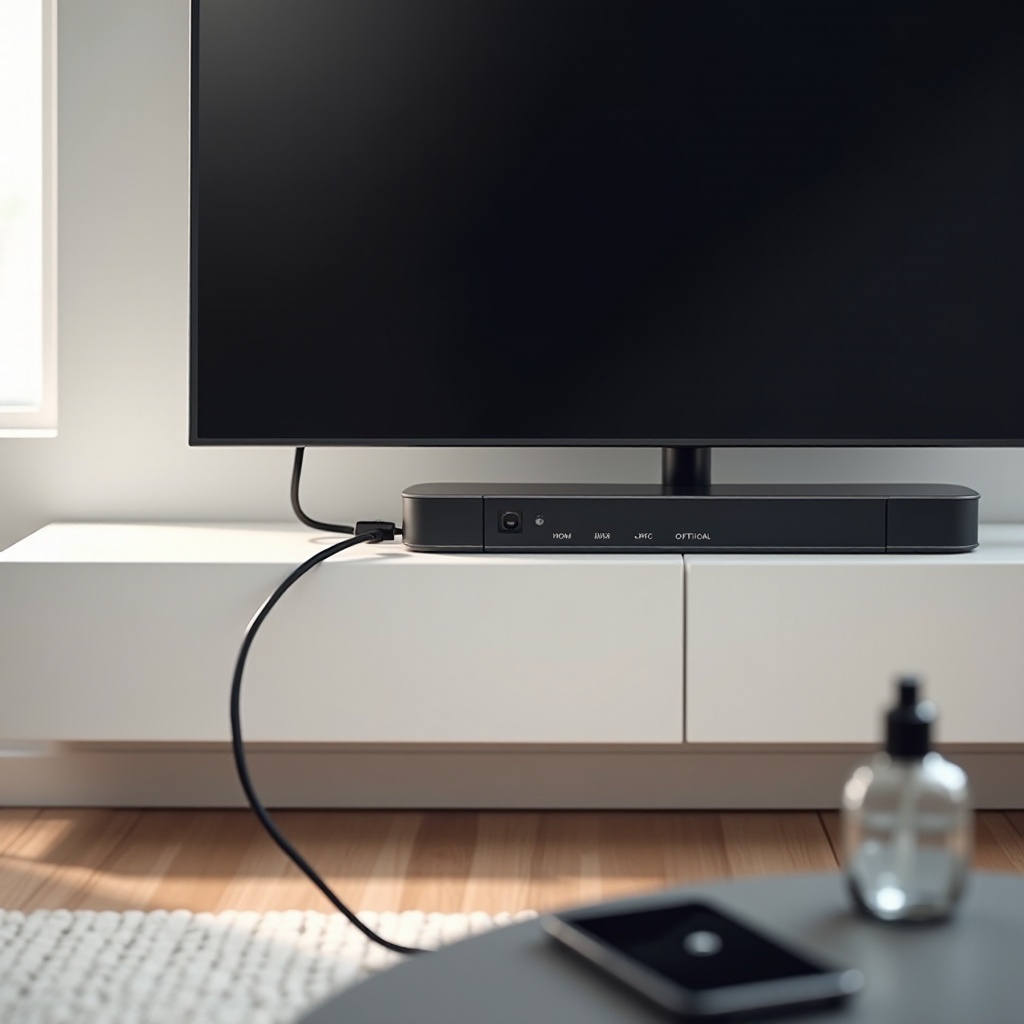
- HDMI ARC or eARC: Connect the TV’s ARC or eARC HDMI port to the soundbar’s matching HDMI port. Enable Anynet Plus or CEC on both devices. Set TV Sound Output to Receiver or HDMI. You gain auto power, volume control via the TV remote, and tight sync.
- Optical: Connect a TOSLINK cable from the TV to the soundbar. In TV settings, choose PCM or Bitstream based on your bar’s support. Optical is immune to RF interference, though it lacks CEC control and does not carry Atmos.
Decision checklist for your setup
- Want Atmos or the lowest lag for gaming: choose HDMI eARC.
- Need a simple, reliable TV audio path: optical is dependable.
- Want quick music from a phone without switching TV inputs: Bluetooth is convenient.
Even if you use HDMI or optical for serious viewing, keep Bluetooth paired for quick music. With connection choices set, a few everyday habits will keep the link strong and stable.
Pro Tips and Best Practices for Reliable Bluetooth
Small placement and usage habits prevent most Bluetooth issues before they start:
– Keep the bar within 15 to 25 feet of the TV or device with line of sight.
– Move Wi Fi routers and extenders at least 3 to 6 feet away from the bar.
– Avoid placing the bar behind thick cabinetry or under metal shelves.
– Limit the number of paired devices and clear old entries periodically.
– Name the bar consistently on each device so you choose the right one every time.
– If lag distracts you during TV, switch to HDMI ARC or eARC or optical for that session and keep Bluetooth for music.
These practices, combined with the setup steps and troubleshooting tips above, help you maintain a stable, predictable Bluetooth connection day after day.
Conclusion
Connecting a Samsung soundbar over Bluetooth can be quick and reliable when you prepare the bar, enter pairing mode, and choose the correct settings on each device. If pairing fails, short range, interference, or a crowded device list usually causes the issue, and a fast reset sequence fixes it. When your priority shifts to Atmos or perfectly tight lip sync, plug in HDMI eARC or use optical for TV audio and return to Bluetooth for casual listening. With smart placement, updated firmware, and a few advanced options, your soundbar will switch sources cleanly and play without lag or dropouts whenever you press play.
Frequently Asked Questions
Why will my Samsung soundbar not appear in the Bluetooth device list on my TV or phone?
Make sure the bar shows BT PAIRING, not BT READY. Move it within a few feet of the device and rescan. Turn off Bluetooth on nearby phones that may auto connect first. Clear the bar’s Bluetooth memory and remove the bar from the TV or phone device list, then pair again. Update firmware in SmartThings and power cycle both devices. If the TV still cannot find the bar, test pairing with a phone to confirm the bar’s Bluetooth works or use HDMI ARC, eARC, or optical for TV audio.
Can a Samsung soundbar play from two devices at once over Bluetooth?
Most Samsung soundbars store several pairings but only play audio from one device at a time. The bar often reconnects to the last active device. If a phone keeps hijacking TV audio, disable Bluetooth on that phone when not in use or turn off Bluetooth Power On on the soundbar. You can also remove the phone from the bar’s memory and pair it only when needed.
How do I fix lip sync delay when watching TV over Bluetooth?
Set the TV’s Digital Audio Out to PCM to cut latency. Use AV Sync or Lip Sync on the TV or soundbar and adjust in small steps until voices match. Turn off motion smoothing and virtual surround that add delay. Keep a clear line of sight and move Wi Fi gear away from the bar. If delay persists, switch to HDMI ARC or eARC or optical for TV audio, and keep Bluetooth for casual music.