How to Reset Toshiba Fire TV Remote: The Complete Guide
Introduction
Remote not responding, lagging, or missing voice and volume control can ruin a night of streaming. This guide shows how to reset Toshiba Fire TV remote quickly and safely, then lock in a stable setup. You will start with simple checks that solve most issues without erasing anything. Next, you will perform a soft reset that clears glitches but keeps your settings. If the problem persists, you will do a factory reset on the remote and re-pair it to the TV.
When navigation is impossible, you will fall back to the Fire TV mobile app, a USB or Bluetooth keyboard, or an Echo device to reach settings. You will also see when the TV needs a restart or a factory reset to clear stubborn Bluetooth or CEC issues. Finally, you will tune updates and equipment control so power, volume, and voice work every time. Move through each section in order for the fastest fix and the least amount of frustration.
What Reset Means and When You Should Do It
You just saw the flow for the entire process. Now you need to understand what a reset does. A soft reset restarts the remote and the TV. It clears temporary Bluetooth and CEC hiccups without deleting any pairing or app data. A factory reset erases the remote’s memory and returns it to setup mode. That step forces a clean handshake with the TV.
Signs your Toshiba Fire TV remote needs a reset
- Buttons do nothing or respond with a delay
- Voice key stops launching Alexa
- Remote will not pair or keeps unpairing
- Power or volume stops controlling the TV or soundbar
Soft reset vs factory reset: what each does
- Soft reset: reboots the remote and TV without deleting settings
- Factory reset: wipes the remote’s pairing data and requires re-pairing
When a TV restart or factory reset is the better fix
- When multiple remotes fail at once
- When Bluetooth devices drop repeatedly
- When power or volume fails due to CEC or eARC confusion
Identify Your Toshiba Fire TV Remote and TV Model
You know when to reset. Next, confirm your remote and TV model. Different remotes use different button combos for a factory reset. Some models control volume with IR while others use CEC. Checking models upfront avoids wrong steps and repeated failures.
Spot your remote generation by button layout and microphone slot
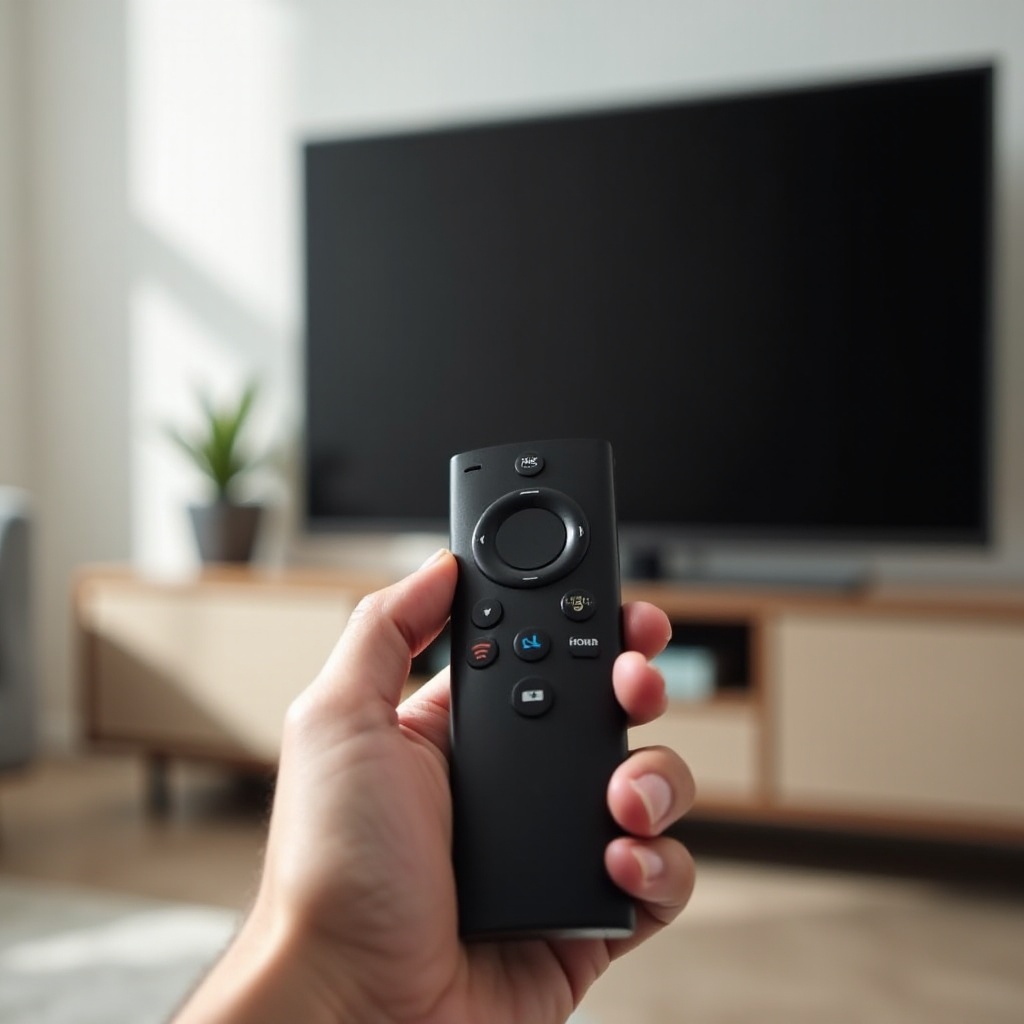
- Remote with power and volume keys and a gear icon is a newer Alexa Voice Remote
- Remote without power and volume is often a Voice Remote Lite
- Basic Edition remotes are IR only and may not support the same reset combos
Where to find Toshiba Fire TV model info on the TV and in Settings
- Open Settings > My Fire TV > About for the model and software version
- If you cannot navigate, check the model sticker on the back panel
Why model differences matter for button combos and pairing
- Different reset combos by generation
- CEC and eARC support varies by TV series and firmware version
- IR volume control on some remotes needs Equipment Control tuning
Quick Checks Before Any Reset (Batteries, Distance, Interference)
You have the right model in mind. Now rule out simple causes. Most remote issues come from weak batteries, range problems, or interference. Fix those first to save time.
Battery orientation, freshness, and contact cleaning
- Replace both AAA batteries with a fresh pair from the same brand
- Match polarity and press them in firmly
- Clean the contacts with a dry cotton swab to remove residue
Bluetooth range, line of sight myths, and obstructions
- Stand within 3 to 10 feet of the TV for pairing
- Bluetooth does not need strict line of sight, but metal shelves and cabinets block signal
- Move the TV or remote away from dense obstacles
Interference sources: routers, gamepads, headphones, and paired device limits
- Turn off or move 2.4 GHz devices such as controllers and headphones during pairing
- Forget old or unused Bluetooth devices on the TV to reduce conflicts
- Power cycle nearby gear that holds a link with the TV
Soft Reset: Safest First Step for Remote and TV
Basic checks look good. Start with a soft reset to clear glitches without losing settings. This step refreshes the Bluetooth link and wakes CEC.
Power cycle the remote the right way
1) Remove both batteries from the remote
2) Press and hold the Home button for 10 seconds to discharge residual power
3) Wait 30 seconds with the batteries out
4) Reinsert the batteries and wait 10 seconds
Restart the Toshiba Fire TV from Settings or via power unplug
- If you can navigate, go to Settings > My Fire TV > Restart
- If you cannot, unplug the TV power cord for 60 seconds, then plug it back in
- Also power cycle your soundbar or AVR to rebuild CEC links
Clear stale Bluetooth links and wake CEC devices
- After the TV restarts, wait on the home screen for a minute
- Toggle HDMI CEC Device Control off and on if power or volume remains stuck
Factory Reset: Model Specific Button Combos
The soft reset did not solve it. Now perform a factory reset on the remote. This clears the remote’s memory and forces a fresh pairing.
Alexa Voice Remote with power and volume keys: how to factory reset
1) Press and hold Left on the navigation ring plus Menu (≡) plus Back for 10 to 12 seconds
2) Release the buttons and wait 5 seconds
3) Remove the batteries, wait 10 seconds, then reinsert them
4) Hold Home for 10 seconds to start pairing
5) Watch for rapid LED flashes if your remote has an LED; if none, rely on timing
Alexa Voice Remote Lite: how to factory reset
1) Press and hold Left plus Menu (≡) plus Back for 10 to 12 seconds
2) Remove and reinsert the batteries after a 10 second pause
3) Hold Home for 10 seconds to pair
4) If it fails, repeat once more and stand closer to the TV
Basic Edition and third party replacements: what to try
- IR only remotes do not store a Bluetooth pairing like Alexa remotes
- Remove batteries, press any key for 20 seconds, reinsert batteries, then power cycle the TV
- For third party Bluetooth remotes, use the vendor reset combo and pair from Settings
Timing tips: how long to hold, LED cues, and retry windows
- Use a slow count to 12 for the button hold
- After releasing, wait at least 5 seconds before removing batteries
- Try up to three times; reduce interference and stand within 3 to 6 feet
Re Pairing the Remote with Your Toshiba Fire TV
You reset the remote. Now connect it again. A clean pairing restores navigation, voice, and power and volume.
Automatic pairing on boot and proximity tips
- Turn on the TV and land on the Fire TV home screen
- Stand within 3 to 6 feet for the first minute
- Many remotes pair automatically in this window
Pairing with the Home button method
1) Hold Home for 10 seconds
2) Wait for on screen confirmation or a chime if your TV plays sounds
3) Test back, home, and voice keys
Pairing via Settings > Controllers and Bluetooth Devices
- Use the Fire TV mobile app or a keyboard to navigate
- Open Settings > Controllers and Bluetooth Devices > Amazon Fire TV Remotes > Add New Remote
- Press and hold Home on the target remote until it appears, then select it
If You Cannot Navigate: Use the Fire TV App, Keyboard, or Echo
Pairing sometimes needs a helper. If the physical remote cannot navigate, use an alternate controller to reach Settings and start pairing.
Set up and use the Fire TV mobile app as a temporary remote
1) Install the free Amazon Fire TV app on your phone
2) Connect the phone and the TV to the same Wi Fi network
3) Select your TV in the app and enter the on screen code
4) Use the app to move through menus and add the remote
Plug in a USB or Bluetooth keyboard or mouse to navigate
- Connect a USB keyboard to the TV’s USB port or pair a Bluetooth keyboard
- Use arrow keys and Enter to move through Settings and confirm actions
Use an Echo device for basic navigation and pairing commands
- If an Echo shares the same Amazon account, ask it to open Settings on Fire TV
- Use voice to launch apps or return to the home screen before pairing
TV Side Resets: Restart vs Factory Reset
Now the remote can navigate again. If problems return or multiple remotes fail, the TV may need a reset. Start with a simple restart, then escalate only if needed.
When a TV restart solves remote problems
- Restart clears stuck background services and Bluetooth processes
- It can also refresh HDMI CEC links to fix power and volume control
Factory reset the TV from Settings and what you will lose
1) Open Settings > My Fire TV > Reset to Factory Defaults
2) Read the warning, then confirm
3) This erases installed apps, logins, and paired devices
4) After setup, pair the remote again and reinstall apps
Factory reset the TV without a remote using buttons, app, or keyboard
- Use the Fire TV app or a keyboard to navigate to the reset option
- Some Toshiba models offer a physical button sequence; check your manual or the support site
Troubleshooting by Symptom and LED Indicators
After TV side resets, fine tuning by symptom speeds the final fix. LED patterns and specific failures point to root causes.
LED blinks and what they mean during pairing and reset
- Rapid blinking means pairing mode
- Slow or no blinking suggests low batteries or that the combo did not register
- Steady light then off indicates a successful link
Voice or Alexa key not responding while other keys work
- Open Settings > Applications > Amazon Voice Services and re link your account
- Confirm the microphone has not been muted by privacy settings
- Perform a soft reset of the remote and TV once more
Power and volume not controlling TV or soundbar: CEC and IR tests
- Open Settings > Display and Sounds > HDMI CEC Device Control and turn it on
- In Settings > Equipment Control > Manage Equipment, select your audio device brand
- Test IR by aiming the remote at a phone camera and pressing volume; a flashing dot on the camera preview indicates IR output
Post Reset Optimization: Updates, CEC, Power and Volume Control
You reached a working state. Now harden it. Updates and correct CEC settings prevent repeat issues and make every button reliable.
Update Fire OS and remote firmware for stability
- Open Settings > My Fire TV > About > Check for Updates
- Install updates and restart the TV after each update
Enable and tune HDMI CEC or eARC for power and volume control
- Turn on HDMI CEC Device Control in Settings > Display and Sounds
- Enable eARC when your TV and soundbar support it
- Verify that power commands turn on and off both the TV and audio device
Reconfigure equipment control for soundbars and AVRs
- Go to Settings > Equipment Control > Set Up Equipment
- Choose your device brand and confirm volume and mute responses
- Retest input switching if you rely on external devices
Avoiding Future Problems: Batteries, Placement, Firmware Habits
Optimization is in place. Keep it stable with a few simple habits that prevent another reset cycle.
Battery brand, storage, and replacement intervals
- Use quality alkaline batteries from the same pack
- Replace both batteries at the same time every 6 to 12 months based on usage
- Avoid heat and direct sun that can reduce battery life
Keep the TV front clear of metal shelves and dense obstacles
- Avoid fully enclosing the TV in a cabinet
- Keep wireless gear spaced apart to reduce interference
Update cadence and how to spot problematic peripherals
- Check for updates monthly
- If issues start after adding a new device, test with that device powered off or unpaired
When to Replace the Remote or Contact Support
Even a careful reset process cannot fix hardware damage. Know when it is time to replace the remote or ask for help.
Compatibility checklist for replacement remotes
- Match the Alexa Voice Remote generation and region
- Confirm power and volume keys if you control a soundbar or AVR
- Prefer official remotes for the best firmware support
Official vs third party remotes: pros and cons
- Official remotes pair faster and receive updates
- Third party remotes can save money but may lose features or lag in support
When to contact Toshiba or Amazon for warranty or repair
- Hardware faults such as liquid damage, cracked housings, or stuck buttons
- Repeated pairing errors after multiple resets and TV restarts
- Bluetooth module issues or update errors that persist
Conclusion
You now have a clear process for how to reset Toshiba Fire TV remote and keep it stable. Start with battery checks, distance, and interference. Use a soft reset first to clear minor glitches. If problems remain, perform a factory reset with the correct button combo and re pair the remote. When you cannot navigate, switch to the Fire TV app, a keyboard, or an Echo to reach Settings. If multiple remotes fail or CEC breaks, restart or factory reset the TV. Finish with updates and equipment control so power, volume, and voice work smoothly. With these steps, you can solve most problems in minutes and avoid repeat issues.
Frequently Asked Questions
How long does pairing take after a factory reset
Most remotes pair in 10 to 30 seconds. Stand within 3 to 6 feet of the TV, hold Home for 10 seconds, and watch for on screen confirmation. If it fails, replace both batteries, reduce nearby Bluetooth devices, and try again. You can also add the remote from Settings using the Fire TV app or a keyboard.
Will resetting the remote erase my TV apps and settings
No. A factory reset of the remote clears only the remote’s pairing data. Your TV apps and accounts stay intact. If you reset the TV to factory defaults, that will erase apps, sign ins, and device pairings. Try a soft reset and a TV restart before wiping the TV.
Can I use a newer Alexa Voice Remote with my Toshiba Fire TV
Often yes, but compatibility depends on the TV model and remote generation. Match features such as power and volume keys and the gear icon. Update the TV software, then attempt pairing within 3 to 6 feet. For the best results, buy an officially supported remote.