Samsung Soundbar AV Sync: The Complete Guide to Fixing Lip‑Sync and Audio Delay
Introduction
Lip‑sync errors ruin movies, shows, and games within seconds. Your eyes catch the action first and voices arrive late, or the opposite. The fix often sits in a few simple settings that many owners overlook. This guide stays focused on samsung soundbar av sync and shows you how to stop audio delay without losing surround or Dolby Atmos. You will learn why delays happen, which connection path works best, and how to dial both Samsung TV and soundbar menus for perfect timing. You will also see clear steps for Apple TV, Roku, Fire TV, Chromecast, PS5, Xbox, and PC. Start with quick checks, then move to deeper settings. If problems persist, you will get a plan to test cables and ports and isolate hardware faults. By the end, you will have a repeatable workflow that keeps voices and effects locked to the picture, no matter the source.
What AV Sync Is and How to Spot It
Lip‑sync vs echo vs dropout: how they differ
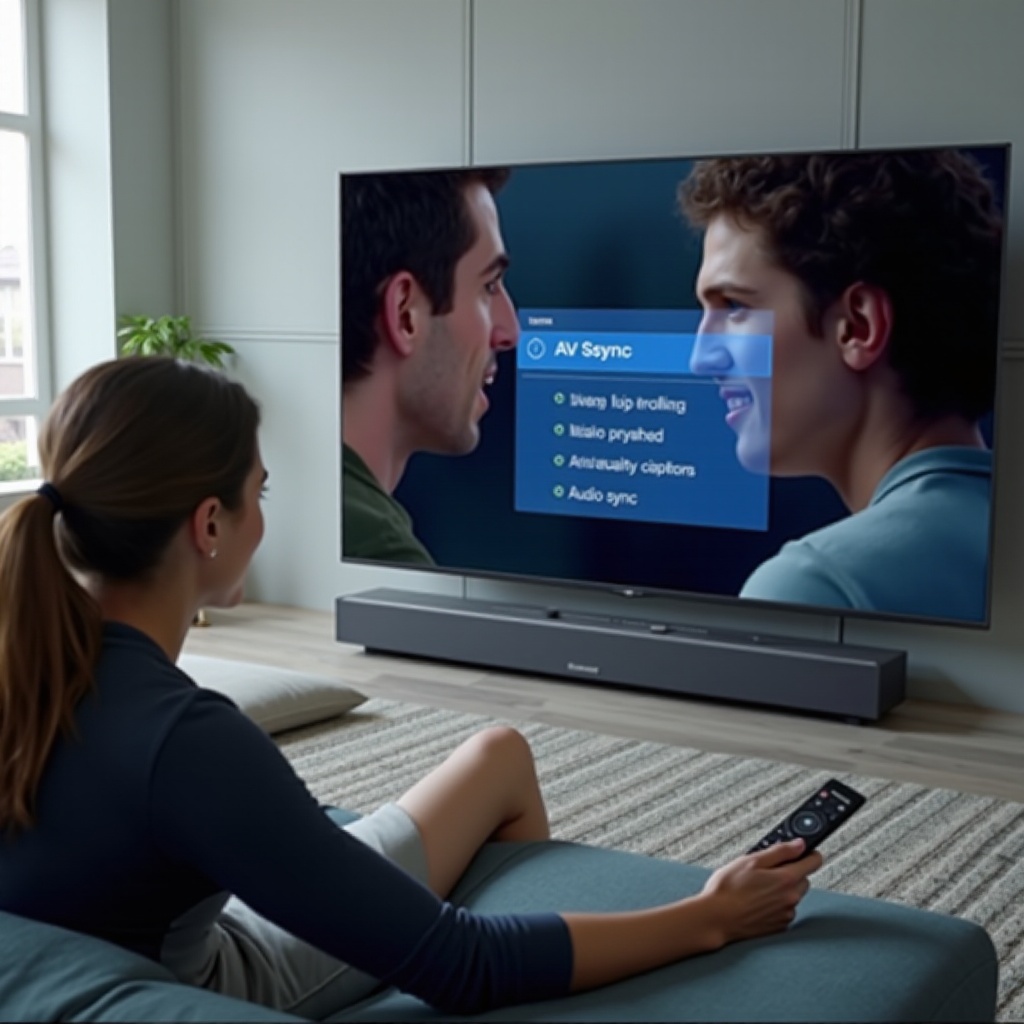
Lip‑sync is a timing mismatch between audio and video. When audio lags, lips move before words arrive. When audio leads, you hear speech slightly ahead of mouth motion. Echo is different: both the TV speakers and soundbar play together but out of phase, creating a hollow or doubled effect. Dropout is a separate problem where sound cuts in and out or stutters, often pointing to a cable, handshake, or interference issue. Treat each symptom with the right fix rather than making random changes.
Common symptoms on Samsung soundbars and TVs
Telltale signs include late dialog, sound effects that feel sluggish, or footsteps that do not match movement. With Q‑Symphony enabled, you might hear a faint smear or echo if the TV and bar are not aligned. Gamers may notice that gunshots or UI clicks feel detached from on‑screen actions even when frame rates look smooth. Recognizing the symptom speeds up the fix.
Using test clips and sync patterns to confirm issues
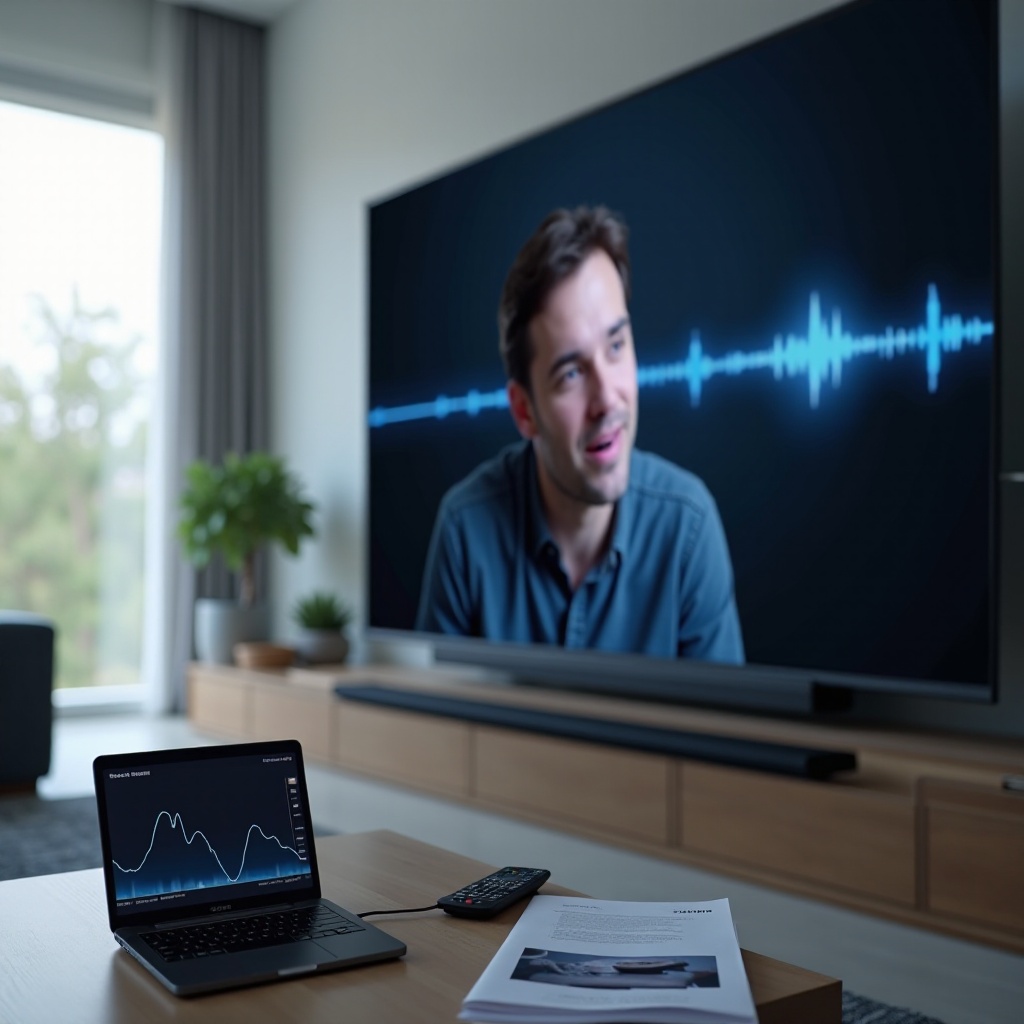
Use short lip‑sync test videos that show a clapper board or a flashing bar with beep tones. Play them on the device that gives you trouble so you test the entire chain. Pause, rewind, and watch closely to judge if audio lags or leads and by how much. That target guides your Audio Delay setting later. Confirm twice with different clips so you do not chase a false reading.
Transition: Once you can identify the problem, start with fast checks that resolve many cases in under a minute.
Quick Fixes You Can Try in 60 Seconds
Power‑cycle sequence for TV, soundbar, and sources
Rebuild the HDMI handshake with a clean start:
1) Unplug power from the TV, soundbar, and all sources.
2) Wait at least 30 seconds so capacitors discharge.
3) Plug in the TV first and let it boot fully.
4) Plug in the soundbar next and wait for it to idle.
5) Power on the source device and select the correct input.
This clears stale eARC or CEC states that often cause delay.
Swap HDMI ports and cables and try optical as a test
Move the eARC cable to the TV eARC or ARC port as labeled. Use a certified Ultra High Speed HDMI cable, keep runs short, and avoid tight bends. Swap in a known good cable to rule out damage. As a diagnostic, connect optical from the TV to the soundbar. If optical fixes sync, the issue likely involves eARC negotiation or bitstream handling rather than the soundbar itself.
Toggle eARC Mode and Anynet plus to rebuild the handshake
On the TV, switch eARC Mode Off, then back to Auto. Toggle Anynet plus HDMI‑CEC Off and On. This forces the TV and soundbar to rediscover capabilities and often clears timing errors. After you reenable eARC and CEC, test with a known clip.
Transition: If quick fixes improve timing but do not lock perfect lipsync, set the right connection path before you tune settings.
Choose the Right Connection: ARC, eARC, or Optical
What ARC and eARC carry
ARC carries PCM stereo and compressed formats such as Dolby Digital 5.1. eARC adds higher bandwidth audio and lip‑sync metadata, supporting multichannel PCM and Dolby Atmos in Dolby Digital Plus or TrueHD depending on the source. For Atmos and the most reliable sync, use eARC when both TV and soundbar support it.
When optical helps and when it hurts
Optical simplifies the path and often avoids CEC conflicts, which can make sync more stable. It supports PCM stereo and Dolby Digital 5.1 but not Dolby Atmos or multichannel PCM. Use optical as a temporary fix or diagnostic tool. If you need Atmos or uncompressed multichannel, eARC remains the better choice.
Cable certification, length limits, and EDID quirks
Use certified Ultra High Speed HDMI cables for 4K HDR and eARC reliability. Keep cable runs short and avoid adapters and extenders during troubleshooting. Some devices misreport audio capability EDID. If passthrough causes delay or silence, switch the TV Digital Output to PCM or Auto to steady the chain, then step back to Pass‑Through when stable.
Transition: With the physical path set, tune the Samsung TV options that directly control timing and format.
Best Samsung TV Settings for Perfect Sync
Digital Output Audio Format: Pass‑Through vs Auto vs PCM
Pass‑Through sends the original format to the soundbar and often reduces processing delay. Use it when your bar supports the format and sync is good. Auto lets the TV choose and may re‑encode audio, which can add delay on some models. PCM forces the TV to decode and output uncompressed PCM, which is predictable and often locks perfect lipsync at the cost of surround or Atmos. If you are troubleshooting, confirm perfect sync with PCM first, then escalate to Dolby Digital or Atmos and recheck.
Audio Delay slider: positive vs negative adjustments
If audio lags behind video, reduce added delay and aim for zero at the start. If audio leads, add delay in small steps such as 10 to 20 ms. Use a test clip with a clap or beep and fine‑tune until the clap lands exactly with the flash or mouth movement. Make only one change at a time and write down values that work.
eARC Mode, Anynet plus, and Input Signal Plus
Set eARC Mode to Auto so the TV handles lip‑sync metadata and passes higher bandwidth formats. Keep Anynet plus HDMI‑CEC enabled for volume and power sync; if glitches appear, toggle and power‑cycle to rebuild the chain. Turn on Input Signal Plus for 4K HDR sources so the TV uses the high‑bandwidth pipeline, then recheck lipsync because video processing paths may change.
Motion processing, Game Mode, and frame‑rate matching impacts
Motion smoothing, noise reduction, and similar processing add video delay. Disable them for the lowest latency, especially on inputs used for gaming. Turn on Game Mode when you play on a console or PC to cut video lag. If your streamer matches frame rate, the TV may switch refresh on content start; recheck sync after the switch.
Transition: After you align the TV, adjust the soundbar itself so only one device applies delay and no mode adds unnecessary latency.
Best Samsung Soundbar Settings to Reduce Delay
Soundbar Sync or Delay control on Q‑series and S‑series
Samsung bars include a Delay or Lip‑Sync setting. If audio leads the video, add a little delay on the bar. If audio lags, set the bar delay to zero and adjust at the TV instead. Keep delay active in only one place to avoid confusion.
Sound modes for lowest latency
Standard mode usually applies the least processing and delivers the tightest sync. Adaptive analyzes content and may add a few milliseconds. Surround upmixers and virtualizers can add more. Start with Standard to lock timing, then enable other modes one by one and listen for any drift.
Q‑Symphony: when to enable or disable
Q‑Symphony blends TV speakers with the soundbar. The TV delays audio to align drivers, which can introduce small shifts. If you hear echo or smear, disable Q‑Symphony during calibration. Once you have stable sync, try re‑enabling it and make small delay tweaks on the TV if needed.
Virtualizers, night mode, and dialog enhancements
Effects like virtual surround, night mode, and dialog enhancers add processing. Turn them off while you calibrate. After you lock sync, turn features back on one at a time and verify that timing remains stable.
Transition: External streamers and players can change formats and frame rates, so next you will align their settings with your TV and soundbar.
Streaming Devices: Apple TV, Roku, Fire TV, and Chromecast
Apple TV 4K: frame rate, dynamic range, and audio format
Enable Match Dynamic Range and Match Frame Rate so the Apple TV outputs content as the app intends, reducing video processing shifts. For audio, start with Dolby Atmos On when eARC Mode is Auto. If you hear delay, set Change Format to Dolby Digital 5.1 and retest. For stubborn cases, lock Stereo PCM to confirm lipsync, then step up to 5.1 or Atmos and verify.
Roku: Auto, PCM, or Dolby modes and passthrough stability
Set Audio to Auto passthrough first. If delay appears, try forcing Dolby Digital or PCM to see which holds sync best with your TV. Disable Volume Leveling and Night Mode during testing. In advanced display options, try toggling refresh rate matching; some setups stay more stable with it off, others with it on.
Fire TV: Dolby Digital Plus vs PCM and CEC behavior
Start with Best Available. If dialog lags, force Dolby Digital Plus. For diagnosis, drop to PCM stereo and test. Fire TV CEC controls can disrupt handshakes on some chains; if power or volume commands misbehave, toggle CEC options and rebuild the HDMI handshake using the power‑cycle steps.
Chromecast with Google TV: refresh rate and passthrough
Turn on frame rate matching, preferably seamless if supported. For audio, test Passthrough On with eARC and Atmos first. If you hear delay or dropouts, turn Passthrough Off so the TV decodes to PCM or Dolby Digital, then verify lipsync before moving back to bitstream.
Transition: Games demand the lowest latency, so align console and PC settings with the TV and soundbar for instant response.
Gaming Without Lag: PS5, Xbox, and PC
Bitstream vs PCM for minimal latency on consoles
Encoding to Dolby bitstream adds time. PCM avoids this. On PS5, try Linear PCM. On Xbox, test uncompressed PCM. Compare with Dolby bitstream using a sync clip. Choose the format that stays aligned for your room and display. Keep game and system audio formats consistent to prevent chat or UI sounds from drifting.
ALLM, VRR, and 120 Hz: keeping audio in lockstep
Enable Auto Low Latency Mode and Game Mode so the TV reduces video processing. If available, use VRR and 120 Hz for smoother motion. Faster video paths can make audio seem late, so trim delay slightly on the TV or bar after enabling these features. Recheck lipsync when changing refresh rates or graphic settings.
eARC vs optical for gaming and party chat
eARC carries multichannel PCM and Atmos along with lip‑sync metadata and usually delivers the best quality and timing. If you only need stereo and want a simple path, optical can be very stable. For party chat, keep output formats consistent so the console does not add extra mixing delay.
Transition: Wireless playback adds convenience but can increase latency. Use it wisely depending on the content you watch.
Wireless Audio: Bluetooth, AirPlay, and Wi‑Fi
Bluetooth codecs and expected latency
Bluetooth adds delay by design. SBC can hover around 150 to 200 ms. AAC varies with implementation. Some bars and sources support low‑latency codecs, but many TVs do not. Use Bluetooth for music or casual viewing and avoid it for movies or gaming where lipsync matters.
AirPlay and Chromecast built in: when wireless adds delay
Casting buffers data and can introduce slight lag or drift over long sessions. If speech trails the picture during AirPlay, switch back to HDMI eARC for critical viewing. Use wireless for convenience and stick to wired for precision.
Multi‑room and group playback trade‑offs
Grouped speakers align with each other, not the screen. That pushes audio later than video. For movies, sports, or games, play through the soundbar only. Use groups for whole‑home music when timing to the screen is less important.
Transition: After you set formats and modes, keep firmware current and the HDMI chain clean for long‑term stability.
Firmware, Resets, and HDMI Hygiene
Updating Samsung TV firmware and soundbar firmware safely
Check for updates on both TV and soundbar. Use a wired network if possible, and avoid interruptions. Read release notes and retest eARC Mode and Digital Output after updates because defaults sometimes change. Keep external devices updated as well.
Soft reset vs factory reset: when and how
If sync issues start after a change, do a soft reset first by powering off, unplugging for 30 seconds, and restarting. If problems persist, back up picture and audio settings, then factory reset the TV and soundbar. Rebuild the HDMI chain step by step and test after each change to pinpoint the trigger.
Rebuilding the HDMI chain: order and reconnection
Power on the TV first, then the soundbar, then sources. Let each device finish booting before connecting the next. Remove switchers, splitters, and ARC extractors during troubleshooting to reduce variables. Add devices back only after lipsync is stable.
Transition: Some Samsung bars have common behaviors that you can use as a fast starting point before fine‑tuning.
Model‑Specific Tips for Popular Samsung Soundbars
Q990 series: defaults and known quirks
Start in Standard sound mode with Q‑Symphony off. Set TV Digital Output to Pass‑Through and eARC Mode to Auto. If Atmos causes delay from an external player, try Dolby Digital Plus Atmos instead of TrueHD or test multichannel PCM from consoles. Keep bar delay at zero and adjust at the TV first.
Q800 series: best audio format and delay values
Use eARC with Pass‑Through and begin in Standard mode. If dialog is late in streaming apps, switch the TV to PCM to confirm stability, then step back to Dolby Digital and finally Atmos while checking sync at each step. Avoid upmixers until lipsync is steady.
S‑series compact bars: wireless rear and sub considerations
Wireless rears and subs sync to the bar over RF. Keep them within reasonable distance and clear of heavy interference from routers or microwaves. If rears sound late, re‑pair them, switch to Standard mode, and retest with a short sync clip before re‑enabling effects.
Transition: With model tips in hand, follow simple workflows that you can reuse across sources and inputs.
Quick‑Reference Workflows for Rock‑Solid Sync
TV built‑in app to soundbar via eARC
1) TV: eARC Mode Auto; Digital Output Pass‑Through.
2) Soundbar: Standard mode; Delay set to 0.
3) Play Atmos content; if delay appears, try Dolby Digital Plus or add a small value on the TV Audio Delay slider.
4) Recheck after any motion or picture processing change.
External streamer to TV to soundbar
1) Streamer: Match frame rate and dynamic range; Audio Passthrough On.
2) TV: Pass‑Through; eARC Auto.
3) Soundbar: Standard mode.
4) If delay persists, set TV to PCM to confirm perfect timing. Then step back up to Dolby Digital or Atmos and verify.
Console to TV to soundbar
1) Console: PCM first; enable Game Mode.
2) TV: Input Signal Plus On; eARC Auto; Pass‑Through.
3) Fine‑tune Audio Delay slider; disable motion processing.
4) If audio leads after enabling 120 Hz or VRR, add a small delay.
Source to soundbar to TV as an alternative
1) Connect the console or streamer to a soundbar HDMI input.
2) Connect soundbar HDMI Out eARC or ARC to the TV eARC port.
3) Test for lower audio latency; if video passthrough causes issues, return the source to the TV and resume the prior workflow.
Transition: If none of these paths hold sync, you may be looking at a failing cable, port, or internal board that needs service.
When to Suspect Hardware Faults and Seek Service
Isolating bad HDMI cables, ports, or sources
Swap in a certified Ultra High Speed HDMI cable and move the source to a different TV input. If the issue follows the cable or port, replace it or seek service for that jack. If the problem follows the device, reset or update that device and retest.
Testing with PCM 2.0 and known‑good clips
Force PCM stereo on both the TV and the source, then play a reliable lip‑sync test clip. If delay remains, hardware is likely at fault or the TV video path is adding latency that no audio setting can fix. If PCM cures it, the issue lies with bitstream handling or eARC negotiation.
Symptoms that indicate a hardware or board failure
Watch for random dropouts, audio that drifts over minutes without any setting changes, or a TV that loses eARC on every power cycle. These signs point to failing cables, HDMI ports, or internal boards. Document your tests and contact support with your notes.
Conclusion
You can fix samsung soundbar av sync with a clear plan and a few careful steps. Start by setting the right connection and using certified cables. Choose Pass‑Through or PCM to stabilize timing and disable heavy processing while you calibrate. Adjust only one delay control at a time and confirm with test clips. Add features back gradually and verify after each change. If issues persist, isolate the fault with PCM tests, cable swaps, and port changes. The payoff is simple and worth it: dialog that matches lips, effects that hit on time, and games that feel responsive. Once tuned, your system will hold sync across apps, inputs, and formats.
Frequently Asked Questions
What audio format should I choose to fix Samsung soundbar AV sync?
Start with Pass‑Through so the soundbar decodes the original format. If you hear lag or dropouts, try Auto next. If delay persists, use PCM to confirm perfect timing. After you lock sync with PCM, step up to Dolby Digital or Atmos and retest at each stage.
Why does lip‑sync drift only when Dolby Atmos is enabled on my Samsung TV and soundbar?
Atmos adds metadata and uses more bandwidth, which exposes weak links. Use certified Ultra High Speed HDMI cables, set eARC Mode to Auto, and Digital Output to Pass‑Through. If delay remains, try Dolby Digital Plus Atmos instead of TrueHD from external players, or use multichannel PCM on consoles.
How can I keep AV sync stable when using Samsung Q‑Symphony with TV speakers and a soundbar together?
Calibrate with Q‑Symphony off so you lock timing first. Set the soundbar to Standard and the TV to Pass‑Through and verify lipsync. Then enable Q‑Symphony and make small adjustments with the TV Audio Delay slider. Avoid adaptive and virtualizer effects during calibration. If echo persists, leave Q‑Symphony off for movies.