How to Fix a Controller That Won’t Turn On PS5
Introduction
A PS5 controller that will not turn on can stop your game before it begins. The fix is often simple: a proper charge, a clean USB‑C port, a solid cable, or a quick reset. When you follow a clear sequence, you avoid guesswork and get fast results. This guide starts with two‑minute checks, then verifies the charging path, walks you through resets and firmware updates, and ends with hardware diagnostics, repair options, and prevention. Keep a known‑good USB‑C cable, a charger that can supply at least 5V/1.5A, and your PS5 nearby. If you have a PC or Mac, that helps with testing. Work through each section in order and stop as soon as the controller powers on and pairs. If it still refuses, you will know exactly what to fix or replace.
Two‑minute quick checks to try first
Before you touch settings or open Safe Mode, rule out simple power issues. These fast checks solve many cases and set you up for deeper steps.
Charge with a known‑good USB‑C cable and 5V/1.5A wall adapter
- Plug the controller into a reliable wall adapter that delivers 5V/1.5A or higher.
- Use a data‑capable USB‑C cable from a trusted brand. Old or thin cables can fail.
- Let it charge for at least 30 minutes, then press the PS button.
- If the LED never flashes, try a second cable and a second charger.
Test different PS5 ports and a wall charger to rule out power issues
- Try a rear USB‑A port on the console. It often provides steadier power.
- Test the front USB‑C port as well.
- If neither charges, use a wall charger to bypass console port issues.
- If a wall charger works but PS5 ports do not, you likely have a port or settings issue on the console.
Note LED behaviors: no light, brief white flash, or orange blink
- No light: suspect no power, a dead battery, a bad cable, or a damaged port.
- Brief white flash then off: possible firmware or pairing fault.
- Orange blink then off: battery may not accept charge or the cable is loose.
Power cycle the PS5 and unplug it for 60 seconds
- Shut down the PS5 fully, not Rest Mode.
- Unplug it for 60 seconds, then power up.
- Try pairing again via USB and press the PS button.
If these checks do not restore power, the next step is to verify that power can reach the controller battery through a clean, stable path.
Verify the power and charging path
You confirmed basics. Now make sure power flows cleanly from charger to port to battery. A weak brick, a dirty port, or a charge‑only cable can block the controller from waking.
Use a reliable charger; avoid weak phone bricks and low‑quality docks
- Pick a 5V/1.5A or better wall adapter. Many old phone chargers under‑deliver.
- If you use a USB Power Delivery charger, ensure the cable negotiates a standard 5V profile.
- Avoid cheap docks that misalign pins or provide unstable current.
Inspect and gently clean the controller’s USB‑C port and PS5 ports
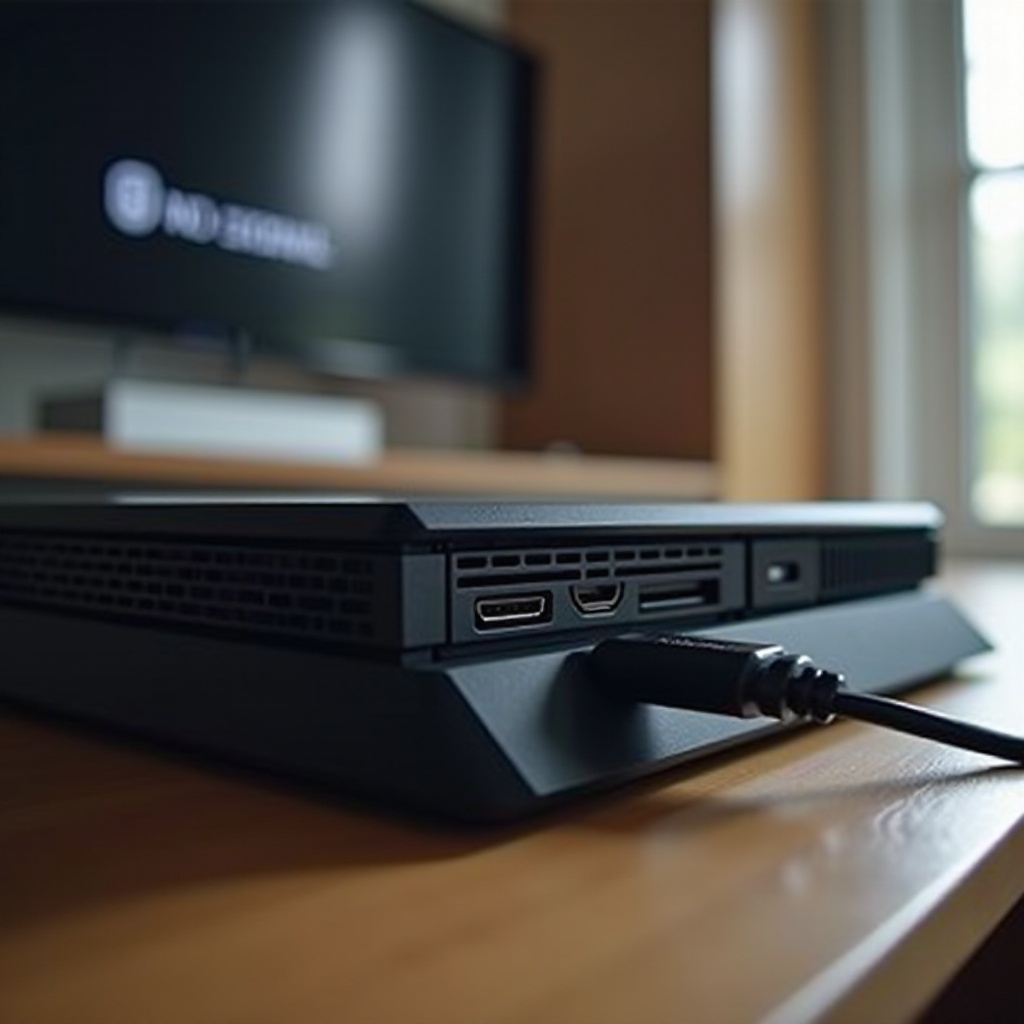
- Use a flashlight to check for lint, dust, or bent pins.
- Blow out debris with short bursts of compressed air. Do not use liquids.
- If the USB‑C plug feels wobbly or must be held at an angle, suspect port wear or board damage.
Swap in a data‑capable USB‑C cable; avoid charge‑only leads
- Some cables only charge slowly or fail to carry data for pairing and updates.
- Test at least two known‑good, data‑capable cables.
- Keep the cable straight during charging to avoid intermittent contact.
Enable Supply Power to USB Ports in Rest Mode for overnight charging
- On PS5, go to Settings > System > Power Saving > Features Available in Rest Mode.
- Enable Supply Power to USB Ports and set it to Always or 3 Hours.
- Charge in Rest Mode to ensure uninterrupted power.
If the charging path looks solid but the controller still refuses to wake, reset and re‑pair it to clear pairing conflicts and stuck states.
Reset and re‑pair your DualSense
A clean reset clears bad states after updates or failed pairings. Re‑pairing over USB ensures a fresh, stable link between the controller and console.
Perform a pinhole soft reset on the controller
- Turn off the PS5.
- Insert a paperclip into the pinhole on the controller back near the L2 button.
- Press and hold for about 5 seconds.
- This clears temporary states without erasing the controller.
Connect via USB and press the PS button to re‑pair
- Connect the controller to the PS5 with a reliable USB‑C cable.
- Turn on the PS5, then press the PS button.
- Wait for the player light to assign and stabilize.
Forget and re‑add Bluetooth devices on PS5 if needed
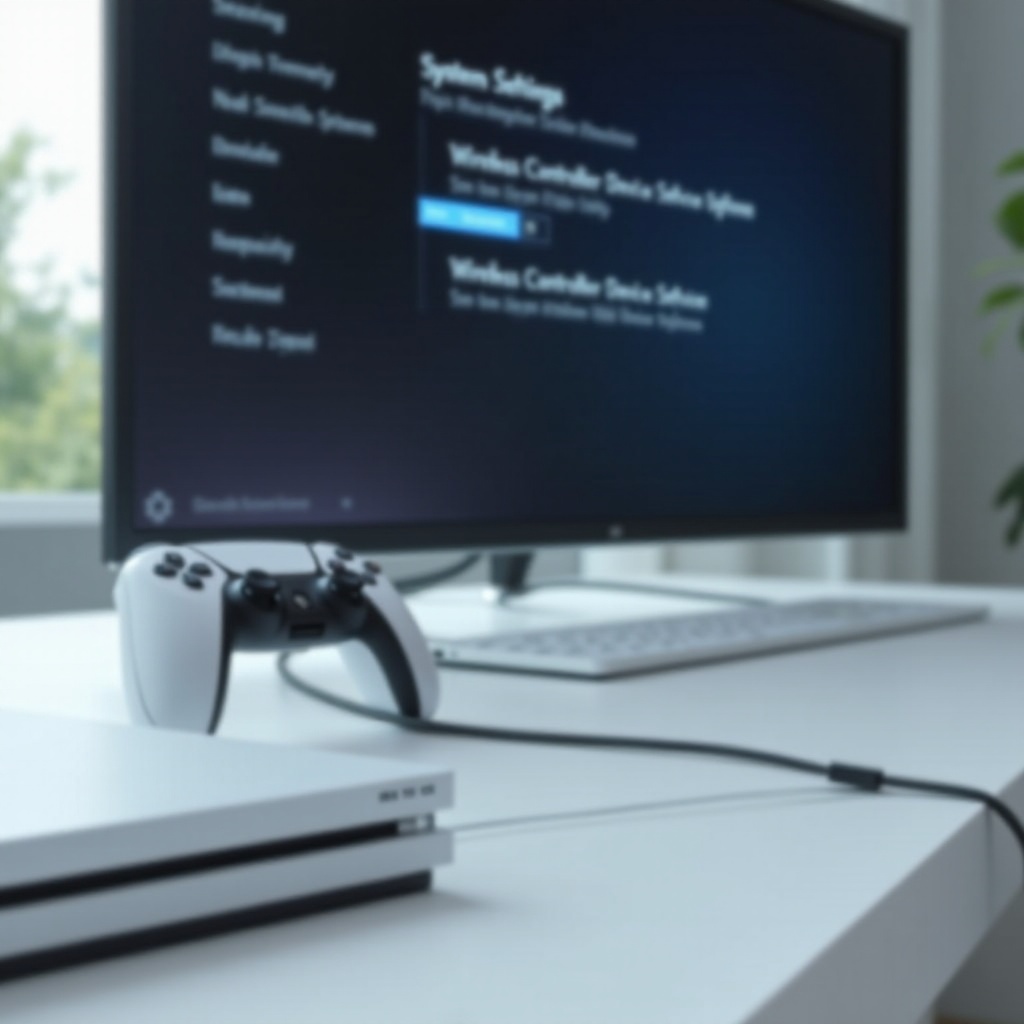
- Go to Settings > Accessories > General > Bluetooth Accessories.
- Remove old entries labeled Wireless Controller.
- Reconnect by USB and press PS to link again.
If the controller still will not power on or wakes only for a moment, software may be the roadblock. Update the console and the controller firmware to remove bugs that affect charging, pairing, or wake behavior.
Update PS5 system and controller firmware
Fresh firmware fixes many wake and pairing issues. Update both the console and the controller to rule out software faults before you assume hardware failure.
Update PS5 system software via internet or USB
- Open Settings > System > System Software > System Software Update.
- Choose Update Using Internet and install pending updates.
- If online update fails, prepare a USB drive with the latest update file and use Safe Mode to update.
Update the controller’s device software on PS5
- Connect the controller via USB.
- If prompted for a controller update, accept it and wait.
- If no prompt appears, keep the controller connected and restart the PS5. Try again later; some updates trigger after a reboot.
Use Sony’s DualSense Firmware Updater on Windows if updates fail
- On a Windows PC, install Sony’s DualSense Controller Firmware Updater.
- Connect the controller via USB and follow the prompts.
- After the update, reconnect to the PS5 and test.
If the controller still resists after updates, the PS5 Safe Mode tools can clear cache problems and rebuild databases that sometimes block proper pairing and wake events.
Use PS5 Safe Mode tools to fix stubborn issues
Safe Mode lets you run targeted maintenance without wiping your data. Use it to flush caches, rebuild the database, and reset Bluetooth devices.
Clear Cache to remove temporary glitches
- Turn off the PS5 fully.
- Press and hold the power button until you hear a second beep to enter Safe Mode.
- Select Clear Cache and Rebuild Database, then choose Clear System Software Cache.
- Reboot and test the controller.
Rebuild Database to repair indexing problems
- In the same menu, select Rebuild Database.
- This can fix index corruption that interferes with updates and pairing.
- Let the process complete. Do not power off.
Reset Bluetooth devices from Safe Mode to refresh pairing
- In Safe Mode, select Reset Bluetooth Devices.
- Reconnect the controller via USB and press the PS button to pair.
If the controller works in wired mode but fails wirelessly, or only wakes sometimes, interference could be the culprit. Tidy the radio environment next to remove hidden obstacles.
Fix Bluetooth and wireless interference
Wireless noise can make a working controller act dead. A quick wired test can confirm if radio interference is the real blocker.
Test wired‑only mode to isolate wireless faults
- Go to Settings > Accessories > Controller (General) > Communication Method.
- Select Use USB Cable.
- Play for a while in wired mode. If it works here but fails when wireless, Bluetooth or 2.4 GHz interference is likely.
Reduce 2.4 GHz and USB 3.0 interference near the console
- Move Wi‑Fi routers, USB 3.0 hard drives, VR dongles, and hubs away from the PS5.
- Use shielded USB cables and avoid stacking devices.
- If possible, set your router to 5 GHz or change 2.4 GHz channels.
Shorten distance, remove obstructions, and avoid metal surfaces
- Sit closer with a clear line of sight to the console.
- Do not place the PS5 behind a TV or inside a metal cabinet.
- Power down other controllers and headsets during testing.
If interference does not explain the issue, turn to hardware checks. A weak battery, a worn USB‑C port, or an internal fault can prevent the controller from waking even when it seems to charge.
Hardware diagnostics and common failures
Software fixes cannot repair a dead battery or broken port. Look for physical clues that point to a hardware cause.
Signs of a weak or dead battery and deep discharge
- The controller runs only while plugged in, then dies when unplugged.
- It blinks orange briefly and goes dark, even after a long charge.
- It sat empty for months and will not wake; the cell may be in deep discharge.
- A healthy controller should hold charge for multiple sessions. If yours drains fast, the battery may be at end of life.
USB‑C port wobble, bent pins, or internal board damage
- The plug feels loose or must be held at an angle to charge.
- Pins look bent or scratched. Charging cuts in and out with small movements.
- Drops or cable strain can crack solder joints on the port or main board.
Check for liquid, dust, or impact damage indicators
- Sticky residue, corrosion, or a warped shell suggests liquid exposure.
- A swollen battery can push the shell apart; if you see gaps or bulges, stop using it.
- Severe physical damage usually requires professional repair or a replacement.
At this point, verify your findings on other devices. Cross‑testing shows whether the controller or the console is at fault.
Test on another device to isolate the issue
Cross‑testing saves time and avoids wrong repairs. If the controller works fine elsewhere, the console setup needs attention. If it fails everywhere, the controller needs service.
Try the controller on another PS5 console
- Connect via USB and press the PS button.
- If it powers on and pairs there, repeat Safe Mode steps on your console, especially Reset Bluetooth Devices and Rebuild Database.
Connect over USB to a Windows PC or Mac for button input tests
- Use a cable and test inputs in a browser gamepad tester or a launcher that shows buttons.
- If lights turn on and inputs register, the controller powers correctly.
Pair via Bluetooth to a phone or tablet as a quick power check
- Hold PS + Create to enter pairing mode; the light bar should pulse.
- If the device sees Wireless Controller and connects, the radio and battery have life.
If tests show the controller fails across devices, repair or replacement is next. If it works elsewhere, focus on your console software and ports.
Repair and replacement options
When the controller still will not turn on after every step above, choose the safest and most cost‑effective fix.
Verify warranty status and contact PlayStation Support
- Check your purchase date and keep your receipt. Many retailers can reprint proof of purchase.
- Contact PlayStation Support for diagnostics and a warranty repair if eligible.
- If out of warranty, ask for a repair quote and turnaround time before shipping.
Battery replacement versus full controller replacement
- A worn battery is a common failure and can be replaced with the right tools and care.
- If the USB‑C port is also loose, or if you see board damage, a full replacement may be cheaper and safer.
- Compare parts cost, your time, and risk versus the price of a new controller.
When to choose professional repair over DIY
- Choose professional service for USB‑C port soldering, liquid damage cleanup, or board faults.
- DIY is reasonable for battery swaps if you have patience, a spudger, precision screwdrivers, and antistatic precautions.
- Always disconnect the battery before any internal work and avoid puncturing lithium cells.
You now have a clear path to fix or replace the controller. Lock in a few care habits to reduce the chance of future power problems.
Prevention and care tips for long‑term reliability
Good habits protect the battery, port, and firmware, so your DualSense is ready when you are.
Smart charging habits to avoid deep drains and overcharging
- Keep charge between roughly 20% and 80% when possible.
- Do not let the controller sit empty for weeks. If you store it, leave it half charged and top it monthly.
- Avoid high heat or direct sun while charging, which ages cells faster.
Keep ports clean and avoid cable strain or dock misalignment
- Plug straight in and support the connector during play to reduce stress.
- Dust the USB‑C port regularly with air and a soft brush.
- Use a dock from a reputable brand and check that pins align without force.
Update firmware promptly and store the controller at mid‑charge
- Install PS5 system and controller updates soon after they release to pick up fixes.
- If you will not play for a while, store the controller at mid‑charge in a cool, dry place.
You have worked from quick checks to advanced tools and hardware signs. Finish with a short recap and a plan for next steps if the controller still refuses to wake.
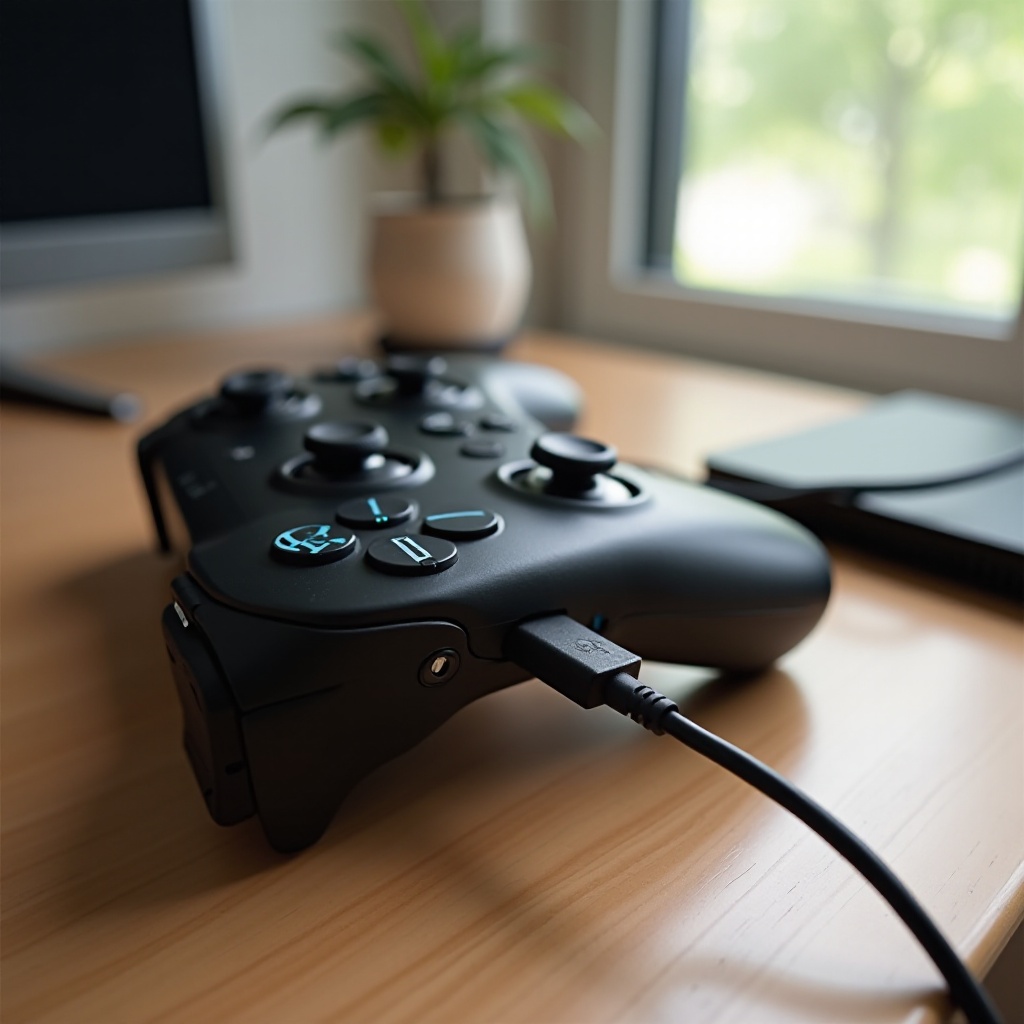
Conclusion
Most PS5 controllers that will not turn on fail for simple reasons: poor charging, a dirty or worn USB‑C port, a confused pairing, or outdated firmware. Start with a proper charger and a proven cable, then check LED cues and power cycle the console. Verify the charging path, reset and re‑pair over USB, and bring both console and controller firmware up to date. Use Safe Mode tools to clear caches, rebuild the database, and reset Bluetooth devices. If the controller only works on a cable or shows no lights after a real charge, suspect the battery or the port. Cross‑test on another PS5, a PC or Mac, and a phone to confirm. Then choose warranty service, a pro repair, a battery swap, or a full replacement based on cost and risk. Finish by adopting better charging and care habits so your controller powers on every time you press PS and you get back to playing without delay.
Frequently Asked Questions
Why does my PS5 controller only work when plugged in?
That symptom usually points to a failing battery. The controller draws power from the cable but cannot hold a charge. Confirm the charger and cable, try the rear PS5 USB‑A port and a wall adapter. If it still shuts off when unplugged, replace the battery. Less often, a damaged USB‑C port or internal power circuitry causes the same behavior and needs professional repair.
How long should I charge a completely dead DualSense before it turns on?
Give it at least 30 minutes on a reliable 5V/1.5A wall adapter with a quality USB‑C cable. If the battery was very low or in deep discharge, leave it for 60–90 minutes, then press the PS button. If there is no LED activity after an hour on a known‑good charger and cable, inspect the USB‑C port for debris or damage and try another cable and port. Next steps: reset and re‑pair, then update firmware.
Do I need an official Sony cable or dock to charge my PS5 controller?
No. You do not need an official cable or dock. You need a good USB‑C data cable and a charger that supplies a steady 5V output at around 1.5A or higher. Cheap charge‑only cables and weak plugs can block updates and slow or stop charging. If you use a charging dock, choose a reputable brand and check connector alignment. When in doubt, test with a simple wall charger and cable.