How to Turn On JBL Earbuds Without the Case (Updated for 2026)
Introduction
Lost your charging case or left it at home, and now your JBL earbuds will not power on? You still have options. Some JBL models can wake and connect without the case. Others need the case to trigger power safely. The difference comes down to design and series. This guide shows how to turn on JBL earbuds without case when your model supports it and what to do when it does not.
You will learn three safe methods to wake the earbuds. You will also see model-by-model notes, pairing tips, and menu tricks on iPhone and Android. If nothing works, you will get a clear checklist to diagnose the cause and a plan to order a compatible replacement case. Each step uses plain language and avoids risky hacks.
Start by confirming which JBL series you own. That drives which buttons or touch gestures can wake the buds without the case. Then follow the methods in order. If your model cannot power on, skip ahead to the replacement options section. With the basics set, let us get a quick answer so you know what is realistic before diving into details.
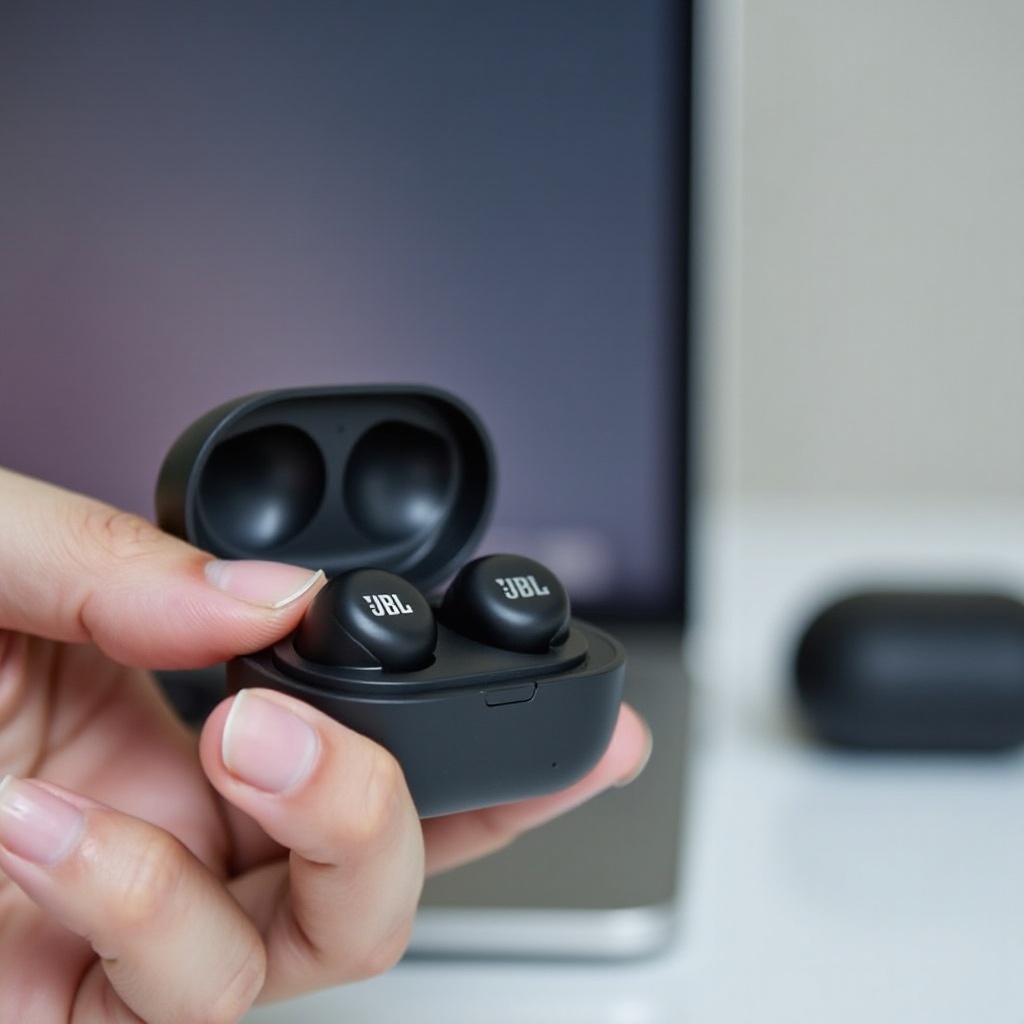
Quick Answer: What You Can and Can’t Do Without the Case
You can sometimes turn on JBL earbuds without the case by using one or more of the following:
– A long press on the earbud touch panel or physical button
– Auto-reconnect from a phone or laptop that paired last time
– One-bud mode, where a single earbud acts as the host
These methods depend on your model. Many JBL true wireless buds only wake when removed from the case. If your earbuds are fully off and the case is missing, they may not turn on at all. You also cannot charge them without the case. Do not touch charging pins with cables, coins, or magnets.
The next sections explain why many JBL designs rely on the case and when you can still power them on safely. To make the most of the methods, first identify your exact model so you can use the right press patterns and expectations.
Why many JBL models rely on the case
JBL builds the power sensor and magnetic reed switch into the case. Removing the buds from the case triggers wake and pairing. In some series, the buds cannot exit sleep without that trigger and will ignore long presses when completely off.
Situations where you can still power on
If your earbuds were last turned on and connected, and they still hold charge, a long press or a phone-initiated reconnect can wake them. Some models accept a touch long press to enter pairing without the case. If they were never paired, you typically need the case for first-time setup.
Check Your JBL Series and Compatibility
Before you try anything, identify your JBL series. Look at the box, app, or model printed inside the stem or under the tip. Different lines handle power and pairing differently. Knowing this saves time and avoids frustration. It also tells you which of the methods below has the best chance of success.
JBL names you will see include Tune, Tune Beam, Vibe, Live, Reflect, Endurance, and older Free or C-series. Most recent models use touch panels. Some sport lines use physical buttons. If your model uses auto-wake only in the case, the methods below may not work. Still, it is worth trying the safe steps first because many buds keep a small reserve and can respond.
In short: newer midrange models often support long-press wake. Some entry models and older units depend on the case magnet to power on. If your buds respond to touch controls while out of the ear, you have a better chance. With your model in mind, you can move to the first safe wake method.
Tune/Tune Beam/230NC/235NC and similar
These buds usually support touch gestures on each side. A 3–5 second long press often toggles power or enters pairing if they have residual charge. Try the right bud first, as it may act as the host. If nothing happens on a 5-second hold, try a 7–10 second hold to force pairing mode.
Vibe series (Vibe 200/300/Beam)
Vibe models vary. Some allow a long press to wake or pair. Others rely on case removal. If a long press fails, try triggering Bluetooth reconnect from your phone while wearing the buds. Keep the buds in your ears so you hear tones that confirm progress.
Live/Reflect/Endurance (with physical buttons)
Sports-centric models with physical buttons are more likely to power on via a long button press. Look for an LED blink or voice prompt. Button timing is crucial. Hold 3–5 seconds, then release. Repeat if needed, but do not force long presses repeatedly for minutes.
Legacy models (Free/Free X/C-series) limitations
Older JBL Free variants often require the case to wake. If they powered off after the last session, long presses may not turn them on. Skip to replacement case advice if basic steps fail. If they were left on and connected recently, a quick reconnect from the phone may still work.
Method 1: Wake Each Earbud Using Touch or Button Controls
Start with the simplest, safest approach: use the earbud controls. If your JBL model supports manual power or pairing, you can wake it with a timed press. Do this with one earbud at a time. Begin with the right earbud, since many models set it as the host for mono mode. This method is quick and keeps you in control if only one earbud has battery.
Steps:
1) Put both earbuds in your ears so you can hear prompts.
2) Press and hold the touch panel or button on the right earbud for 3–5 seconds.
3) Listen for a tone or voice prompt such as ‘Power on’ or ‘Connected’. Watch for LED blinks if visible.
4) If nothing happens, try a 7–10 second press to enter pairing or a soft reset. Do not exceed 10 seconds repeatedly.
5) Repeat on the left earbud and compare results.
If either earbud powers on, open your phone Bluetooth menu and connect. If both stay silent, move to Method 2. Next, we leverage your last device to wake sleeping buds with a reconnect request.
Touch gesture wake for newer buds
Tap-and-hold gestures can wake some Tune and Vibe models. Use a steady, single long press. Avoid rapid tapping, which triggers playback controls rather than power.
Physical button press patterns
For Live, Reflect, or Endurance lines with buttons, press and hold until you hear a tone. If you hear no tone after 5 seconds, release and try again. Some models require a double-press then hold. If you do not know the pattern, test short holds first, then longer ones.
Indicators: LEDs and voice prompts
A slow white or blue blink means pairing mode. A quick blink may mean power on and searching. A red light often signals low battery. Use prompts to guide your next step and confirm the bud is awake before you proceed.
Method 2: Use Auto-Reconnect from Your Last Paired Device
If the earbuds have power but sit idle, your phone can wake them. Many JBL models remember your last host device and reconnect when that device requests it. This works best if you used the buds recently and they still hold a charge. It is a fast, low-effort test before trying deeper resets.
Steps:
1) Enable Bluetooth on your phone or laptop.
2) Open Bluetooth settings and tap your JBL model in the device list.
3) If the list shows ‘Previously connected’, tap to reconnect.
4) If that fails, toggle Bluetooth off and on, then try again.
5) Wear the buds during these attempts to hear chimes.
If you hear a connect tone or see a connection alert, play audio to keep them awake. If auto-reconnect fails, try a forced pairing long press or move to Method 3. The next method focuses on starting with a single earbud to reduce complexity.
Trigger reconnection on Android
- Open Settings > Connected devices > Bluetooth.
- Tap your JBL name under ‘Previously connected’ or ‘Saved devices’.
- If missing, open the three-dot menu and refresh, or enable Nearby devices scanning.
Trigger reconnection on iPhone
- Go to Settings > Bluetooth.
- Find your JBL under ‘My Devices’ and tap it.
- If it shows ‘Not Connected’, tap again. Toggle Bluetooth if needed.
Laptops and multipoint caveats
Laptops may hold the connection slot and block your phone. Disable Bluetooth on other paired devices for a minute. If your model supports multipoint, connect only one device while you wake the buds.
Method 3: One-Bud Mode to Power On a Single Earbud
Many JBL earbuds let one side act alone. The host earbud can wake and connect by itself. If both buds ignore presses together, try each bud alone. Start with the right earbud, then test the left. This isolates problems and may revive at least one earbud so you can restore the pair.
Steps:
1) Hold only the right earbud in your ear.
2) Long press 3–5 seconds. Listen for ‘Power on’.
3) If it connects, play audio and confirm sound.
4) After it stays stable, try powering on the other earbud with a long press.
5) If the right bud fails, repeat with the left and watch for pairing blinks.
This approach often works when one bud drained faster than the other or when the pair link broke and needs re-establishing. If one bud wakes consistently, you can move on to pairing mode to reconnect the second bud.
Right-earbud host behavior
On many models, the right bud manages the connection. If only one side can wake, it is usually the right. If you hear prompts in the right, let it connect first and stabilize before waking the left.
Switching host to the other bud
Some series let the left earbud act as host if the right is unavailable. If the right shows no response, test the left for 5–7 seconds. Watch for fast white or blue blinks that signal pairing.
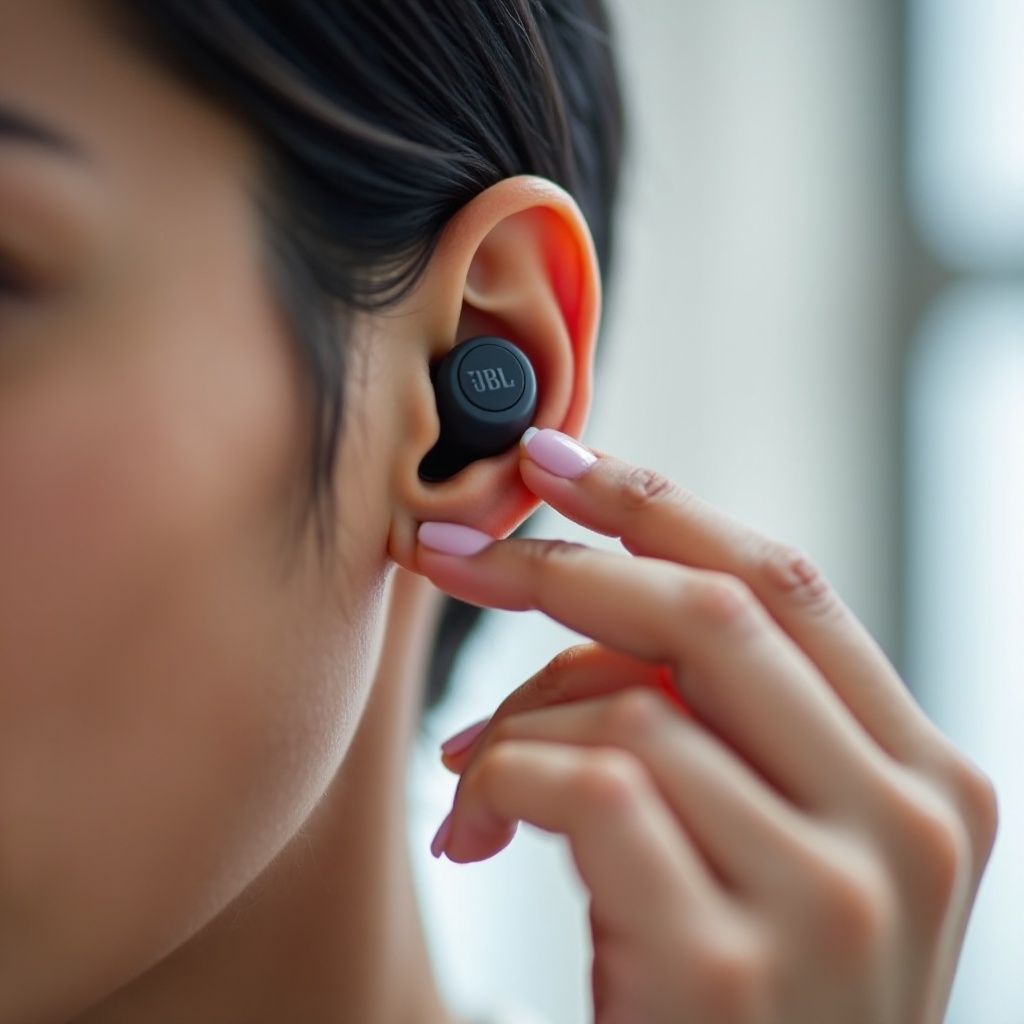
Enter Pairing Mode Without the Case
Pairing mode tells the earbuds to advertise themselves. If auto-reconnect does not work, force pairing with a long press sequence. The exact timing varies by series, but a few safe patterns cover most models. This step also helps you re-link a second earbud after the host connects.
Try these:
– Touch models: press and hold for 7–10 seconds until the LED blinks rapidly.
– Button models: press and hold for 5 seconds, release, then press and hold again for 5 seconds.
– If you hear ‘Pairing’ or see fast white or blue blinks, open your phone Bluetooth and connect.
Avoid repeating long presses more than three times in a row. If the buds do not respond by then, they may be fully off or empty. Move to troubleshooting rather than forcing inputs. If they do respond but will not connect, the next section shows phone menu tweaks that can help.
Long-press patterns by series
- Tune and Tune Beam: a single long press often toggles pairing.
- Vibe: a long press may need to start from standby, not fully off.
- Live, Reflect, and Endurance: button combos such as double-press then hold may trigger pairing.
What the LED colors mean
- Fast white or blue blink: discoverable pairing mode.
- Slow blink: searching for the last device.
- Solid red or no light: low battery or off.
When pairing mode requires the case
Some models only enter first-time pairing when removed from the case. If you have never paired them before and lack the case, you cannot start pairing. In that situation, skip to replacement options.
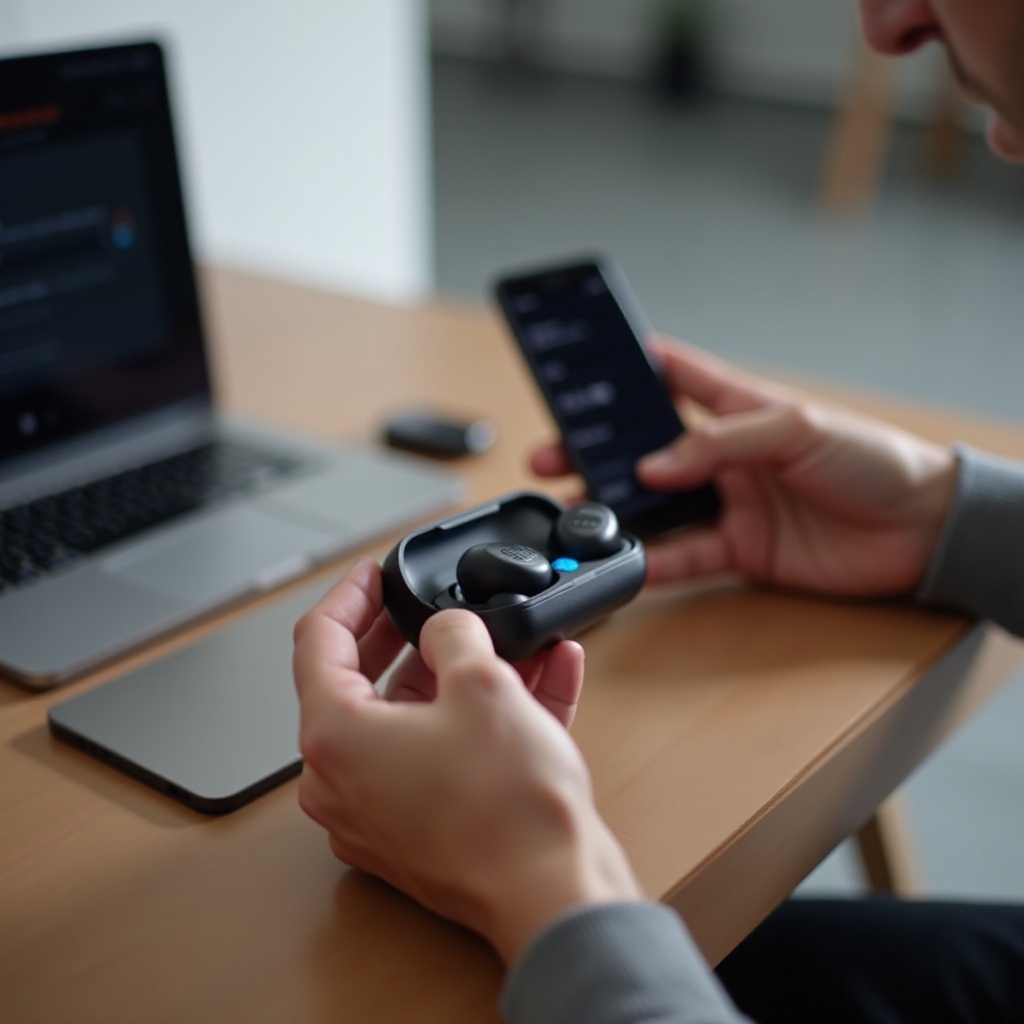
Step-by-Step: iPhone and Android Menus That Help Wake the Buds
Your phone can help trigger the earbuds to wake by sending connect requests and clearing stale data. Use the steps below to refresh Bluetooth and prompt a reconnect. If the buds briefly show up and disappear, these menu resets often bring them back long enough to connect.
On iPhone:
1) Settings > Bluetooth > toggle off, wait 5 seconds, toggle on.
2) Tap your JBL device under ‘My Devices’.
3) If it fails, tap the ‘i’ and ‘Forget This Device’, then re-scan while the buds are in pairing mode.
4) Open the JBL Headphones app if supported and look for ‘Connect’ prompts.
On Android:
1) Settings > Connected devices > Bluetooth > toggle off and on.
2) Tap the JBL device under ‘Saved devices’ to connect.
3) If connect fails, tap the device, choose ‘Forget’, then re-pair during pairing blinks.
4) Clear Bluetooth cache if needed: Settings > Apps > Show system > Bluetooth > Storage > Clear cache.
If you still cannot wake the buds, your model likely needs the case or lacks charge. The next part clarifies when it is time to stop trying and focus on safe storage and replacement.
iOS Bluetooth and Accessibility settings
In iOS, you can add a quick access tile for Bluetooth in Control Center. Use it to toggle faster while you hold the buds in pairing mode. Keep the screen on to respond to pop-ups from the JBL app.
Android Bluetooth, Fast Pair, and cache clear
Android Fast Pair can prompt a tile at the top of the screen when buds advertise. If the pop-up does not appear, clearing the Bluetooth cache often helps the phone see the earbuds again and complete pairing.
When It Won’t Work: Models That Require the Case to Power On
Some JBL earbuds cannot power on without the case. If they fully shut down last time, no amount of pressing will wake them. This is by design and protects the battery. In these cases, you need the case to trigger the reed switch and supply a wake pulse. Recognizing this saves time and prevents damage.
Know when to stop trying:
– No LED or tone after multiple correct long presses
– No response to auto-reconnect from any device
– No Fast Pair or pairing blinks after 10-second holds
Do not poke or short the charging pins. Do not try to charge the buds with cables or magnets. Those hacks can damage the battery, void the warranty, and risk injury. If your model is case-dependent, plan your replacement path. Next, run a quick troubleshooting checklist to confirm the buds are clean and dry before you store them.
Signs your model is case-dependent
If the buds only ever turned on when removed from the case and never responded to long presses before, they are likely case-dependent. Check the quick start guide or JBL support page for your model to verify whether manual power on is supported.
Avoid draining or damaging contacts
Keep the buds powered down in a dry pouch. Do not carry them in a pocket with coins. Avoid touching the gold pins with metal objects. This prevents shorts and reduces the risk of cosmetic or internal damage.
Troubleshooting: If Nothing Powers On Without the Case
If the methods fail, diagnose before you buy a case. A few checks can confirm if you still have battery and whether the buds are in a safe state. This section also sets you up for success once you have a replacement case by making sure contacts and sensors are clean.
Try this:
1) Inspect and clean: wipe charging contacts with a dry microfiber cloth. Remove earwax around microphones and sensors.
2) Dry out: if exposed to sweat or rain, let the buds air-dry for 24 hours before testing again.
3) Battery check: if the buds sat unused for weeks, they may be empty. Without the case, you cannot charge them. Do not attempt external charging.
4) Soft reset: use supported button or touch combos to reboot (see the next section for safe patterns).
5) Test single-bud wake: try the right bud alone, then the left.
If the buds still will not wake, a replacement case is the next step. Store them safely in a cool, dry place until your case arrives. With a new case on the way, understand what resets and updates are possible without it.
Clean and dry the charging pins
Residue can confuse sensors and prevent wake. Use a dry cloth and avoid liquids. Compressed air can help dislodge debris from crevices. Ensure the metal contacts shine and are free of lint.
Check residual battery and store safely
If you do not know the battery level, assume it is low. Store the buds in a cool, dry place. Avoid heat that accelerates battery drain. Keep them away from magnets and metal objects.
Reset options that do not need the case
Some models support a soft reset with a long press sequence. For example, hold for 10 seconds until a tone, then release. If your model never mentioned such a reset, skip it and avoid random combos that could desync the pair.
Can You Reset or Update Firmware Without the Case?
A soft reset may work on select models using long presses. It can clear minor glitches and help the buds accept pairing. However, factory resets and firmware updates almost always require the case. The case supplies stable power and coordinates both earbuds during the process.
If you connect one earbud, you may access limited app options. But most app features, including updates, need the full set: both earbuds recognized and the case nearby. Do not attempt to update with low battery. Wait until you have a working case to avoid bricking the buds. Until then, focus on safe storage and simple wake attempts only.
Soft reset via touch or button combos
Try: long press for 10 seconds until tones, then release. Or double-tap and hold for 5 seconds. Only use patterns in your model manual or JBL support page. If the buds ignore these patterns, assume the case is required.
Why factory reset and updates usually need the case
The case syncs left and right earbuds, ensures adequate power, and supports secure mode switching. Without it, resets and updates can fail or desync the pair. This is why official instructions usually start with place earbuds in the case.
Battery Care and Safety Tips When Operating Without the Case
Operating earbuds without the case means you cannot charge or store them properly. Protect the battery and hardware while you wait for a replacement. Treat the buds like small, sensitive electronics. Good care now prevents problems later.
Best practices:
– Keep the buds dry and cool at all times.
– Avoid pockets with keys or coins.
– Do not force long presses repeatedly.
– Power off with a long press when done, if supported.
– Order a replacement case quickly to prevent deep discharge.
These habits reduce wear and risk. Once you have a case, you can restore normal behavior, pair properly, and keep the batteries healthy. Next, let us cover how to pick and set up a compatible replacement case.
Safe transport and storage
Use a small clean pouch. Keep the mesh side outward to avoid pressing on touch panels. Do not compress the buds in tight spaces. If your buds came with ear hooks or wings, ensure they do not press the touch areas during storage.
Avoid heat, magnets, and improvised chargers
Heat degrades lithium cells. Magnets and metal objects can short contacts. Never use third-party cables or clips on the gold pins. If you see any swelling or smell from the buds, stop using them and contact support.
Replacement Case: Costs, Compatibility, and Where to Buy
If your model needs the case, or your battery is empty, get a compatible replacement. Start with JBL support. They can confirm availability, pricing, and compatibility by model number. Provide the exact model, such as Tune 230NC TWS, and the serial if you have it. A correct case ensures proper charging, pairing, and firmware updates.
Typical paths:
– Official parts from JBL or authorized service
– Retail or marketplace listings marked for your exact model
– Third-party shells that only offer charging but may not support pairing or resets
Check return policies and reviews. Many third-party cases look similar but use different pin layouts. Confirm the case part number and supported models before buying. Once you have a working case, charge the buds to 100 percent, then update firmware in the JBL app if prompted. After restoring normal operation, re-test long-press power and pairing so you know the patterns for future emergencies.
Official JBL support paths
Visit JBL support or use chat to request a replacement case or service part. Provide proof of purchase if under warranty. Ask for shipping time and whether the case will arrive pre-charged.
Third‑party cases and risks
Non-OEM cases may not fit or align with pins. They can charge unevenly or fail to trigger pairing. Use only if OEM is unavailable, and test on arrival. If the buds do not respond, return the case and try an official path.
Pairing a new case to existing buds
Most true wireless buds recognize a replacement case immediately if it is the correct model. Place both buds in the case, close the lid, wait 10–20 seconds, then open to trigger pairing. If nothing happens, leave them in the case for 30 minutes to recover enough charge before trying again.
Conclusion
You can often turn on JBL earbuds without the case by using a long press, auto-reconnect, or one-bud mode. Success depends on your series and battery level. If your model is case-dependent, no safe method will wake it without the case. Avoid risky hacks that can damage the buds. Use the quick steps to try a safe wake. If they fail, protect the earbuds, avoid draining the battery, and order a compatible replacement case. Once you restore proper charging and storage, update firmware and re-pair for a stable, reliable setup. Along the way, keep these habits: store the buds safely, avoid heat and metal objects, and learn your model press patterns. That knowledge makes future no-case situations faster and less stressful.
Frequently Asked Questions
Can I charge JBL earbuds without the case?
No. The case provides the correct charging cradle, battery management, and contact alignment. Do not attempt to charge the buds with cables, coins, or magnets. The only safe path is a compatible charging case.
Why does only one JBL earbud turn on without the case?
Many models assign one earbud as the host, often the right side. It may wake and connect alone if it has charge. The other side might stay off if the pair link broke or its battery is empty. Try one-bud mode to connect the host first, then long-press the second earbud to rejoin.
Will using the earbuds without the case void my warranty?
Simply using your earbuds without the case does not void a warranty. Damage from unsafe charging attempts, prying, or shorting contacts can void coverage. Follow safe steps only and contact JBL support for a replacement case or service if needed.