Why Is My Alexa Flashing Yellow? Meaning, Fixes, and Pro Tips
Introduction
A yellow light on your Echo usually means Alexa has something for you to review. It signals unread notifications or messages from shopping updates, calls and messages, or third party skill alerts. You might see a slow pulse while the device is idle, a short reminder flash right after the wake word, or a yellow bar on an Echo Show screen. The core meaning is the same: you have pending information.
This guide shows exactly what the yellow light means, the fastest ways to clear it, and how to stop unwanted interruptions without losing important alerts. You will learn quick voice commands, precise app controls, device by device tuning, and smart routines. If the yellow light sticks around after you clear everything, the troubleshooting section helps you fix a stuck indicator. Let us start with what the yellow light actually covers before we jump into quick fixes.
What the Yellow Light Means on Echo Speakers and Displays
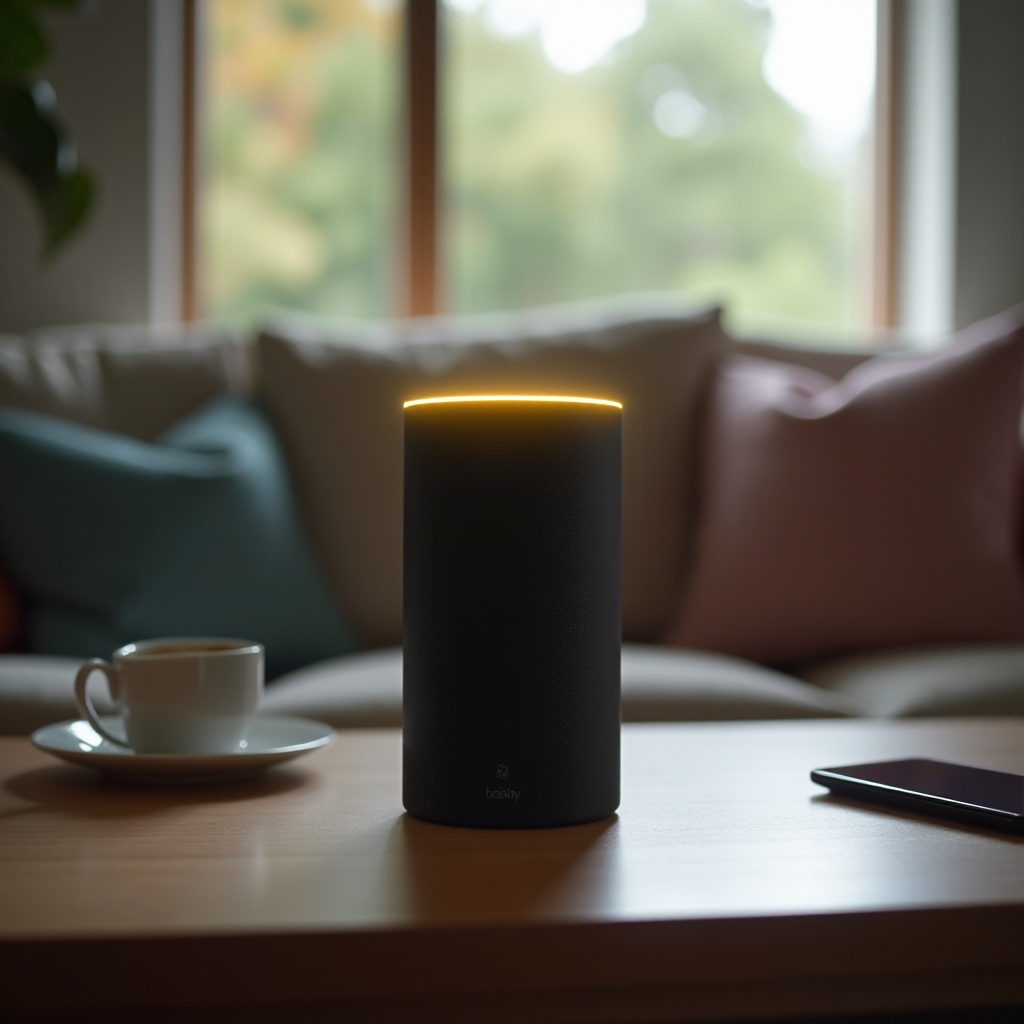
On Echo speakers, a pulsing yellow ring means you have unread notifications or messages. On Echo Show displays, the same status may appear as a thin yellow bar, an icon, or notification cards on screen. These notices include Amazon Shopping updates like delivery confirmations, Alexa Communications such as messages and missed calls, and alerts from enabled skills like news, sports, or weather.
The yellow indicator persists until you listen to or clear the pending items. If new updates arrive while the device is idle, the ring will pulse periodically. If you say the wake word and Alexa recognizes pending alerts, you may see a quick yellow flash as a reminder. That reminder tells you to ask for your notifications.
Because the light is just a status signal, clearing notifications removes the light. The next section explains how to do that instantly with your voice, then we will move into deeper app controls.
Flashing vs. Pulsing Yellow: How to Tell the Difference
Alexa uses rhythm to convey meaning. A slow, repeating pulse means pending notifications or messages that you have not heard yet. A short, quick flash right after the wake word can act as a gentle reminder that items are waiting. On an Echo Show, you might see a yellow banner or card instead of a ring.
If you ask Alexa to read notifications and the ring continues to pulse afterward, more alerts are likely waiting or a skill has queued multiple notices. Now that you can spot the pattern, the fastest way to clear it is to use voice commands and let Alexa read everything at once.
Quick Fix: Ask Alexa to Read and Clear Your Notifications
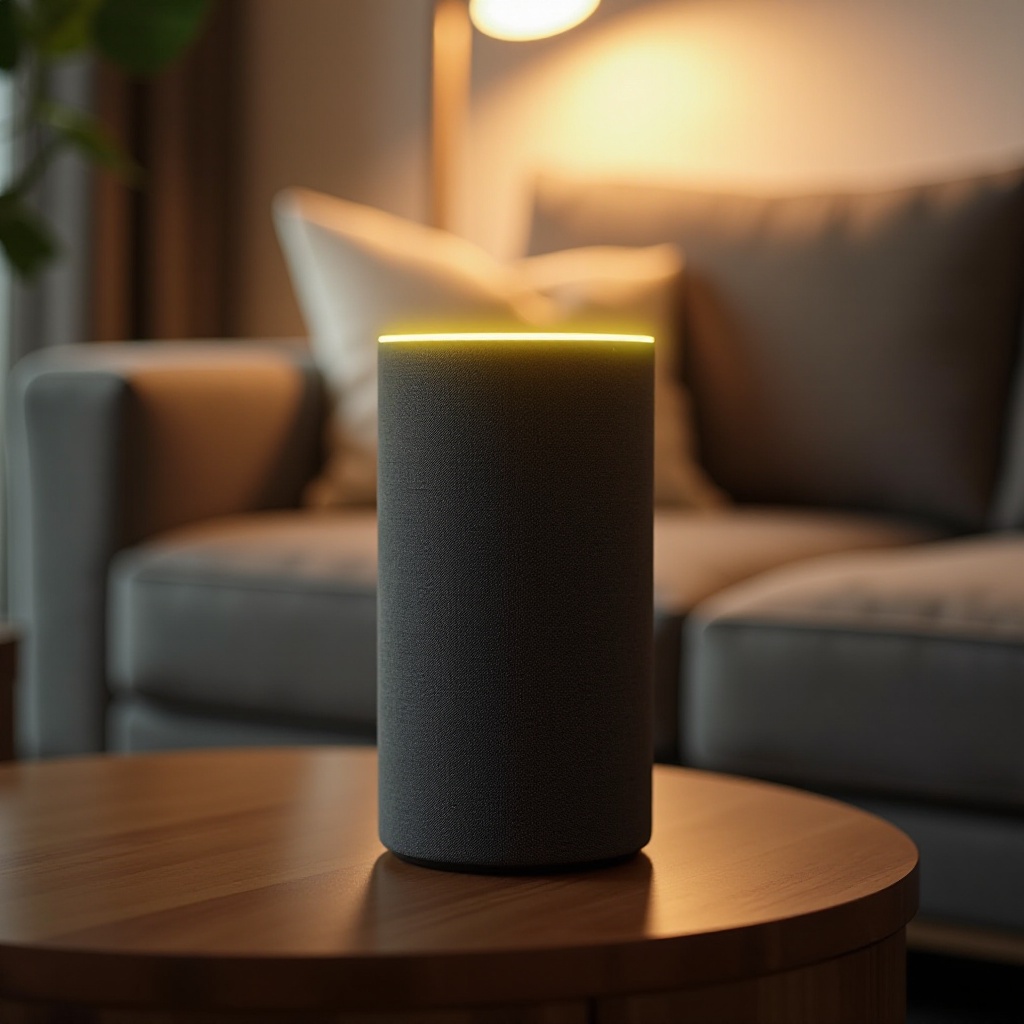
Voice is the quickest way to clear the yellow light. Try these commands:
- Say: ‘Alexa, what are my notifications?’ Alexa reads your alerts and marks them as read.
- Say: ‘Alexa, what messages do I have?’ This covers messages and missed calls.
- Say: ‘Alexa, clear my notifications’ if you want to dismiss them after hearing them.
- Say: ‘Alexa, delete my messages’ to remove message alerts.
- Say: ‘Alexa, turn off package announcements’ to stop spoken delivery details.
If the light persists, repeat the relevant command until Alexa confirms there is nothing new. You can also target specific sources: ‘Alexa, read my Amazon Shopping notifications’ or ‘Alexa, read notifications from [skill name].’ Once voice clears are done, the next level of control lives in the Alexa app.
Manage Notifications in the Alexa App: A Step-by-Step Guide
The Alexa app lets you decide which categories can trigger the yellow light and on which device. Use this path to get granular control:
1) Open the Alexa app on your phone.
2) Tap Devices.
3) Select Echo and Alexa.
4) Choose your Echo device.
5) Tap the gear icon for Settings.
6) Tap Notifications.
7) Review categories like Amazon Shopping, Reminders, Communications, and Skills.
8) Toggle off any categories you do not want on that device.
For messages and calls management:
– Open the Communicate tab to review and clear unread messages.
– Tap your profile photo, then Settings, then Communications to restrict who can call or message you.
Per device control is the key. You might want kitchen Echo units to announce deliveries while keeping the bedroom silent. With basic controls in place, let us tune the most common trigger: Amazon Shopping alerts.
Amazon Shopping Alerts: Orders, Deliveries, and Deal Notifications
Shopping alerts often cause the yellow light. They include shipment notifications, delivery confirmations, order updates, and promotional deal alerts. You can keep the useful ones while silencing the rest.
To adjust per device:
– In the Alexa app, go to Devices > Echo and Alexa > pick your device > Settings > Notifications > Amazon Shopping.
– Turn off order updates if you do not need status pings.
– Turn off out for delivery and delivered announcements to avoid spoken summaries.
– Disable recommendations and deals if you do not want promotions.
If you share a home, leave delivery announcements enabled on an Echo near the door and disable them elsewhere. You can also say, ‘Alexa, do not announce package deliveries’ to keep spoken summaries off while still seeing updates in the app. With shopping alerts tuned, we can look at communications features that also trigger yellow.
Messages and Calls: Communications That Trigger Yellow
Alexa Communications can light the ring when you receive messages, miss calls, or get household announcements. Drop In requests and broadcast style announcements can also factor in. If your family uses Alexa to leave notes, the yellow ring is your heads up.
To manage these:
– Say: ‘Alexa, play my messages’ to hear and clear them.
– In the Alexa app, open Communicate to review and delete message threads.
– In Settings > Communications, limit who can call you, disable call notifications on specific devices, or turn off announcements entirely in rooms where you prefer quiet.
If your bedtime Echo keeps lighting up with missed call notices, disable communications on that one device and keep it enabled in living spaces. If communications are not the culprit, a third party skill might be.
Skill Notifications: Identify, Prioritize, and Silence Noisy Skills
Skills can push alerts for weather warnings, sports scores, stock price moves, package updates, and more. When the yellow light lingers after shopping and messages are cleared, a skill is often responsible.
To pinpoint and tame skill alerts:
1) In the Alexa app, tap More > Settings > Notifications.
2) Find Skills or scroll to individual skill entries with notification rights.
3) Toggle off alerts for skills you rarely use.
4) For essential skills, open the skill to see if you can limit frequency, categories, or quiet hours.
5) Say: ‘Alexa, what notifications do I have from [skill name]?’ and clear them.
6) If needed, disable the skill and re enable it later.
Once skills are quiet, you may want scheduled quiet time across the board. That is where Do Not Disturb comes in.
Do Not Disturb, Quiet Hours, and Focused Listening
Do Not Disturb blocks calls, messages, and notifications during the times you choose. It is perfect for nights, meetings, or focused work. It does not block alarms and timers, so you can sleep without missing a wake up.
To use DND:
– Say: ‘Alexa, turn on Do Not Disturb’ to enable it now.
– In the app, go to Devices > Echo and Alexa > pick a device > Do Not Disturb to set a schedule.
– Use Quiet Hours for rooms that should stay silent every night.
If day to day chatter feels excessive, try Brief Mode to shorten spoken responses, and Whisper Mode for late nights. After you set DND, the next optimization is tailoring notifications per device and per person so the right alerts reach the right place.
Per-Device and Per-Profile Preferences for Multi-Room Homes
Every Echo can follow its own rules. Set the office Echo to read calendar updates and task reminders. Keep the bedroom Echo limited to alarms. In the app, repeat the Notifications and DND steps for each device. Granular control prevents the entire home from lighting up for one person’s updates.
Profiles help refine this further. Create voice profiles so Alexa recognizes who is speaking. When available, apply shopping and communications preferences based on user identity. That way, your reminders do not trigger alerts for everyone. With roles defined, let us look at device differences so you know what to tap or say.
Echo Show vs. Echo Speaker: Light Ring and On-Screen Differences
Echo Show devices pair the light indicator with on screen cards. You might see a yellow bar at the top or a notification card. Swipe down to open the control shade, then tap Notifications to review and clear items. When cards are cleared, the yellow light disappears.
On speakers, only the light ring and voice responses guide you. Ask Alexa to read or clear notifications, then confirm nothing remains. If a Show still shows yellow after you clear cards, open Notifications again to make sure multiple cards are not stacked. For both device types, clarity improves when you adjust their accessibility options.
Accessibility Tips: Visual, Audio, and Haptic Alternatives
You can customize how Alexa alerts you to fit your needs. Useful options include:
- Adjust light brightness: On Echo Show, set brightness and adaptive settings; on speakers, place the device where ring visibility is clear.
- Enable audio cues: Turn on start and end of request tones in Alexa Preferences.
- Use captioning and on screen text on Echo Show.
- Pair your Echo with a phone or wearable that mirrors notifications in a more accessible form.
If you find yellow hard to distinguish from other colors, rely on voice readouts and on screen banners instead of color alone. With accessibility set, you are prepared to investigate stubborn yellow lights that will not clear.
Troubleshooting a Persistent Yellow Light: Updates, Accounts, and Resets
When the yellow light remains after you clear everything, follow a simple checklist:
1) Confirm nothing remains: Say ‘Alexa, what notifications do I have?’ and ‘Alexa, what messages do I have?’ Repeat for specific skills.
2) Power cycle the device: Unplug the Echo for 30 seconds, then plug it back in.
3) Check for updates: Keep the Echo on and connected, then say ‘Alexa, check for software updates.
4) Verify accounts: Ensure the Alexa app is signed into the right Amazon account. Switch profiles and clear notices for each if multiple profiles exist.
5) Check all devices: Another Echo in your home may hold a pending alert that keeps the household status active.
6) Reconfigure skills: Disable and re enable the suspected skill, then revisit Notifications.
7) Refresh the app: Sign out and back in, or force close and reopen.
8) Factory reset as a last resort: Document your settings, reset the device, and set it up again.
If the light reappears after every restart or Alexa insists there are no notifications while the ring stays yellow, the problem may be a corrupted notification state. In that case, support can help. Before you reach out, it helps to know whether you are misreading the color. The next section decodes the light ring.
Light Ring Decoder: Yellow vs. Green, Orange, Red, and Purple
Knowing the colors prevents wild goose chases. Here is a quick guide:
- Yellow: Unread notifications or messages.
- Green: Active call or Drop In session.
- Orange: Setup mode or connecting to Wi Fi.
- Red: Microphone or camera is off; the device will not respond to the wake word.
- Purple: Do Not Disturb is active.
If you see green, end the call or Drop In. If red, tap the mic or camera button to re enable voice input. If purple, turn off Do Not Disturb. Once the color is sorted, it helps to know how Alexa stores and uses notification data.
Privacy and Data: What Alexa Stores About Notifications
Alexa retains notification metadata so it can deliver updates across devices and read them aloud on demand. Shopping alerts reflect your order status and delivery events. Communications logs include messages and missed calls linked to your account. Skills may keep their own alert states on their servers, tied to your Amazon profile.
You control much of this:
– Clear messages and call history in the Communicate tab.
– Disable unneeded skill notifications in Settings.
– In Amazon Shopping settings, turn off promotions and spoken delivery announcements.
– Remove a skill if its data policy or alerts do not fit your preferences.
Reducing the number and scope of alerts lowers clutter and reduces chances of a stuck yellow indicator. For even more control, you can automate summaries and quiet hours with routines.
Pro Tips: Routines to Summarize or Silence Alerts Automatically
Routines let you manage notifications proactively so the yellow light rarely interrupts you. Here are practical ideas:
- Morning summary: At a set time, have a kitchen Echo read new notifications, calendar events, and package updates.
- Evening quiet hours: Automatically enable Do Not Disturb on bedrooms from late night to morning.
- Focus blocks: Toggle DND on your office Echo during meetings, then turn it off afterward.
- Targeted devices: Run announcement actions only on an Echo near the door so the whole house does not chime.
How to build one:
1) In the Alexa app, tap More > Routines > plus symbol.
2) Choose a trigger such as time, a voice phrase, or an event.
3) Add actions like read notifications, turn Do Not Disturb on or off, or announce a package delivered on a specific device.
4) Save and test. Tweak timing or devices based on how your household moves.
With routines, you hear important updates when you choose, not whenever they arrive. If the yellow light still misbehaves, external help may be appropriate.
When to Contact Amazon Support
Most yellow light issues resolve with clears, app settings, and a quick reboot. Contact support when the indicator and the status do not match, or when device behavior differs across identical settings. Clear signs include:
- The ring stays yellow while Alexa says there are no notifications.
- Only one device shows yellow even though all devices share the same settings and have no pending alerts.
- Skill notifications continue after you disable them.
- The app shows errors or fails to load the Notifications page.
Use the Help and Feedback section in the Alexa app or Amazon support online. Provide your device model, software version, and the steps you already tried. That information helps support reset your alert state or identify device level issues.
Conclusion
A flashing yellow light on Alexa is a helpful signal that you have unread notifications or messages. The fastest fix is to ask Alexa to read and clear them. The long term fix is to tailor notifications by category and device, silence promotional alerts, and schedule Do Not Disturb so quiet hours stay quiet. Use skills thoughtfully and prune noisy ones. Build routines that summarize updates on your timeline and at the right speaker. If the light remains after you clear everything and reboot, work through updates, account checks, and device reviews, then contact support for a reset. Tame the signal once, and your Echo will notify you only when it truly matters.
Frequently Asked Questions
Why won’t the yellow light go away after I clear notifications?
A pending alert may remain on another Echo or inside a skill. Ask ‘Alexa, what notifications do I have?’ on each device, including Echo Show. Reboot the device. In the Alexa app, review Notifications for Amazon Shopping, Communications, and Skills. Disable or re-enable problem skills, then check again. If Alexa reports no notifications yet the light persists, contact Amazon support.
How do I turn off Amazon package and deal announcements without disabling all alerts?
Open the Alexa app and go to Devices > Echo and Alexa > select your device > Settings > Notifications > Amazon Shopping. Turn off Recommendations and deals to stop promos. Turn off Out for delivery and Delivered to silence spoken package updates. Leave Order updates on if you still want basic status in the app. Repeat per device for room-by-room control.
Can I set different notification rules for each Alexa device or family member?
Yes. Notification, Communications, and Do Not Disturb settings are per device. Adjust each Echo to match its room. Use Voice Profiles and an Amazon Household to tailor experiences per person where supported. Build routines that target specific devices so work alerts play in your office, delivery updates chime near the door, and bedrooms stay quiet at night.