My Kindle Won’t Charge? A Complete Troubleshooting Guide for Paperwhite, Oasis, and Scribe
Introduction
Your Kindle should be simple to live with: pick it up, read for hours, and top up when the battery runs low. When the battery refuses to climb, stress sets in fast. The good news is that most charging failures come from easy fixes, not fatal hardware faults. A careful check of the charger, cable, and port often restores normal charging in minutes.
This guide walks you through a proven sequence to fix the core problem behind the phrase ‘my kindle won’t charge’. You will learn to identify the exact symptom, try quick wins, verify the power chain, clean the port safely, and apply model specific steps for Paperwhite, Oasis, and Scribe. You will then review software resets, battery and temperature factors, computer USB pitfalls, and accessory interference. If hardware is the real issue, you will know how to act and how to keep reading while you decide. Let us start by naming the symptom so we can pick the right branch of the fix.
My Kindle Won’t Charge: Identify the Exact Symptom
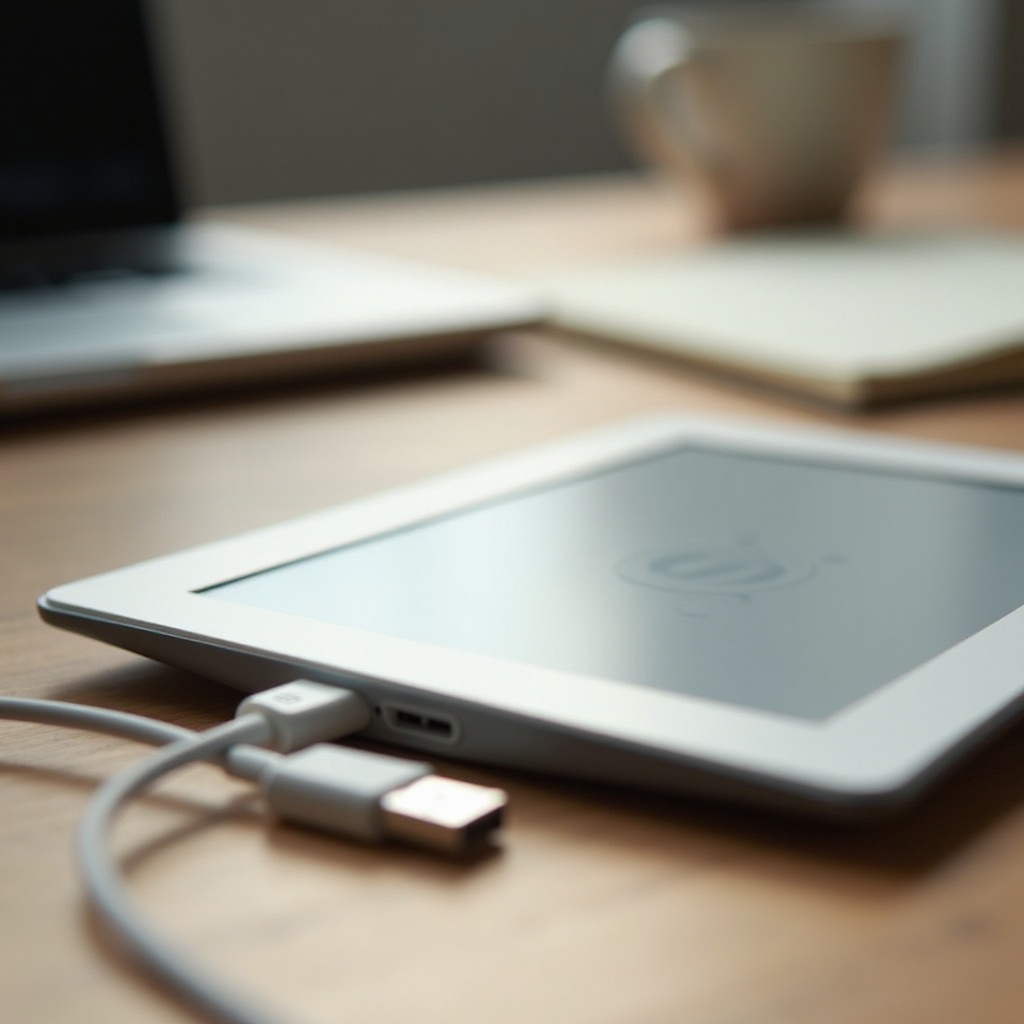
Clear symptoms speed up the fix. Watch the screen battery icon, the LED near the port, and how the device behaves when you connect power. When you can describe what you see, you can choose the right next step.
No charging icon or LED appears
If nothing changes when you plug in, focus on power delivery first. Try a different wall outlet. Swap both the cable and the charger. Look for signs of life: a lightning bolt on the battery icon, a brief screen refresh, or an orange LED. If you see none of these with multiple known good chargers and cables, either the cable is not seated, the port is obstructed, or the power controller cannot detect input. If the battery is deeply drained, leave it on a solid 5V/2A wall charger for 30 minutes before judging.
Charging icon shows but battery percentage still drops
If the lightning icon or LED appears yet the percentage falls, the power source may be too weak, the cable may have high resistance, or the Kindle may be drawing more than the charger provides. Switch to a quality 5V/2A charger and a short, sturdy cable. Let the Kindle sleep while charging. If the device feels warm, unplug it, let it cool to room temperature, and try again.
Charges only when powered off or with a specific charger
This pattern points to a marginal cable, an underpowered charger, or a fussy USB port. Replace the cable and use a reputable 5V/2A wall adapter. If charging works only when the Kindle is off, background tasks or a firmware glitch may be causing a high draw. Update the firmware, reboot, and test again.
With the symptom defined, you can try quick, low risk steps that often fix the issue without tools or parts.
Quick Fixes to Try First
Most readers resolve the problem here. These steps cost nothing, take only a few minutes, and rule out common hiccups.
Force restart by model
- Press and hold the power button for about 40 seconds, then release. After the screen flashes, plug in and watch the LED.
- If nothing happens, press and hold for 15 seconds, wait 10 seconds, then press again for 2 seconds to turn it on.
- A force restart clears a stuck power controller and often restores normal charging.
Try a known good 5V/2A wall charger and short cable
- Use a reliable 5V/2A charger from a trusted brand.
- Use a short, thick cable that matches your port type: USB C for most newer models, micro USB for some older ones.
- Avoid old 5V/1A bricks and mystery cables. Many problems come from weak or worn accessories.
Test a different outlet and avoid power strips or smart plugs
- Plug directly into a wall outlet. Some strips and smart plugs limit current or add noise.
- Reset surge protectors if they have a switch.
- Skip loose extension cords and wobbly travel adapters.
If the Kindle still resists, the next step is to verify each piece of the power chain: cable, charger, and source.
Check Your Cable, Charger, and Power Source
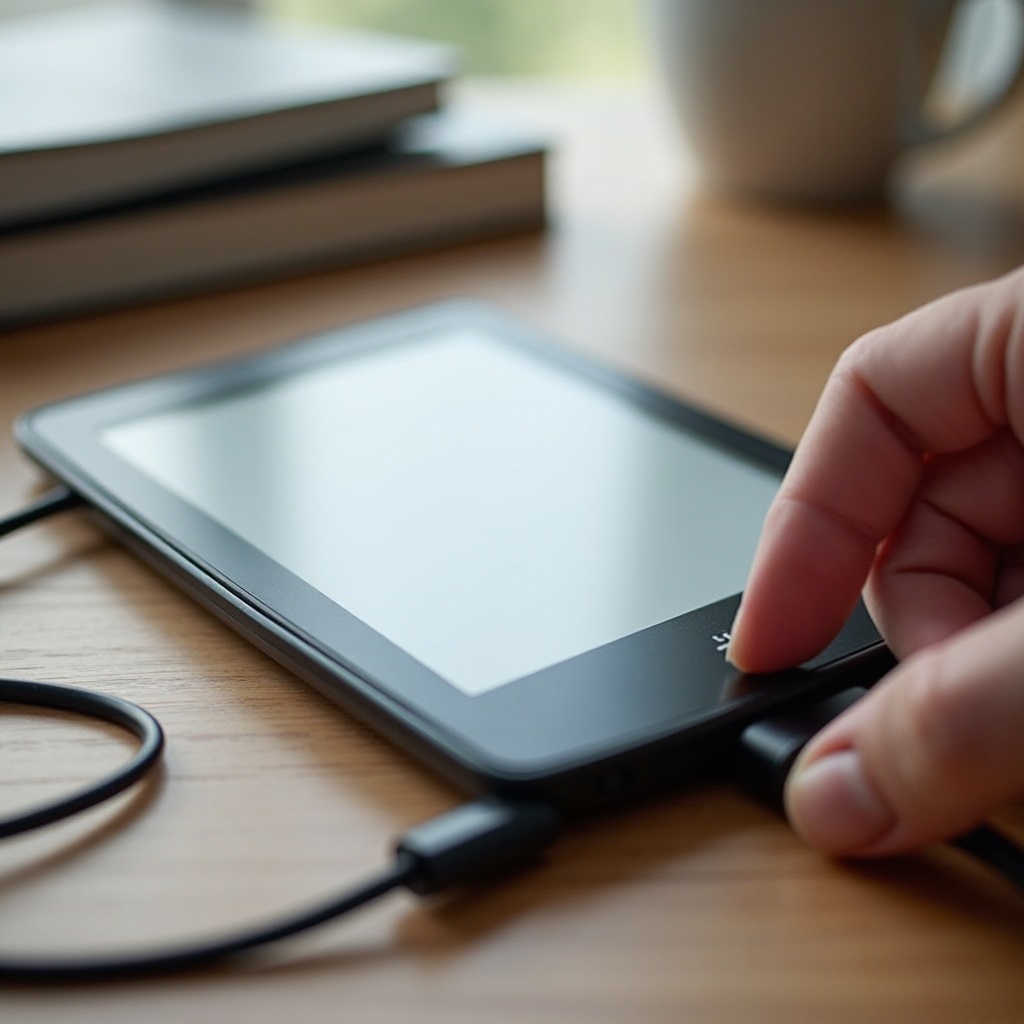
Weak or unstable power is the top cause of charging trouble. Before you suspect the device, confirm that the charger, cable, and outlet deliver a steady 5V supply.
USB C vs micro USB and e marked cables explained
- Many recent Kindles use USB C. Older units use micro USB. Match the cable to your port.
- Some USB C cables are e marked for high power or data. Your Kindle charges best with a simple, short USB C cable that supports 5V at up to 2A. Overly long or ultra thin cables add resistance and drop voltage under load.
- Replace cables that feel loose, have frayed sleeves, or show rust on the contacts.
Wall charger vs computer USB vs power bank
- Wall chargers are best. Look for a 5V/2A label. Many USB C PD chargers support a 5V profile; pair them with a solid cable.
- Computer USB ports often supply only 0.5 to 0.9A. They may trickle charge or fail to keep up if the Kindle stays awake. Use them only for slow top ups.
- Power banks can work well if they deliver 5V/2A and do not auto sleep on low draw. If a bank shuts off, press its wake button or switch to a different port.
Avoid long, flimsy, or underpowered cables and hubs
- Keep cable length under 1 meter for best results.
- Avoid front panel PC ports, monitor hubs, and unpowered USB hubs. They sag under load and cause LED flicker.
- If the LED blinks when you nudge the plug, suspect the cable first, not the Kindle.
If your power chain checks out, the next easy win is to inspect and clean the charging port so the pins can make solid contact.
Safely Inspect and Clean the Charging Port
Debris, oxidation, or a slightly bent tongue inside the port can block power. Cleaning is simple but must be gentle to avoid damage.
Spotting lint, corrosion, and a loose connector
- Shine a bright light into the port. Look for packed lint, dark spots, or bent pins. Cases can trap dust; remove the case for this check.
- Gently wiggle the plug. If it charges only at a certain angle, the connector or cable may be worn.
Safe tools: wooden toothpick, soft brush, air at a distance
- Power the Kindle off. Use a wooden or plastic toothpick to lift lint. Work slowly and avoid prying on the center tongue.
- Sweep the port with a soft, dry brush. Short bursts of air from a distance can help. Keep the can upright to avoid liquid propellant.
- Reinsert the cable. If it seats deeper and holds firmly, test charging again.
What not to use: metal pins, liquids, or aggressive canned air
- Do not poke with metal pins or paper clips. They can scratch, short, or break pins.
- Do not spray liquid cleaners or alcohol into the port.
- Do not blast air inches away at full force. Condensed propellant or excessive pressure can harm the connector.
If the port is clean and snug, tune your approach to your specific Kindle model to remove model quirks from the equation.
Model Specific Tips for Paperwhite, Oasis, and Scribe
Each Kindle line has small differences. Matching your steps to your model reduces trial and error and speeds up the fix.
Paperwhite generations: micro USB vs USB C nuances
- Older Paperwhite with micro USB: Ports loosen after years of use. A new, tight fitting micro USB cable often restores charging. Retire cables that wobble or fall out easily.
- Newer Paperwhite with USB C: Some USB C to USB C pairs rely on PD negotiation. If nothing happens, try a USB A to USB C cable with a standard 5V/2A USB A charger, or switch to a known PD charger with a robust USB C cable.
- Remove sleep covers while testing. Some covers nudge the power button or reduce cable seating depth.
Oasis quirks with covers, magnets, and power management
- The side grip puts the port near your palm. Cables can lever sideways. Support the plug and avoid strain while charging.
- Strong magnetic covers can trigger sleep or wake at odd angles. Remove the cover if charging pauses when you move the device.
- Let Oasis sleep while charging from weak sources. Page animations and background sync can outpace a low current source.
Scribe’s higher current needs and cable fit issues
- Scribe has a larger battery and benefits from a steady 5V/2A or PD charger. Old 5V/1A bricks charge very slowly.
- Some slim USB C plugs wobble in tight case cutouts. Remove the case and use a snug, high quality cable.
- If you annotate while plugged into a computer port, the battery may stall. Switch to a wall charger for steady progress.
If model specific quirks do not explain the problem, software can still play a role. The next steps clear glitches and improve charging logic.
Software Fixes: Restart, Update, and Reset
Software controls power negotiation and sleep states. A simple restart or fresh firmware often resolves erratic charging behavior.
Force restart vs full shutdown: when each helps
- Force restart clears a stuck power controller: hold power 40 seconds, release, then press briefly.
- For a full shutdown, hold power, choose the shutdown option, wait 30 seconds, then plug in and power on. This reinitializes charging and can restore stable LED behavior.
Update Kindle firmware over Wi Fi to fix charging bugs
- Connect to Wi Fi. Go to Settings, Device Options, Advanced Options, then Update Your Kindle if the option is available.
- Keep the device on power during the update. Firmware updates often improve battery reporting and sleep logic, which affects charge stability.
Back up, then factory reset as a last resort
- Sync: open Settings and tap Sync Your Kindle.
- Back up notes and highlights to the cloud. Resend personal documents later if needed.
- Factory reset: Settings, Device Options, Reset. After setup, test charging before installing many books and apps.
With software cleared, check the health and environment of the battery. Your Kindle may slow or pause charging to protect the cell.
Battery Health, Temperature, and Charging Indicators
Lithium ion batteries charge best within a narrow temperature range and may pause to protect themselves. Reading the indicators helps you act with confidence.
Optimal charging temperature range and thermal pauses
- If the Kindle is hot from sun or warm blankets, or cold from a car overnight, it may refuse to charge or may trickle very slowly.
- Fix it with simple steps:
1) Move to a room temperature spot.
2) Remove the case to improve airflow.
3) Wait 10 to 20 minutes, then plug into a stable 5V/2A wall charger.
LED color meanings and charging icon behavior by model
- Orange or amber LED means charging. Green means full. A blinking LED or no LED often points to weak input or a poor connection.
- On the screen, look for the lightning bolt across the battery icon. If it appears and vanishes, reseat the cable, swap the charger, or shorten the cable to stabilize input.
Calibrating the battery meter without stressing the cell
- After you restore charging, let it reach 100 percent and sit for 20 to 30 minutes, then unplug.
- Use the Kindle down to about 15 to 20 percent, then charge to full. This helps the meter align with real capacity.
- Avoid deep drains to zero. Repeated deep discharge accelerates wear.
If the Kindle charges fine on a wall charger but not on a computer, the issue is likely power limits or power management on the computer side.
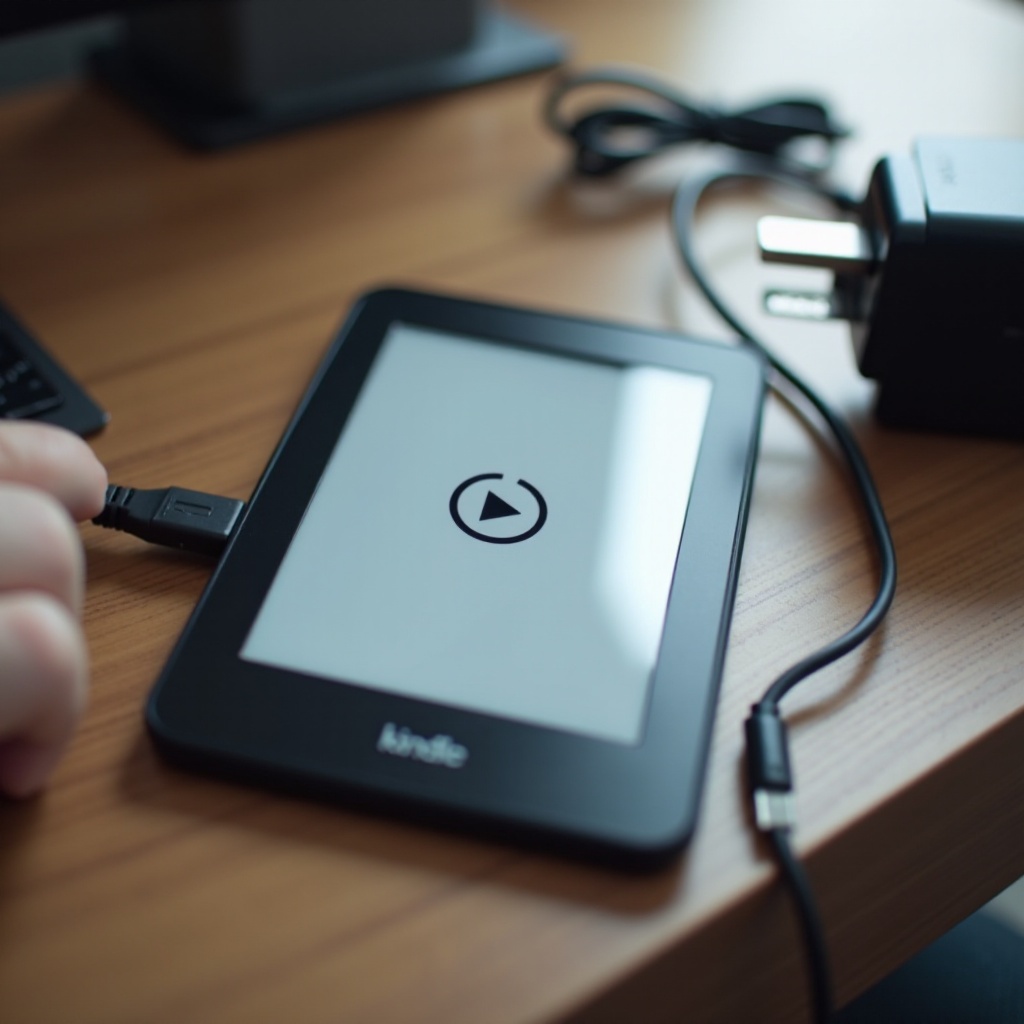
Kindle Won’t Charge From a Computer? USB Fixes
Computers vary in how they deliver USB power. Small tweaks on both sides can turn a slow trickle into a dependable charge.
Prefer rear I O ports; avoid low power front ports and monitors
- On a desktop, use a rear USB port that connects directly to the motherboard.
- Avoid monitor, keyboard, and front panel ports. They often drop voltage under load.
Disable USB selective suspend and power saving settings
- On Windows, open Power Options, then Advanced settings, USB settings, and disable selective suspend.
- Plug in your laptop charger. Many laptops throttle USB power when on battery.
Safely eject to resume faster charging or switch to a wall adapter
- When mounted as storage, the Kindle may stay awake for file transfers. Eject it from the OS so it can sleep and charge faster.
- If the battery still climbs slowly, use a 5V/2A wall charger for a steady top up.
If the computer path still falters, remove outside interference. Cases and stands can block the plug or confuse sensors.
Cases, Accessories, and Environmental Interference
Small, hidden factors can halt charging. Eliminating them prevents false alarms and protects the port from strain.
Magnetic covers and sleep sensor interference
- Some covers nudge the sleep sensor at odd angles. If the screen wakes and sleeps repeatedly while charging, remove the cover.
Stands, docks, and third party cases affecting cable seating
- Thick lips around the port can stop full insertion. Test charging with the case off.
- Stands can bend the plug. Lay the Kindle flat so the cable is straight and strain free.
Heat, cold, or moisture preventing proper charging
- After rain, steam, or spills, let the Kindle dry fully before charging. Moisture can short pins and trigger safety cutoffs.
- Never charge under a pillow or in direct sun. Trapped heat slows charging and ages the battery.
If you have reached this point with no stable charge, you may be dealing with a hardware fault. Approach it with safety first.
Hardware Faults: When to Repair, Replace, or Trade In
Ports wear out and batteries age. Your goal is to spot early signs, stay safe, and choose the most cost effective path.
Loose port vs swollen battery: symptoms and safety steps
- Loose port: the plug needs a sweet spot, the LED flickers on touch, or the port feels wobbly. Do not force the connector. Continued strain can tear pads off the board.
- Swollen battery: the screen lifts, the back bows, or you smell a sweet chemical odor. Stop using the device. Unplug it, store it in a cool, dry place, and seek support.
Warranty, support, and authorized service options
- Check your Amazon account for order date and warranty status.
- Contact Amazon support and list the steps you tried: charger swap, cable swap, port cleaning, restart, and update. They may offer repair, replacement, or a discount on a new unit.
Repair cost vs trade in and upgrade decisions
- Port or battery repairs can approach the price of a refurbished or new Kindle.
- If costs are high, trade in for credits and upgrade to a model with USB C and stronger battery life. Move your library over the air in minutes.
While you plan the next step, protect your reading and your notes. You can keep going on other devices without losing progress.
Back Up Your Library and Keep Reading Anywhere
Your books, notes, and highlights live in the cloud once you sync. That makes it easy to continue reading while you fix or replace the device.
Sync books, notes, and highlights to the cloud
- Open Settings and tap Sync Your Kindle. Wait for completion.
- For personal documents, resend them later from your email or cloud storage.
Use Kindle apps on phone, tablet, or desktop
- Install the Kindle app on iOS, Android, macOS, or Windows.
- Your reading position and notes sync across devices, so you can keep reading without interruption.
Prepare for service: deregister, wipe, and protect data
- If you send the device in, deregister it and perform a factory reset after syncing.
- Remove cases and accessories and keep your cable unless asked to include it.
You have now covered quick fixes, power checks, port care, model quirks, software resets, battery and temperature, computer USB behavior, and accessory interference. One final recap ties the steps into a clear plan.
Conclusion
Most charging issues do not require tools or parts. Start with a force restart, then use a quality 5V/2A wall charger and a short, sturdy cable. Clean the port with a wooden toothpick and a soft brush. Remove the case, let the device rest at room temperature, and keep it asleep while charging. If it charges on one setup but not another, the culprit is the power source or cable, not the Kindle.
If the issue persists, match steps to your model, update the firmware, and test again. Persistent flicker, a loose port, or any sign of swelling calls for support. Back up your library and keep reading on the Kindle app while you arrange repair, trade in, or replacement. With a calm, step by step approach, you can fix the problem behind the phrase ‘my kindle won’t charge’ or make a safe, confident decision about what to do next.
Frequently Asked Questions
Why does my Kindle show it is charging but the battery still drains?
The charger or cable likely cannot supply enough current. Use a 5V/2A wall charger and a short, thick cable, let the Kindle sleep, and avoid heat. If this happens only on a computer, switch to a wall charger or a rear desktop USB port. Restart and update the Kindle to clear software that keeps it awake. If charge holds only at a certain cable angle, the port or cable is loose.
How can I tell if my Kindle battery needs replacement?
Look for rapid drops in percentage, shutdowns above 10 percent, or very long charge times with a strong charger and cable. If it drains fast in sleep with Wi Fi off, capacity may be low. Physical clues like a bulging frame or lifted screen point to swelling; stop using it and seek support. After ruling out charger, cable, and port, a persistent fast drain suggests a worn battery.
Is it safe to use a phone fast charger with my Kindle?
Yes, as long as the charger provides a 5V output. Your Kindle will draw what it needs and ignore higher voltage modes. For steady results, use a reliable 5V/2A charger and a quality cable. If a USB C to USB C pair shows no charge, try a USB A to USB C cable with a standard 5V/2A brick. Avoid off brand chargers that deliver unstable voltage, and stop if the device feels hot.