Best Calibration Settings for Samsung TV: Achieving Perfect Picture Quality
Introduction
Samsung TVs are renowned for their vibrant displays and advanced features, making them a top choice for home entertainment. However, to truly maximize the potential of your Samsung TV, customizing its settings is essential. Factory presets cater to brightly lit showrooms rather than home settings. Achieving the ultimate viewing experience requires individualized calibration, tailored to your environment and personal viewing habits. This guide provides a comprehensive walkthrough on enhancing your TV’s picture quality, ensuring optimal performance for all types of content.
Understanding TV Calibration
The concept of calibrating your TV involves tweaking its settings to attain superior picture quality aligned with how content creators intended.
What is TV Calibration?
TV calibration is all about precision in adjusting key components like brightness, contrast, and color balance to reflect true-to-life imagery. This ensures that the visual output matches the creator’s vision.
Benefits of Calibrating Your Samsung TV
Calibrating your Samsung TV transforms your viewing experience by delivering deeper colors, sharper images, and more detailed contrasts. Not only does this enhance viewing pleasure, but it also reduces eye strain and helps in prolonging the lifespan of your TV by minimizing the risks of screen burn and image retention.
Preparing for Calibration
To achieve the best results, preliminary steps are essential in setting the stage for effective calibration, including adjusting your environment and gathering necessary tools.
Tools and Equipment Needed
- Use the TV remote for menu navigation.
- Secure a calibration disc or utilize a calibration app for accuracy.
- Optimize room lighting to maintain consistent conditions during calibration.
Setting Up Your Environment
Create a viewing environment similar to those in which you commonly watch TV, ensuring steady lighting that matches typical viewing conditions.
Navigating Samsung TV Menus
Begin by accessing your Samsung TV’s settings menu with your remote control. Typically, pressing the ‘Settings’ button will take you to the menus where you can adjust picture settings to start the calibration process.
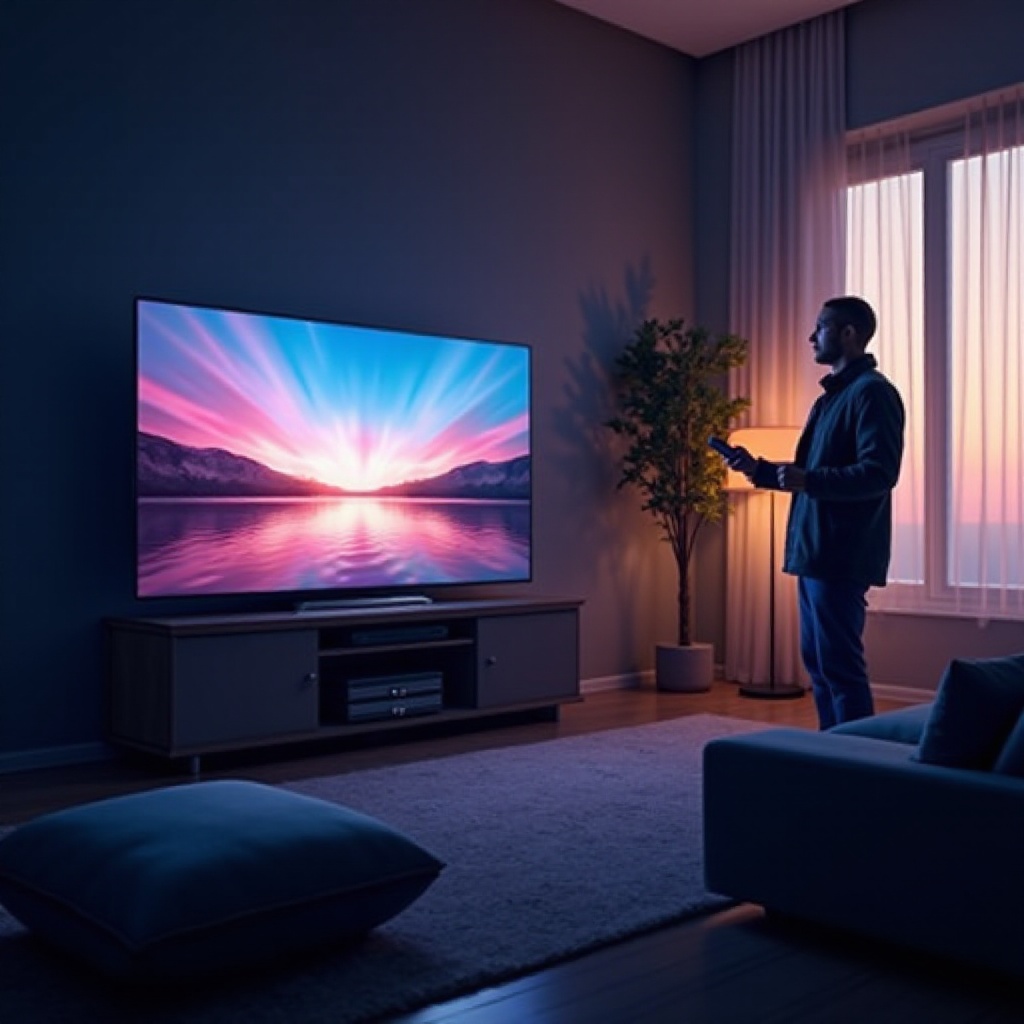
Optimal Picture Modes on Samsung TVs
Understanding the variety of picture modes available on Samsung TVs is critical, as each is designed for distinct viewing scenarios.
Overview of Samsung Picture Modes
Samsung TVs offer modes such as Standard, Dynamic, Natural, and Movie. Each mode addresses different viewing preferences and environments, providing a base option for further customization.
Recommended Settings for General Viewing
For most users, the Movie mode offers a pleasant baseline, providing a balance between natural colors and brightness suitable for various conditions.
Customizing for Your Preference
While Movie mode is a good starter, you should spend some time experimenting with the settings to align it with your preferences and room specifics.
Step-by-Step Calibration Guide
When calibrating, it’s important to follow specific steps for each parameter starting with brightness and contrast.
Setting Brightness and Contrast
- Adjust the brightness so the darkest part of an image remains visible, while ensuring blacks are not washed out.
- Set contrast for whites to be brilliant enough to highlight detail without causing overwhelming glare.
Adjusting Color and Sharpness
- Tweak the color setting to achieve true-to-life hues, avoiding overly vibrant saturation that may distort skin tones.
- Sharpness should be fine-tuned to deliver detail without introducing unnecessary noise or edge enhancement.
Advanced Settings for Perfection
Tackle advanced settings like gamma and dynamic contrast for a fine-tuned image that aligns seamlessly with viewer preferences.
Calibration for Different Usage Scenarios
Tailor your settings to different specific viewing scenarios, whether for movies, gaming, or sports.
Perfect Settings for Movies
For film enthusiasts, lower brightness with enhanced contrast settings can create a more immersive cinematic experience.
Optimal Configuration for Gaming
Gaming enthusiasts benefit from a faster refresh rate available in Game Mode, minimizing input lag for optimal gameplay.
Enhancing Sports Viewing Experience
Enable motion smoothing settings to maintain crisp clarity during high-speed sports action for a dynamic watching experience.
Settings for Streaming Services
Adjust configurations according to streaming content, utilizing HDR or Dolby settings when available to maximize content-specific picture quality.
Leveraging Technology in Calibration
Embrace technology to simplify calibration, making use of apps and professional tools.
Using Calibration Apps
Mobile apps provide guided calibration steps and display test patterns to assist in aligning basic settings accurately.
Professional Calibration Tools
For those seeking perfection, hire professional services or acquire advanced gadgets that provide precise adjustments for top-tier image quality.
Troubleshooting Common Calibration Issues
Even after calibration, you might face issues; learning to troubleshoot can help maintain picture quality.
Identifying Common Problems
Problems like washed-out colors or incorrect screen fit can detract from picture quality.
Solutions and Tips
- Reinitialize settings if detail seems lost.
- Verify that your TV has the latest firmware updates.
- Consult your TV’s manual for model-specific advice.
Conclusion
Thoroughly calibrating your Samsung TV will heighten every viewing session, from thrilling cinematic adventures to smooth gaming experiences. Return to these steps periodically to refresh your settings to adapt to your changing environment or evolving personal preferences.
Frequently Asked Questions
What are the best settings for Samsung TV brightness and contrast?
For general use, setting brightness between 45-55 and contrast between 80-85 typically provides a balance of clarity and vividness.
Should I use a calibration DVD for my Samsung TV?
Yes, a calibration DVD can be quite helpful for achieving professional-level results, especially if you’re keen on obtaining the perfect movie watching experience.
How often should I recalibrate my Samsung TV?
Recalibrate your TV every six months or whenever you notice changes in picture quality to ensure optimal performance.