
Vivint Panel No Sound for Doorbell Chimes: The 2026 Complete Troubleshooting Guide
Introduction
Silence from a Vivint panel when someone presses your doorbell creates confusion, missed visitors, and frustration. You may still see a video clip or a phone alert, yet the panel stays quiet. That typically points to a settings conflict, a muted mode, an automation rule, or a power or wiring issue. This guide walks you through fast checks first, then deeper steps. You will review app and panel settings, hunt for quiet hours and scenes, verify Wi‑Fi and power, and inspect chime boxes and wiring. You will also learn safe reboot and reset orders, how to re‑pair the doorbell, and when to call support.
The flow matters. Start with simple fixes that solve most cases, then move to app controls and automations. If those do not help, confirm device health, power, and compatibility. Finally, use reboots or re‑pairing to clear stuck states. You will see clear actions and short steps you can take without tools. If a step requires electrical work, you will see safe alternatives and when to bring in a pro. Before we change anything, define what no sound actually means in a Vivint system so you can target the right component.
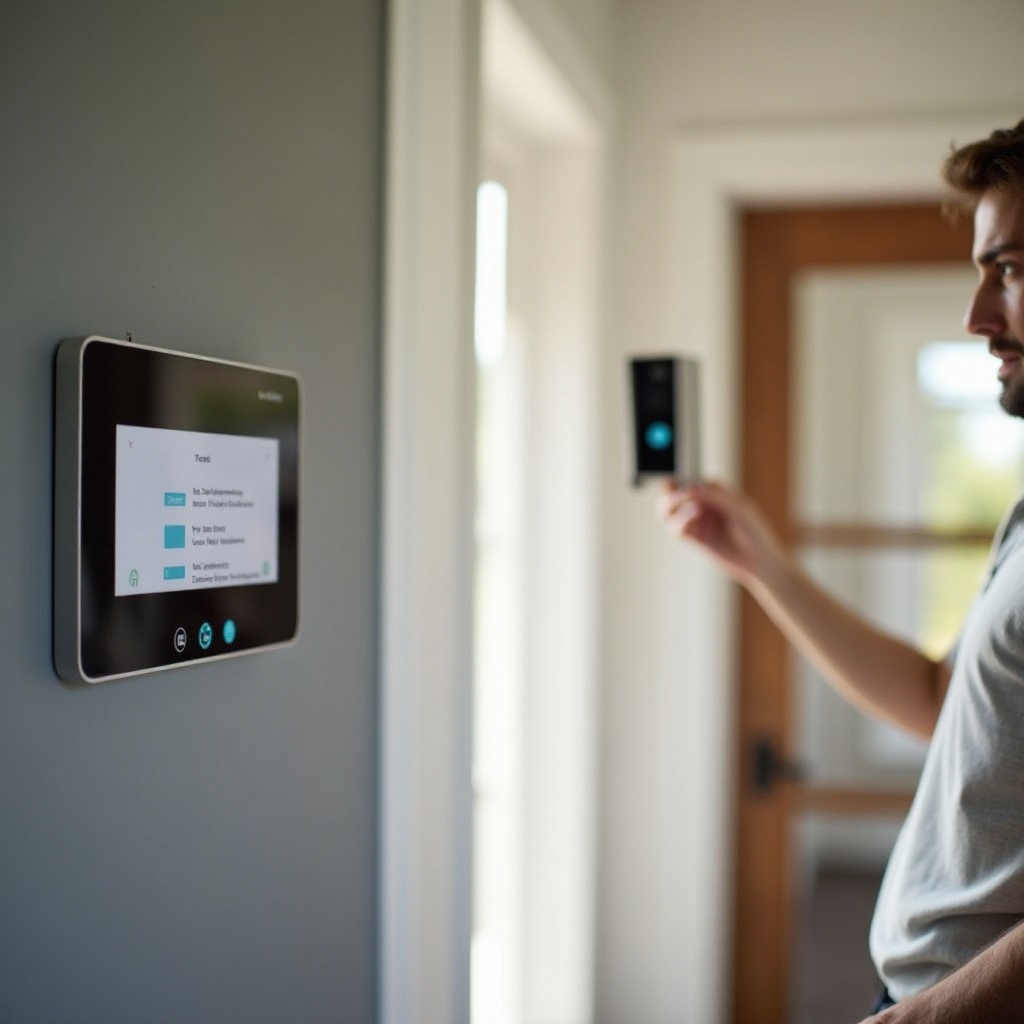
What ‘No Sound’ Actually Means on Vivint (Panel, Indoor Chime, App)
A Vivint doorbell event can trigger three audible paths: the panel speaker, an existing indoor chime box, and your phone. When the panel makes no sound, identify which path failed so you do not chase the wrong issue.
Panel speaker vs. indoor chime vs. phone notifications
- Panel speaker: The Smart Hub or SkyControl plays a chime when a paired doorbell rings. If this is silent but your phone alerts, start with panel and app settings.
- Indoor chime: If your home uses a legacy chime box, the doorbell may rely on transformer power and a compatible chime circuit. Silence here often points to power, chime type, or wiring.
- Phone notifications: If only your phone rings or pops up a notification, the cloud link works while the panel or chime may be muted or misconfigured.
Common symptoms and what they point to
- No panel chime, but a doorbell video appears in the app: likely a settings or automation issue.
- No panel sound in Night mode, yet chimes work in Home mode: mode rules or quiet hours are muting it.
- Chime returns after a reboot, then fails again: look at power stability or firmware.
Why pinpointing the silent component matters
- If the panel is silent but the app notifies, focus on audio settings, modes, and automations.
- If the indoor chime is silent, focus on transformer size, chime type, and wiring.
- This mapping saves time and helps you avoid unnecessary resets.
With the sound path identified, confirm your specific Vivint panel and doorbell model so you can find the right menus and switches quickly.
Identify Your Vivint Hardware Before You Start
Different panels and doorbell models place audio controls in different menus. Confirm what you own to avoid confusion and wrong changes.
Smart Hub vs. SkyControl: where chime settings live
- Smart Hub: Find chime and volume controls under Settings > Sounds or Audio. You may see toggles for doorbell chime, voice prompts, and entry chime.
- SkyControl: Menus differ. Look under Devices, Sounds, or Security for chime and voice options.
Doorbell Camera models and how each handles chimes
- Doorbell Camera Pro models manage indoor chime type and button press sensitivity in the app.
- Older models expose simpler toggles for panel chime and notifications.
Use the Vivint app to confirm firmware and device versions
- In the Vivint app, open Menu > Devices > Doorbell > gear icon or Details. Note the model, firmware version, and indoor chime settings.
With your hardware identified and menus in sight, you are ready for fast checks that fix most no sound issues in minutes.
Fast Checks That Fix Most ‘No Sound’ Issues
Start simple. These quick actions often restore panel chimes right away.
Panel volume, chime toggle, and voice prompts
- Raise panel volume to mid or higher.
- Toggle Doorbell Chime on, then off, then on to refresh the state.
- Enable voice prompts if your panel uses them for chimes.
- Play a test tone if available to confirm the speaker works.
Do Not Disturb, Night Mode, and quick mute
- Turn off Do Not Disturb or Night Mode on the panel.
- If your panel has a quick mute button, press it again to unmute.
Home, Away, Night modes and entry chime behavior
- Switch between Home, Away, and Night, then ring the doorbell in each.
- If chimes fail in only one mode, expect a rule or scene to mute them.
Finish these checks with a live test. If the panel still stays quiet while the app shows the event, the app or automations likely hold a mute setting. Move into the app next.
App Controls That Silence or Enable Doorbell Chimes
The Vivint app can mute the panel chime or switch alerts to push only. A quick review can uncover a silent toggle.
Doorbell chime toggle and indoor chime options in the app
- Open Devices > Doorbell > Settings.
- Ensure Panel Chime or Chime on Panel is enabled.
- If you have an indoor chime, select the correct chime type.
Push vs. audible alerts on panel and mobile
- Confirm you did not set Silent or Push only for doorbell events.
- On your phone OS, allow sounds for the Vivint app so mobile alerts also play.
Button press filter and sensitivity settings
- On Doorbell Camera Pro, reset Button Press Sensitivity to default if false presses forced a mute.
- Save changes and test again at the panel.
If app controls look good and the panel still stays quiet at certain times, hidden automations or schedules may be muting sounds. Audit them next.
Automations, Quiet Hours, and Rules That Mute Sounds
Scenes and schedules commonly explain a mysteriously quiet panel. One bedtime routine can silence chimes until morning.
Quiet Hours and schedules that silence the panel
- In the app, open Routines, Schedules, or Automations.
- Find Quiet Hours or Do Not Disturb automations that toggle chimes off at night.
- Disable, shorten, or shift these times while testing.
Scenes and mode based sound profiles
- Scenes like Goodnight or Naptime may set Night and mute chimes.
- Edit the scene to keep doorbell chimes on, or create a new scene for guests that leaves chimes active.
Shared family profiles and permission conflicts
- Another user may have created a mute rule.
- Review shared automations and remove duplicates or conflicts.
After clearing schedules and scenes, test again. If the chime still fails or works only sometimes, verify device health and power next, since unstable connections or low voltage can also silence chimes.
Check Device Health: Wi‑Fi, Power, and Firmware
Doorbell and panel health affect chimes as much as settings. Weak Wi‑Fi or low power can block or delay the chime signal.
Signal strength and router placement best practices
- In the app, check the doorbell signal. Aim for fair to strong.
- Improve coverage by moving the router or adding a mesh node closer to the door.
- Reduce interference from metal doors, mirrors, and thick walls.
Power status and insufficient power indicators
- In Device Health, look for low power warnings.
- Intermittent chimes, frequent reboots, or cold weather may expose a transformer that is undersized for the load.
Firmware and app updates and what to look for
- Update the Vivint app.
- Apply pending device updates when prompted.
- After updates, toggle the panel chime off and on to refresh sound state, then test.
If health checks show no issues but chimes still fail, confirm transformer size, chime box compatibility, and any required adapter modules.
Power and Chime Box Basics
Power delivery and chime compatibility often determine whether chimes play or stay silent.
Transformer voltage and VA rating requirements
- Most smart doorbells need 16 to 24 VAC with adequate VA. Many Vivint setups work best at 16V, 30VA to support the camera and an indoor chime.
- A 10VA transformer can struggle with long wire runs or digital chimes.
- Have a licensed electrician replace weak transformers if needed.
Mechanical vs. digital chime compatibility
- Mechanical chimes use a physical striker and often work natively.
- Digital chimes need a compatible module or adapter to simulate the correct load and protect the circuit.
- Check the label inside the chime box to confirm type.
Required adapters and modules for indoor chime operation
- Some Vivint doorbells require an in line chime module or power kit. If missing or miswired, chimes may not ring or may buzz.
- If you have no indoor chime, set the doorbell to no chime in the app, then enable panel chimes only.
If the transformer and chime type look correct, inspect the physical button and wiring to ensure the signal reaches the doorbell and chime reliably.
Wiring and Physical Doorbell Checks
Poor contacts and corroded wires can silence chimes or create intermittent rings.
Stuck buttons, corrosion, and shorts at terminals
- Turn off power to the transformer at the breaker before working.
- Press and release the doorbell button. It should travel freely and return without sticking.
- Inspect and clean corroded screws or terminals. Retighten loose leads.
Wire gauge, run length, and loose connections
- Long runs with thin wire can drop voltage.
- Confirm secure connections at the doorbell, chime box, and transformer.
- Photograph wiring before changes so you can restore it.
Safety tips before touching low voltage wiring
- If you feel unsure, stop and call a professional.
- Restore power only after all covers are secure.
If wiring and hardware pass inspection, reset the system cleanly to clear software states without erasing your setup.
Safe Reboot and Reset Sequence
A clean restart resolves many chime failures without deeper changes or risk.
Recommended restart order: panel, doorbell, router
- Reboot the panel from Settings > Reboot and wait for it to finish.
- Power cycle the doorbell. If it has a release or power button, use it; otherwise shut off the transformer breaker for 30 to 60 seconds, then restore power.
- Restart your router or the closest mesh node and wait for Wi‑Fi to return.
Power cycle transformer and indoor chime box
- If you have a chime box, cycle its circuit along with the transformer.
- Listen for normal hums or clicks that suggest the chime is powered.
When to use soft reset vs. factory reset
- Try soft resets first. They preserve pairing and settings.
- Use a factory reset only if advised by support or if the doorbell refuses to pair or stays offline.
After a clean restart, test the chime. If silence persists, re‑pairing the doorbell can refresh bindings and sound defaults.
Re‑pair the Doorbell and Restore Sound Defaults
Re‑pairing clears stale associations between the doorbell, panel, and cloud and often restores chimes.
Remove and re add the doorbell in the Vivint app
- Open Devices > Doorbell > Remove Device or Delete, then confirm.
- Put the doorbell in pairing mode per your model instructions.
- In the app, choose Add Device > Doorbell and complete setup.
Re enable panel chimes and adjust volumes
- Turn Panel Chime on and set volume to mid or higher.
- If you have an indoor chime, select the correct type and confirm any module is installed.
Validate with a structured ring and tone checklist
- Press the doorbell and confirm panel chime, indoor chime, and phone alert.
- Test in Home, Away, and Night. Run any scenes you use and confirm the chime remains active.
If re‑pairing fails or power tests show issues, bring in Vivint support or a licensed pro to evaluate hardware.
When to Contact Vivint Support or Replace Hardware
Some scenarios point to hardware faults or settings only support can check.
Warranty checkpoints and hardware swap indicators
- The panel speaker fails test tones but other panel sounds work.
- Device Health shows low power even after upgrading the transformer.
- The doorbell reboots often or drops offline.
Evidence to collect: logs, videos, and photos
- Photos of wiring at the doorbell, chime box, and transformer.
- Short videos of silent chime events at the panel.
- Notes on times, modes, and scenes used during tests.
Safety and compliance considerations for replacements
- Use a licensed electrician for transformer work.
- Keep low voltage wiring secure and within local code.
Whether you repair or replace, adopt a few habits to keep doorbell audio reliable for the long run.
Preventive Tips to Keep Doorbell Audio Reliable
Consistent sound comes from stable power, clean settings, and simple routine checks.
Quarterly tests and cleaning and maintenance
- Ring the doorbell in each mode and in common scenes every season.
- Play the panel test tone and adjust volume if needed.
- Clean the doorbell button and camera face to prevent sticking or debris.
Surge protection and stable power strategies
- Use a properly rated transformer; 16V 30VA is a strong starting point for many homes.
- Add a small UPS to your router and panel if outages are common.
Document settings and train household members
- Save screenshots of doorbell chime settings and automations.
- Note Quiet Hours and revisit them during schedule changes.
- Limit who can edit automations. Show family members how to toggle Do Not Disturb.
With these habits in place, your Vivint panel should chime when it should, stay quiet when you want, and avoid surprises.
Conclusion
A silent Vivint panel during doorbell presses usually comes down to settings, a muted mode, weak power, or wiring. Work from fast checks to app controls, then review automations and device health. Verify transformer size and chime compatibility, and inspect wiring if it is safe to do so. Use clean reboots, then re‑pair the doorbell if needed. Call support when signs point to hardware. Document your settings and run quick tests each season. Follow this path and you will restore the doorbell chime at the panel and keep it dependable.
Frequently Asked Questions
Why does my Vivint panel stop chiming but my phone still alerts?
Your app and cloud services still register the button press, so the phone alerts. The panel stays silent when chime toggles are off, panel volume is low, Do Not Disturb or Night Mode is active, or an automation mutes sounds. Fix it by turning off Do Not Disturb and Quiet Hours, enabling Panel Chime in the app, and raising panel volume. Test in Home, Away, and Night and edit scenes that mute sounds. If those fail, reboot panel, doorbell, and router in order, then re‑pair the doorbell if needed.
Can a weak transformer cause no sound on the panel for doorbell rings?
Yes. If the doorbell camera lacks stable power, it may not trigger the panel chime consistently. Symptoms include intermittent chimes, frequent device restarts, or low‑power warnings in Device Health. Aim for a 16 to 24 VAC transformer with sufficient VA; 16V 30VA works well in many homes. Confirm chime type and install any required power module. If you are unsure, consult a licensed electrician.
How do I turn off Quiet Hours that are muting my Vivint doorbell chime?
Open the Vivint app and check Routines, Schedules, or Automations. Look for Quiet Hours, Do Not Disturb, or Night scenes that toggle chimes off. Disable the schedule or adjust times so chimes play when you expect visitors. Also open Devices > Doorbell > Settings and ensure Panel Chime is on, then raise the panel volume. Test during a time that previously muted the chime. If the chime still fails, review scenes and user rules for conflicts.