Vizio TV Antenna Not Working? The Complete 2026 Troubleshooting and Setup Guide
Introduction
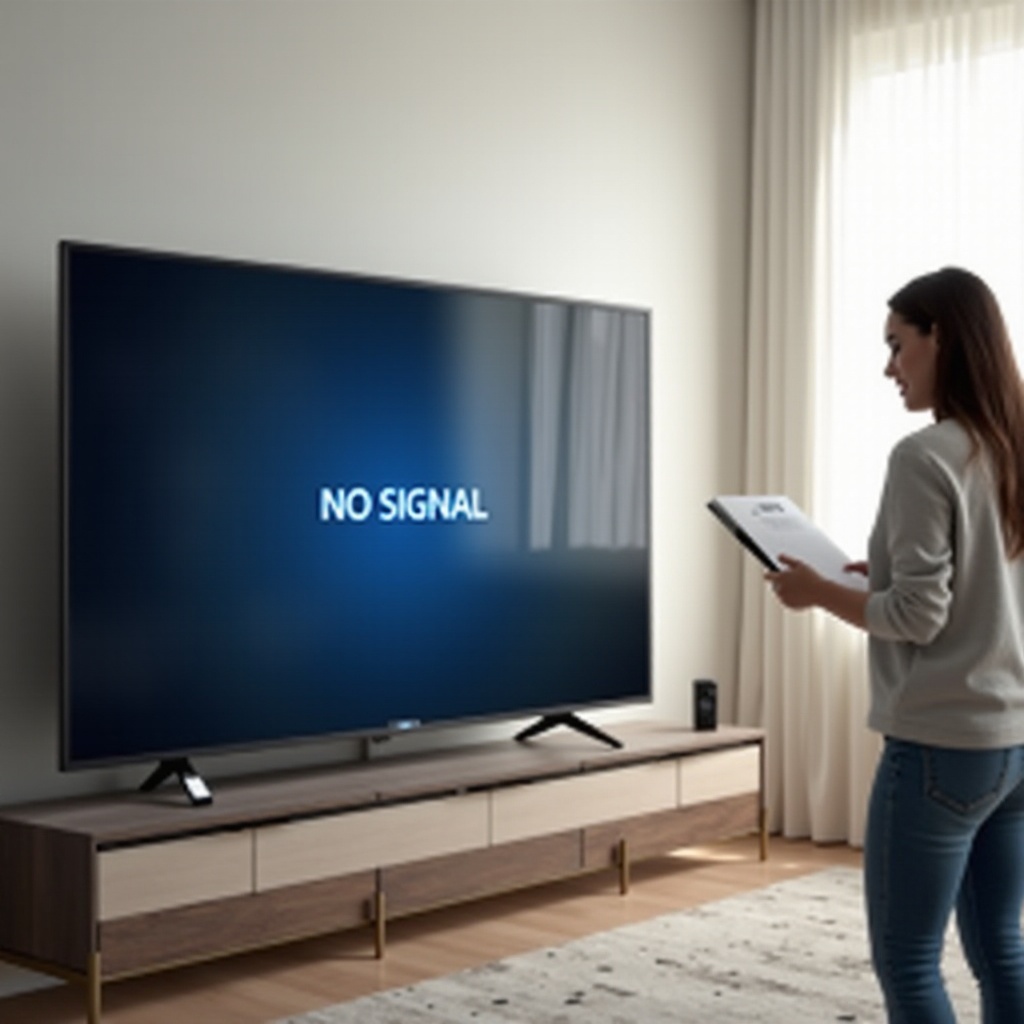
Seeing the dreaded ‘No Signal’ message on a Vizio TV feels frustrating, especially when you expect free local channels. The causes are usually simple: a wrong input, an incorrect tuner mode, a poor scan, weak placement, or noise from nearby devices. You can fix most issues in a single session with a methodical approach. This guide gives you a step by step path from quick checks to deeper troubleshooting. You will configure the tuner correctly, run an effective scan, place and aim the antenna for maximum stability, clean up the coax path, and remove interference. You will also learn how amplified antennas and firmware updates affect results, and when an external tuner or antenna upgrade solves stubborn reception. Start with the fastest checks, move in order, and log small changes so you know what works.
Quick Checks to Fix ‘No Signal’ on a Vizio TV
Before you buy new gear or climb into an attic, verify the basics. Many antenna problems come down to a wrong input or a loose connector. These first moves take only a few minutes and often restore channels right away.
Confirm the TV input is set to TV/Antenna, not HDMI
Open the input selector and choose the TV or Antenna source. If the TV remains on HDMI from a streaming device, you will not see antenna channels. Some Vizio models label the input as TV, ANT, or a coax icon. Switch to that input first. Once you select it, stay on that input for scanning and testing.
Verify the coax cable is firmly connected to the RF/ANT port
Hand tighten the F connector on the TV. A loose or cross threaded connector can break contact with the center conductor and produce a blank screen. Check the antenna end as well. If you use a wall plate, bypass it for now with a single run to the TV to rule out a failed in wall connector.
Test with a known good RG6 coax patch cable
Cables fail from kinks, crushing, and corrosion. Replace the existing jumper with a short, known good RG6 cable. RG6 offers better shielding and lower loss than thin RG59. This quick swap can reveal a hidden break or bad shielding that causes dropouts.
Power cycle the TV and any antenna power injector
Unplug the TV for 60 seconds. If you use an amplified indoor antenna or a mast preamp, unplug the power injector and plug it back in. Confirm the power LED turns on. A simple power cycle can clear a tuner glitch or restart a stuck amplifier.
A few simple checks usually restore picture. If you still see ‘No Signal’ after these steps, configure the tuner mode and run a proper scan.
Set Up the Vizio Tuner Correctly
Vizio TVs need the correct tuner mode and a full scan to build the channel list. A wrong setting or a partial scan often leads to a blank lineup. Start here before you move the antenna.
Tuner Mode: Antenna or Air vs Cable — choose the right source
Open Settings and go to Channels or Tuner. Set Tuner Mode to Antenna or Air. If the TV sits on Cable mode, it expects QAM signals and will skip over the air broadcasts. After changing the mode, scan channels again. If you factory reset recently or performed an update, verify this setting.
Run a full channel scan from the Channels or Tuner menu
Select Auto Channel Scan or a similar option. Let the scan complete. Do not change inputs, close menus, or power off during the scan. The scan maps virtual channels to frequencies and stores them in the channel list. Interruptions can leave you with missing stations.
Use Add Channels or a full rescan after moving the antenna
If you move the antenna, scan again. Use Add Channels if your model supports it so you keep healthy stations while adding new ones. If reception changes a lot, perform a full scan to refresh everything. Rescans take only a few minutes and often reveal additional stations.
Common SmartCast menu paths and terms to find the scan option
On recent SmartCast models, look under Settings, then Channels or Tuner, and choose Auto Channel Scan. You might also see Antenna, Air, and Scan in the labels. If menus look different, use the remote search feature to find Channel Scan. The exact labels vary by model year but the steps remain the same.
With the tuner configured and a full scan complete, your next gains come from placement and aim. Even a strong tuner cannot overcome a bad location.
Optimize Antenna Placement and Aiming
Small changes in antenna position can deliver big improvements. Over the air signals behave like light: line of sight works best, and obstacles reflect or absorb energy. Focus on height, window proximity, and direction.
Identify your local broadcast towers and VHF or UHF needs
Use a reliable station locator to find tower bearings and distances. Most markets carry UHF channels, and many still broadcast VHF High on channels 7 through 13. If VHF stations matter to you, choose an antenna with real VHF support. Point directional antennas toward the cluster that carries your favorite networks.
Best indoor placement: higher, near a window, away from metal
Place indoor antennas as high as possible and near an exterior window that faces your towers. Avoid metal shelves, mirrors, and large appliances. These surfaces reflect and scatter radio waves, which lowers signal quality. Try several windows and floors for the best path.
Orientation and rotation tests for flat and loop antennas
Flat antennas can work in two ways: flat on the wall or edge on. Try both. Rotate slowly while tuned to a weak channel. Stop where the picture stabilizes. Loop and panel antennas also benefit from small rotation changes. Use live TV, not a paused image, when testing.
When to move to attic or outdoor placement for stability
If indoor signals remain marginal, move the antenna to the attic or the roof. Outdoor placement often clears building materials and reduces indoor noise. Use a stable mount, proper grounding, and weatherproof boots on connectors. Keep coax runs as short and direct as possible.
Once the antenna sits in a strong position, verify what the TV reports and what your eyes see. Strength alone does not guarantee a clean picture.
Check Signal Strength and Quality on Your Vizio
Digital TV needs both adequate strength and high quality. Weak quality creates pixelation and freezes even when bars appear high. Read the signs from your Vizio and from the picture itself.
Strength vs quality: why pixelation happens despite bars
Signal bars show power. Quality reflects how much usable data arrives without errors. Interference, reflections, or amplifier overload harm quality first. You may see several bars and still get blocks and dropouts. Chase stability, not just bars.
Use on screen diagnostics or live test channels during scans
Tune to a problem station and open any available signal information screen. If your model lacks a detailed meter, use the picture and sound as a guide. Rotate and move the antenna in small steps while watching for fewer glitches.
Interpreting dropouts, audio pops, and macroblocking
Brief audio pops and large on screen blocks signal quality dips. A sudden black screen followed by a return to video suggests deeper fades or a loose connector. Log where in the room the issues get better. This pattern helps you find cleaner paths.
If the picture still falls apart after careful placement, inspect the coax path. Aging connectors or splitters can erase marginal signals.
Inspect the Entire Coax Path
The signal that leaves your antenna must reach the tuner intact. Every connector, splitter, and barrel adds loss. Damaged or cheap parts make matters worse. Clean the path and retest.
Check F connectors for looseness, corrosion, or broken shields
Examine each connector closely. The center pin must be straight, not recessed, and it must reach into the female contact. Replace corroded fittings. Use compression connectors rather than twist ons to create a tight, stable bond that resists time and weather.
Remove splitters, barrel couplers, and wall plates during tests
Every splitter and join costs signal. For testing, connect the antenna directly to the TV with a single RG6 cable. If reception improves, you have identified loss in the network. Add parts back one at a time or replace them with low loss versions.
Prefer RG6 over RG59 for lower loss and better shielding
Long runs and noisy environments demand RG6. It offers better shielding and lower attenuation than RG59. Replace thin jumpers and long lines with RG6 that uses solid copper or copper clad steel, matched to your run length and budget.
Grounding and weatherproofing tips for outdoor runs
Ground the mast and the coax where required for safety. Create a drip loop to keep water from entering fittings. Seal outdoor connectors with silicone and weatherproof tape. Moisture intrusion can devastate signal quality.
If the coax checks out, focus on active components. Amplifiers can help or hurt depending on your location and setup.
Fix Amplified and Powered Antenna Problems
Amplifiers increase signal levels, but they also add noise and can overload tuners when you live close to towers. Verify power and placement, and test without amplification.
Verify the antenna power injector is plugged in and lit
Find the small power supply that feeds the antenna or mast preamp. Confirm the LED is on. The injector must connect with the correct orientation, with the side labeled power to ant feeding the coax toward the antenna. A dead injector breaks the chain.
Bypass the amplifier to rule out overload or a bad power supply
Disconnect the amplifier and connect the antenna directly to the TV with a short RG6 jumper. If channels appear or stabilize, the amp was overdriving the tuner or the power supply had failed. Keep it bypassed or replace it with a quality unit that suits your market.
Preamps vs distribution amps: which one you actually need
Use a mast preamp at the antenna for long runs or weak signals. Use a distribution amp indoors when you must feed multiple TVs. Do not stack amplifiers. Too much gain compresses signals and reduces quality.
Add LTE or 5G filters to curb strong cellular interference
If you live near a cellular site, an LTE or 5G filter can remove out of band noise. Install it before the amplifier, closest to the antenna. Test with and without the filter to confirm an improvement.
When amplification is in order, interference from other devices still may spoil reception. Quiet the room next.
Eliminate RF Interference and Overload
Many everyday devices radiate noise that affects OTA channels. A few layout changes and better cables often restore clean pictures, especially in apartments and dense cities.
Common noise sources: LED bulbs, chargers, motors, routers
Turn off LED bulbs, USB chargers, air purifiers, and refrigerators while you test. Move Wi Fi routers and mesh nodes away from the antenna and coax. If reception improves, relocate noisy devices or replace them with better shielded models.
HDMI cable radiation: use ferrite chokes and better shielding
Low quality HDMI cables can radiate interference near TV frequencies. Replace them with certified high speed cables. Add ferrite chokes near both ends. Route HDMI leads away from the TV RF jack and the antenna cable.
Unplug streaming sticks, consoles, and soundbars during tests
Remove HDMI devices during troubleshooting. Some generate noise or trigger control events that change inputs. If the antenna works with them unplugged, reconnect one at a time to find the offender. Keep the troublemaker farther from the antenna path.
Use attenuators to tame overly strong local signals
Strong nearby broadcast towers can overload a tuner. Add a fixed attenuator, such as 3 to 10 dB, before the TV. Test different values until the picture stabilizes. Combine with careful antenna aim to reduce overpowering signals.
When noise and overload are under control and reception still falters, verify the TV software. Updates can reset settings or patch bugs that affect scanning.
Handle Firmware Updates and Resets on Vizio
Software updates can change tuner behavior. Confirm settings after updates and refresh the channel database if necessary. Use resets in a smart order to save time.
Recheck Tuner Mode and input after a firmware update
Open Settings and confirm the input is TV or Antenna and Tuner Mode is Antenna or Air. Updates sometimes revert preferences or clear channel lists. You will not see stations until you rescan with the right mode.
Manually check for the latest firmware and install it
Go to System, then Check for Updates, and apply any available update. Vendors fix tuner quirks and add stability over time. Staying current reduces odd scan behavior or odd, intermittent problems.
Soft reset vs factory reset: when to use each method
Start with a soft reset. Power off, unplug the set for 60 seconds, then power on. If issues persist, prepare for a factory reset by noting Wi Fi and app logins. After the reset, set Tuner Mode to Antenna and run a fresh scan.
What you will need to reconfigure after a factory reset
Have your Wi Fi password and streaming credentials ready. Plan 10 to 15 minutes for setup and a full channel scan. Keep a note of the antenna placement that worked best so you can repeat it after the reset.
If your signals remain borderline, an external tuner can give you better tools and sensitivity. NextGen TV planning also matters as stations evolve.
ATSC 3.0 or NextGen TV and External Tuners
Broadcast standards continue to evolve through 2026. Many markets blend ATSC 1.0 and 3.0. Some Vizio sets do not decode every 3.0 broadcast, and external tuners can improve fringe reception.
What ATSC 3.0 means for OTA reception on Vizio TVs
ATSC 3.0, also called NextGen TV, adds new features in some cities such as advanced audio and data services. Many channels still simulcast in ATSC 1.0 so you can watch without new hardware. If your market expands 3.0, you may need an external tuner to view those broadcasts while keeping 1.0 stability.
Use an external ATSC tuner or DVR via HDMI to improve reception
Standalone tuners often include more sensitive front ends, better filters, and detailed signal tools. Connect one to HDMI, scan channels on the tuner, and watch through that input. Many models add DVR features and streaming to phones and tablets.
Signs your internal tuner may be faulty or underperforming
If another TV or a USB or external tuner finds channels that your Vizio misses on the same antenna, the internal tuner may be weak or damaged. An external tuner serves as both a fix and a diagnostic step before repair.
Weather and seasons also shape reception. Plan around normal variations and avoid hasty rescans during short anomalies.
Seasonal, Weather, and Environmental Factors
Over the air signals change with rain, heat, and foliage. Expect some seasonal swing and adjust placement to maintain stability without constant rescans.
Foliage growth and seasonal changes that affect signal
Leaves absorb and scatter signals, especially on VHF High. If channels fade in spring or summer, raise the antenna, try a different window, or move outdoors for a clearer path. Directional antennas can also help punch through mild foliage loss.
Tropo and unusual propagation: when to rescan and when not to
Hot, humid nights can bring distant stations that confuse scans and remap channels. Resist the urge to rescan during these events. Wait for normal weather before rescanning so you keep a clean, stable lineup.
Urban multipath and reflective glass: mitigating reflections
Dense city blocks and glass towers reflect signals and cause multipath. A directional antenna aimed precisely at your tower cluster can reduce reflections. Move closer to a window that faces your towers, and rotate the antenna a few degrees to null problem paths.
If conditions force frequent rescans or some stations remain unstable, a better antenna or a few accessories can lock things down.
When to Upgrade Your Antenna and Accessories
Better hardware makes the biggest difference when you live far from towers, sit behind obstacles, or must feed multiple rooms. Choose parts that match your market and home.
Directional vs multi directional for your market layout
If towers cluster in one direction, use a directional antenna. It provides gain and rejects noise and reflections from other directions. If towers sit on opposite sides, consider a multi directional antenna or a two antenna solution with a combiner designed for OTA.
Ensure VHF High support for channels 7 through 13 when needed
Do not assume a slim indoor antenna supports VHF High well. Check specifications and look for real VHF elements or select a model designed for both bands. You can also add a dedicated VHF antenna and combine it properly with a UHF antenna.
Mast preamps, distribution amps, and correct placement
Use a mast preamp at the antenna to overcome long coax runs. Use a distribution amp only to feed multiple TVs. Avoid stacking amplifiers. Each stage adds noise and risk of overload. Keep coax runs short, use compression connectors, and protect outdoor fittings from water.
Budget to pro setups and realistic performance gains
Indoor antennas deliver small to moderate gains. Attic or rooftop antennas offer the biggest improvement. Terrain, distance, and buildings limit results. Set realistic expectations and choose gear that meets your must have channels.
You now have the methods and the gear map. To wrap up, use this compact checklist to move from problem to picture fast.
Step by Step Fast Troubleshooting Checklist
A 10 minute path from ‘No Signal’ to channels found
1) Select the TV or Antenna input. 2) Set Tuner Mode to Antenna or Air. 3) Hand tighten both coax ends. 4) Bypass splitters and amplifiers. 5) Place the antenna high at a window that faces your towers. 6) Run a full channel scan and wait for completion. 7) Rotate the antenna in small steps while tuned to a weak channel. 8) Test with a short, known good RG6 jumper from antenna to TV. 9) Power cycle the TV and any amplifier injector. 10) If reception still fails, try an external ATSC tuner.
Document placements and changes to speed up support
Write down where you placed the antenna, which channels you found, and what devices you unplugged during tests. Take quick photos of each placement that works. Clear notes save time if you contact support or hire a local installer.
If your own tests point to a hardware defect or a complex reception area, bring in help. Good diagnostics shorten the path to a stable lineup.
When to Contact Vizio or a Local Antenna Pro
Symptoms of a failed TV tuner and how to confirm
When another TV or an external tuner pulls in stations that your Vizio misses on the same feed, the internal tuner may be at fault. Confirm with a direct short RG6 run and a fresh scan. If a factory reset and firmware update do not help, reach out for service.
Warranty details, receipts, and test notes to gather
Collect your purchase receipt, serial number, and a short log of your tests. Include which cables, splitters, and antennas you tried. Share photos of setups that worked best. This preparation speeds warranty claims and avoids repeated steps.
What an on site antenna professional can measure and fix
A skilled installer can measure real signal levels and quality, identify interference, and choose the right antenna and preamp for your home. They will ground and weatherproof the system and route coax cleanly so your setup stays reliable for years.
Conclusion
Most Vizio TV antenna not working issues have clear, solvable causes. Set the correct input and tuner mode, run a full scan, and focus on smart placement and aim. Clean the coax path and test with and without amplification. Quiet local interference, keep firmware current, and consider an external tuner for borderline signals or NextGen TV features. Seasonal changes might demand a small adjustment or a better antenna. Move step by step, log what you try, and you will build a stable lineup of free local channels without guesswork.
Frequently Asked Questions
Why does my Vizio say ‘No Signal’ on Antenna but cable or streaming works?
The TV likely sits on the wrong input or the tuner is set to Cable instead of Antenna or Air. Switch to the TV or Antenna input, set Tuner Mode to Antenna or Air, hand tighten the coax, and run a full channel scan. If that fails, bypass splitters and try a short RG6 jumper from the antenna directly to the TV.
How often should I rescan channels on my Vizio TV for over the air broadcasts?
Rescan after you move the antenna, change cables, add filters or amplifiers, or when stations in your area update frequencies. Otherwise, scan only when channels go missing or new ones appear. Avoid rescanning during unusual weather that brings distant stations because it can clutter your lineup.
Do I need an amplified antenna for my Vizio TV if I live in a dense city?
Not always. City signals can be strong, and multipath is common. An amplifier may overload the tuner and reduce quality. Start without an amp, place a directional antenna near a window facing your towers, and add a small preamp only if long coax runs or splitters cause losses.