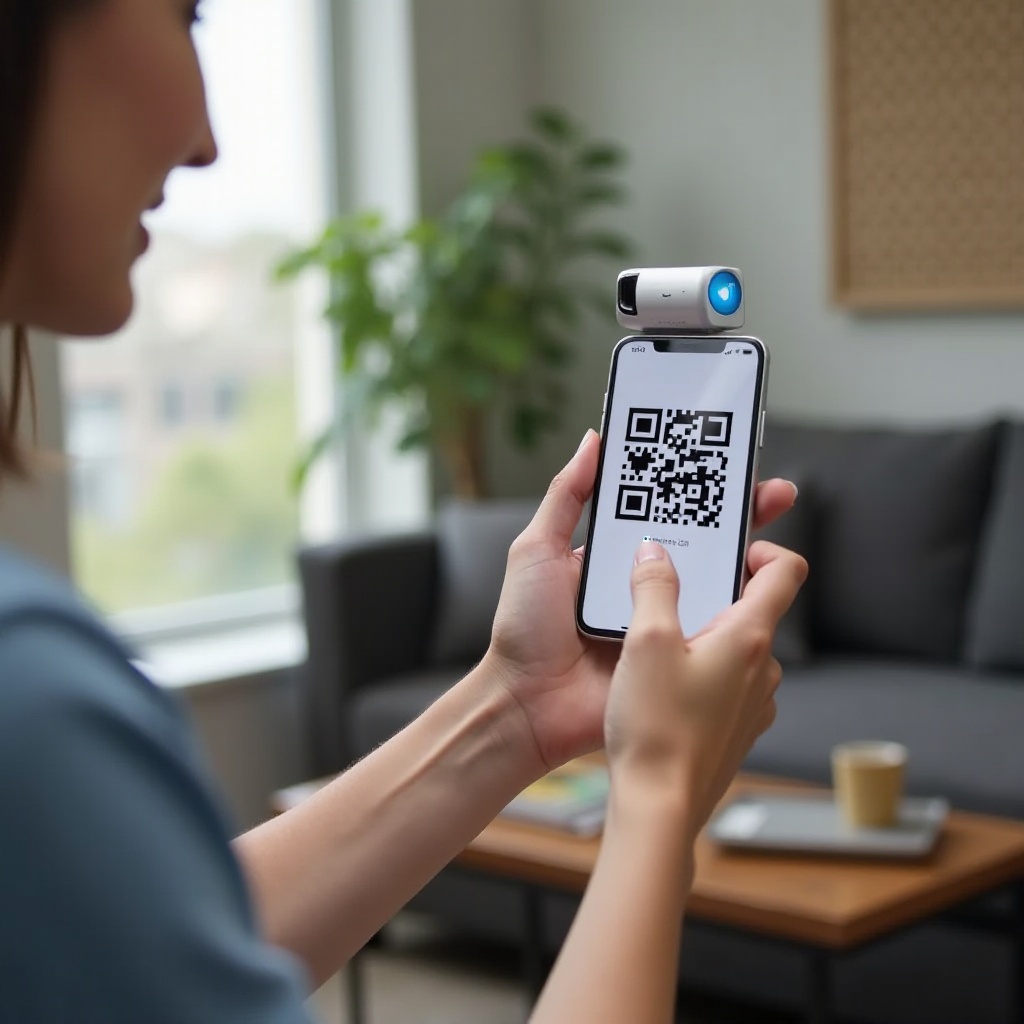
Vizio TV with Only Power Button Volume: How to Control Sound Without a Remote (2026 Guide)
Introduction
Many recent Vizio models hide most hardware buttons to keep a clean bezel and slim profile. You may see only a single power button and no volume keys. That minimalist look can make simple tasks feel hard when your remote disappears or runs out of batteries. The upside is that you still have multiple fast and dependable ways to control sound without the original remote.
This guide focuses on 2024 to 2026 Vizio TVs and shows step by step how to manage volume from your phone, a soundbar, or a streaming device. You will also learn how to reach audio settings with the single button, how to solve common audio conflicts, and how to reset the TV when nothing works. Each section flows into the next so you can move from quick fixes to deeper solutions with confidence.
Quick Answer: Fastest Ways to Change Volume Right Now
If you are staring at a Vizio TV with only a power button volume and no remote, start with these rapid options. They solve most issues within minutes.
-
Use the Vizio Mobile app on your phone:
1) Install Vizio Mobile on your iPhone or Android device.
2) Connect your phone and TV to the same Wi‑Fi network.
3) Open the app, select your TV, and use the on‑screen volume rocker. -
Control sound through a soundbar with HDMI ARC or eARC:
1) Use the soundbar remote to raise or lower volume.
2) If the remote does nothing, enable CEC on the TV and soundbar, then power cycle both devices. -
Open audio settings with the single button:
1) Long press the button to open the on‑screen menu.
2) Use short presses or directional nudges to reach Audio and adjust speaker output and volume. -
Try a streaming device remote via CEC:
1) Roku, Fire TV, and Apple TV remotes can control TV or soundbar volume through HDMI‑CEC.
2) Turn on CEC on both the TV and the streaming device. -
Use a USB keyboard for basic control:
1) Plug a USB keyboard into the TV.
2) Use arrow keys and Enter to reach Audio settings and make changes.
These quick methods get you sound fast. Next, learn where Vizio hides the physical controls so you can navigate confidently when the app or network is not available.
Find the Hidden Buttons on 2024–2026 Vizio TVs
Vizio often places a small multi‑function control on the underside or back of the TV. It looks like a power button at first, but on many models it works as a mini joystick that supports short presses, long presses, and directional nudges.
- Identify your model.
- Check the rear label for the model number, or open Settings > System > About.
-
The series and size help you find the exact button layout on Vizio support pages.
-
Common button locations.
- Rear center or lower right on the back panel for many LED models.
- Underside near the middle or right edge on some Quantum and OLED sets.
-
Look for a small nub with a power icon or a subtle tactile bump.
-
How the control works.
- Short press usually cycles selections or opens a quick input overlay.
- Long press opens the main settings menu or confirms a selection.
- Directional movement, when present, navigates left, right, up, and down.
Knowing this gives you a safety net when the app is not yet paired. With the control identified, the best daily solution is the phone app, which delivers full remote features in seconds.
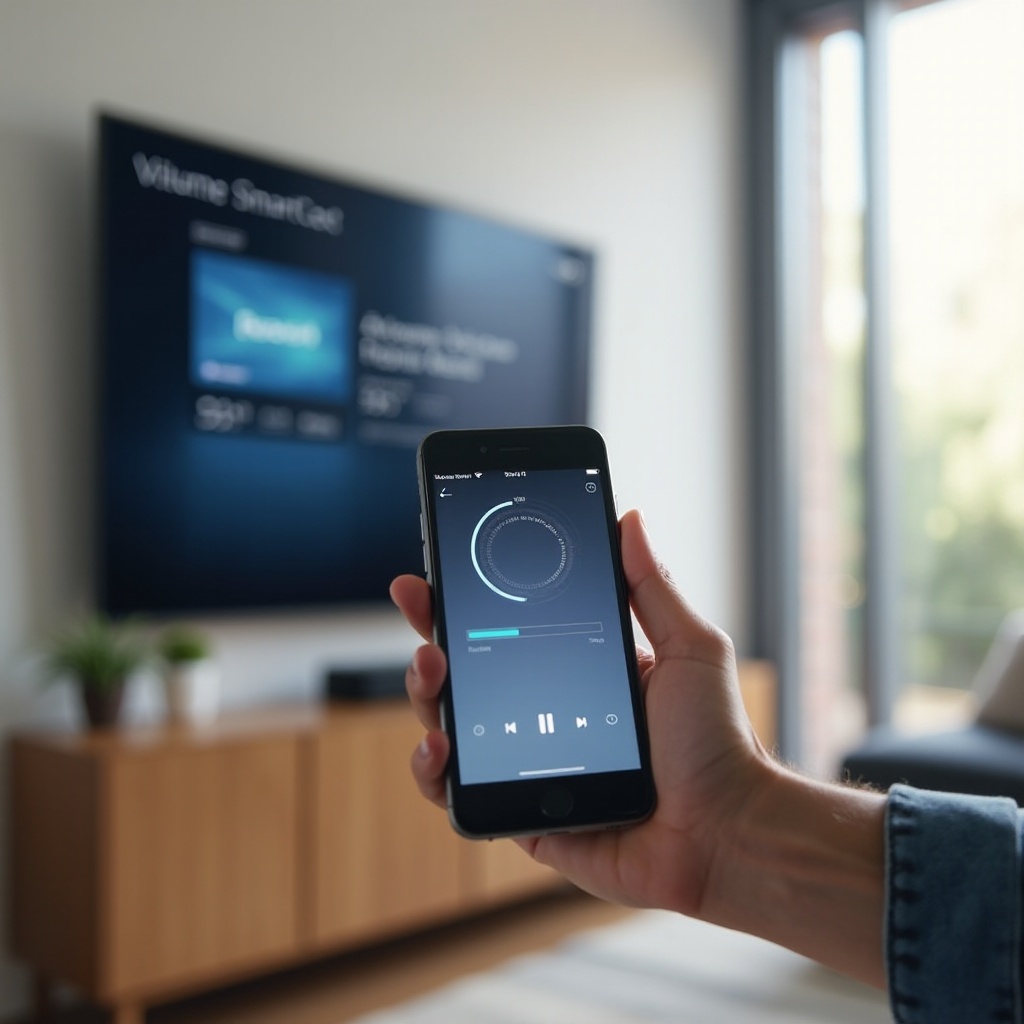
Control Volume with the Vizio Mobile App (SmartCast)
The Vizio Mobile app turns your phone into a full remote with volume, mute, inputs, and quick access tools. It is the simplest way to manage sound on 2024 to 2026 Vizio TVs when the physical remote is missing.
- Requirements and compatibility.
- A 2024–2026 Vizio Smart TV connected to your home Wi‑Fi.
- An iOS or Android phone on the same network.
-
The latest Vizio Mobile app from the app store on your device.
-
Pairing and setup.
1) Connect the TV to Wi‑Fi. If the TV is offline, use the single button to reach Network settings and join your router. If needed, use your phone as a temporary hotspot, then switch the TV to your main Wi‑Fi.
2) Open Vizio Mobile on your phone, grant network permissions, and let it discover the TV.
3) Tap your TV when it appears and confirm the pairing code displayed on the screen if prompted. -
Volume and quick tips.
- Use the app volume rocker for immediate control and Mute to silence quickly.
- Add favorite inputs and apps to reduce menu trips.
- If the app cannot find your TV, ensure both devices share the same network and band, and turn off access point isolation on the router if necessary.
The app covers most day to day needs. If you prefer physical buttons or run an external audio setup, HDMI‑CEC routes volume control to a soundbar or receiver for even smoother use.
Use HDMI‑CEC, ARC, and eARC with a Soundbar or Receiver
When you connect a soundbar or AVR to the TV HDMI port labeled ARC or eARC, you can control volume with the audio device remote and often with your streaming device remote as well. HDMI‑CEC coordinates power and volume across devices.
-
Enable CEC on the TV.
1) Open Settings > System > CEC and turn it On.
2) If available, enable eARC for better bandwidth and stability with compatible gear and certified cables.
3) Power cycle both the TV and the soundbar to refresh the handshake. -
Route audio through the soundbar.
- Connect the soundbar to the TV port labeled ARC or eARC using a certified Ultra High Speed HDMI cable.
- Set TV Audio Output to ARC or eARC.
-
Use the soundbar remote for volume and mute. Many soundbars also provide a mobile app for volume and equalizer control.
-
Reset a bad handshake.
1) Unplug the TV and soundbar for 60 seconds.
2) Plug in the TV first and wait until it fully boots.
3) Plug in the soundbar and wait for the CEC link to establish.
4) Toggle CEC Off and On if the link still fails.
With CEC working, you can forget about the TV button almost entirely. Still, you should know how to reach and adjust audio settings using that single control when the network or a remote fails.
Navigate On‑Screen Menus with a Single Power Button
Even if you see only one button, you can still reach core sound settings on most 2024–2026 Vizio TVs. The exact behavior varies by model, but the general flow is consistent.
-
Enter and navigate the menu.
1) Long press the button for a few seconds to open the main menu.
2) Use short presses to move among top level items.
3) If your model supports direction, nudge the control to move left, right, up, or down.
4) Long press to select and confirm. -
Adjust key audio options.
- Volume and Mute, if accessible from the menu.
- TV Speakers On or Off.
- Output selection for TV Speakers, ARC or eARC, or Optical.
-
Volume Leveling, Surround Sound, and equalizer presets.
-
Save and exit.
- Long press to confirm changes and short press to go back.
- If you stop pressing buttons, the menu times out and saves changes.
These steps let you manage sound in a pinch. For daily convenience, you can add external control options that restore tactile buttons or allow hands free commands.
External Control Options When Buttons Are Limited
You may want a solid backup plan that does not rely on Wi‑Fi or apps. Several accessories work well with 2024–2026 Vizio TVs and provide reliable volume control.
- Universal remotes and IR codes.
- Vizio TVs accept common Vizio IR code sets included with many budget remotes.
-
Setup steps:
1) Insert fresh batteries and follow the remote instructions.
2) Select Vizio as the brand or enter the code in the manual.
3) Test power, volume, and input switching. -
USB keyboards and media keys.
- Many Vizio TVs accept basic USB keyboards for navigation.
-
Plug a keyboard into a TV USB port, then use arrow keys and Enter to navigate menus. Media keys for volume and mute may work on supported models.
-
Smart home and voice assistants.
- Some Vizio models integrate with voice platforms through the Vizio ecosystem or casting partners.
- After linking, you can issue voice commands to change volume or mute.
If you already use a streaming player, you may be able to control volume with that device and its mobile app, which keeps everyday use simple even when the TV remote is missing.
Control Volume Through Streaming Devices
Streaming devices can act as a volume bridge between you and the TV or soundbar. With HDMI‑CEC enabled, their remotes and apps often adjust volume seamlessly.
- Device specific notes.
- Roku, Fire TV, and Apple TV remotes usually include volume and mute buttons that work over CEC.
-
Their companion mobile apps offer virtual remotes with volume controls for quick adjustments.
-
Turn on device control.
1) Enable CEC on the Vizio TV in Settings.
2) In your streaming device settings, enable control of TV power and volume.
3) If you use a soundbar, confirm that the device detects ARC or eARC in its audio settings. -
What to expect in daily use.
- Volume keys may control the TV internal speakers or the soundbar, depending on TV Audio Output.
- The TV displays volume overlays or soundbar indicators to confirm changes.
If volume still refuses to change or appears greyed out, you likely face an audio routing or format conflict. The next section provides a clear playbook to isolate and resolve the problem.
Troubleshooting: Volume Not Working on a Vizio TV with Only a Power Button
When you see no response, stuck levels, or a greyed out volume slider, work through these checks. Tackle them in order to avoid creating new conflicts.
1) Verify speaker routing.
– If you use internal speakers, set TV Speakers to On and Output to TV Speakers.
– If you use a soundbar, set Output to ARC or eARC and turn TV Speakers Off.
2) Clear CEC conflicts.
– Turn CEC Off on both the TV and soundbar and test volume on TV speakers.
– Turn CEC back On and power cycle both devices to rebuild the link.
– Use a certified Ultra High Speed HDMI cable for eARC stability.
3) Confirm audio format.
– Set Digital Audio Format to PCM to rule out decoding issues.
– If PCM restores sound, test Bitstream, Dolby, or DTS based on device support.
4) Check app level and device limits.
– Raise the volume within streaming apps and set any app night modes to Off.
– Some cable boxes, consoles, and sticks cap output volume. Raise those limits in device settings.
5) Update firmware and software.
– On the TV, go to Settings > System > Check for Updates.
– Update the soundbar or receiver using its app or a USB method if required.
6) Power cycle and reseat cables.
– Unplug the TV for 60 seconds and discharge by holding the power button for 10 seconds.
– Reseat HDMI cables and try another HDMI port if needed.
If these steps do not fix the issue, a factory reset can clear deep configuration conflicts and return audio control to defaults.
Factory Reset Without a Remote
A factory reset can restore clean audio routing and remove stuck CEC states when nothing else works.
-
Reset using the single button.
1) Turn the TV on and long press the button to open the menu.
2) Navigate to System, then Reset and Admin, and select Reset TV to Factory Defaults.
3) Long press to confirm. The TV restarts and launches the setup process. -
Set up again after the reset.
- Reconnect Wi‑Fi so Vizio Mobile can pair with the TV.
- Re‑enable CEC and eARC if you use a soundbar or receiver.
- Reinstall your apps and sign in.
- Reapply audio preferences such as PCM or Bitstream and any volume leveling choices.
If you do not want to depend on apps or a single button after recovery, the next step is a simple remote upgrade.
When to Replace or Upgrade the Remote
A replacement remote restores instant access to volume and input changes and reduces friction for everyone in the home.
- Official versus third party options.
- Official Vizio remotes guarantee compatibility and familiar layouts.
-
Third party universal remotes cost less and can control multiple devices at once.
-
Budget picks that work well.
- Choose a universal remote that lists Vizio compatibility on the packaging.
- Prefer models with dedicated Volume, Mute, and Input buttons and clear labeling.
- Keep spare batteries on hand to avoid repeat issues.
For households with young kids, seniors, or guests, you can also improve day to day simplicity with accessibility tools and voice control.
Accessibility and Ease‑of‑Use Tips
You can make volume control more comfortable and accessible without changing your TV.
- Large button remotes.
- Select remotes with oversized, high contrast Volume and Mute keys.
-
Add tactile stickers or color labels to the most used buttons.
-
Voice control and shortcuts.
- Many soundbars and streaming devices support voice commands for volume and mute when linked properly.
- Set up routines or shortcuts for quick actions like setting volume to a preferred level.
These improvements help every user control sound without instruction, and they complement the phone app and CEC based methods discussed earlier.
Conclusion
A Vizio TV that seems to offer only a power button for volume does not have to slow you down. You can control sound through the Vizio Mobile app, a soundbar or receiver via HDMI‑CEC and eARC, a streaming device remote, or even a USB keyboard. When problems appear, run through targeted checks for speaker routing, CEC conflicts, audio formats, and firmware updates. If needed, reset the TV and start clean, then consider adding a dependable universal remote or voice control for everyday comfort. With these steps in place, your 2024 to 2026 Vizio TV becomes simple to manage without hunting for the original remote.
Frequently Asked Questions
Can I control volume on a Vizio TV with only a power button and no Wi‑Fi?
Yes. Use a soundbar or receiver on HDMI ARC or eARC and adjust volume with its remote. A universal IR remote also works without Wi‑Fi. If you own a streaming device, enable HDMI‑CEC so its remote controls the TV or soundbar volume. As a last resort, plug in a USB keyboard and change volume in the Audio menu.
Why is my Vizio TV volume greyed out or stuck when using a soundbar?
When the TV routes audio to ARC or eARC, the internal speaker volume becomes unavailable. That is expected because the soundbar takes control. Use the soundbar remote or app. To return control to the TV speakers, switch Audio Output to TV Speakers and turn ARC or eARC off. If CEC glitches persist, power cycle and reseat HDMI cables, then test PCM.
Do all 2024–2026 Vizio TVs support the Vizio Mobile app for volume control?
All current Smart Vizio models from 2024 to 2026 support Vizio Mobile for remote functions, including volume and mute, when the TV and phone share the same network. If the app cannot find your TV, verify Wi‑Fi settings, ensure devices are on the same band, disable AP isolation, and update the TV firmware.