Vizio TV No Network Detected: The Complete Troubleshooting Guide for Reliable Wi‑Fi
Introduction
Your Vizio displays the message ‘No Network Detected’ and apps will not load. The TV either fails to see any nearby Wi‑Fi networks or it misses your own SSID. You want fast, reliable steps that restore connectivity and keep it stable. This guide gives you a clear path: quick wins first, targeted settings next, and deeper diagnostics if the issue persists.
You will start with fast checks that fix most cases in minutes. Then you will verify the TV’s network settings and scan behavior. After that, you will pick the right Wi‑Fi band and apply compatible router settings that Vizio models handle well. If problems remain, you will use advanced tools and safe workarounds to get back online, followed by last‑resort options and prevention tips. To make progress methodically, let us define what the error actually tells you before you act.
What ‘No Network Detected’ Means on a Vizio TV
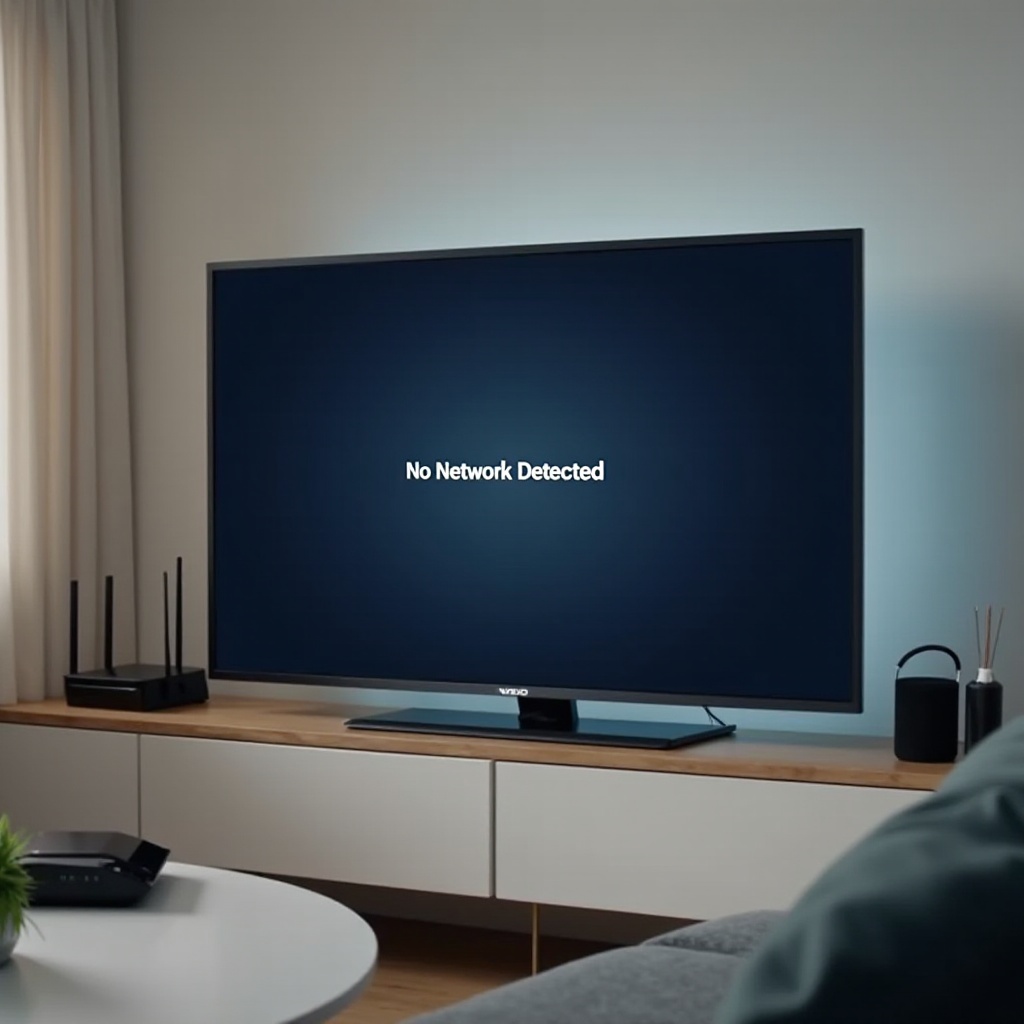
No Network Detected’ typically means the TV’s Wi‑Fi scan did not find any usable access points or the Wi‑Fi radio did not communicate properly. You may still see phones and laptops working, which points to compatibility or configuration issues specific to the TV. The root cause can sit on the TV (Wi‑Fi off, corrupted network profiles, outdated firmware), the router (hidden SSID, DFS channels, WPA3‑only security, 160 MHz width), or the environment (interference, distance, obstructions).
Narrow the scope. If the TV never sees any networks anywhere in your home, suspect the TV’s Wi‑Fi module or firmware. If it sees neighbors but not your SSID, check router settings. If it sees your SSID but fails to join, confirm security mode and password accuracy. Treat the message as a starting clue. You will apply changes in order and test after each step.
With the meaning clear, begin with fast, low‑risk fixes that often clear the fault immediately.
Quick 5‑Minute Fixes to Try First
Power cycle TV, router, and modem in the correct order
- Unplug the TV for 60 seconds.
- Unplug the modem and router for 60 seconds.
- Plug in the modem and wait for full sync.
- Plug in the router and wait for Wi‑Fi lights to stabilize.
- Plug the TV back in, then rescan for networks.
This sequence flushes stale Wi‑Fi and DHCP states on every device. Many detection issues disappear after a clean restart in the right order.
Verify Wi‑Fi is on and your SSID is broadcasting
- On the TV, open Settings > Network and ensure Wi‑Fi is On.
- On the router, confirm the wireless network is enabled and the SSID is visible.
- If the SSID is hidden, unhide it during setup; hidden networks often create discovery issues.
Reduce interference by repositioning the TV or router
- Move the TV or router to reduce walls and metal between them.
- Elevate the router and place it away from microwaves and cordless phones.
- If you rely on 5 GHz, test at shorter distances; 5 GHz attenuates faster than 2.4 GHz.
If the TV still fails to detect networks after these quick wins, confirm the device’s own settings and scan behavior.
Check the Basics on Your Vizio TV
Confirm Wi‑Fi is enabled and rescan for networks
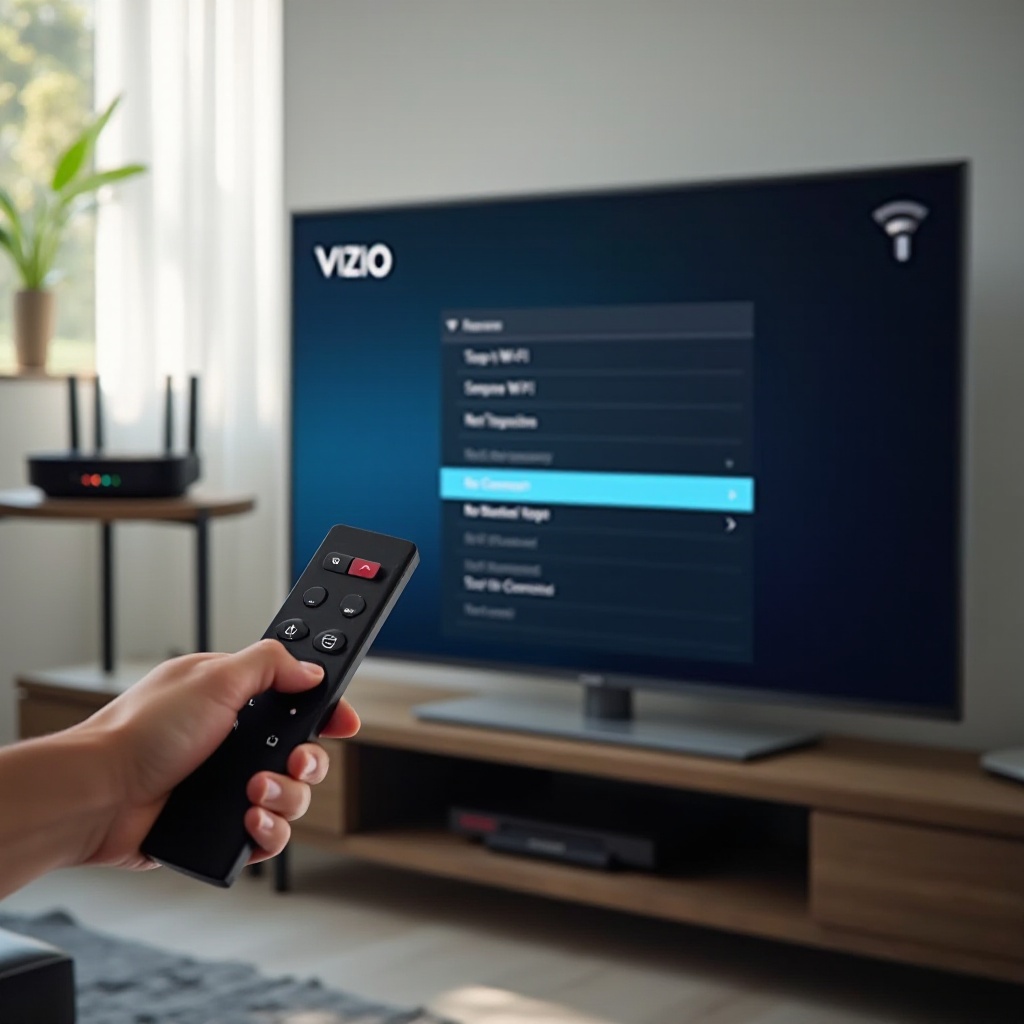
Go to Settings > Network. Set connection type to Wireless. Choose Wi‑Fi and run a fresh scan. Give the scan 30–60 seconds to populate results. If you see multiple SSIDs but not your own, the router likely needs attention. If you see none, continue with the steps below.
Reset Network Settings and run Test Connection
Use Reset Network Settings in the TV’s network menu. This clears saved profiles and resets the adapter. Next, run Test Connection and note any error codes or messages. A network reset often fixes corrupted profiles that block SSID discovery.
Forget/rejoin your network and re‑enter the password carefully
If your SSID appears, select it and choose Forget Network, then reselect it and enter the correct Wi‑Fi password. Make sure you use the Wi‑Fi password, not the router’s admin password. Incorrect credentials can prevent connection even after successful detection.
If the TV still cannot discover the right network, the next step is to match the Wi‑Fi band and channel plan to what your Vizio supports.
2.4 GHz vs 5 GHz: Band Compatibility and Best Choice
Which bands your Vizio model typically supports
Most recent Vizio models support both 2.4 GHz and 5 GHz Wi‑Fi. Some older or budget models support only 2.4 GHz. If the TV never shows any 5 GHz SSIDs yet finds 2.4 GHz, it may have a single‑band radio. Always test 2.4 GHz first to confirm basic connectivity because it travels farther and passes through walls better.
When to choose 2.4 GHz for range vs 5 GHz for speed
- Use 2.4 GHz for long range and stability through obstacles.
- Use 5 GHz for higher throughput and less congestion at short range.
- If detection fails on 5 GHz, connect on 2.4 GHz to confirm the TV works, then revisit 5 GHz settings.
DFS channels and 160 MHz pitfalls that block detection
Many TVs cannot see 5 GHz DFS channels (52–144) and struggle with 160 MHz width. If the router uses DFS or 160 MHz, the TV may not detect the SSID at all. Set 5 GHz to a non‑DFS channel (36–48 or 149–161) and 80 MHz or 40 MHz width. After applying changes, rescan on the TV.
With the best band selected, tune the router and modem settings so the TV can detect and join reliably.
Router and Modem Settings That Make Vizio Connect
SSID broadcast and security mode (WPA2‑PSK/AES)
- Enable SSID broadcast while you set up the TV.
- Choose WPA2‑Personal (PSK) with AES only.
- Avoid WPA3‑only and mixed WPA2/WPA3 during troubleshooting.
- Do not use WEP or TKIP; many devices reject them for security and compatibility reasons.
Channel and width: 2.4 GHz (1/6/11, 20 MHz), 5 GHz (non‑DFS)
- Lock 2.4 GHz to channel 1, 6, or 11 with 20 MHz width for minimal overlap.
- Set 5 GHz to non‑DFS channels 36–48 or 149–161.
- Choose 40 or 80 MHz on 5 GHz; avoid 160 MHz for broader device compatibility.
Disable MAC filtering, AP/client isolation, and captive portals
- Turn off MAC filtering or add the TV’s MAC address to the allowed list.
- Disable AP/Client Isolation; it prevents devices from reaching the router and each other.
- Avoid guest networks with captive portals; TVs cannot accept splash pages.
Ensure DHCP is enabled; verify IP range and DNS settings
- Keep DHCP enabled and confirm enough free leases.
- Place the TV on the main LAN subnet, not a guest VLAN.
- If DNS causes issues, try your ISP defaults or a reputable public DNS.
- Save changes, then reboot the router and rescan on the TV.
If you still cannot detect or join your network, check for subtle compatibility traps that often slip past initial checks.
Avoid Common Wi‑Fi Compatibility Traps
WPA3‑only and Enterprise (802.1X) networks
WPA3‑only blocks many TVs from detecting or joining. Switch to WPA2‑PSK/AES while you connect and test. Enterprise networks with 802.1X (such as corporate or campus Wi‑Fi) require certificates and credentials that most TVs do not support; use a standard home SSID instead.
Hidden SSIDs and special characters in network names
Hidden SSIDs create discovery and reconnection problems. Reveal the SSID during setup and testing. Also simplify names: avoid special characters, emojis, very long SSIDs, or trailing spaces. Clean, simple SSIDs reduce parsing glitches.
Mesh band steering/Smart Connect quirks during setup
Mesh systems often steer clients between bands under one SSID. Some TVs struggle to detect or remain on the preferred band during setup. Temporarily split the 2.4 GHz and 5 GHz SSIDs, connect the TV to 2.4 GHz first, confirm stability, and then test 5 GHz. You can re‑enable steering after everything works.
Once traps are removed, update the TV and router firmware so known bugs do not keep blocking detection.
Update Firmware Everywhere
Update Vizio TV firmware (USB or Ethernet if Wi‑Fi is down)
Open Settings > System > Check for Updates. If Wi‑Fi is unavailable, connect the TV by Ethernet to complete updates. If you cannot run a cable, check if your model supports USB firmware updates and follow the vendor instructions. After updating, reboot the TV and rescan for networks.
Update router/gateway firmware and use a proper reboot order
Log in to your router, apply the latest stable firmware, and let it reboot fully. Firmware updates often fix DFS handling, WPA compatibility, and radio bugs. After updating the router, reboot the modem, then the router, and finally the TV to ensure a clean network state. Then run another scan from the TV.
If updates do not resolve detection issues, move to deeper diagnostics that isolate IP, channel, and protocol problems.
Advanced Diagnostics for Persistent ‘No Network Detected
Assign a DHCP reservation or test a static IP
If the TV finds your SSID but fails to obtain an IP, reserve an address for the TV’s MAC address in the router. As a test, set a static IP within the same subnet with the correct gateway and DNS. If a static IP works but DHCP fails, adjust the DHCP scope or clear stale leases.
Change channels after scanning nearby Wi‑Fi congestion
Use a Wi‑Fi analyzer app on your phone to map channel congestion. On 2.4 GHz, choose the least crowded among channels 1, 6, or 11 at 20 MHz width. On 5 GHz, select a non‑DFS channel with minimal overlap. Apply changes, reboot the router, and test detection again.
Toggle IPv6; try alternate DNS vs ISP defaults
Some home networks behave better with IPv6 disabled on the router, at least during troubleshooting. Toggle IPv6 and re‑test. Also try switching DNS between your ISP defaults and a popular public DNS. Content delivery networks can route differently based on DNS, which sometimes affects connectivity tests or app behavior.
Identify symptoms of a failing Wi‑Fi module in the TV
Consider hardware failure if:
– The TV never displays any SSIDs anywhere in your home.
– Ethernet connections work flawlessly, but Wi‑Fi scans always return nothing.
– The TV drops Wi‑Fi within minutes even when placed next to the router.
If these symptoms persist after settings changes and firmware updates, the internal Wi‑Fi module may be failing and you should prepare for support options.
If you need a stable connection right now, use wired or bridged options while you decide on repairs.
Ethernet and Other Workarounds
Plug in Ethernet to confirm internet access quickly
Connect an Ethernet cable from the router or switch to the TV. If streaming works immediately, the TV and apps are fine and the problem sits with Wi‑Fi settings or radio conditions. Wired access also lets you update the TV firmware and reinstall apps without delays.
Use powerline adapters or an Ethernet bridge to the router
If running a long cable is impractical, try powerline adapters that carry Ethernet over electrical wiring. Place one adapter near the router and the other near the TV. Alternatively, deploy a small Wi‑Fi bridge: it connects to your wireless network and feeds Ethernet into the TV, effectively bypassing the TV’s Wi‑Fi radio.
Consider a streaming stick as a short‑term solution
A compact streaming device with stronger Wi‑Fi can restore viewing while you troubleshoot the TV. This does not fix the TV’s adapter, but it buys time and lets you confirm that your home network is otherwise healthy.
Once you verify that workarounds solve the immediate need, decide whether to reset the TV or escalate to support.
When to Factory Reset or Call Support
Back up app logins and settings before a reset
A factory reset erases saved Wi‑Fi networks, app logins, and personal settings. Write down your app credentials. Review picture and audio presets you want to recreate. Then perform the reset from Settings > System > Reset & Admin and follow the on‑screen prompts.
What to provide Vizio or ISP support (errors, tests, firmware)
When you contact support, have details ready:
– TV model and current software version.
– Router/gateway model and firmware version.
– Steps you already tried and their results.
– Whether the TV sees any SSIDs during scans.
– Whether Ethernet works reliably.
These details shorten the support process and reduce repeated steps.
Warranty coverage and repair/replace options
If your TV remains under warranty and diagnostics point to a bad Wi‑Fi module, Vizio may repair or replace it. If the warranty has expired, compare repair costs to alternatives: a dedicated streaming device, an Ethernet run, or a mesh system upgrade. Keep your Ethernet or bridge workaround in place so you can stream while evaluating options.
With the connection restored or next actions planned, adopt a few habits that minimize future detection issues.
Preventive Tips to Keep Your Vizio Online
Schedule firmware checks and occasional reboots
Check for TV and router updates monthly. If your router slows down or radios get flaky, schedule a periodic reboot. Fresh uptimes clear memory leaks and radio anomalies.
Optimize router placement and audit channels periodically
Place the router centrally, elevated, and away from dense walls or large appliances. Every few months, scan for congestion and adjust channels on 2.4 GHz and 5 GHz. Small adjustments often prevent new detection and drop issues as neighbor networks change.
Keep SSIDs simple and security settings compatible
Use short, simple SSIDs and WPA2‑PSK/AES security. Avoid special characters and overly long passwords that are prone to input errors. Plain, compatible settings make reconnection more reliable after firmware updates or power outages.
Conclusion
The ‘No Network Detected’ message looks alarming, but it usually has a straightforward fix. Start with a clean power cycle across the modem, router, and TV. Reset network settings on the TV and rescan. Prefer 2.4 GHz for reach or select 5 GHz on non‑DFS channels with 40 or 80 MHz width. Set the router to broadcast a simple SSID secured by WPA2‑PSK/AES, and avoid hidden SSIDs, WPA3‑only, and 160 MHz. Update firmware on both the TV and router, then test again. If the issue persists, use Ethernet or a bridge for immediate connectivity while you refine channels, DHCP, and DNS. When evidence points to hardware failure, gather details and contact support. With a methodical approach, you can restore your Vizio’s Wi‑Fi and keep it dependable for the long term.
Frequently Asked Questions
Why does my Vizio TV say ‘No Network Detected’ even when other devices are online?
The TV may not see your SSID due to router settings, band issues, or interference. Common culprits include a hidden SSID, WPA3‑only security, DFS channels on 5 GHz, or 160 MHz width. It could also be a corrupted Wi‑Fi profile on the TV. Power cycle the modem, router, and TV, then run Reset Network Settings. Set the router to WPA2‑PSK/AES with the SSID visible on 2.4 GHz (channels 1/6/11) or 5 GHz non‑DFS, and rescan.
Can Vizio TVs connect to 5 GHz Wi‑Fi, and why is my 5 GHz network not showing?
Most newer Vizio models support 5 GHz, but many cannot see DFS channels (52–144) or 160 MHz width. If your router uses these, the TV may not detect the SSID. Set 5 GHz to channels 36–48 or 149–161 and use 40/80 MHz width with WPA2‑PSK/AES. Save changes, reboot the router, and rescan on the TV. If it still fails, connect on 2.4 GHz to confirm basic connectivity, then revisit 5 GHz settings.
Will a factory reset fix ‘No Network Detected’, and what data will I lose?
A factory reset can resolve deep software glitches that block Wi‑Fi scans, but it erases saved networks, app logins, and personal settings. Try Reset Network Settings and firmware updates first. If you reset, have your app passwords ready. Afterward, connect to a simple, visible SSID using WPA2‑AES on 2.4 GHz first, then test 5 GHz on non‑DFS channels. If the TV still sees nothing, contact Vizio support because the Wi‑Fi module may be faulty.