What To Do If Your PS5 Controller Won’t Turn On: The Complete Fix Guide
Introduction
Your PS5 controller will not wake up, the light bar stays dark, and the PS button does nothing. You want answers fast. Most cases are simple to fix once you follow a clean sequence. Power and charging issues come first. Then you tackle resets, updates, and tests that isolate the cause. If hardware fails, you will know what to do next.
This guide shows what to do if your PS5 controller won’t turn on in an order that saves time. You start with basic power checks, then map symptoms to the right fix. You will reset and re-pair the DualSense, verify ports and cables, and update both the controller and the console. If needed, you will test on another device, use Safe Mode, and spot hardware red flags.
Keep a short, certified USB-C cable, a 5V 2A wall charger, and a paperclip nearby. Work step by step. Note any change after each action. Your notes help if you contact support or pursue a warranty claim. With that plan set, begin with quick checks that solve most problems.
Start Here: Quick Checks That Fix Most Power Issues
Quick checks often revive a controller in minutes. They confirm stable power and rule out cable or port problems. Complete these steps in order, even if one seems obvious.
Try a different USB-C cable and power source
- Use a short, certified USB-C cable that you know charges other devices reliably.
- Plug into a wall adapter first. Avoid TVs, monitors, or low-power USB hubs while testing.
- Test both front and rear USB ports on the PS5 later, but start with wall power to remove variables.
- If the connector feels loose, do not wiggle with force. Use a different cable to protect the port.
Charge for 30–60 minutes using a wall adapter
- Connect the controller to a 5V 2A wall charger. Higher watt bricks are fine if they provide 5V fallback.
- Leave it connected for at least 30 minutes. Very low batteries can delay the charging light.
- If you see a brief orange pulse then nothing, continue charging. Many cells wake up after a short soak.
- After 60 minutes, try the PS button again while still connected.
Power cycle your PS5 and verify USB power settings in Rest Mode
- Fully shut down the console. Do not use Rest Mode. Unplug power for 60 seconds, then reconnect and boot.
- Go to Settings > System > Power Saving > Features Available in Rest Mode. Toggle Supply Power to USB Ports to Always or 3 Hours.
- If you prefer docks, skip them during testing. Charge directly from the wall to remove dock variables.
If the controller still does not respond, do not guess. Read the symptom pattern next. It points to the most effective fix and saves you time.
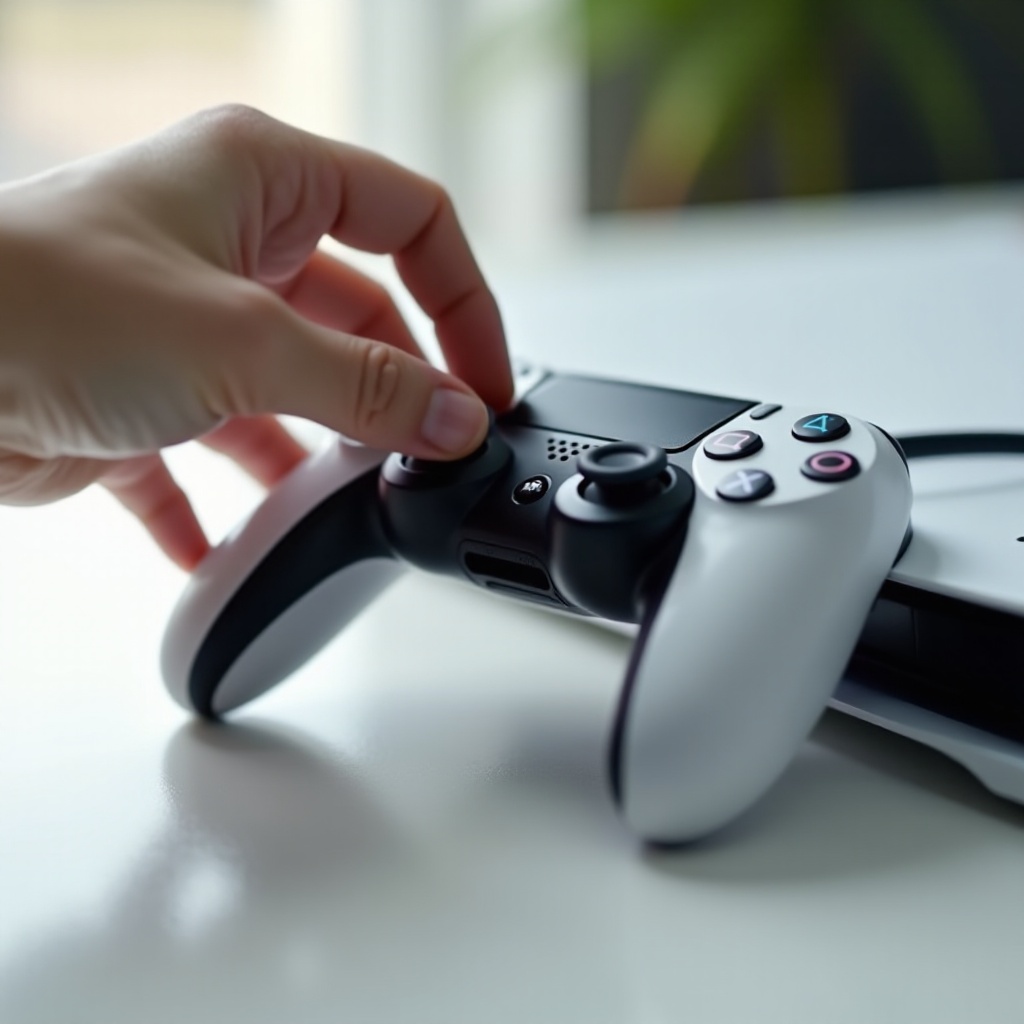
Understand the Symptoms To Pick the Right Fix
Your controller’s behavior guides your next move. Each pattern suggests a cause and a targeted solution. Match what you see to the best next step.
No lights or response at all
This often means depleted battery, poor cable contact, or a blocked USB-C port. A wall charge plus a hard reset solves many cases. If you still get no light after a full charge attempt, move to reset and re-pair steps.
Flashing blue light then shuts off
This pattern points to a pairing or Bluetooth handoff problem. The controller tries to connect, fails, and powers down to save energy. A hard reset followed by a wired re-pair usually fixes it.
Brief orange charging light then nothing
You may have a weak charger, a faulty or long cable that sags voltage, or debris in the USB-C port. Clean the port, swap to a short, certified cable, and use a stable wall adapter before testing again.
Once you match the pattern, clear software confusion with a reset and a clean wired pairing. This rebuilds trust between the controller and the console before you return to wireless.
Reset and Re-Pair the DualSense
A reset wipes transient glitches in memory and the Bluetooth stack. A wired re-pair gives you a stable starting point and removes wireless noise from the equation.
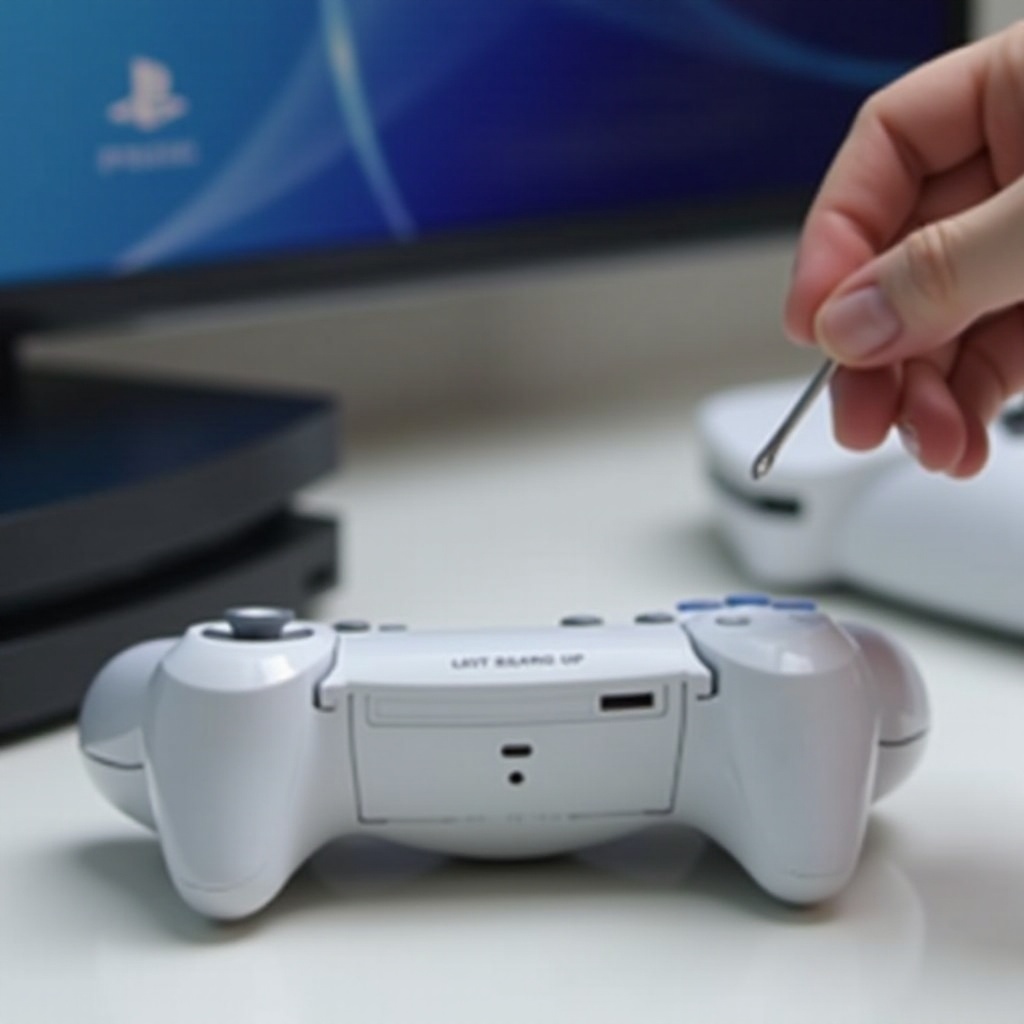
Perform a hard reset using the rear pinhole button
- Turn off the PS5. Unplug the console power cable for 60 seconds.
- On the back of the DualSense, locate the small pinhole near the L2 button.
- Insert a paperclip and press for 5 to 7 seconds. Release and wait 10 seconds.
Reconnect via USB and press the PS button to pair
- Use a known-good USB-C cable to connect the controller to the PS5.
- Power on the PS5. Press the PS button and wait for a steady light.
- If the light does not appear, try a different USB port or cable and repeat.
Switch back to Bluetooth after a successful wired pair
- Unplug the cable and test wireless control in a menu.
- If it disconnects or refuses to pair, go to Settings > Accessories > Bluetooth Accessories. Delete the controller entry, then pair again by USB and test wireless once more.
If the controller remains stubborn, suspect a charging or port issue. Fix those next so the controller receives steady power when you try updates and future tests.
Fix Charging and USB Port Problems
Charging faults account for many cases where the controller will not turn on. Cleaning the port and using reliable power can restore normal behavior fast.
Clean the USB-C port and inspect for debris or bent pins
- Power off the controller. Use a flashlight to inspect the port.
- Remove lint with a wooden or plastic tool. Avoid metal tools that can short pins.
- Use short bursts of compressed air from a safe distance. Do not use liquid cleaners.
- If pins look bent or damaged, avoid further force. You may need professional repair or replacement.
Use a known-good 5V 2A charger and certified USB-C cable
- Prefer a wall adapter with a solid 5V output. Many fast chargers still provide 5V fallback, but some negotiate poorly with weak cables.
- Use a short, thick, certified cable. Long or thin cables can drop voltage and break charging.
- If possible, test a second wall adapter to rule out power source faults.
Avoid unreliable docks and low-quality cables that underpower the controller
- Some third-party docks trickle-charge too slowly. They may show a light but fail to fill the battery.
- When diagnosing, always charge from the wall first. Reintroduce the dock only after the controller behaves normally.
With power and ports verified, update firmware next. Updates fix pairing bugs, sleep issues, and charging quirks that mimic hardware failure.
Update Controller Firmware and PS5 System Software
New firmware can resolve odd wake and sleep behavior that looks like a dead controller. Update both the controller and the console to remove known issues.
Update DualSense device software from PS5 settings
- Connect the controller by USB. Ensure the cable is stable.
- Go to Settings > Accessories > Controllers > Wireless Controller Device Software.
- If an update appears, apply it and wait without unplugging until it completes.
Update PS5 system software from Settings or Safe Mode
- Go to Settings > System > System Software > System Software Update and Settings.
- Install any available update. Avoid interrupting the process.
- If updates fail, boot to Safe Mode by holding the power button until you hear a second beep. From there, choose Update System Software.
Retry pairing after updates to refresh connections
- After updates, shut down the PS5. Unplug power for 60 seconds and reconnect.
- Pair by USB again and test wireless. Small glitches often clear after a fresh boot and pair.
If updates do not resolve the issue, test the controller with other devices. That step isolates whether the controller or the console causes the problem.
Test the Controller on Another Device
Cross-device testing tells you where to focus. If the controller works elsewhere, the PS5 or its settings likely cause the failure. If it fails everywhere, the controller hardware is suspect.
Connect to a PC or Mac via USB to check basic power and input
- Connect the DualSense to a computer using the same USB-C cable.
- If the light turns on and inputs register, power delivery works and the controller can wake.
- No light or input on a computer points to a controller-side power fault.
Try Bluetooth pairing on a phone or tablet
- Put the controller in pairing mode by holding PS plus Create until the lights pulse.
- Pair it in your phone or tablet Bluetooth settings and test basic input.
- If Bluetooth works on a phone but not on PS5, focus on console settings next.
Interpret results to isolate controller vs. console issues
- Works on other devices: revisit PS5 Bluetooth, users, and Safe Mode options.
- Fails everywhere: inspect hardware or plan for repair or replacement.
If the controller shows any life, use PS5 Safe Mode tools to clear caches and database issues that can block pairing or inputs.
Advanced Console Steps (If Inputs Respond)
Safe Mode tools can resolve data and cache problems that confuse devices. Use them when the controller powers on but behaves erratically.
Boot PS5 into Safe Mode and clear cache or rebuild database
- Turn off the PS5. Hold the power button until a second beep sounds.
- Connect the controller by USB.
- Select Clear Cache and Rebuild Database. Let the process finish before restarting the console.
Restore default settings as a last resort
- Back up game saves to cloud or USB if needed.
- From Safe Mode, choose Restore Default Settings. This resets settings but keeps your data.
- After the reset, pair the controller by USB and test wireless.
Create a new user profile to rule out account-level glitches
- Go to Settings > Users and Accounts > Users > Add User.
- Pair the controller to the new user and test. If it works there, the issue may be tied to user data or settings.
If Safe Mode steps do not help, look for hardware warning signs. Those signs guide your decision to repair or replace the controller.
Hardware Red Flags and When to Repair or Replace
Some failures point to the battery, USB-C port, or internal board. Spotting them early saves time and prevents more damage.
Signs of a failing battery, liquid damage, or swollen cells
- The controller only works while plugged in and dies fast when unplugged.
- The shell looks bowed or the rear feels warm at idle.
- You see corrosion, sticky residue, or smell burnt electronics near the port.
When to replace the battery vs. the entire controller
- Replace the battery if the controller is stable on USB, charges poorly, and shows normal inputs otherwise.
- Replace the whole controller if the USB-C port is loose or damaged, the controller shows random disconnections, or it will not turn on even with known-good USB power.
- If you are within warranty, pursue support first. DIY repairs can void coverage.
Warranty, repair tickets, and proof-of-purchase tips for support
- Gather a receipt, the controller serial number, and a log of the steps you tried.
- Open a support ticket with clear notes: cable and charger used, resets, updates, Safe Mode steps, and cross-device results.
- Compare repair quotes with the price of a new controller when out of warranty. Factor in shipping time and downtime.
Once you decide on repair or replacement, set simple habits that prevent a repeat. Good charging practice and port care go a long way.
Prevention Tips So It Doesn’t Happen Again
Healthy charging and careful handling reduce wear and keep the DualSense reliable. Small habits make a big difference.
Healthy charging habits and Rest Mode USB power settings
- Enable Supply Power to USB Ports and pick Always or 3 Hours.
- Avoid repeated deep discharges. Top up when you reach one bar or the low-battery warning.
- Disconnect from power once fully charged to limit heat buildup.
Cable and port care to minimize wear and intermittent charging
- Use short, certified cables and avoid sharp bends at the connector.
- Insert and remove plugs straight and gently. Do not yank from the cable.
- Keep the USB-C port clean. Store the controller in a case or clean drawer.
Storage and transport best practices to avoid damage
- Keep liquids away and avoid hot cars or direct sun.
- Do not stack heavy gear on top of the controller in a bag.
- If you travel often, use a rigid case to protect sticks and triggers.
With prevention in place, you should face fewer surprises. If problems do return, you already know what to do if your PS5 controller won’t turn on and which steps to try first.
Conclusion
You began with stable power and a known-good cable, then gave the controller a real 30 to 60 minute wall charge. You mapped the symptom to the right fix, reset the DualSense, and paired it by USB for a clean start. You cleaned the port, switched to reliable power, and updated both the controller and the console. Cross-device tests confirmed where the fault lived. Safe Mode tools cleared console glitches. When hardware signs appeared, you weighed battery replacement against a new controller and considered warranty support.
Most DualSense controllers wake up with a good cable, a stable 5V 2A charge, and a hard reset. When they do not, your notes shorten support calls and prevent repeat steps. Keep ports clean, use quality cables, and set USB power in Rest Mode. With this methodical approach, you will fix issues faster and spend more time playing.
Frequently Asked Questions
Why won’t my PS5 controller turn on even after charging?
Confirm stable power first. Use a 5V 2A wall adapter and a short, certified USB-C cable. Charge for 30–60 minutes without touching the controller. Perform a hard reset with the rear pinhole, then pair by USB and press the PS button. Clean the USB-C port to remove lint. If it powers on with USB but dies when unplugged, the battery may be failing. Test on a PC via USB. If it fails everywhere, contact support or consider a battery or controller replacement.
How do I reset my PS5 controller if the PS button doesn’t respond?
Turn off the PS5 and unplug it for 60 seconds. Insert a paperclip into the rear pinhole and hold 5–7 seconds. Connect the controller to the PS5 with a known-good USB-C cable. Power on the console and press the PS button to re-pair. Try another USB port or cable if it does not respond. Update the PS5 system software and the controller firmware. If needed, enter Safe Mode to clear cache and rebuild the database.
Is it better to replace the DualSense battery or buy a new controller?
Replace the battery if it works fine on USB, shows normal inputs, and only dies quickly when unplugged. Buy a new controller if the USB-C port is loose or damaged, inputs are erratic, or it will not power on even with known-good USB power. Always check warranty status first. Compare the cost and time of repair with the price of a new DualSense.