Samsung Remote Slow Response: Diagnose, Fix, and Prevent Lag on Modern Samsung TVs
Introduction
Remote clicks that take a second to register make any TV feel broken. You press Volume Down or Home and nothing happens, or the menu stutters like it is stuck. The good news: most cases of samsung remote slow response come from simple issues such as weak power, pairing glitches, busy software, or wireless conflicts. You can solve many of them with quick tests and a few setting changes.
This guide shows clear steps to isolate the cause, fix the remote, tune the TV, and prevent lag from returning. You will see how to test with the SmartThings app, re-pair a One Remote, clean up Smart Hub, tame HDMI-CEC, and reduce interference. We also list tips specific to 2024 to 2026 Samsung models and explain when to replace the remote or contact support.
What causes a Samsung remote slow response?
A slow remote usually points to one or more common causes:
- Low power: a SolarCell remote needs light or USB-C charging. AA batteries may be weak or mismatched.
- Pairing glitches: the One Remote talks to the TV via Bluetooth. A bad link can delay every command.
- TV software load: heavy apps, cache buildup, or a busy Smart Hub can stall input processing.
- HDMI-CEC loops: external devices may spam the TV with commands, delaying responses.
- Wireless interference: 2.4 GHz Wi-Fi, Bluetooth audio, gamepads, or USB 3.0 devices can inject noise.
- Eco or accessibility features: voice wake up, Ambient Mode auto start, or motion sensors may impact responsiveness.
- Firmware changes: a recent update can reset settings or introduce conflicts that need cleanup.
- Hardware faults: stuck buttons, liquid damage, or a failing IR or Bluetooth module can cause lag.
You can confirm which category you face with a few quick checks before changing deeper settings.
Confirm it is the remote, not the TV: quick diagnostics
Run these short checks to pinpoint the slow link:
1) Compare control methods:
– Use the SmartThings app as a remote. If the app feels instant while the physical remote lags, the remote or its link is the issue.
– Press the TV joystick or bottom button on the frame. If menus navigate smoothly, the panel and Tizen OS likely run fine.
2) Observe what lags:
– Volume overlay delay often means the TV is busy. If the overlay appears fast but the volume changes slowly, check soundbar, eARC, and CEC.
– Home or Menu lag across screens suggests Smart Hub load. Lag only in one app points to that app.
3) Test the IR emitter:
– Aim a smartphone camera at the remote IR window and press a button. A purple or white blink confirms IR output. No blink points to power or hardware.
4) Check Bluetooth pairing strength:
– Stand within one to two feet of the TV and try navigation. If it responds only up close, pairing or interference may be weak.
5) Eliminate line of sight issues:
– Ensure decor or a soundbar does not block the TV IR receiver, which some functions still use.
If these tests implicate the remote or wireless path, move to quick fixes and pairing steps. If they implicate software load, you will optimize the TV after the next section.
Fast fixes you can do in 2 minutes
Before diving into deep settings, try these fast wins:
- Restart the TV: press and hold the Power button on the remote until the TV restarts, or unplug the TV for 60 seconds and plug it back in.
- Power cycle the remote: remove AA batteries or disconnect the SolarCell remote from power, press and hold Power for 10 seconds, then restore power.
- Recharge the remote: connect a USB-C cable to the SolarCell remote for 10 to 30 minutes for a quick boost.
- Clear stuck keys: run a finger around each button. Tap and release any that feel sticky. Wipe the surface with a soft dry cloth.
- Reduce distance: test within three to six feet of the TV to rule out weak pairing or interference.
- Test again with SmartThings: if the app remains fast but the physical remote is still slow, proceed to reset and re-pair.
If lag persists after these steps, a pairing reset often restores full speed. Next, you will reset and pair the One Remote from scratch.
Reset and re-pair the Samsung One Remote
A clean pairing often solves samsung remote slow response problems:
1) Reset the remote electronics:
– For SolarCell or AA models: remove power, press and hold Power for 10 seconds to discharge, then reconnect power.
2) Start pairing fresh:
– Turn on the TV. Stand one to two feet away.
– Press and hold Back and Play or Pause on the remote for about five seconds. Watch for a pairing banner. If your model suggests Back and Enter, follow the on screen prompt.
3) Confirm success:
– Navigate the Home screen and open a couple of tiles. Check that focus moves instantly and the volume overlay appears on time.
4) If pairing fails:
– Move closer to the TV and remove potential blockers. Turn off nearby Bluetooth devices temporarily such as headphones or controllers.
– Replace or charge the remote, then retry the pairing shortcut.
5) Optional full TV reset as last resort:
– If the remote pairs but menus still lag, the TV may be overloaded. Try Smart Hub and Device Care steps before any factory reset.
Once paired, make sure the remote has steady power to keep performance consistent. That is the focus of the next section.
Power and charging tips for SolarCell and AA battery remotes
A low power remote will feel laggy or drop clicks:
- Fast charge via USB-C: plug the SolarCell remote into a 5 V USB-C charger for 30 minutes to top it up quickly.
- Keep the solar panel exposed: place the remote face up in room light when not in use. Occasional daylight helps, but avoid extreme heat.
- Calibrate the battery: if the remote behaves oddly at medium charge, let it discharge to near empty, then charge to 100 percent via USB-C.
- Do not mix AA cells: if your model uses AA batteries, install fresh, matching cells from the same brand and batch. Avoid mixing rechargeable and alkaline cells.
- Clean battery contacts: lightly rub contacts with a dry cloth. Oxidation can raise resistance and cause slow responses.
- Store smart: avoid covering the SolarCell panel with magazines or cloth, which starves it of light.
With a reliable power source in place, the next step is to ensure the TV software handles commands without delay.
Update your Samsung TV and clean up Smart Hub with Device Care
Busy software can make a responsive remote feel slow. Refresh the TV system and app environment:
- Update software:
- Go to Settings > Support > Software Update > Update Now.
- Install any available patch. Updates often include Bluetooth fixes and performance improvements.
-
After updating, restart the TV with a long press of Power.
-
Run Device Care:
- Settings > Support > Device Care > Start Device Care.
- Let the scan close background apps, free memory, and optimize storage.
-
Clear app caches where available, especially for heavy streaming apps.
-
Reset Smart Hub if needed:
- Settings > Support > Device Care > Self Diagnosis > Reset Smart Hub.
-
Re sign into apps you actually use. Avoid installing too many apps, because each can add background load.
-
Reinstall problem apps:
- If lag appears only in a specific app, uninstall and reinstall that app, then test.
If command speed improves on the Home screen but drops when you use connected devices, HDMI-CEC may be the next area to check.
Tame HDMI-CEC and external device conflicts
HDMI-CEC helps devices control each other, but misbehaving gear can flood the TV with commands and triggers that slow responses:
- Turn off Anynet+ for testing:
- Settings > General > External Device Manager > Anynet+ (HDMI-CEC) > Off.
-
Test the remote. If speed returns, a CEC loop is the culprit.
-
Simplify your setup:
- Disconnect all HDMI devices. Reconnect one at a time, testing after each.
-
Common troublemakers include set top boxes with aggressive CEC, soundbars with eARC quirks, and streaming sticks.
-
Check sound settings:
- If a soundbar uses eARC, switch eARC to Off temporarily and test.
-
Set Sound Output to TV Speaker to isolate audio path delays.
-
Update external devices:
-
Update firmware on soundbars, receivers, and streamers. Many releases include CEC stability fixes.
-
Leave Anynet+ off if necessary:
- If lag returns when you re enable CEC, keep it off or limit CEC on the problematic device.
With device conflicts under control, address wireless interference that can slow Bluetooth or IR paths next.
Reduce wireless interference for better Bluetooth and IR reliability
Bluetooth and crowded 2.4 GHz airspace can create command lag:
- Move your router:
-
Keep Wi-Fi routers at least six to ten feet from the TV. Avoid placing a router directly behind the TV or soundbar.
-
Prefer 5 GHz:
-
Connect the TV to a 5 GHz SSID if possible. It reduces interference with Bluetooth and is often faster.
-
Change Wi-Fi channel:
-
If you must use 2.4 GHz, set the router to channels 1, 6, or 11 and test each.
-
Reduce Bluetooth clutter:
- Turn off unused Bluetooth devices near the TV such as headphones and controllers.
-
Keep game controllers and keyboards a few feet away when not in use.
-
Watch for USB 3.0 noise:
-
USB 3.0 drives and hubs near the TV can emit 2.4 GHz interference. Relocate them or use shorter, shielded cables.
-
Optimize distance and sight lines:
- Use the remote within ten feet and at reasonable angles.
- Avoid blocking the TV IR receiver with decor or a soundbar; raise the bar slightly if needed.
With the radio environment calmer, fine tune eco and accessibility settings that may add background load.
Eco and accessibility settings that can slow response
Some features listen for voice or trigger ambient features that add processing:
- Voice wake up:
- Turn off voice wake up for Bixby, Alexa, or Google Assistant if you do not use hands free control.
-
This reduces background listening load.
-
Voice Guide:
-
Disable Voice Guide if you do not need spoken menus. It can add delay when navigating.
-
Ambient Mode and sensors:
-
On models like The Frame, turn off Ambient Mode auto start, motion, or proximity triggers. These can wake tasks as you move around.
-
Eco Solution:
- Turn off aggressive power saving features that throttle performance or dim components in ways that affect responsiveness.
If lag started right after a software update, take a few update specific steps before deeper resets.
Post update lag: fixes for slow response after a firmware update
Updates can reset or alter settings, which may cause delays until you clean up:
- Power cycle and re pair:
-
After an update, restart the TV and re pair the remote as described earlier. Bluetooth stacks often benefit from a fresh link.
-
Check update history:
-
Settings > Support > Software Update > Last Update. If the update matches the start of lag, run Device Care and reset Smart Hub.
-
Revisit settings:
-
Confirm Anynet+, eARC, Game Mode, Accessibility, and Eco settings. Updates may revert toggles or change defaults.
-
Update again:
-
Samsung may push a quick patch. Run Update Now again after a day or two and retest.
-
Reset Smart Hub before a full reset:
- A Smart Hub reset clears app conflicts without wiping all TV settings. If lag persists across menus, consider a full TV reset only after backups.
If you own a recent set, a few 2024 to 2026 model traits can guide your approach and speed up troubleshooting.
Special notes for 2024 to 2026 Samsung models and remotes
Recent Samsung models and remotes introduce helpful behaviors:
- SolarCell remotes:
- Most 2024 to 2026 TVs ship with SolarCell One Remotes that support USB-C charging and Bluetooth Low Energy for improved efficiency.
-
Keep the solar panel face up when idle. A weekly USB-C top up ensures consistent performance.
-
Long press restart:
-
Many 2024 to 2026 TVs perform a soft reboot if you press and hold Power until the Samsung logo appears. This clears memory without unplugging.
-
Device Care enhancements:
-
Newer Tizen builds include faster memory cleanup and app repair routines in Device Care. Run it after major updates.
-
The Frame and lifestyle sets:
-
Motion and proximity sensors and Ambient or Art Mode can wake tasks. Tuning these features reduces background load.
-
Bluetooth audio:
- If you use Galaxy Buds or other Bluetooth audio, reconnect events can briefly delay menu commands. Keep firmware current on both TV and audio devices.
If you have tuned all of this and still see lag, it may be time to replace the remote or contact Samsung for support.
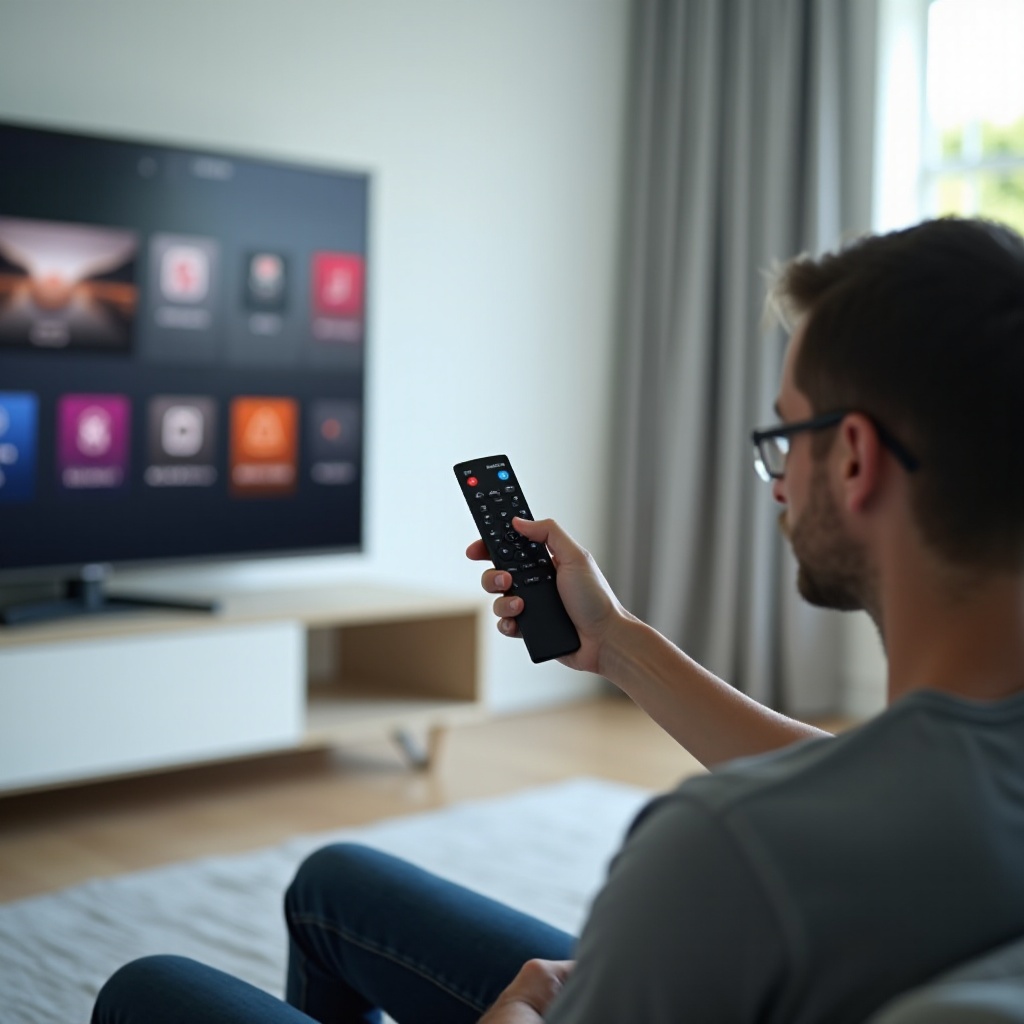
When to replace the remote or contact Samsung support
Replace or request support if you see any of these signs:
- No IR blink on a phone camera even with fresh power.
- Remote will not enter pairing mode after reset and charge.
- Buttons feel stuck, double click, or fail randomly after cleaning.
- The TV responds instantly to SmartThings but never to the physical remote across multiple tests.
- Visible corrosion, liquid damage, or cracked housing.
What to do:
- Order an official replacement remote matched to your model, or use a compatible universal remote as a stopgap.
- Check warranty status. Many TVs and remotes from 2024 to 2026 are still under coverage.
- Contact Samsung Support with your model and serial number, troubleshooting steps taken, and results of IR and Bluetooth tests.
After you solve the immediate lag, a few habits will keep your Samsung remote responsive over time.
Prevention: keep your Samsung remote responsive long term
A few habits keep lag away:
- Charge regularly:
-
Give the SolarCell remote a 30 minute USB-C charge every few weeks. Store it face up.
-
Maintain software:
-
Keep the TV updated and run Device Care monthly. Reinstall only the apps you use.
-
Minimize interference:
-
Use 5 GHz Wi-Fi, separate the router from the TV, and limit idle Bluetooth devices near the screen.
-
Keep cables clean:
-
Use quality HDMI cables and disable Anynet+ if you do not rely on it. Add devices back one at a time if you expand your setup.
-
Keep a backup:
- Install the SmartThings app for emergency control and quick diagnostics.
These routines make daily navigation feel crisp and reliable and reduce the chance of slowdowns after future updates or device changes.
Conclusion
A slow Samsung remote does not mean your TV is failing. Most cases come down to power, pairing, busy software, or noisy connections. By running quick diagnostics, applying fast fixes, re pairing the One Remote, optimizing Smart Hub, and taming CEC and interference, you can restore snappy control in minutes. Keep your SolarCell charged, review key settings after updates, and run Device Care on a schedule. If the remote still struggles after all steps, a replacement or support call will close the loop. With a steady setup and a few good habits, every click lands fast.
Frequently Asked Questions
Why is my Samsung remote suddenly slow or unresponsive?
Several triggers can cause a sudden slowdown. Low power ranks first: a SolarCell remote needs light or a short USB-C charge, and AA models need fresh, matching batteries. Bluetooth pairing can also glitch after updates or when the TV reboots; re pairing usually restores speed. If only certain apps feel slow, Smart Hub cache and background processes may be overloaded, so run Device Care and, if needed, reset Smart Hub. HDMI-CEC loops from soundbars, receivers, or set top boxes can flood the TV with commands; turn off Anynet+ to test. Finally, wireless interference from 2.4 GHz Wi-Fi, Bluetooth audio, or USB 3.0 devices can add lag. Reduce clutter, switch to 5 GHz Wi-Fi, and keep the router away from the TV.
How do I reset and re pair a Samsung One Remote on 2024 to 2026 TVs?
Stabilize power first. If you have a SolarCell remote, give it a 15 to 30 minute USB-C charge. For AA models, insert fresh, matching batteries. Discharge the remote by pressing and holding Power for 10 seconds. Turn on the TV and stand within one to two feet. Press and hold Back and Play or Pause for about five seconds. Watch for an on screen pairing prompt and wait until you see a confirmation. Test navigation and volume to confirm quick responses. If pairing fails, move closer, remove nearby Bluetooth devices, and try again. Still stuck? Update the TV via Settings > Support > Software Update > Update Now, restart it with a long Power press, and repeat the pairing sequence. Replace the remote if it will not enter pairing mode after these steps.
Is my TV the problem, not the remote, and how can I tell?
Run a few quick comparisons. Use the SmartThings app to control the TV; if the app feels instant, the TV processing path is likely fine and the physical remote is the issue. Press the TV joystick or bottom button to navigate menus; if that feels smooth, the set handles input correctly. If the Home screen stutters no matter how you control it, the TV needs cleanup: run Device Care, clear app caches, and reset Smart Hub if the Home interface remains laggy. If lag appears only with external devices, turn off Anynet and test each HDMI input one by one. Confirm you are on 5 GHz Wi-Fi and reduce interference. As a last resort, back up settings and perform a full TV reset. If performance is still poor after a clean reset, contact Samsung Support for hardware diagnostics.