Why Is My JBL Speaker Glitching? Causes and Fixes for Smooth, Stable Audio
Introduction
Glitches from a JBL speaker can wreck a playlist, a podcast, or a movie night. You hear stutters, skips, crackles, or sudden silence. The cause might be simple, like a weak battery or a stale pairing. It might also be hidden, like interference or a codec mismatch. The good news is that you can fix most issues at home with a clear process.
This guide gives you practical steps that work in real rooms with real devices. You will clean up Bluetooth pairings, switch off problem features, and test your setup in a smart order. You will also learn how to check power, cables, and the physical state of the speaker. The result is a stable, smooth stream that holds up during music, calls, and video.
We will first define what glitching sounds like so you can link your symptom to a likely cause. Then we will move from quick wins to deeper fixes and end with a short plan to keep the speaker stable.
What Glitching Sounds Like on JBL Speakers
Glitching is a catch all term. Each symptom points to a different source of trouble. Match what you hear to the descriptions below so you can focus on the right fix.
- Stutters or skips: Tiny gaps or rapid repeats suggest buffer underruns or a weak radio link.
- Crackles or hiss: Often a sign of clipping from hot EQ, bad cables on AUX, or debris in the grill.
- Random pauses: Device handoffs, call controls, or notification audio can interrupt the stream.
- Volume swings: Aggressive normalization, adaptive volume, or absolute volume conflicts can cause jumps.
- Full dropouts: The audio stops for a second or more when Bluetooth packets do not arrive on time.
Keep your symptom list handy. Next you will try fast checks that fix many problems in minutes, which sets the stage for deeper Bluetooth fixes if needed.
Quick Fixes Before You Dive Deep
Start with simple steps that reset state and remove weak links. These are fast and safe.
1) Power cycle
– Turn the speaker off, wait 10 seconds, then turn it on.
– Restart your phone or computer.
2) Recharge
– Charge the speaker to at least half. Low charge can trigger protection that affects sound.
3) Reseat connections
– If using AUX, push the plug in fully. Try another 3.5 mm cable.
4) Retry playback
– Pause and resume the track. Test a different app and a locally stored file.
5) Reduce distance
– Place the speaker within one to two meters of the source and remove obstacles.
If the issue remains, it is time to understand how Bluetooth handles audio and why that matters for stability.
Bluetooth Basics That Affect Stability
Bluetooth audio relies on profiles, codecs, and buffers. Each can cause or prevent glitches.
- Profiles
- A2DP carries music in higher quality. This is the target for music and video.
-
HFP or HSP carry calls with lower bitrate audio. If a call comes in, a voice assistant wakes, or a work app tries to take the mic, the system can switch to a call profile and glitch or lower quality.
-
Codecs
- SBC is the fallback codec. It works everywhere but uses more bandwidth.
- AAC can sound great on many phones but can stutter on some hardware and in noisy radio spaces.
-
LC3 for LE Audio appears on newer devices and can be efficient, but support varies.
-
Buffers
- Your phone and speaker keep small buffers. Interference, CPU spikes, or an overloaded app can starve the buffer and cause stutters.
With that context, the next best step is to clean up old pairings and start fresh. That removes corrupt entries and mis saved settings.
Connection Hygiene on iOS, Android, Windows, and macOS
A clean pairing often fixes conflicts and restores a stable link. Use this sequence.
- On the speaker
-
Disconnect from all devices. Enter pairing mode by holding the Bluetooth button until the status light blinks.
-
On your phone or computer
- iOS or iPadOS: go to Settings, then Bluetooth, find your JBL, and tap Forget This Device. Toggle Bluetooth off and on or restart.
- Android: go to Settings, then Connected devices, then Bluetooth. Tap your JBL and select Unpair or Forget. Toggle Bluetooth or reboot.
- Windows: open Settings, then Bluetooth and devices, remove the speaker. Restart Bluetooth or the PC.
-
macOS: open System Settings, then Bluetooth, select the speaker, and Forget. Toggle Bluetooth or restart.
-
Re pair
- Put the speaker in pairing mode.
- Pair from the phone or computer and wait for connected status for audio.
- Test with a local file to remove network variability.
If re pairing helps but the issue returns, update software next. New firmware and app versions often include radio and stability fixes.
Firmware and App Updates
Keep all parts of the chain current to avoid known bugs and improve compatibility.
- JBL Portable app
- Install or open the app with the speaker nearby and charged. Apply any firmware updates in one session.
- Phone or computer OS
- Update to the latest stable release. Bluetooth stacks and codecs improve with system updates.
- Streaming apps
- Update your music or video apps. Clear cache if the app misbehaves and redownload a test track.
- Clean install if needed
- If the JBL Portable app acts odd, delete and reinstall it to reset settings.
If software is current and glitches persist, suspect radio noise and network congestion. The next steps reduce interference so packets arrive on time.
Interference and Network Congestion
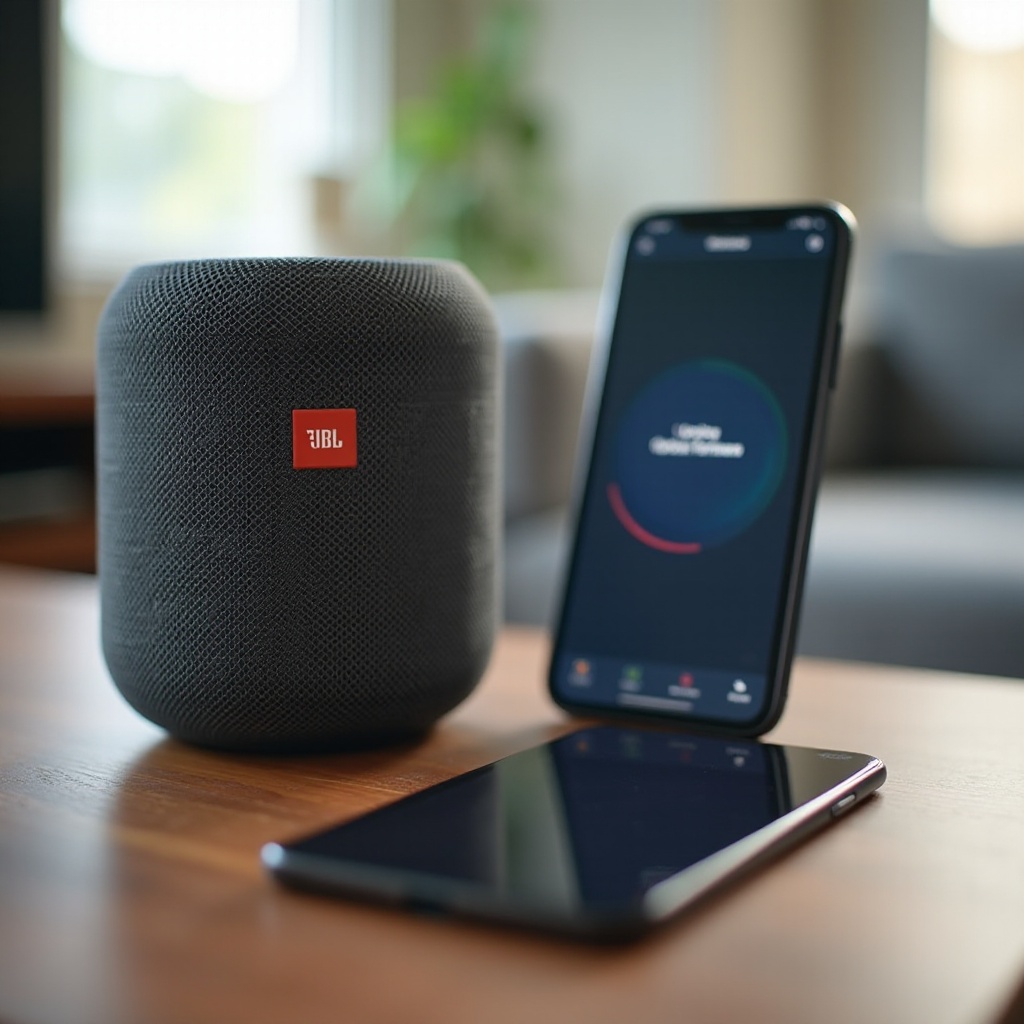
Bluetooth shares the 2.4 GHz band with Wi Fi, microwaves, game controllers, and more. Reduce noise to improve stability and range.
- Move closer
- Keep the phone within one to five meters of the speaker with line of sight.
- Separate radios
- Keep both devices away from routers, monitors, and USB 3 hubs or cables.
- Adjust Wi Fi
- If your phone is on 2.4 GHz Wi Fi, switch to 5 GHz when possible. On your router, pick channels 1, 6, or 11 to avoid overlap.
- Avoid burst sources
- Do not use a microwave near the setup. Step away from crowded office desks with many wireless devices.
- Placement
- Do not cover the top controls or antenna area with your hand. Place the speaker on a stable surface.
If interference is not the cause, devices may be fighting for control. The next section helps you stop multipoint and handoff chaos.
Multipoint, Handoffs, and Competing Devices
Many JBL speakers remember several devices and can connect to two at once. That is handy but can cause stutters when devices compete.
- Limit active connections
- Disconnect laptops, tablets, or watches that you do not need for this session.
- Disable auto connect
- On secondary devices, turn off Bluetooth or disable automatic connection.
- Watch for calls and assistants
- Silence notifications or use Do Not Disturb. Calls and assistant prompts can force call mode and disrupt audio.
- Choose a primary source
- Keep only one device connected during tests to confirm stability.
With device competition under control, check your apps next. App features can insert tiny gaps or trigger profile changes.
App Level Culprits
Playback options and features often add effects that sound like glitches. Test with minimal processing.
- Crossfade and gapless
- Turn crossfade off. If you hear clicks between tracks, enable gapless or let tracks play end to end.
- Streaming quality
- Test lower quality to see if your network or app causes buffer underruns. Then raise it back up if stable.
- Caches
- Clear cache and download one test track for a clean local playback trial.
- Notifications and calls
- Mute alerts during listening. Close or sign out of work or calling apps that try to use the mic.
If the stream still pops or pumps, your device sound settings may be too hot. Trim the audio chain next to remove clipping and artifacts.
Audio Pipeline Checks
Too much processing leads to distortion, pumping, or volume jumps. Keep it simple and clean.
- EQ sanity
- Start with a flat EQ. Boost bass gently. Heavy boosts can drive the speaker limiter and cause crackles.
- Spatial and Dolby
- Turn off spatial audio, Dolby Atmos, or system effects to test. Some modes add latency or artifacts.
- Absolute Volume
- On Android, try toggling the setting named Disable absolute volume in Developer options. This can fix odd volume steps and clipping in some pairs.
- System enhancements
- On Windows, disable audio enhancements in sound device properties. On macOS, remove third party audio tools during tests.
- Avoid stacks
- Do not stack multiple EQs across the app, system, and JBL Portable app. Use a single EQ if you need it.
If the sound still glitches, power problems may be to blame. Stable power prevents protection circuits from pulsing or reducing output.
Power and Battery Behavior
JBL speakers react to power limits to protect hardware. That behavior can sound like pulsing, sudden drops, or dull output.
- Keep charge above a third
- Test with at least 30 to 50 percent battery. Below that, some models reduce output or behave erratically.
- Play while charging with care
- Use a quality wall charger that meets or exceeds the rated wattage and a good USB C cable. Cheap cables cause voltage drops and noise.
- Avoid noisy sources
- If you hear noise when charging from a laptop or power bank, switch to a wall charger or test on battery only.
- Inspect the port
- Look for lint, dust, or moisture in the USB C port. Clean gently with a dry, soft brush. Do not insert metal tools.
- Check battery health
- If runtime has dropped and glitches show up at moderate volume, the battery may be aging and sagging under load.
With power stable, check the physical state of the speaker and its environment. Physical issues can mimic electronic glitches.
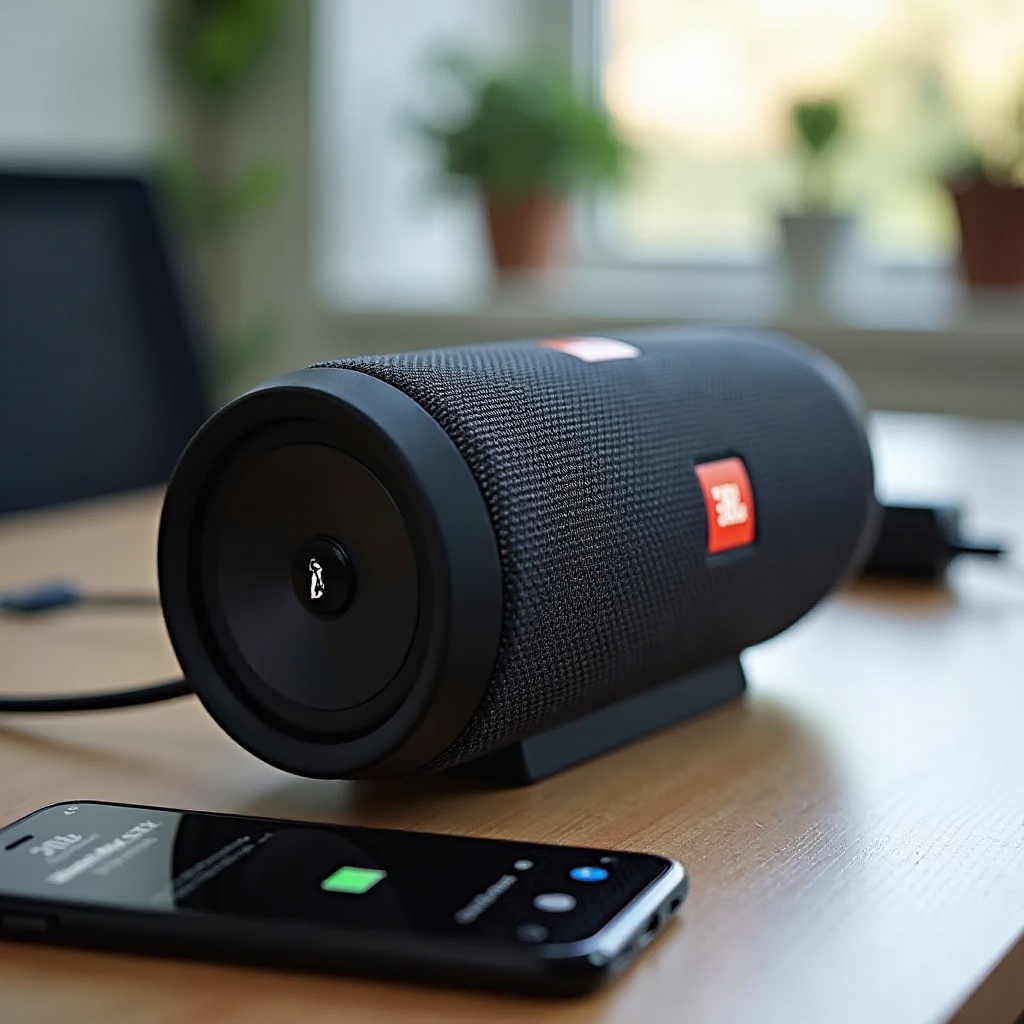
Environment and Hardware
Physical stress and debris can cause rattles, distortion, and thermal limits.
- Moisture
- Water resistance helps, but internal moisture can distort sound. Power off, open port covers, and air dry for one to two days. Do not charge when wet.
- Dust and debris
- Vacuum grills gently with a brush attachment. Do not push dust into the drivers. Avoid liquids.
- Heat
- Keep the speaker out of direct sun and hot cars. Give it airflow if the case feels hot.
- Surface vibrations
- Bass can rattle shelves or nearby objects and sound like a glitch. Move the speaker to a solid, non resonant surface.
- Passive radiators and drivers
- Listen for persistent rattles at low volume. Visible tears or misalignment suggest physical damage.
If you cannot tell whether the problem is wireless or hardware, a quick wired test will isolate the cause.
Wired vs Wireless Diagnostics
AUX helps you separate radio problems from hardware or source issues.
- AUX test
- Connect a 3.5 mm cable from your device to the speaker. Play the same track. If glitches vanish, the Bluetooth link or interference was at fault. If they remain, suspect EQ, source, or hardware.
- Ground loops
- If you hear hum when charging and using AUX, test on battery power or with a different charger. Try a short, shielded cable.
- Latency for video and gaming
- Bluetooth adds delay. Use a low latency codec if supported or switch to a wired connection for perfect lip sync.
If wireless remains unstable, a reset often clears deep conflicts. Different JBL series use different button combos.
Model Specific Reset and Pairing Tips
Reset methods vary by model and generation. Check your manual or the JBL Portable app for exact steps. These patterns are common.
- Enter pairing mode
- Press the Bluetooth button until the LED blinks.
- Factory reset examples
- With the speaker on, hold Volume Up and Play for around five to ten seconds until it powers off, then restart.
- On some USB C models, hold Bluetooth and Volume Up until the device restarts.
- If those do not work, try holding Power and Volume Up for several seconds.
- After the reset
- Forget the speaker on all nearby phones and computers. Pair only one primary device first and test stability before adding others.
- Party features
- Connect Plus and PartyBoost do not mix across generations. Use PartyBoost only with PartyBoost compatible speakers, and keep both units near each other on similar firmware.
If a clean reset and careful pairing still do not help, hardware may be failing. Support can verify and arrange service.
When to Contact JBL Support
Some issues come from failing batteries, damaged drivers, or firmware defects that need service.
- Gather details
- Record the model, serial number, purchase date, and a brief symptom summary. List the steps you tried.
- Recreate the issue
- Note whether it happens only on Bluetooth, only while charging, at high volume, or in certain rooms.
- Warranty
- Check the warranty period and retailer policy. Keep your receipt or order confirmation.
- Contact paths
- Use the official JBL support site or app for chat or email. Ask about repair or replacement if hardware tests fail.
Before you finish, set up a simple routine that keeps your speaker stable. Prevention saves time and avoids future dropouts.
Preventive Maintenance Checklist
A little care keeps your JBL performing at its best week after week.
- Monthly tasks
- Update the JBL Portable app, the speaker firmware, and your phone or computer OS. Clean grills and ports gently.
- Pairing hygiene
- Remove old pairings you no longer use. Limit active Bluetooth connections to the devices you need.
- Power habits
- Avoid deep discharges. Charge before dropping under twenty to thirty percent. Use quality chargers and cables.
- Environment care
- Keep the speaker dry and cool. Avoid direct sun and hot cars. Dry thoroughly after any water exposure.
- App sanity
- Keep EQ modest. Avoid stacking enhancements. Review crossfade and normalization settings after major app updates.
- Quick test plan
- After big updates, run a short local file playback test to confirm stability before a party or a call.
Conclusion
Most glitching tracks back to a few common causes. You have cleared stale pairings, updated firmware, reduced interference, and simplified app settings. You trimmed heavy processing and ensured clean, stable power. You tested wired mode to isolate wireless issues and performed a model appropriate reset.
If your JBL now plays cleanly, stick with the maintenance checklist to preserve stability. If it still stutters or crackles after a fresh reset and controlled test, reach out to JBL support with your details and proof of purchase. With a clear process and careful checks, you can turn choppy audio into smooth, reliable sound.
Frequently Asked Questions
Why does my JBL speaker keep cutting in and out even when I am close to my phone?
Two devices may be competing for control. Disconnect laptops, tablets, and watches. Turn off auto connect on secondary devices. Re pair the speaker and phone, then switch the phone to 5 GHz Wi Fi and move away from routers and USB 3 hubs before testing again.
Can low battery or a bad charger make my JBL speaker crackle or stutter?
Yes. Low charge can trigger protection that pulses or reduces output. Weak chargers and poor cables cause voltage drops and noise. Charge above half, use a quality wall charger and a good USB C cable, and avoid charging from noisy USB ports during playback.
How do I hard reset my JBL Flip, Charge, Xtreme, or Boombox if re pairing does not fix glitches?
Methods vary. With the speaker on, hold Volume Up and Play for five to ten seconds until it powers off, then restart. If that fails, try Bluetooth plus Volume Up, or Power plus Volume Up. Put the speaker in pairing mode and re pair. Check the manual or the JBL Portable app for exact steps for your model.