
Why Is My PS5 Not Loading Anything? 18 Fixes That Actually Work
Introduction
When your PS5 will not load games or apps, it can feel like your console is broken. You press X, a splash screen appears, and then nothing. Sometimes the whole system freezes. Other times, you get a black screen with no video. The cause is not always obvious.
The good news is that most loading failures come from a short list of issues: temporary cache glitches, storage errors, unfinished updates, account license conflicts, unstable networks, or display handshakes. You can fix many of these at home in a few steps. This guide starts with quick checks and then moves to deeper tools like database rebuilds and system recovery. You will also learn how to handle external drives, M.2 SSDs, and HDCP issues. Work through the sections in order, test after each change, and keep resets for last. Let us get you back into your games.
Diagnose the Symptom: App Stuck, System Freeze, or No Display?
Name the problem before you chase fixes. You will solve it faster if you match steps to symptoms.
– App stuck on splash screen: The home screen works, but a game or app never loads. You can still open Control Center.
– System freeze: The UI locks up. The PS button does nothing. You might need a forced shutdown.
– No display: The console powers on and you hear a beep or fan, but the TV shows a black screen or no signal.
Also note whether all apps fail or just one, and whether the trouble began after a patch, a new storage device, or moving data. Write down any error codes. With a clear symptom in mind, start with the fastest checks. These solve many cases in minutes and prepare your system for deeper changes.
Fast Fixes First: Proper Power Cycle, Input/HDMI Check, and Profile Swap
Rule out simple causes before you change settings.
1) Power cycle the console
– Hold the power button until two beeps and the console turns off.
– Unplug the power cable for 60 seconds to clear cached states.
– Plug back in and start the console. Test a game.
2) Verify display and input
– Confirm the TV is on the correct HDMI input.
– Reseat the HDMI cable at the console and TV. Try a different TV HDMI port.
– Use a certified high speed HDMI cable. If you can, test another TV or monitor.
3) Try a profile swap
– Switch to another user on the console.
– Log out, then sign back into your PSN account.
4) Disconnect accessories
– Remove capture cards, USB hubs, headsets with dongles, and external drives. Retest.
If you can reach the home screen but apps hang, check online services next. If you still see no display after swapping inputs and cables, skip ahead to the display and HDCP section to rule out handshake problems.
Verify PSN and Game Server Status Before Troubleshooting
Sometimes your console is fine, but services are down. Check the PlayStation Network status page to confirm account sign in, account management, and gaming services are operational. Also check the specific game server status on the publisher site or social channels. Service outages can cause login loops, missing licenses, and stalled loads.
If PSN or the game servers show an outage, wait until they are green before you change settings. When services look normal but loads still hang, investigate your own connection next. A weak or unstable network often turns a normal launch into a long wait.
Network Diagnostics: Run Connection Test, Try Ethernet, Adjust DNS and NAT
Network issues can block content checks, cloud syncs, and entitlement validation. Use these steps to isolate and improve your link.
1) Run the built in test
– Go to Settings > Network > Connection Status > Test Internet Connection.
– Note NAT type, speeds, and whether the test fails.
2) Try Ethernet
– Use a wired connection if possible. It removes Wi Fi interference and packet loss.
3) Reboot and relocate
– Power cycle your modem and router. Wait 60 seconds before powering them back on.
– If on Wi Fi, move the console closer to the router and use the 5 GHz band.
4) Set custom DNS
– Settings > Network > Set Up Internet Connection > Advanced Settings.
– Try DNS 8.8.8.8 and 8.8.4.4, or 1.1.1.1 and 1.0.0.1.
5) Improve NAT and stability
– Enable UPnP on your router.
– Avoid heavy downloads on other devices while you play.
– If needed, forward PSN ports as outlined in Sony guidance, or place the console in the router DMZ only if you understand the risks.
If the connection test looks good but loads still stall, update software next. Patches often fix bugs that surface during launch.
Update Everything: PS5 System Software, Game Patches, and Controller Firmware
Out of date software can cause launch loops and compatibility errors.
– Update system software: Settings > System > System Software > System Software Update and Settings. Install any pending update and restart.
– Update games and apps: Highlight the app, press Options, then select Check for Update.
– Update controller firmware: Settings > Accessories > Controllers > Wireless Controller Device Software.
After updates, launch the problem app. If nothing changes, clear the console cache and reduce Rest Mode interactions that can leave apps in a bad state.
Clear the PS5 Cache Correctly and Mind Rest Mode Quirks
Bad cached states can stall loading even when files are fine.
– Do a full shutdown: Hold the power button until two beeps and the console turns off. Unplug for 60 seconds to flush cache, then power back up.
– Temporarily disable Rest Mode features: Settings > System > Power Saving > Features Available in Rest Mode. Turn off Stay Connected to the Internet and Enable Turning On PS5 from Network for now.
Test loading again. If performance improves a little or not at all, rebuild the database. It reorganizes how the system finds data and can fix long load stalls.
Rebuild Database in Safe Mode to Fix Index and Loading Issues
A fragmented or corrupted index can confuse the console when it tries to open apps.
– Power off the console fully.
– Hold the power button until a second beep at about seven seconds to enter Safe Mode.
– Connect a controller with a USB cable.
– Select Option 5: Rebuild Database.
This scan recreates the content index without touching your games or saves. It often fixes missing icons, slow menus, and apps that never move past a splash screen. When the process ends, the console restarts. If the issue persists, check storage space and the health of your installs.
Storage Health and Free Space: Corrupted Data, Repair, and Smart Housekeeping
Low free space and damaged files commonly cause stalls.
– Keep free space: Try to maintain 10 to 20 percent free on the internal SSD so patches and shader caches can build.
– Clean up: Remove large captures and delete games you no longer play. Sort by size to find quick wins.
– Watch for corrupted data prompts: If you see a corrupted data notice, delete the app and reinstall it.
– Repair interrupted installs: Cancel stuck downloads in the queue and restart them from your library.
If you run titles from external drives or recently moved games between devices, test that storage next. External hardware failures can look like software bugs.
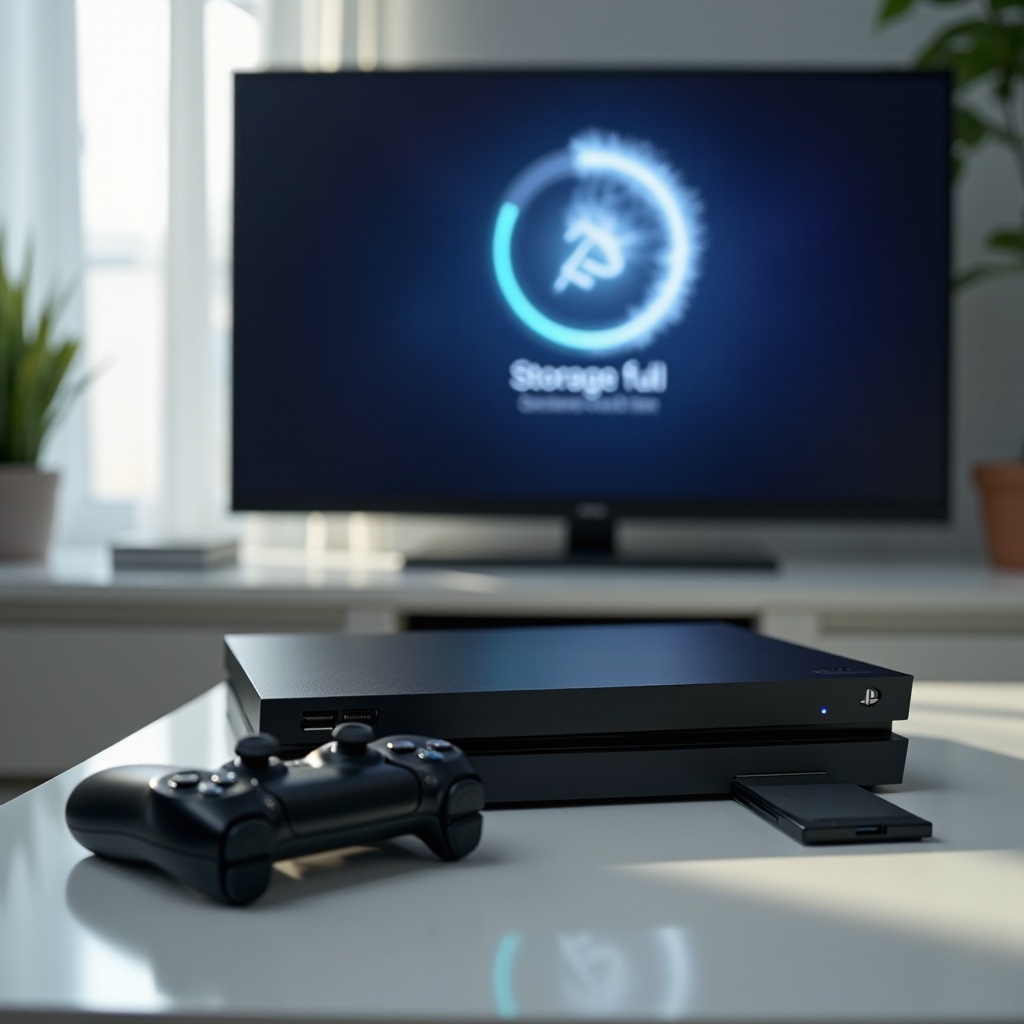
External USB Drive Troubleshooting: Format, Power, Cabling, and Port Speed
External drives can cause load issues when they lack power, use bad cables, or suffer from file system errors.
– Use supported storage only: USB 3 class drives between 250 GB and 8 TB for PS4 games and media. PS5 games must run from internal or M.2 storage.
– Prefer rear USB ports: Avoid hubs and the front ports for extended storage.
– Check cables and power: Replace the USB cable. Ensure desktop drives have stable power adapters.
– Reformat if needed: Settings > Storage > USB Extended Storage. Safely remove, reconnect, and format as extended storage after you back up content.
If a PS4 title runs from internal storage but not from USB, the external drive is suspect. Next, check your M.2 NVMe if you use one for PS5 titles.
M.2 NVMe SSD Checks: Compatibility, Reseating, Temperatures, and Heatsinks
An incompatible or poorly installed M.2 SSD can trigger stalls.
– Confirm compatibility: Use a PCIe Gen4 NVMe drive that meets Sony specs and speed targets, with a proper heatsink.
– Reseat the drive: Power off, unplug, remove the cover, and reseat the SSD and spacer. Tighten the screw without over torquing.
– Reformat if prompted: If the console requests a format, back up and proceed.
– Monitor thermals: An inadequate heatsink can cause thermal throttling and launch failures.
If storage checks out, make sure your account owns the content and licenses are valid on this console.
Account and License Fixes: Restore Licenses, Primary PS5, and Family Settings
License conflicts can block digital titles and expansions from loading.
– Restore licenses: Settings > Users and Accounts > Other > Restore Licenses.
– Enable console sharing: Settings > Users and Accounts > Other > Console Sharing and Offline Play. Set this console as your primary PS5.
– Review family settings: Ensure the user account has permission to launch the title under parental controls.
Try the game again. If it still stalls, perform a clean reinstall to remove broken files or mismatched content versions.
Reinstall or Move Problem Apps: Delete/Reinstall, Add ons, and Version Conflicts
A clean install often resolves stubborn loading loops.
– Delete and reinstall: Highlight the game or app, press Options, and choose Delete. Reinstall from your library or disc.
– Verify add ons: Install required DLC, high resolution packs, or campaign modules. Missing add ons can freeze loads.
– Move install locations: If the title is on M.2, move it to internal storage and retest. For PS4 titles on USB, move them to internal to isolate the drive.
If the screen goes black during launches or only streaming apps fail, check for HDMI and HDCP handshakes next.
Display and HDCP Issues: HDMI Cable/Port, HDCP Toggle, and Capture Devices
A broken HDMI handshake can look like an app that never loads.
– Swap HDMI cables and ports: Use a certified Ultra High Speed HDMI cable and try another TV input.
– Toggle HDCP: Settings > System > HDMI > Enable HDCP. Some streaming apps require HDCP on. Some capture devices require it off.
– Remove capture gear: Connect the console directly to the TV. If that works, reintroduce the capture card with proper settings or compliant hardware.
If the image returns but loads still hang, rule out heat and power problems that can cause silent crashes.
Overheating and Power Stability: Ventilation, Dust, Surge Protection, and UPS
Thermal and power issues can halt launches or crash apps.
– Improve airflow: Place the console in an open area. Clear dust from vents and covers with short bursts of compressed air from a distance.
– Watch for signs: Sudden shutdowns or loud fan surges can indicate heat.
– Stabilize power: Use a surge protector or UPS. Avoid daisy chained power strips.
– Avoid stacking devices: Do not place other electronics on or under the console.
If problems continue, move to advanced recovery. Safe Mode tools can repair firmware components and, if needed, reinstall the system software.
Advanced Recovery: Safe Mode Options and Reinstalling System Software via USB
Use Safe Mode in a measured way, testing after each step.
– Option 3 Update System Software: Try network update first. If it fails, download the file on a PC and update from a USB drive.
– Option 4 Restore Default Settings: Resets system settings but keeps data.
– Option 5 Rebuild Database: Run again if you skipped it earlier.
– Option 6 Reset PS5 Keep Games and Apps: Reinstalls core OS components without deleting your installed titles.
– Option 7 Reset PS5 Reinstall System Software: Full wipe and reinstall. Back up saves to cloud or USB first.
If a full reinstall does not fix the issue and you ruled out display, network, and storage, hardware may be failing. Adopt prevention habits so the issue is less likely to return.
Prevention Tips: Storage Hygiene, Network Best Practices, and Update Discipline
Protect your time and data with a simple maintenance routine.
– Keep 10 to 20 percent of internal storage free.
– Let updates finish before you launch games.
– Prefer wired Ethernet for online heavy titles. If on Wi Fi, pick the 5 GHz band.
– Perform a full shutdown occasionally to clear cache.
– Safely remove external drives before powering down.
– Avoid hard power cuts by unplugging during operation.
If a problem surfaces despite good habits, you will troubleshoot faster because the variables are smaller and your data is safer.
When to Contact Sony or Seek Repair: Error Codes, Warranty, and Data Backups
If none of the steps worked, collect details and reach out to support.
– Record error codes and any beeps or LED patterns.
– List what you tried and when the issue began.
– Test with another TV, cable, and wall outlet.
– Back up saves to cloud or USB if possible.
– Check your warranty or retailer return window. For suspected hardware failure such as SSD faults or HDMI port damage, open a repair case with Sony.
A clear support ticket speeds diagnosis and repair. Protect your data before shipping the console.
Conclusion
PS5 loading failures often come from a handful of causes: cache glitches, storage errors, unfinished updates, license problems, shaky networks, or HDMI handshakes. Start with power cycling and cable checks. Confirm PSN status, then tune your network. Apply updates, clear cache, and rebuild the database. Clean up storage and verify licenses. Reinstall stubborn apps and test different storage locations. If needed, use Safe Mode recovery in steps. Only then consider repair.
Work methodically and test after each change. This approach avoids unnecessary wipes and gets you back to gaming with the least frustration.
Frequently Asked Questions
Why does my PS5 get stuck on the game loading screen after an update?
Updates can change file structures, shader caches, or licenses. Check for pending game and system updates, then rebuild the database to refresh indexes. Restore licenses and ensure console sharing is enabled for your account. If it still hangs, delete and reinstall only the affected game and verify add ons. Keep at least 10 to 20 percent free space and try moving the install to a different drive to rule out storage faults.
Can rebuilding the PS5 database delete my games or saves?
A database rebuild does not delete games or saves. It scans the drive and recreates the content index. In rare cases, the system may flag damaged data, which you can reinstall. Back up saves to cloud or USB before major maintenance. If issues persist after a rebuild, try Reset PS5 Keep Games and Apps before a full wipe.
Is my external hard drive causing PS5 games to not load?
It could be. USB extended storage supports PS4 games and media, not PS5 games. Failing cables, underpowered portable drives, or bad USB ports can stall loads. Safely remove and reconnect the drive to a rear USB port, swap the cable, and avoid hubs. Reformat the drive as extended storage after backing up data. Install the game to internal storage and test; if it loads there, the external drive is the culprit.